Linux Network Bonding: Combine Network Interfaces
Two network interfaces are better than one. With Linux network bonding (also known as NIC bonding or link aggregation), you can combine multiple NICs into a single logical interface, gaining either increased throughput, failover redundancy, or both. It works on physical servers, VMs, and even home lab setups.
I set this up on my home lab server after a NIC flaked out mid-session one too many times. Bonding solved the redundancy problem immediately, and as a side effect, I got better throughput on local file transfers. Here’s a complete walkthrough.
What is Network Bonding?
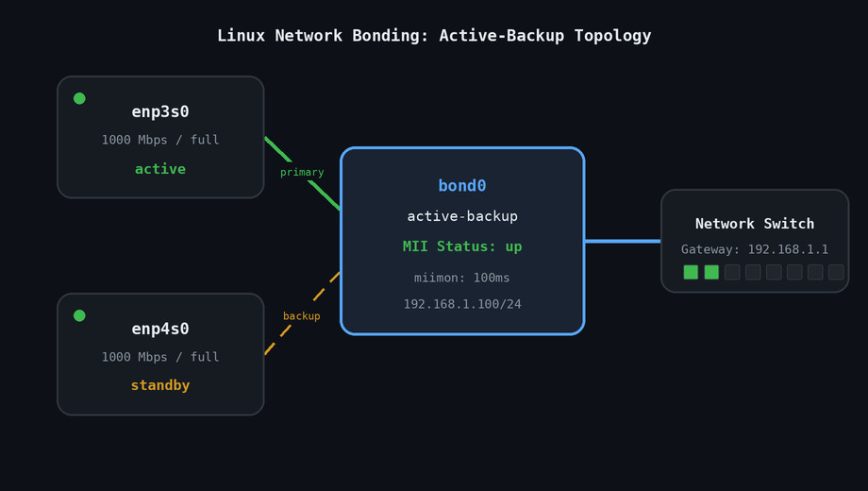
Linux network bonding (also called NIC teaming or link aggregation) creates a virtual network interface that ties two or more physical NICs together. The kernel’s bonding driver handles all the logic. The bonded interface appears as a single device to the OS and applications. All traffic flows through it as if it were a single physical NIC.
Bonding is not the same as bridging. A bridge connects separate network segments. Bonding aggregates multiple interfaces into one. Different purpose, different config.
The bonding driver supports several modes. Choosing the right one matters more than anything else in this guide.
Note: WiFi interfaces generally do not work with bonding. Most wireless drivers lack support for the promiscuous mode and MAC address manipulation that bonding requires. Stick to wired Ethernet NICs.
Bonding Modes Explained
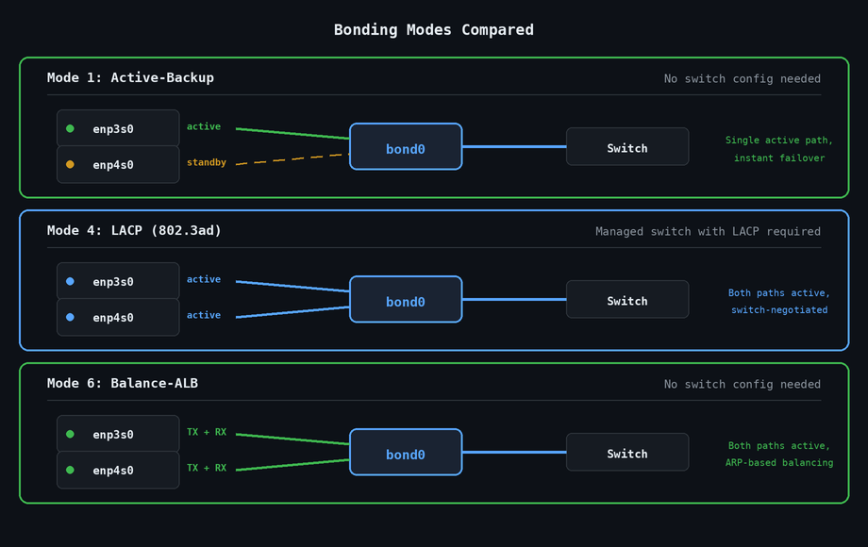
There are seven bonding modes. Most people only need to know three or four of them well.
One thing to understand upfront: bonding does not double the bandwidth of a single TCP connection. Most modes distribute multiple connections across interfaces rather than splitting one transfer across all links. You get aggregate throughput gains when multiple flows are active at the same time.
Mode 0: Round-Robin (balance-rr)
Transmits packets in sequential order across all interfaces. Provides both load balancing and fault tolerance. Requires a properly configured static link aggregation group on the switch. Without it, you will see out-of-order packets and poor performance.
Mode 1: Active-Backup
Only one interface is active at a time. If the active interface fails, a backup takes over. No switch configuration required. This is the safest and most compatible mode. Use this if your goal is purely failover redundancy.
Mode 2: Balance-XOR
Selects an interface based on a hash of source and destination MAC addresses. Provides load balancing per connection and fault tolerance. Requires switch support.
Mode 3: Broadcast
Transmits every packet on all interfaces simultaneously. Rarely used outside of specific fault-tolerance scenarios. Overkill for most setups.
Mode 4: 802.3ad (LACP)
Dynamic Link Aggregation using the IEEE 802.3ad standard. Creates aggregation groups where interfaces share the same speed and duplex. Requires a managed switch with LACP enabled. This is the most common mode used in enterprise environments. If your switch supports it, use this mode for production.
Mode 5: Balance-TLB (Adaptive Transmit Load Balancing)
Distributes outgoing traffic based on current load on each interface. Incoming traffic arrives on the current active interface. No special switch configuration needed.
Mode 6: Balance-ALB (Adaptive Load Balancing)
Like mode 5 but also balances incoming traffic using ARP negotiation. No switch configuration required. Good throughput gains without a managed switch. Some switches and virtualized environments handle ARP-based balancing inconsistently, so test before relying on it in production.
Note: For home labs and simple setups without a managed switch, Mode 1 (failover) or Mode 6 (load balancing without switch config) are the practical choices. For production servers with a managed switch, Mode 4 (LACP) is the right call.
Prerequisites
- Two or more physical NICs (or virtual NICs in a VM)
- Root or sudo access
- The
bondingkernel module (included in most distros) - NetworkManager, systemd-networkd, or direct ifupdown config depending on your distro
Check that the bonding module is available:
modinfo bonding
If it returns module info, you are good. Load it immediately with:
sudo modprobe bonding
Identify your interfaces before touching anything:
ip link show
Note the names. On modern systems you will see names like enp3s0, enp4s0, or eth0, eth1. Write them down. You will be referencing them throughout the config.
Method 1: NetworkManager (Desktop and Most Modern Servers)
If you are on Ubuntu, Fedora, Debian with NetworkManager, or any desktop distro, this is the easiest approach. NetworkManager has had solid bonding support for years.
Using nmcli
Create the bond interface first:
sudo nmcli con add type bond con-name bond0 ifname bond0 bond.options "mode=active-backup,miimon=100"
Now add your physical interfaces as slaves to the bond:
sudo nmcli con add type ethernet slave-type bond con-name bond0-slave1 ifname enp3s0 master bond0
sudo nmcli con add type ethernet slave-type bond con-name bond0-slave2 ifname enp4s0 master bond0
Assign an IP address to the bond (static example):
sudo nmcli con modify bond0 ipv4.addresses 192.168.1.100/24 ipv4.gateway 192.168.1.1 ipv4.dns 1.1.1.1 ipv4.method manual
Or use DHCP:
sudo nmcli con modify bond0 ipv4.method auto
Bring it up:
sudo nmcli con up bond0
The slave interfaces should activate automatically when the bond comes up. If they do not, bring them up individually:
sudo nmcli con up bond0-slave1
sudo nmcli con up bond0-slave2
Verify the bond is working:
cat /proc/net/bonding/bond0
You should see output like this:
Ethernet Channel Bonding Driver: v3.7.1

Bonding Mode: fault-tolerance (active-backup)
Primary Slave: None
Currently Active Slave: enp3s0
MII Status: up
MII Polling Interval (ms): 100
Up Delay (ms): 0
Down Delay (ms): 0

Slave Interface: enp3s0
MII Status: up
Speed: 1000 Mbps
Duplex: full
Link Failure Count: 0

Slave Interface: enp4s0
MII Status: up
Speed: 1000 Mbps
Duplex: full
Link Failure Count: 0
That /proc/net/bonding/bond0 file is your best friend for troubleshooting. Check it whenever something seems off.
Method 2: systemd-networkd (Servers and Minimal Installs)
If you are running a server without NetworkManager, systemd-networkd handles bonding cleanly. This approach suits Ubuntu Server, Debian minimal, and similar setups. Also works well if you have already disabled NetworkManager in favor of a leaner stack.
Create the bond netdev file:
sudo nano /etc/systemd/network/10-bond0.netdev
[NetDev]
Name=bond0
Kind=bond

[Bond]
Mode=active-backup
MIIMonitorSec=100ms
UpDelaySec=200ms
DownDelaySec=200ms
Create the network config for the bond interface:
sudo nano /etc/systemd/network/20-bond0.network
[Match]
Name=bond0

[Network]
DHCP=yes
Or for static:
[Match]
Name=bond0

[Network]
Address=192.168.1.100/24
Gateway=192.168.1.1
DNS=1.1.1.1
Now bind the physical interfaces to the bond. Create one file per slave:
sudo nano /etc/systemd/network/30-bond0-slave1.network
[Match]
Name=enp3s0

[Network]
Bond=bond0
sudo nano /etc/systemd/network/30-bond0-slave2.network
[Match]
Name=enp4s0

[Network]
Bond=bond0
Restart systemd-networkd and verify:
sudo systemctl restart systemd-networkd
sudo systemctl status systemd-networkd
cat /proc/net/bonding/bond0
Method 3: Netplan (Ubuntu Server)
Ubuntu Server 18.04 and later uses Netplan as the default network configuration layer. If you are on Ubuntu Server and have not switched to raw NetworkManager or systemd-networkd configs, this is the native approach.
Edit your Netplan config file (usually /etc/netplan/01-netcfg.yaml or similar):
sudo nano /etc/netplan/01-netcfg.yaml
network:
  version: 2
  renderer: networkd
  ethernets:
    enp3s0:
      dhcp4: no
    enp4s0:
      dhcp4: no
  bonds:
    bond0:
      interfaces:
        - enp3s0
        - enp4s0
      addresses:
        - 192.168.1.100/24
      routes:
        - to: default
          via: 192.168.1.1
      nameservers:
        addresses:
          - 1.1.1.1
      parameters:
        mode: active-backup
        mii-monitor-interval: 100
        primary: enp3s0
Apply the configuration:
sudo netplan apply
If something goes wrong and you lose connectivity, Netplan has a safe test mode:
sudo netplan try
This applies the config temporarily and reverts after 120 seconds unless you confirm. Use it whenever you are editing network config on a remote machine.
Verify the bond is up:
cat /proc/net/bonding/bond0
For LACP mode, change the parameters block:
      parameters:
        mode: 802.3ad
        lacp-rate: fast
        mii-monitor-interval: 100
        transmit-hash-policy: layer2+3
Method 4: LACP (Mode 4) with a Managed Switch
If you have a managed switch that supports LACP, Mode 4 is worth the extra configuration. You get true link aggregation with dynamic negotiation. I covered managed switch selection in the best network switches under $100 guide if you need hardware recommendations.
On the switch side, configure the relevant ports as a LAG (Link Aggregation Group) with LACP enabled. Exact steps depend on your switch vendor. On Cisco it is channel-group X mode active. On most consumer managed switches there is a LAG or Trunk section in the web UI.
On the Linux side, the only difference from Method 1 is the bond options:
sudo nmcli con add type bond con-name bond0 ifname bond0 bond.options "mode=802.3ad,miimon=100,lacp_rate=fast"
Or in the systemd-networkd netdev file:
[Bond]
Mode=802.3ad
MIIMonitorSec=100ms
LACPTransmitRate=fast
TransmitHashPolicy=layer2+3
TransmitHashPolicy=layer2+3 distributes traffic based on both MAC and IP addresses, which gives better load distribution than the default layer2-only policy.
Note: If you enable LACP on the Linux side but the switch is not configured, the bond will fall back to a single active link. It will not crash, but you will not get aggregation. Always configure the switch first.
Testing Failover
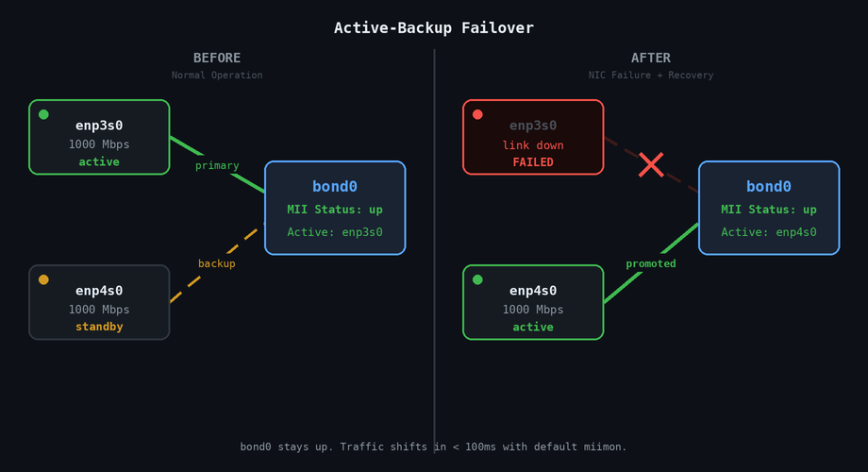
This is the most satisfying part. With active-backup bonding configured, you can simulate a NIC failure and watch the bond recover.
In one terminal, run a continuous ping to your gateway:
ping 192.168.1.1
In another terminal, bring down the active slave:
sudo ip link set enp3s0 down
Watch the ping output. You will see one or two dropped packets at most, then traffic continues through the backup interface. Check the bond status again:
cat /proc/net/bonding/bond0
The Currently Active Slave line will have switched to enp4s0. Bring the first interface back up:
sudo ip link set enp3s0 up
Depending on your primary setting, it may or may not switch back automatically. To set a preferred primary interface:
sudo nmcli con modify bond0 bond.options "mode=active-backup,miimon=100,primary=enp3s0"
Useful Monitoring Commands
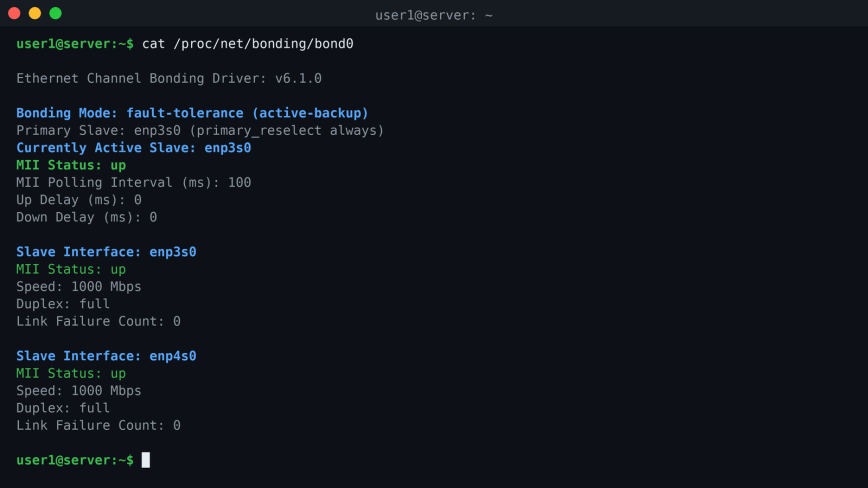
Check bond status at any time:
cat /proc/net/bonding/bond0
Watch interface statistics live:
watch -n 1 cat /proc/net/bonding/bond0
Check interface traffic with iftop:
sudo iftop -i bond0
View current IP and link state:
ip addr show bond0
ip link show bond0
Check link failure counts (useful for spotting flaky cables):
grep "Link Failure Count" /proc/net/bonding/bond0
If the failure count is climbing on one interface while the system is running normally, you likely have a bad cable or a flaky port on the switch. Swap them out before the next failure hits at the worst possible moment.
Also see the guide to network troubleshooting in Linux and the ss command for socket-level diagnostics alongside your bond.
Common Problems and Fixes
Bond interface has no IP after reboot
The slave interfaces are likely coming up before the bond is initialized. Check the order of your network config files. In systemd-networkd, lower numbers run first. Make sure the netdev file (10-bond0.netdev) is numbered lower than the slave network files. Also confirm the bonding module loads at boot:
echo "bonding" | sudo tee /etc/modules-load.d/bonding.conf
Only one slave shows as active even in round-robin or LACP mode
Your switch is not configured for LAG. Either configure the switch properly or switch to Mode 1 or Mode 6, which do not require switch configuration.
Ping drops are longer than expected during failover
Lower the miimon value. The default is 100ms polling interval. Try 50ms:
bond.options "mode=active-backup,miimon=50,updelay=100,downdelay=100"
updelay and downdelay prevent flapping on unstable links. Set them to at least 2x your miimon value.
NetworkManager keeps overriding bond config on desktop
If you configured bonding in /etc/network/interfaces but NetworkManager is managing the interfaces too, conflicts will happen. Either do everything through nmcli, or tell NetworkManager to ignore the interfaces by adding to /etc/NetworkManager/NetworkManager.conf:
[keyfile]
unmanaged-devices=interface-name:enp3s0;interface-name:enp4s0
Bonding on a Budget Home Lab
You do not need enterprise hardware to benefit from bonding. A basic setup with two cheap gigabit NICs in an old server and an unmanaged switch works fine with Mode 1 for redundancy or Mode 6 for load balancing without any switch config. The cost is effectively zero if you already have the NICs.
For local transfers between lab machines, Mode 6 with two 1 Gbps links can provide up to 2 Gbps aggregate throughput across concurrent transfers. A single file copy will not saturate both links, but multiple simultaneous transfers will. Not bad for repurposed hardware.
If you are building out a home lab server from scratch, check out the Linux Server DIY Projects for Beginners article for hardware starting points.
Quick Reference: Mode Cheat Sheet
- Mode 0 (balance-rr): Round-robin, load balance + failover, switch config required
- Mode 1 (active-backup): Failover only, no switch config needed, most compatible
- Mode 2 (balance-xor): XOR hash load balance, switch config required
- Mode 3 (broadcast): All traffic on all interfaces, niche use cases
- Mode 4 (802.3ad/LACP): True link aggregation, managed switch with LACP required
- Mode 5 (balance-tlb): Adaptive TX load balance, no switch config needed
- Mode 6 (balance-alb): Adaptive TX+RX load balance, no switch config needed
Conclusion
Network bonding is one of those features that feels complicated until you actually set it up. The config is straightforward, the kernel module is already there, and the payoff is real: either zero-downtime NIC failover or increased throughput, depending on which mode you pick.
Start with Mode 1 if you are unsure. It requires no switch configuration, it works everywhere, and failover is near-instant. Move to Mode 4 with LACP when you have a managed switch and want proper link aggregation.
The /proc/net/bonding/bond0 file is your ongoing diagnostic tool. Check it after setup, check it after changes, and check it when something feels wrong. Everything you need to know about the bond’s current state is in there.


This is interesting stuff. I’ll go over and read the article to find out the specifics, and let you know if I have any further questions or comments. Excellent topic!
Hopefully, you find the following info interesting and useful: