ln Command in Linux: Hard Links vs. Symlinks
The ln command in Linux is one of those tools that looks simple on the surface but trips people up constantly. Hard link or symbolic link? What’s the difference? When does it actually matter? I’ve seen even experienced sysadmins use symlinks out of habit without thinking about whether a hard link would be better.
Here’s what each link type does, when to use which, and how to avoid the common mistakes that cause silent data loss or broken configs.
What is a Link in Linux?
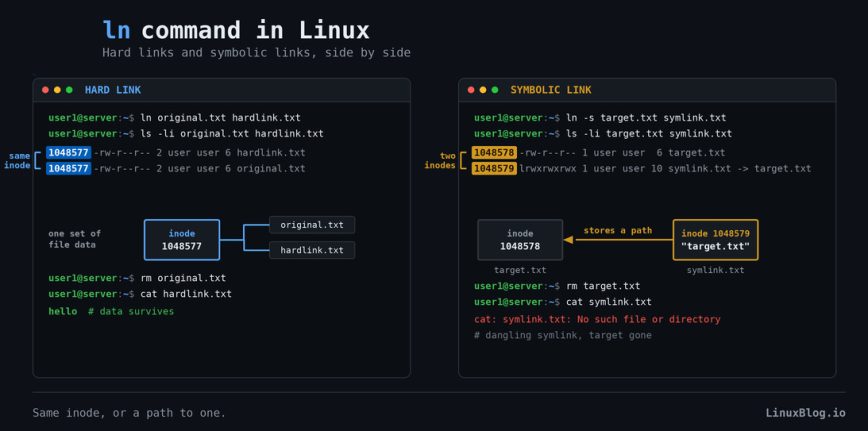
In Linux, everything on a filesystem revolves around inodes. An inode is a data structure that stores metadata about a file: permissions, ownership, timestamps, and pointers to the actual data blocks on disk. Crucially, an inode does not store the filename. That mapping happens in the directory.
When you create a file, Linux creates an inode and a directory entry pointing to it. A link is just another directory entry pointing to the same inode, or in the case of a symbolic link, a file that contains a path to something else.
This distinction matters a lot once you start working with both link types.
Hard Links
A hard link is a second directory entry pointing to the same inode as the original file. Both the original and the hard link are equal. There is no “source” and “copy” here. They are two names for the same data.
ln /path/to/original /path/to/hardlink
Quick example:
touch original.txt
echo "hello" > original.txt
ln original.txt hardlink.txt

ls -li original.txt hardlink.txt
Output:
1048577 -rw-r--r-- 2 user user 6 Jan 10 09:00 hardlink.txt
1048577 -rw-r--r-- 2 user user 6 Jan 10 09:00 original.txt
Notice the inode number on the left: both are 1048577. The link count shows 2. They are the same file with two names.
Now delete the original:
rm original.txt
cat hardlink.txt
Output:
hello
The data is still there. This is the key behavior of hard links: the data on disk persists until all hard links pointing to that inode are removed. The kernel tracks this with the link count. Only when the link count reaches zero is the inode and its data blocks freed.
Hard Link Limitations
Hard links have three firm restrictions:
- No cross-filesystem hard links. Both the link and the target must live on the same filesystem. Inodes are local to a filesystem, so linking across filesystems is impossible.
- No hard links to directories. Most Linux systems prevent this. The exception is the implicit
.and..entries, which the filesystem manages internally. Allowing user-created directory hard links would break filesystem traversal tools and create loops. - There is a ceiling on link count. Filesystems cap how many hard links a single inode can have. On ext4 the limit is 65,000. You will rarely hit it, but backup tooling that hard-links aggressively sometimes does.
# This will fail:
ln /mnt/data/file.txt /home/user/file.txt
# ln: failed to create hard link: Invalid cross-device link

# This will also fail:
ln /home/user/mydir /home/user/dirlink
# ln: /home/user/mydir: hard link not allowed for directory
Symbolic Links (Soft Links)
A symbolic link, or symlink, is a special file that contains a path to another file or directory. It gets its own inode, but its content is just the target path string. The kernel follows that path transparently when you access the symlink.
ln -s /path/to/target /path/to/symlink
Example:
echo "world" > target.txt
ln -s target.txt symlink.txt

ls -li target.txt symlink.txt
Output:
1048578 -rw-r--r-- 1 user user 6 Jan 10 09:01 target.txt
1048579 lrwxrwxrwx 1 user user 10 Jan 10 09:01 symlink.txt -> target.txt
Different inodes. The symlink has its own inode (1048579) and the l at the start of the permissions flags it as a symlink. The -> target.txt shows where it points.
Now delete the target:
rm target.txt
cat symlink.txt
Output:
cat: symlink.txt: No such file or directory
The symlink still exists but it’s broken. This is called a dangling symlink. The file it points to is gone.
Symlink Advantages
- Can cross filesystem boundaries.
- Can link to directories.
- Can link to files that do not yet exist.
- Easy to identify visually with
ls -l. - Can be updated without touching the target.
Side-by-Side Comparison
- Hard link: Same inode as target. Survives deletion of original. Cannot cross filesystems. Cannot link directories.
- Symlink: Own inode, stores a path. Breaks if target is deleted. Can cross filesystems. Can link directories.
In practice, symlinks are used far more often because they are more flexible. But hard links solve specific problems that symlinks cannot.
Common ln Options
ln [OPTION] TARGET LINK_NAME
-s: Create a symbolic link instead of a hard link.-f: Remove the existing destination file if it exists.-n: Do not dereference the link destination if it is a symlink to a directory. Useful with-sfwhen updating a symlink that points to a directory.-v: Verbose. Print the name of each linked file.-r: Create symbolic links relative to the link location (GNU ln).-i: Prompt before removing destinations.-b: Make a backup of each existing destination file.
The full set of flags, including the less common ones, lives in the GNU coreutils manual.
Practical Examples
Symlink a config directory
A common pattern for dotfile management or deploying configs from a central location. Create the target with touch first if it does not exist yet:
ln -s /opt/myapp/conf/app.conf /etc/myapp/app.conf
Now /etc/myapp/app.conf points to the real config. Update the file in /opt/myapp/conf/ and the change is reflected everywhere the symlink is used.
Create a versioned symlink for binaries
This is standard practice for managing multiple versions of software:
ln -s /usr/local/bin/python3.11 /usr/local/bin/python3

# Later, upgrade to 3.12:
ln -sf /usr/local/bin/python3.12 /usr/local/bin/python3
The -f flag removes the old symlink and creates the new one in a single step. No dangling links left behind.
Updating a symlink pointing to a directory
This one catches people out. If current is a symlink pointing to a directory, running ln -sf new_dir current may place the new symlink inside the directory that current points to rather than replacing current. Use -sfn to avoid this:
# Wrong approach (may go inside the directory):
ln -sf /opt/myapp-2.0 /opt/myapp

# Correct approach:
ln -sfn /opt/myapp-2.0 /opt/myapp
Note: The -n flag tells ln to treat the destination as a normal file if it is a symlink to a directory. This is the safe way to atomically swap a directory symlink.
Hard link for an atomic backup snapshot
Hard links are excellent for efficient incremental backups. Tools like rsync --link-dest use this pattern. Files that have not changed share inodes between backup snapshots, using no extra disk space:
rsync -a --link-dest=/backups/yesterday/ /home/user/ /backups/today/
Files unchanged between runs appear in both /backups/yesterday/ and /backups/today/ but only occupy disk space once. This is one of the best real-world uses for hard links, and rsync documents the exact semantics of --link-dest if you plan to build a rotation script around it. Filesystem behavior under heavy link churn ties directly into disk I/O performance.
There is a sharp edge here. Those snapshots are hard links, not copies. Open a file in /backups/yesterday/, save it in place, and you have just edited the live file in /home/user/ and every other snapshot sharing that inode. Nothing warns you. Mount hard-linked backup trees read-only, or at least keep them off any path you browse casually.
Note: this only applies to in-place writes. Deleting a file from a snapshot is safe, since that drops one name and decrements the link count. Most editors write a new file and rename it over the old one, which is also safe. It is the ones that truncate and rewrite in place that bite you.
Find all hard links to an inode
If you suspect a file has multiple hard links, use find with -inum:
# First, get the inode number:
ls -i myfile.txt
# Output: 1048577 myfile.txt

# Then find all links to that inode:
find /home -xdev -inum 1048577 2>/dev/null
Point find at the mount the file lives on, not at /. Inode numbers are only unique within a single filesystem, so scanning every mount is slow and will turn up unrelated files that happen to share the number. The -xdev flag stops the search from crossing mount points.
Identify and fix dangling symlinks
Over time, especially after package upgrades or software moves, symlinks can go stale. Find them with:
find /etc -xtype l 2>/dev/null
-xtype l matches symlinks where the target does not exist. A quick audit of /etc, /usr/local/bin, and your app directories will surface any broken links.
Once you have read that list and know what you are looking at, -delete clears them:
find /etc -xtype l -delete
Run the plain find first and read the output. A dangling symlink is sometimes pointing at a filesystem that just is not mounted right now. Deleting it fixes nothing and loses you the link.
Absolute vs. Relative Symlinks
By default, ln -s stores whatever path you give it verbatim. If you use an absolute path, the symlink always resolves to that exact location regardless of where the symlink itself lives. If you use a relative path, the symlink resolves relative to the directory it’s in.
# Absolute symlink:
ln -s /etc/nginx/nginx.conf /home/user/nginx.conf

# Relative symlink:
cd /home/user
ln -s ../../etc/nginx/nginx.conf nginx.conf
Relative symlinks are portable: if you move both the symlink and the directory structure together (in a tarball, for example), the link still works. Absolute symlinks break if the root changes, which matters inside Docker containers or chroot environments.
GNU ln has the -r flag to automatically compute a relative path for you:
ln -sr /etc/nginx/nginx.conf /home/user/nginx.conf
Checking and Debugging Links
A few commands that help when working with links:
# Show link count and inode:
ls -li file.txt

# Show where a symlink points:
readlink symlink.txt

# Show full resolved path, following all symlinks:
readlink -f symlink.txt

# Show file info including link count:
stat file.txt

# Check if something is a symlink in a script:
if [ -L /path/to/file ]; then echo "is a symlink"; fi

# Check if a symlink target actually exists:
if [ -e /path/to/symlink ]; then echo "target exists"; fi
Note: -L tests for symlink. -e tests that the target exists. A dangling symlink passes -L but fails -e.
When to Use Which
Use a hard link when:
- Both files are on the same filesystem and you want the data to survive deletion of either name.
- You are doing incremental backups and want deduplication at the filesystem level.
- You need a second name for a file in the same or different directory on the same mount.
Use a symlink when:
- You are linking across filesystems or partitions.
- You are linking a directory.
- You need a versioned pointer that can be atomically swapped (e.g.,
/opt/app/current -> /opt/app-2.1/). - You want the link relationship to be obvious and auditable.
- You are managing dotfiles, config deployments, or anything that needs to be easily repointed.
In most day-to-day sysadmin work, symlinks cover 95% of use cases. Hard links are a specialist tool, but a useful one when the situation calls for them. The 60 Linux networking commands reference and the ncdu and mc guide are worth bookmarking alongside this one if you spend time managing files and filesystems.
Practical Pitfalls
Copying symlinks with cp
By default, cp follows symlinks and copies the target file, not the link itself. Use -P to preserve the symlink:
# Copies the target content:
cp symlink.txt /backup/

# Copies the symlink itself:
cp -P symlink.txt /backup/
tar and symlinks
tar preserves symlinks by default but follows them with -h. Know which behavior you want before archiving. Note that f must come last in a bundled flag group, since it consumes the next argument as the archive name:
# Preserves symlinks as symlinks:
tar -czf archive.tar.gz directory/

# Dereferences symlinks, stores actual file content:
tar -czhf archive.tar.gz directory/
Permissions on symlinks
The permissions shown on a symlink (lrwxrwxrwx) are always 777 and are meaningless. The permissions that actually control access are those on the target file. Do not try to chmod a symlink directly; it will change the target instead.
Ownership is a different story. A symlink does carry its own owner and group, and chown -h changes them without touching the target:
# Changes the target's ownership:
chown alice:alice symlink.txt

# Changes the symlink's own ownership:
chown -h alice:alice symlink.txt
This matters in sticky-bit directories like /tmp, where the kernel checks symlink ownership before following a link. That check is what blocks a whole class of symlink attacks, so it is worth knowing -h exists before you need it. More on the underlying model in the Linux file permissions guide.
Summary
The ln command is small but the concepts behind it are foundational. Hard links give you multiple names for the same data with no extra disk cost, and the data only disappears when the last name is gone. Symlinks give you a flexible pointer that can span filesystems and directories, but breaks if the target moves or is deleted.
Get comfortable with readlink, stat, and ls -li alongside ln. Together they give you a clear picture of what is happening at the filesystem level. And use -sfn when atomically swapping directory symlinks: it is one of those small habits that prevents annoying incidents at 2am.


Thanks for this! Definitely going on the reading list.
Good article
My advice is: Never use hardlinks unless you have a detailed explanation for:
The result is that over the years I only used hardlinks once.
It was a very special case indeed
My stance is that hard links should only be used to save even the minimal bytes such save over symlinks when trying to get an image installed into firmware under extreme space constraints.
In my view, there are no Use Cases, for servers or Users that justify such hard links.