watch Command in Linux: Real-Time Monitoring with Examples
The watch command is one of those tools you use once and immediately wonder how you lived without it. It runs any command repeatedly at a set interval and displays the output full-screen, refreshing it each time. That’s it. Simple concept, but incredibly useful in practice.
I reach for watch constantly. Waiting for a large file transfer to finish, monitoring disk space during a backup, keeping an eye on a process count while debugging a memory leak. Instead of typing the same command over and over, watch does it for you.
This guide covers everything you need to know to use watch effectively, including options most people skip right past.
Basic Syntax
watch [options] command
By default, watch runs the given command every 2 seconds and displays the output. The header at the top of the screen shows the interval, the command being run, and the current timestamp.
A simple example:
watch df -h
This refreshes disk usage every 2 seconds. Press Ctrl+C to exit; most procps-ng versions also let you quit with q. Press the spacebar to force an immediate refresh instead of waiting for the next interval.
Commonly Used Options
Change the Refresh Interval: -n
The default 2-second interval is fine for many things, but you can set it to whatever makes sense for what you are watching.
watch -n 5 df -h
That refreshes every 5 seconds. You can go as low as 0.1 seconds if you need near-realtime output:
watch -n 0.5 cat /proc/loadavg
Note: Very short intervals can generate unnecessary load on a busy server. Use sub-second intervals with care.
Highlight Changes: -d
![watch command syntax: watch [options] command](https://static.linuxblog.io/wp-content/uploads/2026/06/watch-command-in-linux-868x456.jpg "watch command syntax: watch [options] command")
This is my favorite option. The -d flag highlights any differences between the current and previous output. Changed values are shown in reverse video (inverted colors), making it easy to spot what changed at a glance.
watch -d free -h
Now when memory values change, they light up. Very useful when you are watching something like network stats or memory and want to catch a spike without staring at every number.
You can also use -d=permanent to keep all changes highlighted since watch started, not just the most recent diff:
watch -d=permanent netstat -s
Note: Current procps-ng uses permanent as the argument. Some older procps versions used =cumulative instead, so if permanent is not recognized, try -d=cumulative.
Exit When the Output Changes: -g
The -g flag tells watch to exit as soon as the output of the command changes. This is handy for scripting or when you want to be notified that something has happened.
watch -g ls /tmp/build-complete && echo "Build done!"
Once the file appears, watch exits and the echo fires. You can chain this with anything.
Show Command Exit Code: -e
With -e, if the watched command returns a non-zero exit code, watch freezes the display on the error and then exits after you press a key. Useful when you want to catch failures.
watch -e ping -c 1 8.8.8.8
If the ping fails, the display freezes so you can see the error output before it disappears.
Disable the Header: -t
The header line at the top of the screen takes up two lines. If you are piping output somewhere or just want a cleaner view, disable it:
watch -t free -h
Truncate Long Lines: -w
The -w flag turns off line wrapping. Long lines get truncated at the screen edge instead of wrapping onto the next line, which keeps wide output like ps or iostat readable as a table:
watch -w 'ps aux --sort=-%mem'
Beep on Command Error: -b
The -b flag makes watch beep if the command exits with a non-zero status. Pair this with -e for maximum usefulness:
watch -b -e your-health-check-script.sh
Precise Interval: -p
By default, watch waits for the interval after the command finishes. If the command itself takes time to run, the actual refresh rate drifts. The -p flag (precise mode) tries to keep the refresh schedule aligned instead of waiting a full interval after each run finishes:
watch -n 10 -p your-slow-query.sh
Note: -p is standard in the procps-ng version. The busybox version does not have it, so check man watch if it is not recognized.
Practical Examples
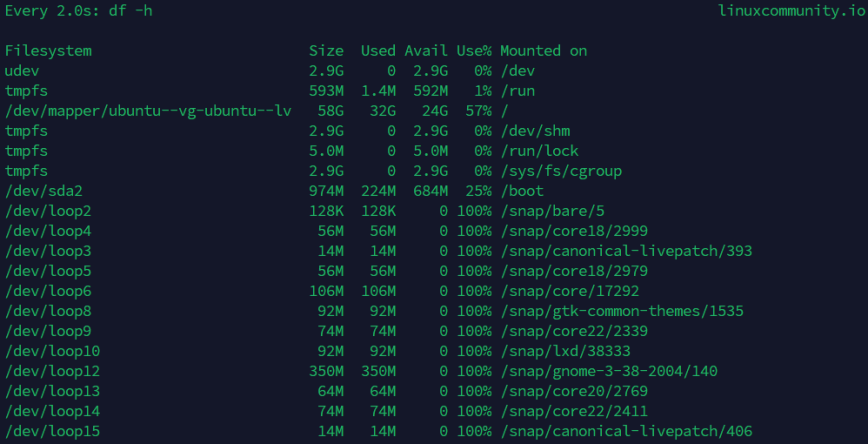
Monitor Disk Usage
watch -n 10 df -h
Clean and useful. Run this in a terminal on the side during a large copy or backup job. When you are chasing growth in a specific directory rather than the whole filesystem, point it at the contents instead:
watch -n 5 'du -sh /var/*'
For a deeper look at what is eating disk space, ncdu is a great companion tool.
Watch Free Memory
watch -d free -h
The -d flag highlights changes, so you can immediately see if available memory is dropping fast. If you are not sure how to read the output of free, the difference between free and available memory is worth understanding before you start tuning anything.
Monitor Active Connections
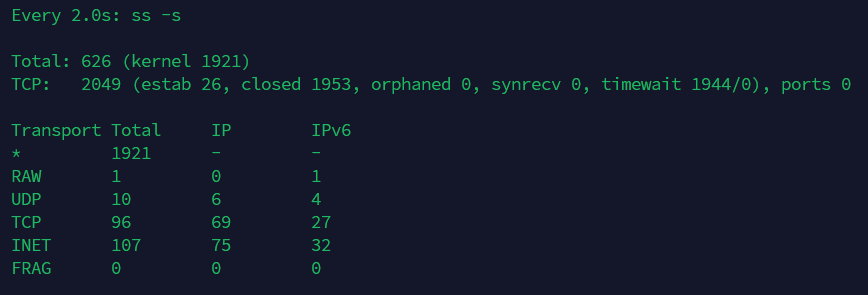
watch -n 2 'ss -s'
This gives you a socket summary refreshed every 2 seconds. Useful when diagnosing connection spikes. You can also use:
watch -n 2 'ss -tan state established | wc -l'
That gives you a single number: the count of established connections. Simple but effective during load testing. On older systems without ss you can do the same with netstat:
watch -n 2 'netstat -an | grep ESTABLISHED | wc -l'
Also see the netstat command guide for more connection monitoring examples.
Watch a Log File Line Count
watch -n 5 'wc -l /var/log/nginx/error.log'
If that number is climbing fast, something is wrong.
Monitor CPU Load Average
watch -n 1 cat /proc/loadavg
Fast and lightweight. The output is a single line showing 1, 5, and 15-minute load averages along with running process counts, all documented in the kernel proc filesystem reference.
Monitor a Specific Process
watch -n 2 'pgrep -a php-fpm'
Watch your PHP-FPM worker count in real time without the grep -v grep dance you get from piping ps through grep. Useful when tuning pm.max_children under load. See the PHP optimization guide for context on what those worker counts mean.
Watch Directory for New Files
watch -d 'ls -lth /var/spool/mail/ | head -20'
The -d flag highlights new entries as they appear.
Track Disk I/O Stats
watch -n 2 'iostat -dx 1 1'
This shows extended disk I/O stats, refreshed every 2 seconds. The 1 1 arguments tell iostat to collect one sample over one second rather than showing cumulative stats from boot. See the iostat guide for a full breakdown of those columns.
Monitor MySQL Process List
watch -n 2 'mysql -u root -p -e "SHOW PROCESSLIST;"'
Keep an eye on slow or stuck queries in real time. mysqladmin processlist does the same thing in fewer characters:
watch -n 2 'mysqladmin -u root -p processlist'
Either way you will be prompted for a password on each refresh, which gets tangled up with the screen redraw. Store the credentials in a .my.cnf file so the prompt goes away and the display stays clean.
Using Shell Features with watch
Here is a catch that trips people up. watch does not run your command through a shell by default, so shell features like pipes, redirects, and variable expansion do not work unless you wrap the command in quotes and pass it to a shell explicitly.
This will NOT work as expected:
watch ls /tmp | wc -l
Only ls /tmp is passed to watch. The pipe is interpreted by your current shell before watch sees it.
Do this instead:
watch 'ls /tmp | wc -l'
Wrapping in single quotes passes the whole thing as one command string and watch runs it via sh -c. This also applies to command substitution, brace expansion, and anything else that requires shell interpretation.
Another example with a pipe:
watch -d 'cat /proc/net/dev | grep eth0'
There is also a flag for the opposite case. The -x flag runs the command directly with exec instead of through sh -c, which skips the shell entirely. It starts a little quicker and avoids quoting headaches when your command has no pipes or expansion to worry about. Because there is no shell to interpret them, you also drop the quotes you would need with sh -c:
watch -x kubectl get pods
The trade-off is that shell features stop working under -x, so it is the right choice only when you do not need them.
Combining watch with Color Output
Some commands produce colored output using ANSI escape codes. By default, watch strips those. Use --color to preserve them:
watch --color 'df -h --color=always'
Or with tools that auto-detect color:
watch --color 'journalctl -n 20 --no-pager -o short-iso'
The --color flag is a recent procps-ng addition, so it will not be present on older builds or on busybox. Not every terminal handles it perfectly either, but it works well in most modern setups.
Checking Your Version of watch
There are two main implementations of watch: the one from the procps package (common on Debian/Ubuntu/RHEL systems) and the one from busybox (common on minimal or embedded systems). They do not share the same options.
watch --version
On a typical Ubuntu or Debian system you will see something like:
watch from procps-ng 4.0.4
On procps-ng systems --version reports the version as shown; busybox implementations are minimal and may not respond the same way. A busybox build only supports -n and a couple of others, so if an option is not working, this is the first thing to check.
Install the full version on Debian/Ubuntu:
sudo apt install procps
On RHEL/Fedora/CentOS:
sudo dnf install procps-ng
Quick Reference
-n <seconds>: Set refresh interval (default: 2s). Supports decimals like0.5.-d: Highlight differences between refreshes.-d=permanent: Highlight all changes since start (older versions:=cumulative).-t: Hide the header bar.-e: Freeze and exit on non-zero command exit code.-g: Exit when output changes.-b: Beep on non-zero exit code.-p: Precise interval timing.--color: Pass ANSI color codes through to the terminal.-x: Run the command withexecinstead ofsh -c(no shell features).-w: Disable line wrapping; truncate long lines.Ctrl+Corq: Exit watch.spacebar: Force an immediate refresh.
Conclusion
watch is small and does one thing well. For quick, informal monitoring during a troubleshooting session or a deployment, it is often faster than setting up a full monitoring stack. I use it alongside tools like htop, iostat, and ss when I need to keep an eye on something specific for a few minutes without writing a script.
The -d flag alone makes it worth learning properly. Combine that with a sensible interval and a focused command, and you have a lightweight, zero-setup monitoring window that tells you exactly what you need to know.
Also see the Guide to Network Troubleshooting in Linux for more command-line tools that pair well with watch during live debugging sessions.


Great article, I tried the command and it’s output is very informative. Keep up the great writing!
Thanks! Often I still forget and the habit of using the then
then
Enterkey creeps back in lolGood article !
I used ‘watch’ so many times. For checking if a system is already up, or during a looooong recursive filecopy to see some progression, etc etc etc.
I even wrote a variant that increased the time between commands if no output change occurred.
That turned out to be very convenient sometimes.