Docker Alternative: Podman on Linux
This article is inspired by our LinuxCommunity.io forum discussion thread (thanks to users @tmick and @shybry747 for the feedback). Let’s walk through what Podman is and how to use it as a Docker alternative on Linux. Expect a practical guide on installing Podman, running containers with it, and understanding the basics.
Containers have become the go-to way to package and deploy applications on Linux. For a long time, Docker was the tool everyone reached for when getting started with containerization. Over time, the ecosystem has matured, and tools like Podman have stepped in to solve new problems, especially around security, running without root, and tighter integration with the system itself.
Unlike Docker’s daemon based setup, Podman fits right into the Linux way of doing things. You can run containers through systemd or entirely rootless, giving you more flexibility and better security.
Once you understand Podman, you get a clearer view of how container engines are evolving and how to take advantage of those improvements without tossing out what you already know from Docker.
What is Podman?
Podman (short for Pod Manager) is an open-source, daemonless container engine. In plain terms, it does what Docker does but without a central dockerd daemon. This means containers run directly under your user processes, which makes Podman more secure and flexible.
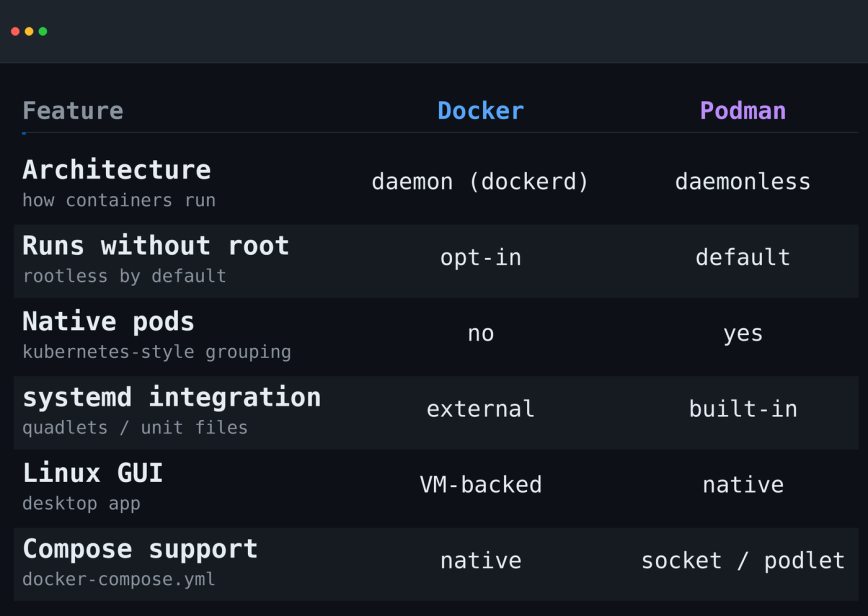
For example, you can run Podman completely rootless (no sudo) so that nobody accidentally gives a container full root privileges. It’s native to Linux (though it also works on macOS/Windows via a lightweight VM) and speaks the same Docker image formats and CLI commands, so most Docker commands just work with Podman.
Podman also has a first-class concept of pods: groups of one or more containers that share networking and storage (similar to Kubernetes pods). That can be handy when you want to run multi-container applications together. Behind the scenes, Podman uses the same OCI runtimes and integrates with systemd for managing long-running containers, but you usually don’t have to worry about that day to day.
You can often alias docker=podman, or install the podman-docker shim so that existing Docker commands automatically invoke Podman.
Installing Podman on Linux
Getting Podman installed is usually as easy as using your distro’s package manager. Most modern Linux releases include Podman in their repositories. For example:
Debian/Ubuntu (and Mint): On Debian Bullseye (11) or later and Ubuntu 20.10+ (and corresponding Mint versions), simply update your repo and install Podman:
sudo apt-get update
sudo apt-get -y install podman
(The Podman docs confirm the package is available by default on these releases.)
Fedora/CentOS/RHEL: On Fedora or CentOS/RHEL 8 and newer, use DNF:
sudo dnf -y install podman
(Podman comes in the Fedora AppStream and CentOS Stream/RHEL repos.)
openSUSE:
sudo zypper install podman
Arch/Manjaro:
sudo pacman -S podman
If your distro isn’t listed here, check the official Podman installation docs or your package manager. On Ubuntu or Debian variants before 20.10/11, you might enable backports or install from Red Hat’s repos. Once installed, verify with something like:
podman --version
podman info
These should print Podman’s version and system info. Like Docker, you might also want to run a quick test:
podman run hello-world
This command pulls the hello-world image and runs it. If everything is set up correctly, Podman will output a friendly confirmation message:
“Hello from Podman! This message shows that your installation appears to be working correctly.”
If you see that, congrats, Podman is installed and working!
Running Containers with Podman
Using Podman is very similar to using Docker. The basic commands are the same (e.g. podman pull, podman run, podman ps, etc.), and Podman will automatically download images from registries just like Docker does. Here are a few common examples to get you started:
Get an interactive shell: If you want a shell inside an Ubuntu container, run:
podman run -it ubuntu bash
The -it flags allocate a TTY and keep STDIN open. You’ll end up at a shell prompt like root@container-id:/# inside the container. From there you can install packages or explore the filesystem as if you were on an Ubuntu system. Type exit or press Ctrl-D to leave the container.
Run in the background (detached): To start a service and leave it running, use -d and maybe name/port flags. For example, to run an Nginx web server on port 8080:
podman run -d --name web -p 8080:80 nginx
This does two things: -d tells Podman to run the container in the background (you’ll get a container ID printed and your shell returns immediately), and -p 8080:80 maps port 8080 on the host to port 80 in the container. You can verify it’s running with:
podman ps
which will list the web container and show it as Up. You can then point your browser to http://localhost:8080 to see Nginx’s default page.
Beyond these, other Docker commands translate directly. For example:
podman pull <image>downloads an image without running it.podman imageslists locally cached images.podman pslists running containers (podman ps -a shows all, including stopped).podman stop <container>andpodman start <container>control containers.podman rm <container>removes a stopped container, andpodman rmi <image>removes an image.
Under the hood, Podman can also call other tools in the container toolbox: Buildah for building images (podman build is actually a wrapper around Buildah) and Skopeo for moving images between registries. These come standard in many distros and let you do things like podman build -t myimage (if you have a Containerfile/Dockerfile) or podman push.
Where Podman and Docker Differ
Most everyday commands carry over, but the compatibility isn’t total once you move past simple containers. The differences that trip people up most often come from Podman’s rootless defaults.
The big one is bind mounts. Because rootless containers use user namespaces and subuid/subgid mapping, a directory you mount from the host won’t always have the ownership the container expects. On systems with SELinux active, you also need the :z or :Z suffix on the volume so the files get relabeled:
podman run -v /host/path:/container/path:Z myimage
The lowercase :z shares the volume between multiple containers; the uppercase :Z labels it private to one. If you need ownership to line up exactly with the host, look at the –uidmap option, or run the container rootful to match Docker’s behavior.
A few other gaps worth knowing before you migrate: GPU access from rootless containers is limited, NVIDIA needs the nvidia-container-toolkit and CDI setup (and containers must be recreated after each driver upgrade), and Docker secrets and some networking setups don’t map one to one. None of this should break your system. It just means you should test anything non-trivial rather than assume a clean swap.
Running Podman Containers as systemd Services (Quadlets)
This is where Podman pulls ahead of Docker for a lot of people. Instead of leaving a daemon running, you can hand your containers to systemd and let it start, stop, and restart them like any other service. The modern way to do this is with Quadlets: small declarative unit files that Podman turns into systemd services for you.
A Quadlet is just a .container file dropped into a systemd directory. For a rootless user service, put it in ~/.config/containers/systemd/. A minimal example for an Nginx container:
[Container]
ContainerName=web
Image=docker.io/library/nginx:latest
PublishPort=8080:80

[Install]
WantedBy=default.target
Reload systemd and start it like any other unit:
systemctl --user daemon-reload
systemctl --user start web
systemd now manages the container’s lifecycle. The full set of supported keys lives in the podman-systemd.unit docs.
Pair this with podman auto-update. Add the label AutoUpdate=registry to a container and Podman will pull newer images and restart the service on a timer, no extra tooling required:
podman auto-update
Migrating from Docker Compose
If your setup is built around Docker Compose, you have two reasonable paths.
The first is to keep using Compose as-is. Point the standalone docker compose binary at the Podman socket and your existing docker-compose.yml files run against Podman with no rewrite. Enable the socket with:
systemctl --user enable --now podman.socket
The second path is to convert your Compose files into Quadlets so systemd manages everything. Writing them by hand is tedious, so use podlet, which reads a docker-compose.yml and generates the matching Quadlet files. There’s a learning curve, but it beats writing units from scratch.
Why Docker Still Matters
Even with all the reasons to use Podman, I don’t think Docker is going away. Many admins still use Docker because Docker has a massive ecosystem around it: Docker Compose, Swarm, and all the tooling that plugs into it, including automation tools used in software testing and deployment.
Many platforms still assume the ‘docker’ command exists and don’t always play nice with Podman’s quirks or its rootless defaults. Also, if your team is already standardized around Docker, it might be easier to just stick with what’s already in place. Podman gives you more control and stronger security by default. But when it comes to sheer tooling convenience and out-of-the-box compatibility, Docker still wins.
If you’re starting from scratch and setting up your own containers, Podman is a cleaner, more Linux-native experience. And you don’t have to babysit a background daemon.
Conclusion
Podman is a full-featured, Docker-compatible container engine that runs without needing a daemon or root privileges. For most everyday use it’s close to a drop-in replacement: install it from your distro’s repo, run podman commands just like Docker, and enjoy a few extra security benefits. The familiarity does have limits, which I cover below. The commands feel familiar (you can even alias docker=podman), and the basics work as you’d expect.
In short, if you’re exploring alternatives to Docker or setting up containers on a Linux system, give Podman a try!


Another excellent write up, thank you for taking the time to write this up!
I have a pretty solid (read practiced) setup with Docker and Docker Compose at home. It’s very familiar to me when I want self-host a new app, and therefore it’s very simple to try something out.
With that being said, Podman seems great and I will definitely be giving it a try to see if I can gain any advantages with my current setup!
Personally, for now I will stick with Docker as well. To me it seems like the Ubuntu of containers: familiar, well-supported, and everything just works. But I’m definitely keeping an eye on Podman!
So Docker doesn’t work with Debian Testing (Forky) so I’m kicking the tires on podman for now. I’m assuming I can do something like podman git pull to install something, I’m checking the Podman docs as you read this.
At the moment, I am working a lot with Docker and Kubernetes. There are so many ways to create, manage and orchestrate containers.
For podman there is also a nice TUI application:
Excellent write up @hydn. Since I am just starting out on containerization it makes me more lean to Podman for sure.