Linux tmpfs for Speed and Temporary Storage
Some things in Linux are hiding in plain sight. tmpfs is one of them. You use it every day without thinking about it. Every time you use /dev/shm, inspect /run, or work on a system that mounts /tmp as memory-backed storage, you are interacting with tmpfs. Under normal operation, no disk is involved.
Adding your own tmpfs mount takes two minutes. The payoff shows up immediately: faster builds, fewer disk writes, scratch space that cleans itself on reboot. This guide covers what tmpfs is, where Linux already uses it, how to mount your own instances, how to make them persistent, and where it actually makes sense to use one.
What Is tmpfs?
tmpfs is a filesystem type that stores everything in virtual memory. That includes RAM and swap space if needed. It behaves like a normal filesystem: you can create files, set permissions, and nest directories. The difference is that everything in it disappears the moment it is unmounted or the system reboots.
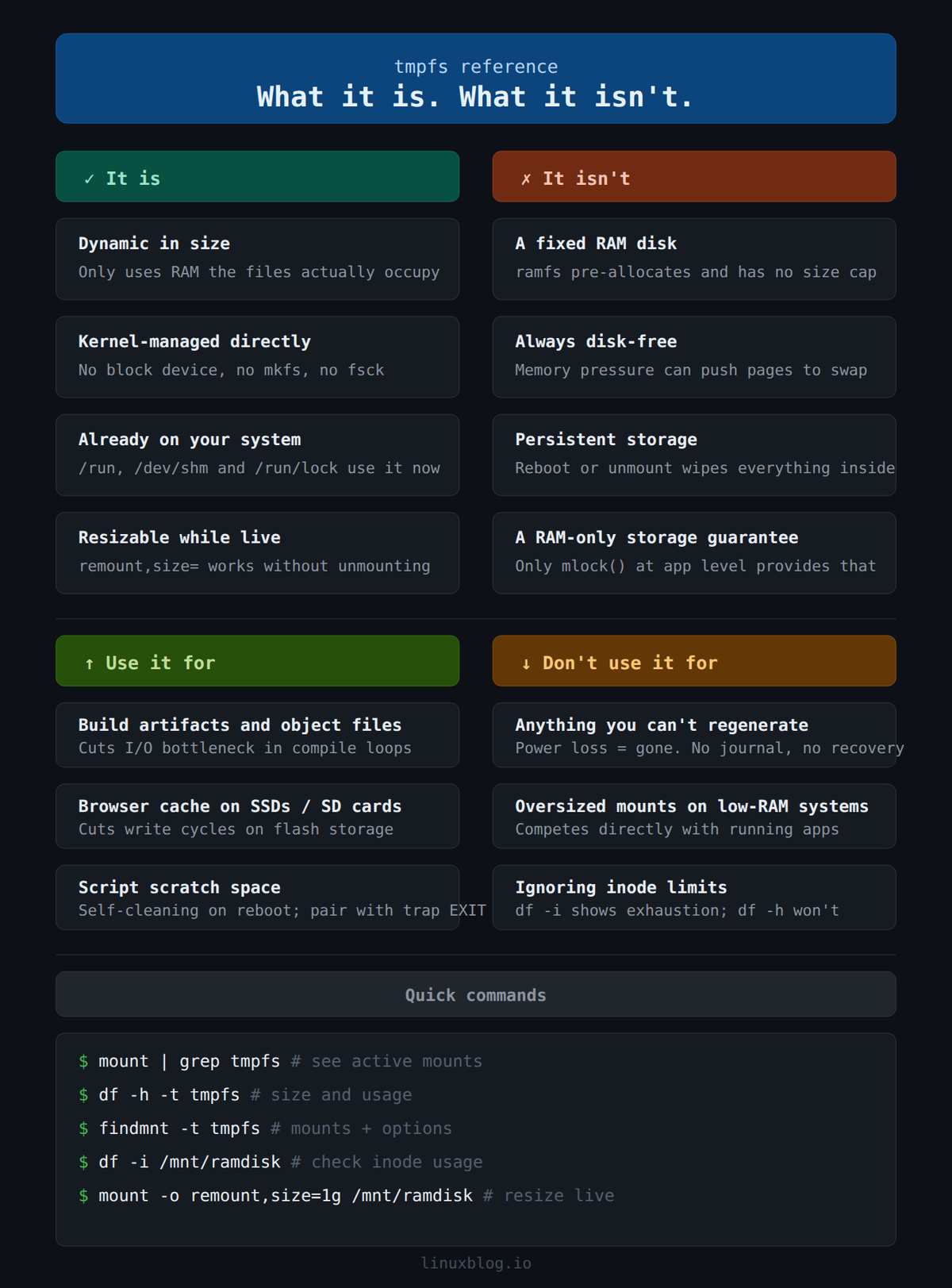
It is not the same as a RAM disk. A traditional RAM disk (like ramfs) allocates a fixed block of memory upfront, holds it regardless of how much you actually use, and has no size cap, so a runaway process can silently consume all available RAM. tmpfs is dynamic. It only consumes as much memory as the files currently stored in it. Set a 512MB limit and only use 50MB, and only 50MB of RAM is consumed.
The kernel manages tmpfs directly. There is no block device, no formatting step, no fsck. It just works.
Where Linux Already Uses tmpfs
Before you set up anything yourself, it is worth seeing how much your system already relies on tmpfs. Run this:
mount | grep tmpfs
On a typical modern Linux system, you will see output similar to this:
tmpfs on /run type tmpfs (rw,nosuid,nodev,mode=755)
tmpfs on /dev/shm type tmpfs (rw,nosuid,nodev)
tmpfs on /run/lock type tmpfs (rw,nosuid,nodev,noexec)
tmpfs on /tmp type tmpfs (rw,nosuid,nodev)
tmpfs on /run/user/1000 type tmpfs (rw,nosuid,nodev,relatime,size=1633768k,mode=700)
Each of these serves a specific purpose:
/run: Runtime data for the current boot. PID files, sockets, lock files./dev/shm: POSIX shared memory. Applications use this for fast inter-process communication./run/lock: Lock files specifically. Mounted withnoexecfor safety./tmp: Temporary files. Not all distros mount this astmpfsby default, but many do./run/user/1000: Per-user runtime directory managed by systemd-logind.
To see sizes and current usage:
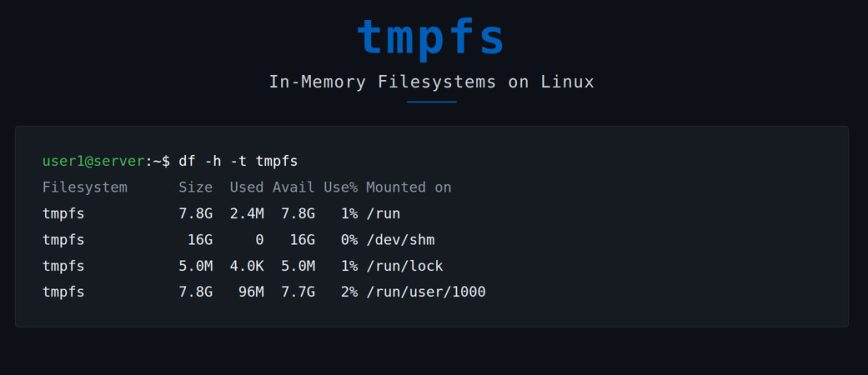
df -h -t tmpfs
Example output:
Filesystem      Size  Used Avail Use% Mounted on
tmpfs           7.8G  2.4M  7.8G   1% /run
tmpfs            16G     0   16G   0% /dev/shm
tmpfs           5.0M  4.0K  5.0M   1% /run/lock
tmpfs           7.8G   96M  7.7G   2% /run/user/1000
Notice the default size for /run and /dev/shm is typically half your total RAM. That is the kernel default. You can override it.
Mounting a tmpfs Filesystem Manually
Creating a tmpfs mount is straightforward. Here is the basic syntax:
sudo mount -t tmpfs -o size=256m tmpfs /mnt/ramdisk
That creates a 256MB tmpfs at /mnt/ramdisk. Make the directory first if it does not exist:
sudo mkdir -p /mnt/ramdisk
sudo mount -t tmpfs -o size=256m tmpfs /mnt/ramdisk
Verify it:
df -h /mnt/ramdisk
Filesystem      Size  Used Avail Use% Mounted on
tmpfs           256M     0  256M   0% /mnt/ramdisk
To unmount:
sudo umount /mnt/ramdisk
Everything stored there is gone when you unmount. That is expected behavior, not a bug.
tmpfs Mount Options
The -o flag accepts several useful options. You can combine them with commas.
size=: Maximum size. Acceptsk,m,g, or a percentage of RAM likesize=25%.nr_inodes=: Limit the number of inodes (files/directories). Useful for preventing runaway processes from filling the namespace.mode=: Permissions on the root of the filesystem. Default is1777(sticky bit, world-writable).uid=/gid=: Owner of the root directory.noexec: Prevent execution of binaries from this filesystem. Good practice for/tmpif you want to harden the system.nosuid: Ignore setuid bits on binaries stored here.nodev: Disallow device files.
A secure general-purpose scratch mount looks like this:
sudo mount -t tmpfs -o size=512m,nosuid,nodev,noexec,mode=1777 tmpfs /mnt/scratch
Making tmpfs Mounts Persistent with /etc/fstab
Manual mounts disappear after a reboot. To make a tmpfs mount survive reboots, add it to /etc/fstab.
Open /etc/fstab with your editor of choice and add a line like this:
tmpfs /mnt/ramdisk tmpfs defaults,size=256m,nosuid,nodev,noexec,mode=1777 0 0
The fields are: filesystem, mount point, type, options, dump, pass. Both dump and pass should be 0 for tmpfs. There is nothing to back up and nothing to fsck.
To apply the new entry without rebooting:
sudo mount /mnt/ramdisk
Or reload all fstab entries:
sudo mount -a
Verify with df -h or mount | grep tmpfs.
Resizing a tmpfs Mount Without Rebooting
You can resize a live tmpfs without unmounting it. This is useful when you underestimated how much space a build or process needs.
sudo mount -o remount,size=1g /mnt/ramdisk
Contents are preserved. The resize takes effect immediately.
Practical Use Cases
Speed Up Software Builds
Compiler output, object files, and intermediate artifacts are written and deleted constantly during a build. On a spinning disk this creates a lot of seek time. On an SSD it causes unnecessary write amplification. On tmpfs it is just RAM operations.
For a C/C++ or Rust project, you can redirect the build directory to a tmpfs mount:
sudo mount -t tmpfs -o size=2g tmpfs /tmp/build
export BUILD_DIR=/tmp/build
make -j$(nproc) DESTDIR=$BUILD_DIR
Or if you are using cmake:
cmake -B /tmp/build/myproject .
cmake --build /tmp/build/myproject
On a machine with fast RAM but a slower NVMe or an older SATA SSD, this can cut incremental build times noticeably. The exact gain depends on how I/O-bound your build is.
Reduce Disk Writes on SSDs and SD Cards
If you are running Linux on a device with limited write endurance, such as a Raspberry Pi on an SD card or a laptop with a low-endurance SSD, offloading high-churn directories to tmpfs helps. The classic candidates are /tmp, browser cache, and application log scratch directories. The guide on reducing disk writes on Debian and Ubuntu covers complementary techniques worth combining with this approach.
For a browser like Firefox, you can mount tmpfs directly onto the cache directory via /etc/fstab. First, find your actual profile directory name:
ls ~/.cache/mozilla/firefox/
Then create the cache directory if it does not already exist, and add a line to /etc/fstab, substituting your real profile name and your uid/gid (usually 1000 for the first user):
sudo mkdir -p /home/username/.cache/mozilla/firefox/YOUR_PROFILE/cache2
tmpfs /home/username/.cache/mozilla/firefox/YOUR_PROFILE/cache2 tmpfs defaults,noexec,nosuid,nodev,size=512m,uid=1000,gid=1000 0 0
The fstab approach is more reliable than a symlink because the mount point is recreated cleanly at every boot. This keeps browser cache in RAM and off the disk entirely. Also see Increase the Performance and Lifespan of SSDs and SD Cards for more strategies along these lines.
Fast Scratch Space for Scripts and Data Processing
If you are running scripts that generate large amounts of intermediate data, sorting files, or doing log analysis, tmpfs gives you fast scratch space that cleans itself up.
#!/bin/bash
SCRATCH=$(mktemp -d /mnt/ramdisk/work.XXXXXX)
trap "rm -rf $SCRATCH" EXIT

# do your work in $SCRATCH
sort -T $SCRATCH /var/log/access.log > /tmp/sorted_access.log
The trap ensures the scratch directory is removed even if the script exits abnormally. For more on using trap with Linux signals, see the guide on Linux signals, kill, and trap.
tmpfs for /tmp System-Wide
Many distributions now mount /tmp as tmpfs by default via a systemd unit. On systems that do not, you can enable it:
sudo systemctl enable --now tmp.mount
Check the current status:
systemctl status tmp.mount
The default size for this unit is half your total RAM, capped at a reasonable ceiling. You can override the size by creating a drop-in:
sudo mkdir -p /etc/systemd/system/tmp.mount.d/
sudo nano /etc/systemd/system/tmp.mount.d/override.conf
Add:
[Mount]
Options=mode=1777,strictatime,nosuid,nodev,size=512m
Then reload:
sudo systemctl daemon-reload
sudo systemctl restart tmp.mount
One consideration: if a process writes something large to /tmp and you have a small tmpfs there, it will fail with a “no space left on device” error. Know your workload before setting this too small.
Monitoring tmpfs Usage
Keep an eye on how much of your tmpfs allocations are actually in use. The simplest check:
df -h -t tmpfs
For a more detailed view including mount options:
findmnt -t tmpfs
To see what is consuming space inside a tmpfs mount:
du -sh /dev/shm/*
du -sh /tmp/*
If something is unexpectedly filling /dev/shm, it is usually a misbehaving application using POSIX shared memory. You can identify the culprit with:
ls -lh /dev/shm/
Shared memory segments are listed as files. The filename often hints at the process that created it.
To check overall memory pressure, remember that tmpfs pages count against your RAM budget. The output of free -h will reflect files stored in tmpfs as used memory. See Free vs. Available Memory in Linux for a detailed breakdown of what those numbers actually mean. If you are seeing consistent memory pressure across reboots, the Linux swap guide and diagnosing swap usage with smem are worth reading alongside this one.
Limitations and Caveats
A few things to keep in mind before you start mounting tmpfs everywhere:
- Everything is volatile. A power loss, kernel panic, or clean reboot wipes the contents. Do not store anything there that is not already on disk or easily regenerated.
- It competes with your applications for RAM. A 2GB
tmpfsfull of build artifacts is 2GB that your database or application server cannot use. Size mounts with your overall memory budget in mind. Check available memory with vmstat and free before committing to large mounts. - It can spill into swap. If memory pressure is high, the kernel may swap out
tmpfspages to disk. This defeats the purpose. If you need hard guarantees that data stays in RAM,tmpfsalone does not provide that. You would needmlockat the application level. - No persistence mechanisms. Unlike a real filesystem, there is no journal, no crash recovery, no fsck. What you put in, you get back only until the mount goes away.
- Inode exhaustion is a separate failure mode. A mount can run out of inodes before it runs out of space. Workloads that create millions of small files, such as lock files or build artifacts, can hit this limit even when RAM is plentiful. Check with
df -iif a write fails butdf -hshows space remaining.
Quick Reference
More of my quick picks:

# Create a 512MB tmpfs at /mnt/ramdisk
sudo mkdir -p /mnt/ramdisk
sudo mount -t tmpfs -o size=512m,nosuid,nodev,noexec tmpfs /mnt/ramdisk

# List all tmpfs mounts with usage
df -h -t tmpfs

# Resize a live mount
sudo mount -o remount,size=1g /mnt/ramdisk

# Persistent mount in /etc/fstab
tmpfs  /mnt/ramdisk  tmpfs  defaults,size=512m,nosuid,nodev,noexec,mode=1777  0 0

# Enable /tmp as tmpfs via systemd
sudo systemctl enable --now tmp.mount

# Unmount
sudo umount /mnt/ramdisk
Conclusion
Once you start using tmpfs, it is hard to go back to treating every temporary workload as a disk problem. The setup is minimal. The results show up in build times, SSD longevity, and scripts that no longer leave intermediate files scattered across the disk.
Size your mounts to fit your actual memory budget, and never store anything there you cannot afford to lose. Those two rules cover most of the ways this can go wrong.
If you are tuning a server and want to go further with disk I/O optimization, also check out Linux server performance: Is disk I/O slowing your application?


This is a really great article, thank you so much for writing this up! I primarily use Waterfox as my browser. It looks like the cache directory is similar to Firefox (expected as it’s a fork) and I can see the cache in
~/.cache/waterfox.I’m going to try making a
tmpfsmount for this and see how it goes. Do you have any recommendations for the size? Right now it’s sitting at 172M (according todu -hs ~/.cache/waterfox).I do a lot of gaming, I wonder if storing the shaders for the different games would be worth storing there as well? I see a
~/.cache/mesa_shader_cachedirectory, but it’s only taking 21M right, which is smaller than I would have thought.Do you have any experience with game shaders to know if that is worth testing here too?
Thanks for feedback. For cache size, check your free RAM under normal usage first with
free -h.If you have several gigabytes consistently free, 512M is comfortable. If RAM is tight, start at 256M. Either way, leave some headroom because when a I dont think Waterfox will crash but it will stop caching until space is available. So as long as you have enough free (unused) RAM, then make
tmpfsmount fills up writes fail with a “no space left on device” error.tmpfslarge.On the Mesa shader cache, not as good of a candidate. Shaders compile once but get reused across reboots. On
tmpfsthey haveto recompile cold every boot, which slows first loads rather than helping.Ahh ok! I did not know that they needed to recompile on reboot, so that does scratch that off the list.
I’ve got a 32GB system so I’ve typically got ~80% free in most situations. When gaming that might dip a bit, but I feel like I’ve got plenty of head room to run 512M then.
Thank you for the recommendation!
Oh, well yes for sure! At least 1 GB sounds like a good starting point. You can also move logs and other stuff into
tmpfssince you have a lot of free RAM:I’ve used tmpfs sometimes, also ramfs by the way.
The 24 core video edit and conversion server I talked about earlier had 128 GB RAM where 120 GB was reserved for intermediate (video)files in the conversion/edit process because speed was of utmost importance.
It used ramfs for this.
At home I don’t use it anynore. I often use /run/user/$UID now for temporary files where I previously used /var/run/shm (which is also tmpfs ofcourse).