systemd Services: Writing, Managing, and Troubleshooting Unit Files on Linux
If you’ve been using Linux for any length of time, you’ve run systemctl start or systemctl enable without thinking much about what’s happening underneath. systemd is the init system on almost every major Linux distribution today, and unit files are how it knows what to run, when to run it, and how to handle failures.
We’ll cover writing your own service files from scratch, understanding the options that actually matter, and diagnosing the failures that catch people off guard.
What Is a systemd Unit File?
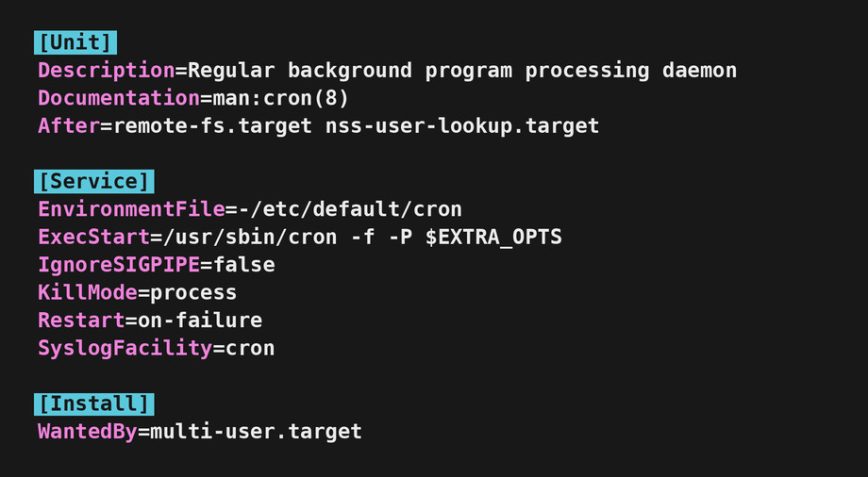
A unit file is a plain-text configuration file that describes a resource systemd manages. Services (.service), timers (.timer), sockets (.socket), mount points (.mount) and more all use this format. This article focuses on service units since that’s what most people need to write and debug.
Unit files live in a few places. Know the difference:
/lib/systemd/system/or/usr/lib/systemd/system/– shipped by packages, don’t edit these directly/etc/systemd/system/– your custom units and overrides, this is where you work/run/systemd/system/– runtime units, gone after reboot
Files in /etc/systemd/system/ take precedence over /lib/systemd/system/. That’s how overrides work.
Anatomy of a Service Unit File
Every service unit has three main sections: [Unit], [Service], and [Install]. Here’s a minimal but real example. Say you have a Python web app you want to run as a service:
[Unit]
Description=My Python Web App
After=network.target

[Service]
Type=simple
User=webapp
WorkingDirectory=/opt/myapp
ExecStart=/opt/myapp/venv/bin/python app.py
Restart=on-failure
RestartSec=5

[Install]
WantedBy=multi-user.target
That’s enough to get a service running reliably. Let’s break down what each part does and which options you’ll actually use.
The [Unit] Section
Description is what shows up in systemctl status and the journal. Make it descriptive.
After controls ordering, not dependencies. After=network.target means systemd starts your service after the network is up, but it doesn’t require the network. If you actually need the network, use Requires= or Wants= alongside After=.
There’s also a stricter target worth knowing about. network.target only means basic networking has been set up, not that any interface is configured or routable. For services that make outbound connections at startup (databases, sync agents, anything calling out to the internet), use network-online.target instead. Order against it with After=network-online.target and pull it in with Wants=network-online.target. This only works if a wait service like systemd-networkd-wait-online or NetworkManager-wait-online is enabled on the system, which isn’t guaranteed on every distro. Check with systemctl is-enabled NetworkManager-wait-online.service if you’re unsure.
Wants=– soft dependency. If the listed unit fails to start, your service still starts.Requires=– hard dependency. If the listed unit fails, your service fails too.After=/Before=– ordering only.
A common pattern for services that need the network and a database:
[Unit]
Description=My App
After=network.target postgresql.service
Requires=postgresql.service
The [Service] Section
This is where most of the action is.
Type tells systemd how your process behaves at startup. Getting this wrong is one of the most common sources of broken services.
Type=simple– the default. systemd considers the service started as soon as theExecStartprocess is launched. Use this for foreground processes.Type=forking– for old-school daemons that fork to the background. systemd waits for the parent to exit. You usually needPIDFile=with this.Type=notify– the process sends a notification viasd_notify()when it’s ready. More reliable thansimplefor complex apps.Type=oneshot– for scripts that run and exit. systemd waits for the process to finish before considering it started. AddRemainAfterExit=yesif you want it to show as active after it exits.Type=idle– likesimplebut delays execution until all other jobs are dispatched. Useful for startup scripts that shouldn’t compete with other services.Type=exec– similar tosimple, but systemd waits until the binary has actually beenexecve()‘d before considering the service started. Catches cases whereExecStartfails to launch at all. Available on systemd 240 and newer.
ExecStart is the command to run. Always use the full path. No shell expansions or pipes here by default. If you need shell features, prefix with /bin/bash -c:
ExecStart=/bin/bash -c 'echo started >> /var/log/myapp.log && /opt/myapp/start.sh'
One thing to watch: a shell wrapper changes how signals reach your process. systemctl stop sends SIGTERM to the shell, not to your app, so graceful shutdown can break. If you do need a wrapper, use exec on the final command (exec /opt/myapp/start.sh) so the shell hands its PID to the binary. When you can, skip the wrapper and call the binary directly.
You can also define pre and post commands:
ExecStartPre=– runs beforeExecStartExecStartPost=– runs afterExecStartExecStop=– custom stop commandExecReload=– triggered bysystemctl reload, useful for sending SIGHUP
Restart controls automatic restarts after unexpected exits:
Restart=no– never restart (default)Restart=on-failure– restart on non-zero exit codes, signals, or timeouts. Best choice for most apps.Restart=always– restart regardless of exit code. Use carefully.Restart=on-abnormal– restart on signals and timeouts but not clean exits.
RestartSec=5 adds a 5-second delay before restarting. Important if your service is crash-looping. Without a delay, a broken service will hammer the system.
User and Group let you run the service as a non-root user. Always do this for web apps, APIs, and anything exposed to a network:
User=webapp
Group=webapp
WorkingDirectory sets the working directory for the process. Relative paths in your application will resolve from here.
Environment and EnvironmentFile let you inject environment variables:
Environment="NODE_ENV=production" "PORT=3000"
# or from a file:
EnvironmentFile=/etc/myapp/env
The EnvironmentFile approach is cleaner for secrets and longer configs. The file uses KEY=value format, one per line.
The [Install] Section
WantedBy=multi-user.target is what you’ll use for almost every server service. It means: enable this service when the system reaches multi-user mode (the normal running state, equivalent to runlevel 3).
Use WantedBy=graphical.target for desktop-only services.
The [Install] section only matters when you run systemctl enable. It creates a symlink in the appropriate target directory. Without it, you can still start the service manually, but it won’t start at boot.
Creating and Enabling a Service
Put your unit file in /etc/systemd/system/myapp.service, then:
# Reload systemd to pick up the new file
systemctl daemon-reload

# Start it now
systemctl start myapp

# Enable at boot
systemctl enable myapp

# Start and enable in one command
systemctl enable --now myapp
After any change to a unit file, always run systemctl daemon-reload before restarting the service. Skipping this is a common source of confusion when edits don’t seem to take effect.
Overriding Existing Unit Files
Don’t edit files in /lib/systemd/system/. Package updates will overwrite your changes. Instead, use drop-in overrides.
The quickest way is with systemctl edit:
systemctl edit nginx
This opens an editor and creates a drop-in file at /etc/systemd/system/nginx.service.d/override.conf automatically. Only put the sections and directives you want to change:
[Service]
LimitNOFILE=65536
Restart=on-failure
To see the full merged unit after overrides are applied:
systemctl cat nginx
To edit the complete unit file and replace it entirely (not recommended but sometimes needed):
systemctl edit --full nginx
User Services: Running Without Root
Everything above assumes system-wide services managed by PID 1. systemd also runs a per-user instance for every logged-in user, with its own set of unit files. Drop a unit into ~/.config/systemd/user/ and manage it with the --user flag:
systemctl --user daemon-reload
systemctl --user enable --now myapp.service
User services are useful for things you don’t want running as root: personal sync clients, local development servers, custom desktop automation. They start when you log in and stop when your last session ends, unless you enable lingering for the user:
loginctl enable-linger username
With lingering on, the user manager keeps running across logouts and the service stays up. The unit file syntax is identical to system units, but a few directives behave differently. User= and Group= are ignored (you’re already running as yourself). Most hardening options still work, though some that require root privileges silently no-op.
Useful Service Hardening Options
systemd has built-in sandboxing features. These are worth knowing even if you don’t use all of them. They reduce the attack surface if a service is compromised. Add these to the [Service] section:
# Prevent the service from gaining new privileges
NoNewPrivileges=yes

# Give it a private /tmp
PrivateTmp=yes

# Read-only access to /usr, /boot, /etc
ProtectSystem=strict

# Prevent writing to home directories
ProtectHome=yes

# Restrict which address families the service can use
RestrictAddressFamilies=AF_INET AF_INET6

# Restrict syscalls to a safe set
SystemCallFilter=@system-service
Note: Start with PrivateTmp=yes and NoNewPrivileges=yes. Add the others carefully, especially ProtectSystem=strict, since it requires your app to write only to /var, /tmp, or explicitly allowed paths.
If you’re running an internet-facing service, this is low-hanging fruit for security. Pair it with good SSH hardening and a firewall.
systemd Timers: A Cron Replacement
systemd timers are an underused alternative to cron. They give you better logging, dependency handling, and catch-up execution if the system was off when a job was scheduled.
A timer needs two files: the timer unit and a matching service unit. Example: run a backup script every night at 2am.
/etc/systemd/system/backup.service:
[Unit]
Description=Nightly Backup

[Service]
Type=oneshot
User=backup
ExecStart=/usr/local/bin/backup.sh
/etc/systemd/system/backup.timer:
[Unit]
Description=Run backup nightly at 2am

[Timer]
OnCalendar=*-*-* 02:00:00
Persistent=true

[Install]
WantedBy=timers.target
Persistent=true means if the system was off at 2am, the timer runs the job on next boot. That’s something cron doesn’t do without extra setup.
Enable and start the timer, not the service:
systemctl enable --now backup.timer
Check all active timers:
systemctl list-timers
Troubleshooting Failed Services
Services fail. Here’s a systematic approach to figure out why.
Step 1: Check the status
systemctl status myapp
This shows the current state, last few log lines, and the PID. Often the error is right there. Look for the exit code and any error messages in the log tail. A failed service typically looks like this:
● myapp.service - My Python Web App
     Loaded: loaded (/etc/systemd/system/myapp.service; enabled)
     Active: failed (Result: exit-code) since Tue 2026-05-05 14:22:01 UTC
    Process: 1234 ExecStart=/opt/myapp/venv/bin/python app.py (code=exited, status=203/EXEC)
   Main PID: 1234 (code=exited, status=203/EXEC)
The status=203/EXEC tells you the binary couldn’t be executed, almost always a path or permissions problem. Match the status code against the table further down.
Step 2: Read the journal
# Last 50 lines for this service
journalctl -u myapp -n 50

# Follow live output
journalctl -u myapp -f

# Since last boot
journalctl -u myapp -b

# Logs from the previous boot only
journalctl -u myapp -b -1
The journal captures everything the process writes to stdout and stderr. If your app logs to a file instead, check that file too, but also make sure you’re not missing output that only goes to stderr.
Step 3: Check for syntax errors in the unit file
systemd-analyze verify /etc/systemd/system/myapp.service
This catches typos, unknown directives, and missing dependencies before you try to start the service.
Step 4: Test the ExecStart command manually
Run the exact command from ExecStart as the same user the service uses:
sudo -u webapp /opt/myapp/venv/bin/python app.py
If it fails here, the problem is with your application or its environment, not systemd. Check paths, permissions, environment variables, and whether required files exist.
Common failure patterns
- Status=203/EXEC: The
ExecStartbinary wasn’t found or isn’t executable. Check the path and permissions. - Status=217/USER: The user specified in
User=doesn’t exist. - Status=200/CHDIR:
WorkingDirectorydoesn’t exist or isn’t accessible. - Start request repeated too quickly: The service is crash-looping. systemd stops trying after too many rapid restarts. Add
RestartSec=and check your logs for the root cause. Reset the failure counter withsystemctl reset-failed myapp. - Timeout on start: The service didn’t signal readiness in time. Check
Type=. If your daemon forks to the background and you’re usingType=simple, systemd thinks it’s exited. UseType=forkinginstead.
A More Complete Real-World Example
Here’s a production-style unit file for a Node.js API server. It incorporates the options discussed above:
[Unit]
Description=Node.js API Server
Documentation=https://github.com/example/myapi
After=network-online.target
Wants=network-online.target

[Service]
Type=simple
User=nodeapp
Group=nodeapp
WorkingDirectory=/opt/myapi
ExecStart=/usr/bin/node /opt/myapi/server.js
ExecReload=/bin/kill -HUP $MAINPID
Restart=on-failure
RestartSec=10
StartLimitBurst=3
StartLimitIntervalSec=60
EnvironmentFile=/etc/myapi/env
StandardOutput=journal
StandardError=journal
SyslogIdentifier=myapi

# Hardening
NoNewPrivileges=yes
PrivateTmp=yes
ProtectSystem=strict
ReadWritePaths=/var/lib/myapi /var/log/myapi

[Install]
WantedBy=multi-user.target
A few things worth pointing out here:
StartLimitBurst=3andStartLimitIntervalSec=60together mean: if the service restarts more than 3 times in 60 seconds, stop trying. This prevents a broken service from thrashing.SyslogIdentifier=myapisets the tag used in the journal, making it easier to grep.ReadWritePaths=works alongsideProtectSystem=strictto allow writes only to specific directories.StandardOutput=journalandStandardError=journalare the defaults, but making them explicit is good documentation.
Quick Reference: Useful systemctl Commands
systemd-analyze blame is particularly useful when your boot feels slow.
# Start, stop, restart, reload
systemctl start myapp
systemctl stop myapp
systemctl restart myapp
systemctl reload myapp

# Enable/disable at boot
systemctl enable myapp
systemctl disable myapp

# Check status
systemctl status myapp

# View the full unit file (with overrides applied)
systemctl cat myapp

# Edit with a drop-in override
systemctl edit myapp

# Reload after unit file changes
systemctl daemon-reload

# List failed services
systemctl --failed

# Check boot performance
systemd-analyze blame
systemd-analyze critical-chain
It lists each service and how long it took to start. systemd-analyze critical-chain shows which services were on the critical path.
Conclusion
Writing a service unit file is not complicated once you understand what each section does. The [Unit] section handles ordering and dependencies. [Service] defines how the process runs and recovers from failure. [Install] controls boot behavior. Get those three right and you have a solid, self-healing service.
The hardening options are worth the extra ten minutes. PrivateTmp=yes and NoNewPrivileges=yes alone go a long way for any internet-facing service. And if you’re still running jobs out of cron, try a systemd timer for your next scheduled task. The logging integration alone makes the switch worth it.
For more on managing Linux servers, check out the Linux Server Setup guide and the broader list of Linux administration commands worth knowing.