nmap on Linux: Guide to Network Scanning and Discovery
nmap is one of those tools every sysadmin eventually needs. For auditing servers, mapping out a home lab, or troubleshooting a connectivity issue, knowing how to use nmap properly saves a lot of time and guesswork.
Nmap stands for Network Mapper. It has been around since 1997, is open source, and runs on Linux, macOS, and Windows. On Linux it is the most capable, especially when running with root privileges.
Note: Only scan networks and hosts you own or have explicit permission to scan. Unauthorized scanning may be illegal in your jurisdiction.
Getting Started with Nmap
Nmap is in every major distro’s package repository.
Debian and Ubuntu:
sudo apt install nmap
Fedora and RHEL/CentOS:
sudo dnf install nmap
Arch and Manjaro:
sudo pacman -S nmap
Verify the install:
nmap --version
You should see output like Nmap version 7.94 or newer. Good to go.
Basic Host Discovery
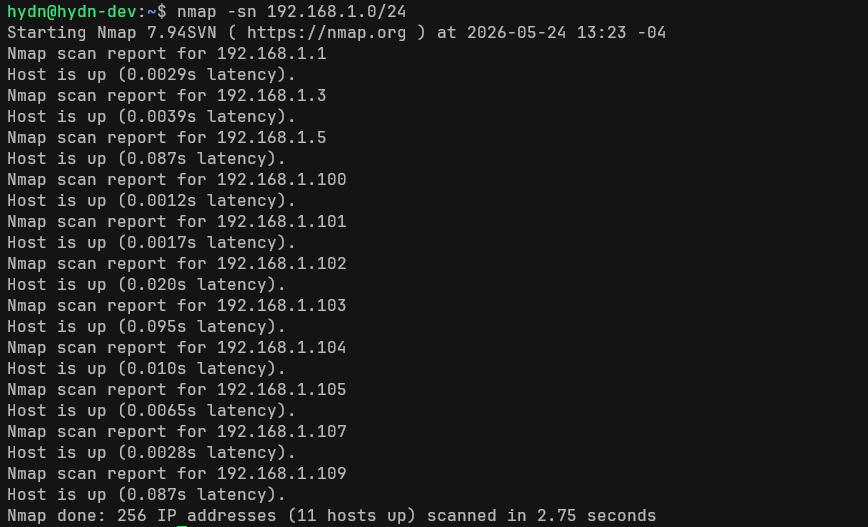
The most common starting point is finding out what hosts are alive on a network. This is called a ping scan or host discovery scan.
nmap -sn 192.168.1.0/24
The -sn flag tells nmap to skip port scanning entirely and just check which hosts respond. This is fast and quiet. On routed networks it sends ICMP echo requests, TCP SYN to port 443, TCP ACK to port 80, and ICMP timestamp requests. On a local LAN, where every example in this guide runs, nmap uses ARP discovery instead, which is faster and often finds devices that ignore normal ping. On a typical home or small office network, this completes in a few seconds and shows you every device that responded. The full behavior is documented in the official host discovery chapter.
Example output:
Nmap scan report for 192.168.1.1
Host is up (0.0011s latency).
MAC Address: A4:3E:51:XX:XX:XX (Ubiquiti Networks)

Nmap scan report for 192.168.1.10
Host is up (0.00032s latency).
MAC Address: DC:A6:32:XX:XX:XX (Raspberry Pi Trading)

Nmap scan report for 192.168.1.50
Host is up (0.0024s latency).
Handy for a quick inventory. I run this after adding a new device when I forget which IP the DHCP server assigned.
Scanning Ports
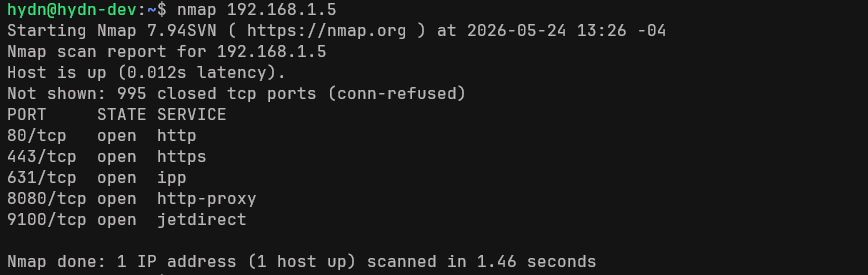
Once you know what is alive, you usually want to know what services are running. Port scanning is where nmap really earns its reputation.
Default scan
Without any flags, nmap scans the 1,000 most common TCP ports:
nmap 192.168.1.10
This requires no root privileges, though the results are less detailed than a privileged scan.
SYN scan (stealth scan)
The SYN scan is the default when run as root and is the most widely used scan type:
sudo nmap -sS 192.168.1.10
It sends a SYN packet and waits for a response without completing the TCP handshake. This is faster than a full connect scan and less likely to appear in application logs. On a local network, the speed difference is noticeable when scanning many hosts.
Scan all 65,535 ports
The default 1,000 ports miss things. Services running on non-standard ports will not show up. Scan everything with:
sudo nmap -sS -p- 192.168.1.10
This takes longer, but you will not miss a MySQL instance running on port 33060 or an SSH daemon someone moved to 2222.
Scan specific ports
sudo nmap -p 22,80,443,3306 192.168.1.10
Or a port range:
sudo nmap -p 1-1024 192.168.1.10
UDP scanning
UDP is often overlooked. DNS runs on UDP 53, SNMP on UDP 161, and NTP on UDP 123. These are common targets and common misconfiguration points.
sudo nmap -sU -p 53,161,123 192.168.1.1
UDP scans are slower than TCP scans because closed UDP ports do not always send a response. Be patient, or limit the port range.
Service and Version Detection
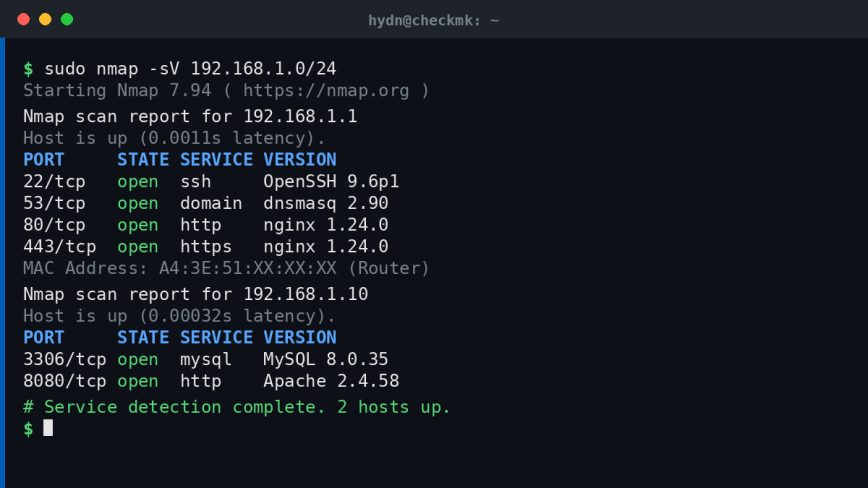
Knowing port 22 is open is useful. Knowing it is running OpenSSH 8.9p1 is more useful. The -sV flag probes open ports to determine the service and version:
sudo nmap -sV 192.168.1.10
Example output:
PORT     STATE SERVICE VERSION
22/tcp   open  ssh     OpenSSH 8.9p1 Ubuntu 3ubuntu0.6 (Ubuntu Linux; protocol 2.0)
80/tcp   open  http    nginx 1.24.0
3306/tcp open  mysql   MySQL 8.0.35
This is the first scan I run when looking at an unfamiliar server. It immediately tells me what I am dealing with. Version detection also flags outdated software, which is a quick win for security audits.
You can combine version detection with intensity using --version-intensity from 0 (light) to 9 (try everything). The default is 7. Dropping it to 2 or 3 speeds things up without losing much accuracy on common services. The full set of options lives in the official nmap reference guide.
OS Detection
nmap can make educated guesses about the operating system based on TCP/IP stack fingerprinting:
sudo nmap -O 192.168.1.10
It needs at least one open and one closed port to fingerprint accurately. Output looks like:
OS details: Linux 5.15 - 5.19, Linux 6.1
Network Distance: 1 hop
It is not always exact. On virtual machines or devices with custom TCP stacks the guess can be off. But it is a useful signal, especially when you are scanning a network segment and want to separate Linux servers from Windows boxes or embedded devices.
Combining Options: The Aggressive Scan
The -A flag enables OS detection, version detection, script scanning, and traceroute all at once:
sudo nmap -A 192.168.1.10
This is a lot of traffic and takes time. Do not use it carelessly on production networks. But for a full picture on a single host during an audit or troubleshooting session, it is convenient. One flag instead of several.
Nmap Scripting Engine (NSE)
This is where nmap separates itself from basic port scanners. NSE lets you run scripts against discovered hosts and services. Scripts live in /usr/share/nmap/scripts/ and cover everything from vulnerability detection to brute force testing to service enumeration. Every script is catalogued in the official NSE documentation.
Run scripts by category
sudo nmap --script=default 192.168.1.10
The default category runs commonly useful scripts, but do not treat it as harmless on networks you do not control. NSE scripts are not sandboxed, and some default scripts are still mildly intrusive. Other categories include auth, vuln, discovery, intrusive, and safe.
Check for common vulnerabilities
sudo nmap --script=vuln 192.168.1.10
Note: The vuln category scripts are more intrusive and can be noisy on the network. Use them deliberately.
Check for anonymous FTP access
sudo nmap --script=ftp-anon -p 21 192.168.1.10
Enumerate HTTP headers
sudo nmap --script=http-headers -p 80,443 192.168.1.10
This is surprisingly useful. I have found misconfigured servers exposing server version headers and debug information that should have been stripped. Quick to check, quick to fix.
Check for open SMTP relay
sudo nmap --script=smtp-open-relay -p 25 192.168.1.20
You can list all available scripts with:
ls /usr/share/nmap/scripts/ | grep -i ssh
Replace ssh with whatever service you are interested in.
Output Formats
By default nmap prints to the terminal. For anything beyond a quick check, save the output.
Normal output to file
sudo nmap -sV 192.168.1.0/24 -oN scan_results.txt
XML output (useful for automation or importing into other tools)
sudo nmap -sV 192.168.1.0/24 -oX scan_results.xml
Grepable output
sudo nmap -sV 192.168.1.0/24 -oG scan_results.gnmap
All formats at once
sudo nmap -sV 192.168.1.0/24 -oA scan_results
The -oA flag creates all three files simultaneously with the given base name. I use this for anything I plan to review later or share with someone else. The XML output is structured for parsing, so it feeds cleanly into a dashboard or script.
Scan Speed and Timing
nmap has six timing templates from T0 (paranoid, very slow) to T5 (insane, very fast). The default is T3.
T1andT2: Very slow, good for evading detection or scanning fragile devicesT3: Default, balancedT4: Faster, suitable for reliable local networksT5: Aggressive, may miss results on congested or slow links
For most local network scanning:
sudo nmap -sS -T4 192.168.1.0/24
For scanning over a VPN or slow connection, drop to T2 to avoid dropped packets causing false negatives.
Scanning Multiple Hosts and Ranges
nmap is flexible with how you specify targets.
Scan a range of IPs:
nmap 192.168.1.1-50
Scan specific hosts:
nmap 192.168.1.1 192.168.1.10 192.168.1.20
Scan hosts from a file (one per line):
nmap -iL hosts.txt
Exclude hosts from a scan:
nmap 192.168.1.0/24 --exclude 192.168.1.1,192.168.1.5
Excluding the router and a critical server from a scan is good practice when you do not want to trigger firewall rules or alert monitoring systems. I keep a short exclusion list for production scans.
Useful Combinations for Sysadmins
Here are a few scan commands I actually reach for regularly.
Quick check: what ports are open on a single host?
sudo nmap -sS -T4 --open 192.168.1.10
The --open flag filters output to only show ports that are definitively open, cutting through the noise of filtered ports.
Find all SSH servers on a subnet:
sudo nmap -p 22 --open -sV 192.168.1.0/24
Once you have located them, it is worth reviewing SSH security on your Linux servers to make sure those daemons are hardened.
Check which hosts have port 3306 (MySQL) exposed:
sudo nmap -p 3306 --open 192.168.1.0/24
MySQL should never be exposed to the network unless you have a specific reason and proper firewall rules. This scan takes two seconds and can catch a misconfiguration before someone else does. Also see the guide on what to do after a fresh Linux server installation for a broader security checklist.
Combine host discovery and version scan:
sudo nmap -sn 192.168.1.0/24 -oG - | grep "Up" | awk '{print $2}' | sudo nmap -sV -iL -
This chains a ping scan into a version scan on only the live hosts. Useful for larger subnets where you do not want to run a full version scan against addresses that are not in use.
For network troubleshooting, nmap pairs well with the ss command for checking local socket state, and with network troubleshooting in Linux when you are diagnosing connectivity issues from multiple angles.
Zenmap: The GUI Option
If you prefer a graphical interface, Zenmap is the official nmap GUI. On Debian and Ubuntu:
sudo apt install zenmap
It provides a topology view, command builder, and result comparison. Useful for occasional users or when presenting results to someone who is not comfortable reading terminal output. Packaging varies by distro, so if it is not in your repository, grab the current build from the official nmap download page. That said, most experienced users stay in the terminal.
A Note on Firewalls and Filtered Ports
nmap distinguishes between three port states: open, closed, and filtered. Filtered means a firewall or packet filter is blocking the probe. You get no response either way.
If you see many filtered ports when scanning your own server and you are not expecting a firewall in front of it, that is worth investigating. It could be a host-based firewall like ufw or firewalld, a ruleset built with nftables, or a cloud provider’s security group. Either way, nmap is pointing you at something to look at.
Firewalls can also mess with OS detection and version probes. If -O or -sV returns incomplete results on a host you control, check whether a firewall is rate-limiting or dropping probe packets.
Conclusion
nmap is not something you learn in one sitting, but the commands in this guide cover the majority of what comes up in day-to-day sysadmin work. Host discovery, port scanning, version detection, NSE scripts, and saving output are the foundations. Everything else builds on those.
Start with -sn for discovery, add -sV when you need service details, and bring in NSE scripts when you need to go deeper. Keep timing conservative on production networks and aggressive on your local lab.
If you are building out a home lab and want to test your firewall rules, nmap is one of the best tools for verifying that what you think is blocked actually is. The same principle applies to your web servers: verify the actual state, do not assume.
Also see: Linux Commands Frequently Used by Sysadmins for more essential tools to add to your workflow.