Linux Disk Partitioning with fdisk, parted, and lsblk: A Practical Guide
Disk partitioning in Linux is one of those tasks every sysadmin needs to do comfortably. You will hit it the first time you add a second drive to a server, set up a NAS, or carve up a new VPS. Knowing your way around fdisk, parted, and lsblk saves time and prevents the kind of mistakes that end with restoring from backup.
This guide covers the full workflow for partitioning a disk on Linux: listing disks, picking a partition table, creating partitions, formatting a filesystem, and mounting it permanently via /etc/fstab. Examples use a fresh data disk, so you can follow along without risking your root filesystem.
Start with lsblk: Know What You Have
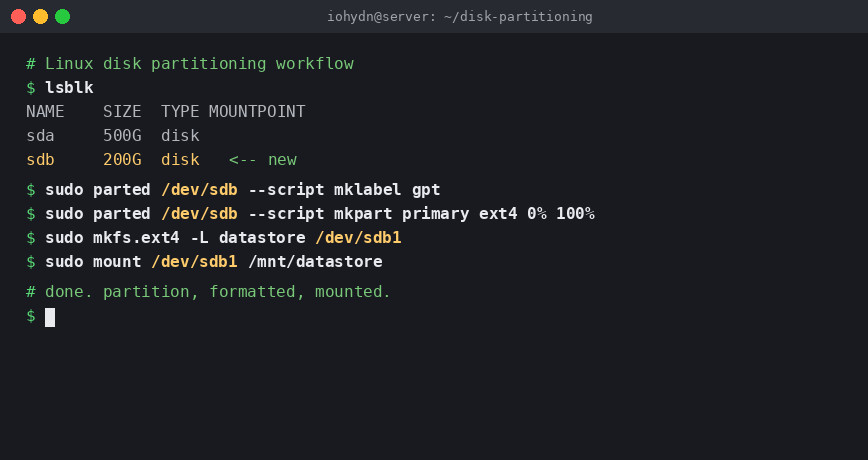
Before you touch anything, get a clear picture of your disks and their current state. lsblk is the fastest way to do that.
lsblk
Sample output on a server with two drives:
NAME   MAJ:MIN RM   SIZE RO TYPE MOUNTPOINT
sda      8:0    0   500G  0 disk
├─sda1   8:1    0   512M  0 part /boot
├─sda2   8:2    0    50G  0 part /
└─sda3   8:3    0 449.5G  0 part /data
sdb      8:16   0   200G  0 disk
sdb here has no partitions yet. That is the disk we will work with through the examples below.
Add -f to also see filesystem types and UUIDs:
lsblk -f
And -o lets you customize the output columns:
lsblk -o NAME,SIZE,FSTYPE,MOUNTPOINT,UUID
This is useful when you need to identify disks by UUID before editing /etc/fstab. Make this a habit before any partition work.
MBR vs. GPT: Choose the Right Partition Table
Before creating partitions, you need to decide on a partition table format.
- MBR (msdos): The older standard. Supports disks up to 2TB and up to 4 primary partitions. Still works fine on legacy BIOS systems.
- GPT: The modern standard. Supports disks larger than 2TB, up to 128 partitions, and is required for UEFI boot. Use this for any new setup.
If the system supports UEFI, use GPT. For data-only disks that will not hold a bootloader, GPT is still the better choice regardless of firmware.
Partitioning with fdisk
fdisk ships with util-linux and is installed on every mainstream distro. It is interactive, widely available, and works fine for both MBR and GPT in the versions shipped since util-linux 2.23. It is what most sysadmins reach for first on a data disk.
Note: Always double-check your target device. Writing to the wrong disk will destroy data. Double-check every time. Use lsblk first.
Open the target disk:
sudo fdisk /dev/sdb
You will be dropped into an interactive prompt. Common commands inside fdisk:
p– print the current partition tableg– create a new GPT partition tableo– create a new MBR partition tablen– add a new partitiond– delete a partitiont– change a partition typew– write changes and exitq– quit without saving
Create a New GPT Partition Table and Single Partition
Inside fdisk /dev/sdb:
Command (m for help): g
Created a new GPT disklabel.

Command (m for help): n
Partition number (1-128, default 1): 1
First sector (2048-419430366, default 2048):
Last sector, +/-sectors or +/-size{K,M,G,T,P} (2048-419430366, default 419430366): +100G

Created a new partition 1 of type 'Linux filesystem' and of size 100 GiB.

Command (m for help): w
The partition table has been altered.
Syncing disks.
Press Enter to accept the default first sector. Specify the size using +100G, +500M, etc. This is far more reliable than trying to calculate sectors manually.
After writing, verify with:
lsblk /dev/sdb
Creating Multiple Partitions with fdisk
Run n again after the first partition and the next free sector will be selected automatically as the starting point. You can keep adding partitions this way until the disk is full.
To use the remaining space for the last partition, just press Enter at the “Last sector” prompt to accept the default (end of disk).
Partitioning with parted
parted is more powerful than fdisk for certain tasks. It supports large disks, works well in scripts, and can handle resizing. It also has both an interactive mode and a single-command non-interactive mode, which makes it easy to automate.
Interactive Mode
sudo parted /dev/sdb
Inside parted:
(parted) mklabel gpt
(parted) mkpart primary ext4 0% 100%
(parted) print
(parted) quit
Using 0% and 100% lets parted handle alignment automatically. This matters for performance on SSDs and modern drives. Avoid specifying raw sector numbers unless you know exactly what you are doing.
Note: mkpart primary ext4 does not actually create an ext4 filesystem. It only tags the partition type. You still need mkfs.ext4 afterward to put a filesystem on it. See the GNU parted manual for the full syntax.
Non-interactive Mode (Scriptable)
This is where parted really shines for automation:
sudo parted /dev/sdb --script mklabel gpt
sudo parted /dev/sdb --script mkpart primary ext4 0% 50%
sudo parted /dev/sdb --script mkpart primary xfs 50% 100%
sudo parted /dev/sdb --script print
You can drop these into a provisioning script and run them on new servers without any interactive prompts. Combine with mkfs and you have a fully automated disk setup.
Resizing a Partition with parted
Note: Only resize unmounted partitions, or use a live environment. Resizing a mounted root partition is risky and not covered here.
To grow a partition to fill available space:
sudo parted /dev/sdb resizepart 1 100%
After resizing the partition, you still need to resize the filesystem itself (covered below).
Formatting: Create a Filesystem
A partition is just empty space until you put a filesystem on it. The most common choices on Linux:
- ext4: Reliable, well-supported, good general-purpose choice. Use this when in doubt.
- xfs: Excellent for large files and high-throughput workloads. Default on RHEL, Rocky, and AlmaLinux. Note that xfs can grow but cannot shrink.
- btrfs: Supports snapshots and subvolumes. Good for desktop use and setups where you want snapshot-based backups. Default on Fedora Workstation and openSUSE.
Format as ext4:
sudo mkfs.ext4 /dev/sdb1
Format as xfs:
sudo mkfs.xfs /dev/sdb1
If the target is an SSD, the filesystem choice interacts with how long the drive lasts. A few mount options and scheduler tweaks can noticeably extend SSD lifespan, and ext4 with noatime is a safe starting point on most servers.
Add a label while formatting (useful for identification in /etc/fstab):
sudo mkfs.ext4 -L datastore /dev/sdb1
Labels make /etc/fstab entries more readable and portable than device names like /dev/sdb1, which can change if you add or remove drives.
Mounting the New Partition
Temporary Mount
Create a mount point and mount the partition:
sudo mkdir -p /mnt/datastore
sudo mount /dev/sdb1 /mnt/datastore
Verify it is mounted:
df -h /mnt/datastore
This mount will not survive a reboot. For a permanent mount, you need /etc/fstab.
Permanent Mount via /etc/fstab
Get the UUID of your new partition:
sudo blkid /dev/sdb1
Output:
/dev/sdb1: UUID="a1b2c3d4-e5f6-7890-abcd-ef1234567890" TYPE="ext4" PARTLABEL="primary"
Add an entry to /etc/fstab:
UUID=a1b2c3d4-e5f6-7890-abcd-ef1234567890 /mnt/datastore ext4 defaults 0 2
Always use the UUID rather than /dev/sdb1. Device names are not guaranteed to be stable across reboots, especially if you have multiple disks or use USB drives.
Test your fstab entry before rebooting:
sudo mount -a
If that command returns no errors, your entry is correct. If it fails, fix it before rebooting or you risk an unbootable system. A bad fstab line is one of the easiest ways to end up in emergency mode on boot.
Note: The last two fields in fstab are dump and pass. For data partitions, use 0 2. For the root filesystem, use 0 1. For swap or special filesystems, use 0 0.
Mount options are where a lot of the useful tuning happens. Adding noatime to the options field is almost always a win, since it stops the kernel from updating access timestamps on every read. That alone can cut a surprising amount of disk I/O on a busy system.
Resizing an ext4 Filesystem After Partition Resize
If you resized a partition with parted, the filesystem still needs to be grown to fill the new space. For ext4:
sudo resize2fs /dev/sdb1
Without specifying a size, resize2fs fills the partition. For xfs, the command is different and requires the filesystem to be mounted:
sudo xfs_growfs /mnt/datastore
This is a common step that gets missed. If your disk shows the new size in lsblk but df -h still shows the old size, you skipped the filesystem resize.
Useful Checks and Troubleshooting
Check if a Disk Has a Partition Table
sudo parted /dev/sdb print
If the disk is completely blank, you will see: Error: /dev/sdb: unrecognised disk label. That just means no partition table exists yet, which is expected on a brand-new disk.
Check Filesystem Health
Run fsck on an unmounted ext4 partition:
sudo fsck.ext4 -v /dev/sdb1
Never run fsck on a mounted partition. Unmount first, or run it from a live environment.
Inform the Kernel of Partition Changes
If you repartition a disk that is in use (for example, adding a partition to /dev/sdb while other partitions on it are mounted), the kernel may not immediately see the new partition table. Force it to re-read:
sudo partprobe /dev/sdb
Or use:
sudo blockdev --rereadpt /dev/sdb
After running one of these, lsblk should show the updated layout without requiring a reboot.
Swap Partition vs. Swap File
If you need swap space, you have two options: a dedicated swap partition or a swap file. Swap files are more flexible because you can resize them without repartitioning. But if you are setting up a fresh disk and know you want swap, creating a dedicated partition is clean and slightly more performant on some setups.
Create a swap partition with fdisk, change its type to 82 (Linux swap) or 19 (Linux swap, GPT), then:
sudo mkswap /dev/sdb2
sudo swapon /dev/sdb2
Add it to /etc/fstab for persistence:
UUID=your-swap-uuid none swap sw 0 0
For a deeper look at why swap matters even on memory-heavy systems, read Linux Performance: Almost Always Add Swap Space.
Quick Reference: Common Workflow
Here is the full flow condensed for reference:
# 0. Verify the correct disk before proceeding

# 1. Identify your disk
lsblk

# 2. Partition it
sudo parted /dev/sdb --script mklabel gpt
sudo parted /dev/sdb --script mkpart primary ext4 0% 100%

# 3. Format it
sudo mkfs.ext4 -L mydata /dev/sdb1

# 4. Create mount point and mount
sudo mkdir -p /mnt/mydata
sudo mount /dev/sdb1 /mnt/mydata

# 5. Get UUID for fstab
sudo blkid /dev/sdb1

# 6. Add to /etc/fstab, then test
sudo mount -a

# 7. Verify
df -h /mnt/mydata
That covers most disk setup scenarios you will run into on a typical Linux server. For more on monitoring disk I/O after your disks are set up, atop is one of the best tools for the job. And if you are just getting started with Linux server setup in general, the Linux Server Setup beginner’s guide covers the broader picture.
Conclusion
Disk partitioning in Linux does not need to be intimidating. Use lsblk to understand what you have before you start. Use fdisk for quick interactive work on data disks. Use parted when you need scripting, alignment control, or GPT on large disks. Format with mkfs, mount permanently via /etc/fstab using UUIDs, and always test with mount -a before rebooting.
The combination of lsblk, parted, and mkfs covers the vast majority of partitioning tasks on modern Linux systems. Get comfortable with these three and disk management becomes routine rather than stressful. Once your disks are set up, the next step is usually watching how they behave under load. Disk I/O is one of the first places to look when a Linux server feels slow, and a quick baseline right after provisioning saves you a lot of guessing later.