Linux Environment Variables: env, export, and /etc/environment
Linux environment variables are one of those things you interact with constantly without always realizing it. Every time you run a command, your shell checks PATH. Every time a script logs something, it might reference HOME or USER. Every time a web app reads a database password, it is almost certainly pulling from an environment variable.
Understanding how to set, inspect, and manage Linux environment variables properly is a genuine sysadmin skill. It saves you from broken deployments, confusing permission errors, and scripts that work in one shell but silently fail in another.
This guide covers the full picture: what environment variables are, how scoping works, and how to set them correctly depending on your goal.
What Is an Environment Variable?
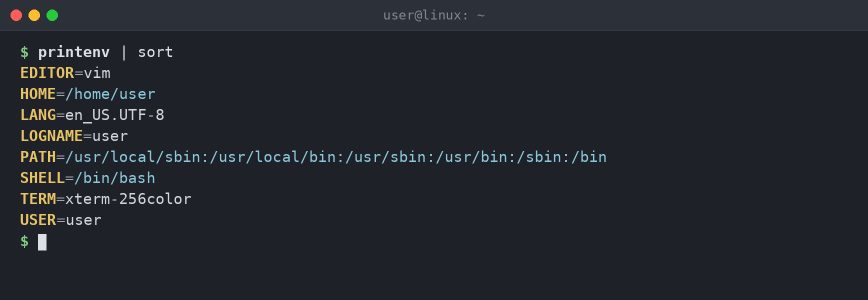
An environment variable is a named value attached to a running process. When a process spawns a child process, the child inherits copies of the parent’s environment variables. Changes in the child do not propagate back to the parent.
That last point trips people up constantly. If you set a variable inside a script and wonder why the parent shell does not see it after the script exits, that is why.
At the shell level, there is a distinction worth knowing:
- Shell variables exist only in the current shell. Other processes cannot see them.
- Environment variables are exported and passed to child processes.
Viewing Current Environment Variables
Start by seeing what is already set in your environment.
Print all environment variables:
env
Or use printenv for the same result:
printenv
Print a specific variable:
printenv HOME
printenv PATH
Or the shell built-in approach:
echo $HOME
echo $PATH
To see all shell variables, including unexported ones, use:
set
set outputs a lot. Pipe it through less or grep if you are looking for something specific.
set | grep JAVA
Setting Variables: Shell vs. Export
Here is the distinction in practice.
Set a shell-only variable:
MY_VAR="hello"
This variable exists in your current shell session but will not be passed to any program you run from that shell.
Export it so child processes can see it:
export MY_VAR="hello"
You can also export a variable that was already set:
MY_VAR="hello"
export MY_VAR
Verify the export status with declare:
declare -p MY_VAR
Output will show -x if the variable is exported:
declare -x MY_VAR="hello"
Quoting and Special Characters
Values with spaces, quotes, or shell metacharacters need careful quoting. Get this wrong and you end up with truncated values or unexpected expansions.
Double quotes preserve spaces but still expand variables and command substitutions:
export GREETING="Hello $USER"
echo $GREETING
# Output: Hello hydn
Single quotes preserve everything literally, with no expansion:
export LITERAL='Hello $USER'
echo $LITERAL
# Output: Hello $USER
For values containing dollar signs, backticks, or quotes, single-quote them or escape the special characters:
export DB_PASS='p@ss$word!'
export REGEX="\\d+\\.\\d+"
When values contain both single and double quotes, concatenate the two quoting styles:
export MSG="It's "'"complicated"' # mix single and double quotes
Empty values are valid and behave differently from unset variables:
export EMPTY=""
printenv EMPTY    # prints a blank line, exit 0
unset EMPTY
printenv EMPTY    # prints nothing, exit 1
Running a Command with a Temporary Variable
Sometimes you want to set a variable for a single command without affecting the current shell at all:
MY_VAR="hello" printenv MY_VAR
This sets MY_VAR only for that one command. The current shell is unchanged before and after.
The env command can do the same thing and gives you more control:
env MY_VAR="hello" printenv MY_VAR
The env Command in Depth
env is more useful than it first appears. Most people use it to print the environment, but it has practical uses for scripting and troubleshooting.
Run a Command in a Clean Environment
The -i flag strips the inherited environment entirely:
env -i PATH=/usr/bin:/bin bash --norc # minimal PATH required for basic commands
This starts a bash shell with nothing in the environment except what you specify. Useful for testing whether a script depends on something it should not, or for reproducing minimal environments similar to what a systemd service sees.
Unset a Variable for a Single Command
env -u HOME printenv HOME
This runs printenv HOME with HOME removed from the environment. Prints nothing. The variable is still set in your shell after the command returns.
The #!/usr/bin/env Shebang
If you write scripts, you have seen this:
#!/usr/bin/env python3
#!/usr/bin/env bash
Using /usr/bin/env in the shebang tells the kernel to look up python3 or bash in the user’s PATH, rather than hardcoding the binary location. This makes scripts more portable across systems where Python or Bash might live in different locations.
Note: env makes sense for interpreters like python or node that often live in different paths. For bash, prefer #!/bin/bash directly, since bash is reliably in that location and using env opens you up to PATH hijacking, which is a real concern for scripts run with sudo.
sudo and Environment Preservation
By default, sudo strips most of the environment for security reasons. Variables you have exported in your shell will not be visible to the command running under sudo:
export MY_VAR="hello"
sudo printenv MY_VAR
# Output: nothing
Use sudo -E to preserve the existing environment:
sudo -E printenv MY_VAR
# Output: hello
Be aware that -E is restricted by the env_keep and env_check directives in /etc/sudoers. Sensitive variables like PATH and LD_LIBRARY_PATH are usually filtered regardless.
To allow specific variables permanently, edit sudoers with visudo and add an env_keep line:
Defaults env_keep += "MY_VAR JAVA_HOME"
SUDO_USER is set automatically by sudo and contains the name of the original user who invoked the command. This is useful in scripts that need to know who is actually running them.
Persistence: Where to Actually Set Variables
The most common point of confusion with environment variables is persistence. Variables set with export at the command line vanish when the shell session ends. For variables to survive a logout, a reboot, or a new SSH session, you need to put them somewhere permanent.
The right location depends on the scope you need.
Per-User Variables: ~/.bashrc and ~/.bash_profile
For a single user, add your exports to ~/.bashrc (interactive non-login shells) or ~/.bash_profile (login shells). On most distros, ~/.bash_profile sources ~/.bashrc, so putting everything in ~/.bashrc is usually fine for desktop use.
# ~/.bashrc
export EDITOR="vim"
export JAVA_HOME="/usr/lib/jvm/java-17-openjdk"
export PATH="$PATH:$HOME/.local/bin"
Reload the file in your current shell:
source ~/.bashrc
Or the shorthand:
. ~/.bashrc
Note: Sourcing only affects the current shell. Other shells you have open will not see the change until they are restarted or sourced again. If you use Zsh, the equivalent files are ~/.zshrc and ~/.zprofile.
System-Wide Variables: /etc/environment
/etc/environment is the right place for system-wide variables that should apply to every user and every session, including graphical logins via PAM.
The format is simple: one KEY=VALUE pair per line, no export keyword, no shell syntax:
LANG=en_US.UTF-8
PATH=/usr/local/sbin:/usr/local/bin:/usr/sbin:/usr/bin:/sbin:/bin
EDITOR=vim
This file is not a shell script. You cannot use variable expansion or command substitution here. Just plain key-value pairs.
Changes to /etc/environment take effect at the next login. PAM reads this file via the pam_env module, so it applies to SSH sessions, display managers, and everything else managed by PAM. On most modern distros (Debian, Ubuntu, Fedora, RHEL) this is enabled by default.
System-Wide Variables: /etc/profile and /etc/profile.d/
/etc/profile is a shell script sourced at login for all users. You can use shell syntax here, including conditionals and variable expansion. However, the cleaner approach is to drop individual files into /etc/profile.d/ rather than editing /etc/profile directly.
For example, create a file to set a custom variable system-wide:
sudo nano /etc/profile.d/myapp.sh
export MYAPP_HOME="/opt/myapp"
export PATH="$PATH:$MYAPP_HOME/bin"
Make it executable:
sudo chmod +x /etc/profile.d/myapp.sh
This is picked up automatically at login because /etc/profile sources everything in /etc/profile.d/. It is the cleanest way to add application-specific paths and variables system-wide without touching core config files.
Note: /etc/profile.d/ files are only sourced for login shells, not every new terminal window. If you need variables available in non-login interactive shells too, you still need /etc/environment or per-user ~/.bashrc entries.
Variables for systemd Services
This one catches people out. If you run an application as a systemd service and need to inject environment variables, neither ~/.bashrc nor /etc/environment is reliably picked up by systemd units in all configurations.
The correct approach is to use the Environment= or EnvironmentFile= directives in the service unit file.
Inline in the unit file:
[Service]
Environment="DB_HOST=localhost"
Environment="DB_PORT=5432"
Or point to a separate file:
[Service]
EnvironmentFile=/etc/myapp/myapp.env
The .env file uses the same KEY=VALUE format, one per line. No export needed. Permissions on this file should be tight if it contains secrets:
sudo chmod 600 /etc/myapp/myapp.env
sudo chown root:myapp /etc/myapp/myapp.env
After editing, reload the unit and restart the service:
sudo systemctl daemon-reload
sudo systemctl restart myapp
Check what environment the service actually sees:
sudo systemctl show myapp | grep Environment
Values set with Environment= are visible to any user via systemctl show and process inspection. For secrets, use EnvironmentFile= with restricted permissions instead.
Or inspect the full process environment using the service’s main PID:
sudo cat /proc/$(systemctl show -p MainPID --value myapp)/environ | tr '\0' '\n'
Using MainPID from systemctl is more reliable than pidof, which can return multiple PIDs for services that run worker processes.
Inspecting a Process Environment
Every running process on Linux has its environment stored in /proc/PID/environ. The values are null-byte separated, so pipe through tr to make it readable.
cat /proc/1234/environ | tr '\0' '\n'
Replace 1234 with the actual PID. This is invaluable for confirming what a running service actually sees, rather than guessing based on what you think you configured.
Find a PID quickly with pidof or pgrep:
pidof nginx
pgrep -f myapp
Common Environment Variables Worth Knowing
Here are the ones you will encounter most often:
PATH: Colon-separated list of directories searched for executables.HOME: The current user’s home directory.USER/LOGNAME: The current username.SHELL: Path to the current user’s default shell.EDITOR/VISUAL: Preferred text editor for command-line tools.LANG/LC_ALL: Locale and language settings.TERM: Terminal type, used by ncurses applications.DISPLAY: X11 display server address, required for GUI apps.SUDO_USER: The original user when running undersudo.XDG_CONFIG_HOME: Base directory for user config files (defaults to~/.config).
Modifying PATH Correctly
Appending to PATH without clobbering it is a common source of mistakes. Always include the existing $PATH in your new value:
export PATH="$PATH:/opt/myapp/bin"
Prepending instead, so your binary takes priority over a system version:
export PATH="/opt/myapp/bin:$PATH"
Verify the result:
echo $PATH
Or check which binary a command resolves to:
which python3
type python3
Environment Variables in Docker Containers
Containers are one of the most common modern places where environment variables get used, especially for secrets and per-environment config. Docker provides a few ways to inject them.
Pass a single variable on the command line:
docker run -e DB_HOST=localhost -e DB_PORT=5432 myapp:latest
Pass an entire file with one KEY=VALUE pair per line:
docker run --env-file ./myapp.env myapp:latest
The --env-file format is the same as the EnvironmentFile= format used by systemd. No export, no shell syntax, no quotes around values unless you actually want the quotes to be part of the value.
In Docker Compose, the equivalent is the environment or env_file key:
services:
  myapp:
    image: myapp:latest
    env_file:
      - ./myapp.env
    environment:
      - LOG_LEVEL=debug
Inside a running container, inspect the environment exactly the same way as on the host:
docker exec myapp_container printenv
Or read it from /proc/1/environ inside the container, since the application typically runs as PID 1.
Unsetting Variables
Remove a variable from the current shell environment:
unset MY_VAR
This works for both shell variables and exported environment variables. After unset, the variable no longer exists in the current session. Child processes spawned after this point will not see it either.
A Quick Decision Guide: Where to Set Variables
- Current session only, testing something:
export VAR=valueat the prompt. - Single command only:
VAR=value commandorenv VAR=value command. - Persistent for your user account: Add to
~/.bashrcor~/.bash_profile. - Persistent for all users, all session types: Add to
/etc/environment. - Persistent for all users, login shells only, with shell logic: Drop a file in
/etc/profile.d/. - For a systemd service: Use
Environment=in the unit file orEnvironmentFile=pointing to a secured file. - For a Docker container: Use
-e,--env-file, or the Composeenvironment/env_filekeys.
Getting this wrong is how variables end up working in your terminal session but breaking in cron jobs, systemd services, or remote SSH commands. The scoping rules are consistent once you internalize them.
Note: If you manage scheduled tasks, keep in mind that cron runs with a minimal environment. Variables set in ~/.bashrc are not available to cron jobs. Either set them in the crontab directly, or source your profile at the top of the script.
Practical Example: Setting Up a Java Environment
A real-world scenario. You have installed Java and need JAVA_HOME set system-wide.
Find the Java installation path on Debian or Ubuntu:
update-java-alternatives -l
On RHEL, Fedora, or AlmaLinux, use:
alternatives --display java
Or a portable approach that works anywhere:
dirname $(dirname $(readlink -f $(which java)))
Create a profile.d file:
sudo nano /etc/profile.d/java.sh
export JAVA_HOME="/usr/lib/jvm/java-17-openjdk-amd64"
export PATH="$PATH:$JAVA_HOME/bin"
sudo chmod +x /etc/profile.d/java.sh
Source it to test without logging out:
source /etc/profile.d/java.sh
echo $JAVA_HOME
For a service that needs JAVA_HOME, add it to the unit file directly using Environment= rather than relying on the profile script being sourced.
Conclusion
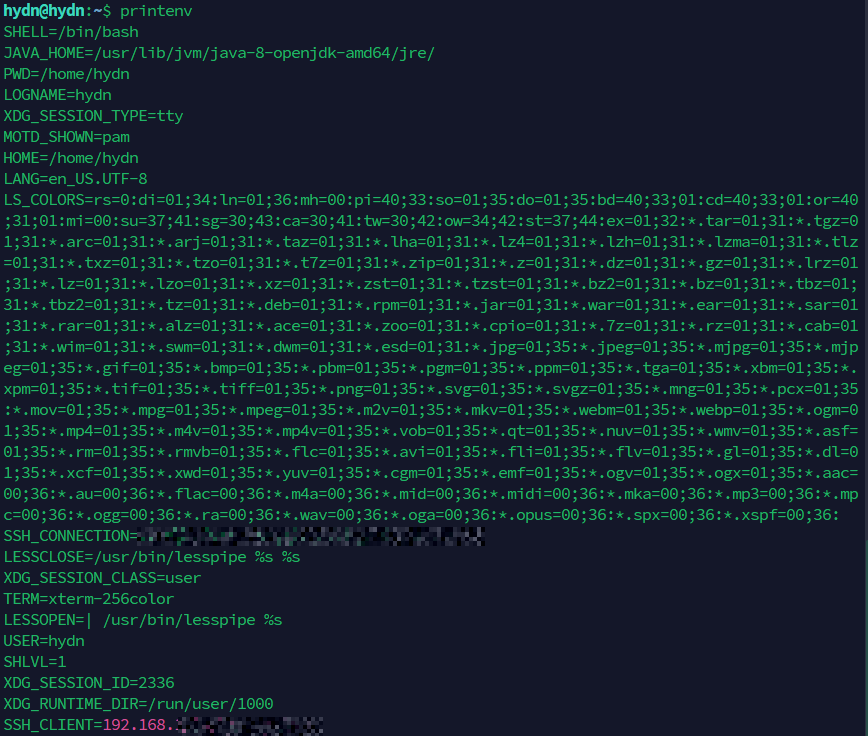
Linux environment variables are simple in concept but genuinely important to get right in practice. Most breakage comes from setting a variable in the wrong place: it works in your interactive shell but not in a service, a cron job, or another user’s session.
The short version: use export for the current session, ~/.bashrc for your user, /etc/environment for system-wide settings, the EnvironmentFile= directive for systemd services, and --env-file for Docker containers. Know what /proc/PID/environ shows you when something is not behaving as expected.
Once the scoping model clicks, a whole category of confusing Linux behavior starts making sense.


Nice write up,very informative and I learned a lot.
That is a beautiful introduction to environment variables
There is only one thing that, in my opinion, could have a bit more thought and attention because it is often used without thinking.
which i often agree with
(on a lot of systems a ‘bring your own version’ python is often needed since every python version is incompatible with the previous one and probably also with the system provided one)
which in my opinion is definitely not really a good idea.
Someone on stackexchange formulated perfectly why:
And also this:
The reasons above are pretty much the reasons why you’ll never find
#!/usr/bin/env bashin any of my scripts.Good points @tkn and fair pushback on the bash shebang. Using env makes sense for things like python or node, where the binary can live in different spots depending on the system or version manager. But bash is pretty much always at /bin/bash on any Linux system you’d run the script on, so you’re trading a real security concern for portability you don’t really need.
The PATH hijacking risk is the part most of us overlook. For anything running with sudo or in a shared environment, hardcoding the path is the safer call. Going to add a note to the article about when each makes sense instead of just defaulting to env. Appreciate you flagging it.