Linux Log Files: Guide to Reading, Searching, and Managing Logs
If something breaks on a Linux system, logs are almost always the first place to look. Yet many users treat log files as a last resort, digging through them only when things go badly wrong. Logs tell you what your system is doing right now, what it did yesterday, and exactly what went wrong at 3am last Tuesday.
This guide covers the log files every sysadmin should know, the tools to search and filter them efficiently, and how to keep logs from eating your disk.
Where Linux Logs Live
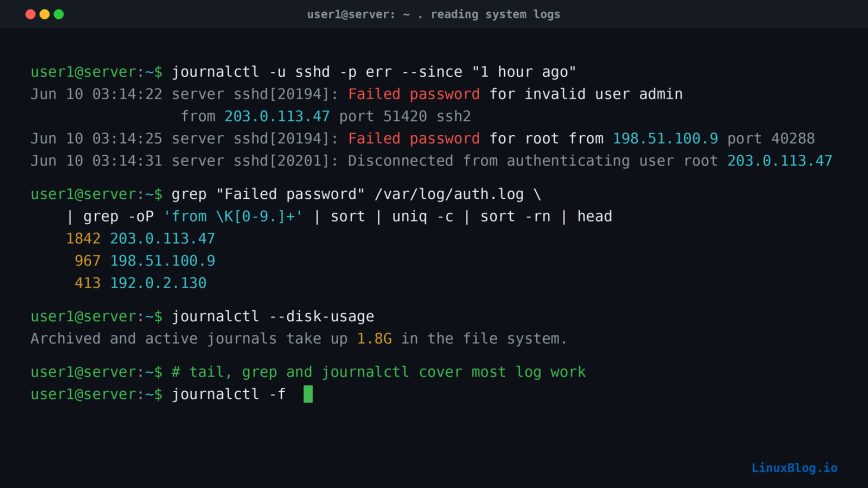
Most Linux log files live under /var/log/. Some are plain text, some are binary. Here are the ones you’ll use most:
/var/log/syslog(Debian/Ubuntu) or/var/log/messages(RHEL/CentOS/Fedora) – general system messages from the kernel and services./var/log/auth.log(Debian/Ubuntu) or/var/log/secure(RHEL/CentOS/Fedora) – authentication attempts, sudo usage, SSH logins./var/log/kern.log– kernel-specific messages. Useful for hardware issues and driver problems./var/log/dmesg– kernel ring buffer output from boot. Also accessible via thedmesgcommand./var/log/dpkg.log– package install, remove, and upgrade history on Debian-based systems./var/log/dnf.logor/var/log/yum.log– same, but for Fedora/RHEL systems./var/log/apache2/or/var/log/httpd/– Apache access and error logs./var/log/nginx/– Nginx access and error logs./var/log/mysql/– MySQL error log./var/log/cronor/var/log/cron.log– cron job execution history./var/log/faillog– failed login attempts (binary, usefaillogcommand to read)./var/log/lastlog– last login info for each user (binary, uselastlogcommand).
Note: On systemd-based systems, many of these traditional text logs are supplemented or replaced by the systemd journal. More on that below.
Reading Logs: The Basics
For plain text logs, the usual suspects work fine.
View the end of a log file:
tail /var/log/syslog
Follow a log in real time (most useful when debugging a live issue):
tail -f /var/log/syslog
Follow multiple files at once:
tail -f /var/log/syslog /var/log/auth.log
View the full log with pagination:
less /var/log/syslog
Inside less, press G to jump to the end, g to go back to the top, and /searchterm to search. It’s faster than people give it credit for.
Searching Logs with grep
Once a log gets large, scrolling through it manually is pointless. grep is your best friend here.
Find all SSH authentication failures:
grep "Failed password" /var/log/auth.log
Case-insensitive search:
grep -i "error" /var/log/syslog
Show 3 lines of context before and after each match:
grep -C 3 "Out of memory" /var/log/syslog
Search across all log files in a directory:
grep -r "connection refused" /var/log/nginx/
Count how many times a pattern appears:
grep -c "Failed password" /var/log/auth.log
Filter by a specific date. Linux logs typically start each line with a timestamp like Jun 10, so you can target a specific day:
grep "^Jun 10" /var/log/syslog
Combine with tail to search only recent entries:
tail -n 500 /var/log/syslog | grep "error"
The systemd Journal: journalctl
On any modern systemd-based distro, journalctl is often more useful than reading raw log files. The journal collects output from all services, the kernel, and the boot process in one place, stored in a structured binary format.
View all journal entries (oldest first, loads slowly on busy systems):
journalctl
View the most recent entries first:
journalctl -r
Follow live output, like tail -f:
journalctl -f
Show only kernel messages:
journalctl -k
Show logs for a specific service:
journalctl -u nginx
journalctl -u sshd
Show logs for the current boot only:
journalctl -b
Show logs from the previous boot. Useful after a crash or unexpected reboot:
journalctl -b -1
Filter by priority. Levels go from 0 (emergency) to 7 (debug). To see only errors and above:
journalctl -p err
Filter by time range:
journalctl --since "2025-06-01 08:00:00" --until "2025-06-01 09:00:00"
Or use relative time:
journalctl --since "1 hour ago"
Show output in short, concise format (my preference for quick checks):
journalctl -u sshd -o short --no-pager | tail -50
Tip: --no-pager outputs directly to the terminal instead of launching less. Useful when piping output to grep or other tools.
Checking Authentication and SSH Logs
The auth log is one of the most important logs on any internet-facing server. If your server has a public IP, you’ll find brute-force attempts in there constantly.
On Debian/Ubuntu, check recent SSH failures:
grep "Failed password" /var/log/auth.log | tail -20
On RHEL/CentOS/Fedora:
grep "Failed password" /var/log/secure | tail -20
Or using journalctl on any systemd system:
journalctl -u sshd | grep "Failed password" | tail -20
See which IPs are hammering your SSH port:
grep "Failed password" /var/log/auth.log | grep -oP 'from \K[0-9.]+' | sort | uniq -c | sort -rn | head -10
This one-liner extracts the source IP from each failed login line, counts occurrences, and sorts by the most frequent offenders. Anchoring on the from keyword keeps it accurate whether or not the log line includes an “invalid user” prefix, which shifts the field positions. If you’re not already running hardened SSH settings, that output will motivate you to do so quickly.
Kernel and Boot Logs
The dmesg command reads from the kernel ring buffer and is especially useful for diagnosing hardware issues, driver problems, and disk errors.
View all kernel messages:
dmesg
View with human-readable timestamps:
dmesg -T
Filter for errors and warnings only:
dmesg -T --level=err,warn
Watch for disk errors specifically:
dmesg -T | grep -i "error\|fail\|reset"
If a disk is failing, you’ll typically see lines mentioning the device name (sda, nvme0, etc.) and words like I/O error or hard resetting link. Don’t ignore those.
Log Rotation: logrotate
Logs will eat your disk if you don’t manage them. On most Linux systems, logrotate handles this automatically. It compresses and rotates log files on a schedule, keeping a configurable number of old logs and deleting the rest.
The main config file is at /etc/logrotate.conf, and per-application configs live under /etc/logrotate.d/.
Check what’s in there:
ls /etc/logrotate.d/
A typical Nginx logrotate config looks like this:
/var/log/nginx/*.log {
    daily
    missingok
    rotate 14
    compress
    delaycompress
    notifempty
    create 0640 www-data adm
    sharedscripts
    postrotate
        [ -f /var/run/nginx.pid ] && kill -USR1 `cat /var/run/nginx.pid`
    endscript
}
Key directives to know:
daily/weekly/monthly– rotation frequency.rotate 14– keep 14 old log files before deleting.compress– gzip old log files.delaycompress– don’t compress the most recently rotated log (useful for apps that hold the file open briefly).missingok– don’t error if the log file is missing.notifempty– skip rotation if the log file is empty.postrotate– run a command after rotation, typically to signal the app to reopen its log file.
To test your logrotate config without actually rotating anything:
sudo logrotate --debug /etc/logrotate.conf
Force rotation right now (useful for testing):
sudo logrotate --force /etc/logrotate.d/nginx
Managing Journal Size
The systemd journal can grow large if left unchecked. Check current disk usage:
journalctl --disk-usage
Trim the journal to a maximum size:
sudo journalctl --vacuum-size=500M
Trim to keep only the last 2 weeks of logs:
sudo journalctl --vacuum-time=2weeks
To set a permanent size limit, edit /etc/systemd/journald.conf and set:
SystemMaxUse=500M
Then restart the journal service:
sudo systemctl restart systemd-journald
On smaller VPS instances or low-storage systems this matters a lot. I’ve seen journal directories quietly grow past 2GB on servers that nobody thought to check.
Useful One-Liners for Log Analysis
Check for OOM (Out of Memory) killer events:
grep -i "oom\|out of memory\|killed process" /var/log/syslog
Find the most common errors in a log file:
grep -i "error" /var/log/syslog | awk '{print $5}' | sort | uniq -c | sort -rn | head -20
Count unique IPs in an Nginx access log:
awk '{print $1}' /var/log/nginx/access.log | sort | uniq -c | sort -rn | head -10
Find which cron jobs ran in the last hour:
journalctl -u cron --since "1 hour ago"
Show all sudo usage today:
grep "sudo" /var/log/auth.log | grep "$(date '+%b %e')"
List the largest log files on your system:
sudo du -sh /var/log/* | sort -rh | head -15
That last one is worth running occasionally on any server. It’s not unusual to find a runaway application writing gigabytes to a log file that nobody set up rotation for. Related: if you’re watching memory alongside disk, tools like vmstat and sar pair well with log analysis when diagnosing performance issues.
Centralizing Logs with rsyslog
rsyslog is the default syslog daemon on most Linux distros. It handles the routing of log messages to files, and it can also forward logs to a remote server. For a multi-server setup, this is very useful.
On the log server, edit /etc/rsyslog.conf and enable UDP or TCP reception:
# Enable UDP
module(load="imudp")
input(type="imudp" port="514")

# Enable TCP
module(load="imtcp")
input(type="imtcp" port="514")
On the client sending logs, add a line to /etc/rsyslog.conf:
# Send all logs to remote server over UDP
*.* @192.168.1.100:514

# Or use TCP (@@)
*.* @@192.168.1.100:514
Restart rsyslog on both sides:
sudo systemctl restart rsyslog
This is a basic setup. For production use, you’d want TLS encryption on the transport and proper firewall rules. But even this simple setup is a significant improvement over logging into five different servers to check logs individually.
Note: More advanced centralized logging setups use tools like the ELK stack (Elasticsearch, Logstash, Kibana), Loki with Grafana, or Graylog. These are worth exploring once you’ve outgrown simple rsyslog forwarding.
Quick Troubleshooting Workflow
When something breaks, here’s the sequence I typically follow:
- Check if the service is running:
systemctl status servicename - Pull recent journal entries for that service:
journalctl -u servicename -n 50 --no-pager - Check the application’s own log if it has one:
tail -50 /var/log/nginx/error.log - Check auth logs for anything suspicious:
tail -50 /var/log/auth.log - Check dmesg for kernel or hardware issues:
dmesg -T | tail -30 - Check disk space, because full disks cause weird failures:
df -h
Steps 1 and 2 solve the problem the vast majority of the time. The rest are for when things are genuinely strange. Also see SSH command examples for quickly accessing remote servers when you need to dig through logs on a machine that isn’t local.
Log File Permissions
A quick note on permissions. Some log files are readable only by root or specific groups. If you’re getting permission denied errors when trying to read a log, check who owns it:
ls -la /var/log/auth.log
On Debian/Ubuntu, auth.log is typically owned by root:adm. Adding your user to the adm group lets you read it without sudo:
sudo usermod -aG adm yourusername
Log out and back in for the group change to take effect. Use sudo as a fallback when you need it. If you want a refresher on sudo usage, the sudo command guide covers the practical side well.
Summary
Linux logs are detailed, well-organized, and genuinely useful once you know where to look and how to search them. The combination of tail, grep, and journalctl handles the majority of day-to-day log work. logrotate and journal vacuum keep storage under control. And a basic rsyslog forwarding setup starts you down the path of centralized log management without needing a full observability stack.
Get into the habit of checking logs proactively, not just when things break. You’ll start catching problems earlier, understand your systems better, and spend less time firefighting.