Linux Signals Explained: kill, pkill, and trap
Every Linux process runs until something stops it. That “something” is almost always a signal. Signals are how the kernel and user space communicate with running processes, and understanding them properly will save you from blindly running kill -9 on everything that misbehaves.
This guide covers what signals actually are, how to send them correctly, and how to trap them inside your own scripts so your code can clean up gracefully instead of dying mid-operation.
What Are Signals?
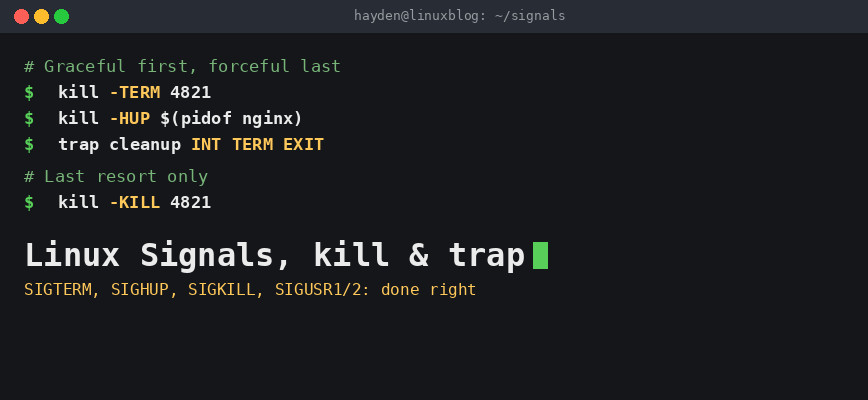
A signal is a notification sent to a process. It interrupts whatever the process is doing and tells it to do something specific: stop, pause, reload config, or terminate. The process can handle it, ignore it, or let the kernel apply the default action.
Think of signals as software interrupts. They work asynchronously, meaning the process does not have to be in any particular state to receive one. The full list of standard Linux signals and their default actions is documented in the signal(7) man page.
You can list every signal your system supports with:
kill -l
Output will look something like this:
 1) SIGHUP       2) SIGINT       3) SIGQUIT      4) SIGILL
 5) SIGTRAP      6) SIGABRT      7) SIGBUS       8) SIGFPE
 9) SIGKILL     10) SIGUSR1     11) SIGSEGV     12) SIGUSR2
13) SIGPIPE     14) SIGALRM     15) SIGTERM     16) SIGSTKFLT
17) SIGCHLD     18) SIGCONT     19) SIGSTOP     20) SIGTSTP
...
You will reference signals by name (e.g., SIGTERM) or by number (e.g., 15). Both work. Names are easier to read in scripts. Note that some signal numbers differ on non-x86 architectures such as Alpha, MIPS, and SPARC, so always prefer names in portable code.
The Signals You Actually Need to Know
There are 30+ signals, but in day-to-day sysadmin work, a handful cover almost every situation.
SIGTERM (15)
This is the default signal sent by kill. It asks the process to terminate gracefully. A well-written program catches SIGTERM, finishes what it is doing, closes files, releases locks, and exits cleanly. Most daemons and services respond to this correctly.
SIGKILL (9)
SIGKILL cannot be caught, blocked, or ignored. The kernel kills the process immediately, no questions asked. Use this as a last resort, not a first one. A process killed with SIGKILL has no chance to clean up, which can leave lock files, temp files, or corrupted state behind. One edge case worth knowing: a process stuck in uninterruptible sleep (state D) will not die even from SIGKILL until it wakes up, which is one of the reasons a server can feel unkillably stuck. For the full picture on why that happens, see the guide on R, S, D, Z and T process states.
SIGHUP (1)
Originally meant “terminal hangup.” Today it is widely used to tell a daemon to reload its configuration without fully restarting. nginx, sshd, and many other services respond to SIGHUP this way. It is cleaner and faster than a full restart.
SIGINT (2)
This is what happens when you press Ctrl+C in a terminal. The kernel sends SIGINT to the foreground process. Most interactive programs treat it as “stop what you are doing.”
SIGSTOP (19) and SIGCONT (18)
SIGSTOP pauses a process. SIGCONT resumes it. Like SIGKILL, SIGSTOP cannot be caught, blocked, or ignored. Pressing Ctrl+Z in a terminal sends SIGTSTP (20), which is the stoppable, catchable version of SIGSTOP.
SIGUSR1 and SIGUSR2 (10, 12)
These are user-defined signals. Programs can use them for anything. For example, nginx uses SIGUSR1 to reopen log files after rotation, and SIGUSR2 to initiate an online upgrade. php-fpm uses SIGUSR2 for a graceful reload of all workers plus the fpm config and binary, which is exactly what systemctl reload php-fpm runs under the hood:
kill -USR2 $(pidof php-fpm)
Check the documentation for whichever daemon you are working with. The official nginx control signals reference is a good example of what to expect in well-documented daemons.
Using the kill Command
Despite the name, kill sends any signal to any process, not just termination signals. The basic syntax is:
kill [signal] PID
Send the default SIGTERM to process 4821:
kill 4821
Reload nginx config with SIGHUP:
kill -HUP $(cat /var/run/nginx.pid)
Force-kill a stuck process with SIGKILL:
kill -9 4821
You can also use the signal name with a dash prefix:
kill -SIGTERM 4821
kill -TERM 4821
kill -15 4821
All three are equivalent. The name form is clearest in scripts and documentation.
To send a signal to multiple PIDs at once:
kill -TERM 4821 4822 4823
Finding the PID First
You need a PID to use kill. The most common ways to find one:
# By process name
pgrep nginx

# With full details
ps aux | grep nginx

# Just the PID of the first match
pidof sshd
Note: pgrep is often the cleanest option. It returns only PIDs, which you can pipe directly into kill. For a visual alternative, pstree shows the parent-child relationships between processes, which is useful when you need to signal an entire process group.
pkill: Kill by Name Instead of PID
pkill is kill with built-in process matching. You skip the step of finding the PID manually.
# Send SIGTERM to all processes named "python3"
pkill python3

# Send SIGKILL
pkill -9 python3

# Match by full command line, not just process name
pkill -f "gunicorn myapp:app"

# Only kill processes owned by a specific user
pkill -u webuser php-fpm
The -f flag is the most useful one. Without it, pkill only matches against the process name (first 15 characters). With -f, it matches against the entire command string, so you can target specific scripts or arguments.
Be careful with pkill. It is easy to accidentally match more processes than you intended. Use pgrep first to confirm what you are targeting, then replace pgrep with pkill:
# Check first
pgrep -fl python3

# Then kill
pkill python3
The -l flag on pgrep prints both the PID and the process name so you can verify the match before committing.
killall
killall also kills by name, but it matches the exact process name rather than using regex patterns like pkill. On Linux, pkill is generally more flexible. On macOS, the behavior differs slightly, so be aware if you are writing cross-platform scripts.
killall nginx
Sending Signals to Processes the Right Way
The correct sequence when you need to stop a misbehaving process is not to immediately reach for kill -9. Try this order instead:
- Send
SIGTERMfirst and wait a few seconds. - If the process is still running, inspect it before escalating.
- Only use
SIGKILLif the process is clearly stuck and not responding toSIGTERM.
A quick pattern you will see in init scripts and systemd unit files is a timed wait between SIGTERM and SIGKILL:
kill -TERM "$PID"
sleep 5
kill -0 "$PID" 2>/dev/null && kill -KILL "$PID"
kill -0 is a useful trick. Signal 0 does not actually send a signal but checks whether the process exists and whether you have permission to signal it. If it returns 0, the process is still running.
Reloading Services with SIGHUP
Config reloads are one of the most common real-world uses of signals. For services managed by systemd, you can use:
sudo systemctl reload nginx
Under the hood, systemctl reload runs whatever command is defined in the unit file’s ExecReload directive, which for most daemons sends SIGHUP. You can also send it directly:
sudo kill -HUP $(pidof nginx)
Same result, useful to know when you are not running systemd or working with a process that is not managed as a service.
Note: Not every program responds to SIGHUP as a reload trigger. Always check the documentation or the man page for the specific daemon.
Trapping Signals in Bash Scripts
This is where signals become genuinely useful in your own work. The trap command lets a Bash script catch incoming signals and run cleanup code before exiting.
Without a trap, if you send SIGINT or SIGTERM to a running script, it just dies. Any temp files it created, any locks it acquired, any partial operations it started: all left in whatever state they were in. This causes problems.
The syntax for trap is:
trap 'commands' SIGNAL [SIGNAL ...]
Basic Cleanup Example
The trap builtin is documented in full in the GNU Bash manual, which covers the exact signal-handling semantics.
#!/bin/bash

TMPFILE=$(mktemp /tmp/myprocess.XXXXXX)

cleanup() {
    echo "Caught signal, cleaning up..."
    rm -f "$TMPFILE"
    exit 1
}

trap cleanup INT TERM EXIT

echo "Working with temp file: $TMPFILE"
sleep 30
echo "Done."
Now if you press Ctrl+C or send SIGTERM to this script, the cleanup function runs first, the temp file gets removed, and the script exits with code 1.
Trapping EXIT is a good habit. EXIT is not technically a signal but a pseudo-signal that Bash fires whenever the script exits for any reason, including normal completion. It acts as a catch-all.
Trap with a Lock File
#!/bin/bash

LOCKFILE="/var/run/mybackup.lock"

if [ -e "$LOCKFILE" ]; then
    echo "Another instance is running. Exiting."
    exit 1
fi

touch "$LOCKFILE"

cleanup() {
    rm -f "$LOCKFILE"
    echo "Lock released."
}

trap cleanup EXIT

# Main work here
echo "Running backup..."
rsync -az /data/ /mnt/backup/
echo "Backup complete."
This pattern ensures the lock file is removed whether the script exits cleanly or gets interrupted. If you have ever seen a stale lock file left behind after a crashed script, this is the fix. For more on rsync, see the rsync command guide.
Ignoring a Signal
You can tell a script to ignore a signal entirely by trapping it with an empty string:
trap '' INT
Now Ctrl+C does nothing. Use this carefully. A script that ignores SIGINT can become annoying to stop if something goes wrong. Usually it is better to handle the signal than to ignore it.
Resetting a Trap
To restore the default behavior for a signal, use a hyphen:
trap - INT
This is useful if you want cleanup behavior during one phase of a script but want to allow normal interruption during another phase.
Trapping SIGUSR1 for Custom Behavior
You can use SIGUSR1 and SIGUSR2 to add custom behavior to long-running scripts. For example, a script that dumps its current status when you send it a signal:
#!/bin/bash

print_status() {
    echo "Still running. Processed $COUNT items so far."
}

trap print_status USR1

COUNT=0
while true; do
    COUNT=$((COUNT + 1))
    sleep 1
done
Run this in the background, then query its status:
./myscript.sh &
MYPID=$!

# Later...
kill -USR1 "$MYPID"
The script prints its current count without stopping. Handy for long-running batch jobs where you want visibility without adding a full logging system.
Practical Signal Reference
Here is a quick reference for the signals you will reach for most often:
SIGHUP (1): Reload config. Works with nginx, sshd, rsyslog, and many others.SIGINT (2): Interrupt. Same asCtrl+C.SIGQUIT (3): Quit with core dump. Used for debugging.SIGKILL (9): Force kill. Cannot be caught, blocked, or ignored. Last resort.SIGTERM (15): Graceful termination. The default signal fromkill.SIGSTOP (19): Pause a process. Cannot be caught, blocked, or ignored.SIGCONT (18): Resume a stopped process.SIGUSR1 (10)/SIGUSR2 (12): User-defined. Behavior depends on the application.
You can pair these with the broader set of Linux commands sysadmins use daily to build a solid mental model of process management.
Common Mistakes
Using kill -9 as the default. It should be the last option, not the first. Most processes respond fine to SIGTERM if you give them a second.
Forgetting that pkill is broad. pkill python will kill every Python process on the system, including system services if they match. Always verify with pgrep -fl first.
Not trapping signals in scripts that create resources. Any script that creates temp files, acquires locks, or starts background jobs should trap at minimum EXIT and INT.
Sending SIGHUP to a process that does not handle it as a reload. Some older daemons will just exit on SIGHUP. Read the man page before relying on this in production.
Debugging Signal Handling
If you are not sure how a process is handling signals, strace can show you in real time:
strace -e trace=signal -p PID
This attaches to a running process and prints signal-related system calls as they happen. Useful when a daemon does not behave as expected after a SIGHUP or SIGTERM.
You can also check /proc/PID/status for the signal masks of a running process:
grep -E "Sig(Blk|Ign|Cgt)" /proc/$(pidof nginx)/status
The output shows bitmasks for blocked, ignored, and caught signals. It takes a bit of decoding (each bit corresponds to a signal number), but it tells you exactly what a process is doing with the signals it receives. Also worth monitoring overall process behavior with tools covered in the free Linux server monitoring guide.
Conclusion
Signals are a core part of how Linux manages processes, and knowing how to use them correctly separates careful sysadmin work from blunt-force troubleshooting. The short version:
- Try
SIGTERMfirst. Reach forSIGKILLonly when the process is truly stuck. - Use
pkill -fwhen you need to match by full command line, but always verify withpgrep -flfirst. - Use
kill -HUPto reload daemon configs without a full restart. - Trap
EXIT,INT, andTERMin any Bash script that creates resources or needs to clean up. - Use
SIGUSR1/SIGUSR2for lightweight inter-process communication in your own scripts.
Once this becomes second nature, you will stop wrestling with stuck processes and start handling them cleanly every time.