Linux Filesystem Hierarchy Explained: What Every Directory Does
If you have spent any time on the Linux command line, you have navigated /etc, poked around in /var, and probably wondered at some point why things are split up the way they are. The Linux filesystem hierarchy is not arbitrary. There is logic behind every top-level directory, and understanding it makes you a better admin and a faster troubleshooter.
This guide walks through the Filesystem Hierarchy Standard (FHS): why directories are split the way they are, and why that matters for troubleshooting.
The Root: /
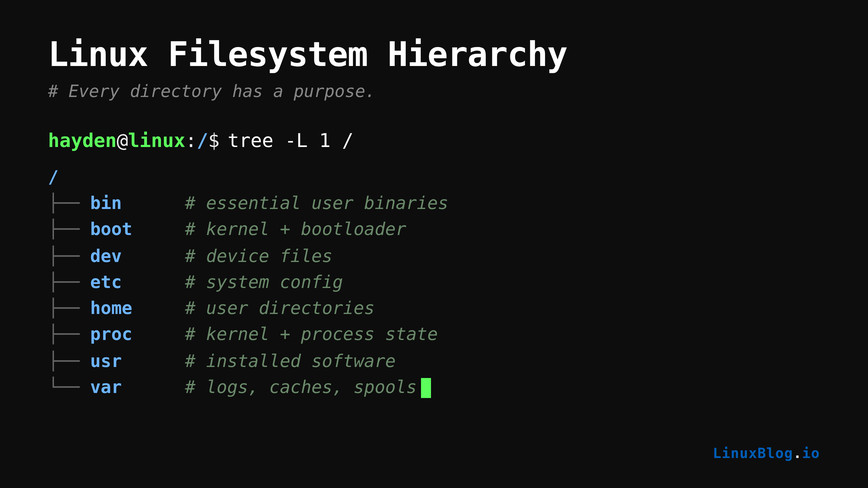
Everything starts at /. The root of the entire filesystem tree. Every file, every device, every mount point lives under here. Unlike Windows, where drives get separate letters, Linux mounts everything into one unified tree. A second drive, a USB stick, a network share: they all get attached somewhere under /.
This matters in practice. When you run out of space on /var, it is not a different “drive” you need to worry about. It is a partition or directory under the same root, and understanding the hierarchy tells you exactly where to look.
Essential System Directories
/bin and /sbin
/bin holds essential user binaries: ls, cp, mv, bash, cat. The kind of commands that need to work even when almost nothing else does, including during single-user rescue mode or before /usr is mounted.
/sbin is the same idea but for system administration binaries: fsck, ip, iptables, reboot. Commands typically run as root.
Note: On most modern distributions, including Ubuntu, Fedora, and Arch, /bin and /sbin are now symlinks to /usr/bin and /usr/sbin. This is the “UsrMerge” change. The separation still matters conceptually, but on these systems the files physically live in /usr. In practice, when debugging missing binaries, check /usr/bin even if documentation refers to /bin.
/usr
This is the largest directory on most systems. It contains the bulk of installed software, libraries, and documentation for normal system use. Think of it as the read-only application layer.
/usr/bin: Most user-facing commands and applications./usr/sbin: Non-essential system administration tools./usr/lib: Shared libraries for programs in/usr/binand/usr/sbin./usr/local: Software compiled and installed manually, outside the package manager. This is where your hand-built Nginx or custom Python install goes so it does not conflict with distro-managed packages./usr/share: Architecture-independent data: man pages, locale files, icons, documentation./usr/include: Header files for C and C++ development.
When you compile something from source and run ./configure && make && make install, it almost always lands in /usr/local by default. That is intentional: your package manager will not touch /usr/local, so manual installs stay clean and separate.
/etc
System-wide configuration files. Every service you run has its configuration here: /etc/nginx/, /etc/ssh/sshd_config, /etc/fstab, /etc/hosts. No binaries live here, just text-based config.
This is probably the directory you edit most as a sysadmin. It is also the directory you should back up regularly. A simple rsync of /etc to a remote location before making changes has saved me more than once. See the guide on SCP for securely copying files if you want a quick way to grab a backup before touching production configs.
Some important files worth knowing:
/etc/fstab: Defines filesystems to mount at boot./etc/hosts: Static hostname to IP mappings./etc/passwdand/etc/shadow: User account information./etc/resolv.conf: DNS resolver configuration./etc/sudoers: Controls who can usesudoand how./etc/crontab: System-wide scheduled tasks.
/var
/var holds variable data: content that changes during normal system operation. Logs, mail spools, package manager databases, application caches, and runtime data all live here.
/var/log: System and application logs. This is your first stop when diagnosing problems./var/log/syslog,/var/log/auth.log,/var/log/nginx/./var/lib: Persistent application state data. MySQL stores its databases under/var/lib/mysql. Docker stores images and containers under/var/lib/docker./var/cache: Application cache data. APT’s downloaded package files sit in/var/cache/apt/archives./var/spool: Data queued for processing: print jobs, mail queues./var/tmp: Temporary files that should persist across reboots (unlike/tmp).
/var/log filling up is a classic server problem. When /var runs out of space, log writes fail, and applications start behaving strangely. Checking df -h and du -sh /var/log/* should be part of any Linux troubleshooting routine.
/tmp
Temporary files. Programs use this for scratch space during operation. On many modern systems, /tmp is a tmpfs mount, meaning it lives in RAM and is cleared on every reboot. Do not store anything here you need to keep.
You can check whether /tmp is a tmpfs on your system:
df -T /tmp
If you see tmpfs in the output, it is RAM-backed. This is usually fast and fine. On a memory-constrained server, a large application dumping gigabytes into /tmp can cause memory pressure. Worth keeping in mind.
Boot and Kernel Directories
/boot
Contains the files needed to boot the system: the kernel image (vmlinuz), the initial RAM disk (initrd or initramfs), and the bootloader configuration (GRUB files).
/boot is commonly a separate small partition, often 500MB to 1GB. It fills up when old kernels accumulate. If you have ever hit the “/boot is full” error after an update, this is why. Clean out old kernels with your package manager.
On Ubuntu/Debian:
sudo apt autoremove --purge
On Fedora/RHEL:
sudo dnf remove $(dnf repoquery --installonly --latest-limit=-2 -q)
/lib and /lib64
Essential shared libraries required by the binaries in /bin and /sbin. The C standard library (libc) lives here. /lib64 holds 64-bit variants on 64-bit systems.
Like /bin, these are typically symlinked to /usr/lib on modern distributions.
Device and Runtime Directories
/dev
Device files. Every piece of hardware is represented as a file here. Your hard drive is /dev/sda or /dev/nvme0n1. Your terminal is /dev/tty. /dev/null discards anything written to it, which is why you redirect unwanted output there.
/dev is managed by udev at runtime. When you plug in a USB drive, udev creates the appropriate device file automatically.
A few useful ones to know:
/dev/sda,/dev/sdb: SCSI/SATA disks./dev/nvme0n1: NVMe drives./dev/null: Discard output./dev/zero: Source of null bytes, useful for zeroing disks or creating test files./dev/random,/dev/urandom: Sources of random data for cryptographic operations./dev/ttyS0: First serial port.
/proc
A virtual filesystem that exists only in memory. It exposes the kernel’s view of running processes and system state as files. Nothing in /proc is stored on disk.
/proc is how most monitoring tools get their data. top, htop, free, uptime: they all read from /proc.
Some useful files to explore directly:
/proc/cpuinfo: CPU details./proc/meminfo: Memory usage breakdown./proc/loadavg: Load averages and running process count./proc/uptime: System uptime in seconds./proc/net/dev: Network interface statistics./proc/[PID]/: Per-process information for any running process by its PID.
Try this:
cat /proc/meminfo | grep -E "MemTotal|MemFree|MemAvailable"
You will see the same values that free reports, because that is exactly where free gets them.
Kernel tunable parameters are also exposed here under /proc/sys/. When you set vm.swappiness with sysctl, it is writing to /proc/sys/vm/swappiness.
/sys
Another virtual filesystem, similar to /proc but more structured. It exposes the kernel’s device model: hardware devices, drivers, and kernel subsystems are organized in a hierarchy here.
You interact with /sys more often than you might realize. CPU frequency scaling, power management, LED control, block device queues: all of these are configurable through /sys. For example, checking I/O scheduler for a disk:
cat /sys/block/sda/queue/scheduler
/run
A tmpfs mount for runtime data that needs to persist between service restarts but not across reboots. PID files, socket files, and lock files go here. systemd and most modern daemons write their runtime state to /run.
On older systems you may see /var/run, which is now typically a symlink to /run.
User and Home Directories
/home
Personal directories for regular users. Each user gets a subdirectory: /home/alice, /home/bob. This is where user-specific config files, documents, and data live.
Dotfiles live here too: ~/.bashrc, ~/.ssh/, ~/.config/. The tilde (~) is just shorthand for your home directory. cd ~ and cd /home/yourusername are equivalent.
On servers, it is common practice to mount /home on a separate partition so that a user filling up their home directory cannot affect the root filesystem or /var.
/root
The home directory for the root user specifically. Kept separate from /home so that root always has a working home directory even if the /home partition is not mounted or is full.
Optional and Mount Directories
/opt
Optional software packages. Self-contained third-party applications that do not follow the standard FHS layout often install here. Google Chrome, some proprietary monitoring agents, and various enterprise software packages install under /opt. Each package typically gets its own subdirectory: /opt/google/chrome.
If you are deploying a custom application on a server and want it cleanly isolated from system packages, /opt is a reasonable place to put it.
/srv
Data served by the system. Web server document roots, FTP data, and similar content are meant to go here according to FHS. In practice, many distributions and admins use /var/www for web content instead, but /srv is the more semantically correct location.
/mnt and /media
/mnt is a generic mount point for temporarily mounting filesystems manually. If you mount a second disk to access it, you might do:
sudo mount /dev/sdb1 /mnt
/media is where removable media gets mounted automatically by the desktop environment or udisks: USB drives, optical discs, SD cards. When you plug in a USB stick on a desktop, it usually appears under /media/username/LABEL.
Putting It All Together
Knowing the hierarchy makes common tasks faster. Here is a quick mental map for common sysadmin scenarios:
- Service not starting? Check logs in
/var/log/and config in/etc/. - Disk full? Start with
df -hto find which partition, then useduor ncdu under/var/log,/var/lib, or/tmp. - Need to tune a kernel parameter? Use
sysctlwhich writes to/proc/sys/, persist in/etc/sysctl.conf. - Installed something manually? It went to
/usr/local. Check/usr/local/binand/usr/local/lib. - Application writing temp data? Could be
/tmpor/var/tmp. - Process info needed?
/proc/[PID]/has open files, memory maps, environment, and more.
Tools like atop and other monitoring utilities tie back to these directories constantly. Understanding where data comes from makes the output of those tools far more meaningful.
The FHS Standard
The Filesystem Hierarchy Standard version 3.0, originally published by the Linux Foundation and now maintained by freedesktop.org, is the formal specification for all of this. It is readable, not too long, and worth skimming at least once. Most major distributions follow it closely, with minor variations.
Distributions like those using SELinux or AppArmor add their own labels and policies on top of this hierarchy, but the underlying directory structure stays consistent.
Quick Reference
/: Root of the filesystem tree./bin: Essential user binaries (often symlinked to/usr/bin)./sbin: Essential system binaries (often symlinked to/usr/sbin)./usr: Installed software, libraries, documentation./usr/local: Manually installed software, outside the package manager./etc: System-wide configuration files./var: Variable data: logs, databases, caches, spools./tmp: Temporary files, cleared on reboot./boot: Kernel and bootloader files./dev: Device files./proc: Virtual filesystem exposing kernel and process state./sys: Virtual filesystem exposing the kernel device model./run: Runtime data, cleared on reboot./home: User home directories./root: Root user’s home directory./opt: Self-contained third-party software./srv: Data served by the system./mnt: Temporary manual mount point./media: Automounted removable media./lib,/lib64: Essential shared libraries.
Download the Cheat Sheet Wallpaper
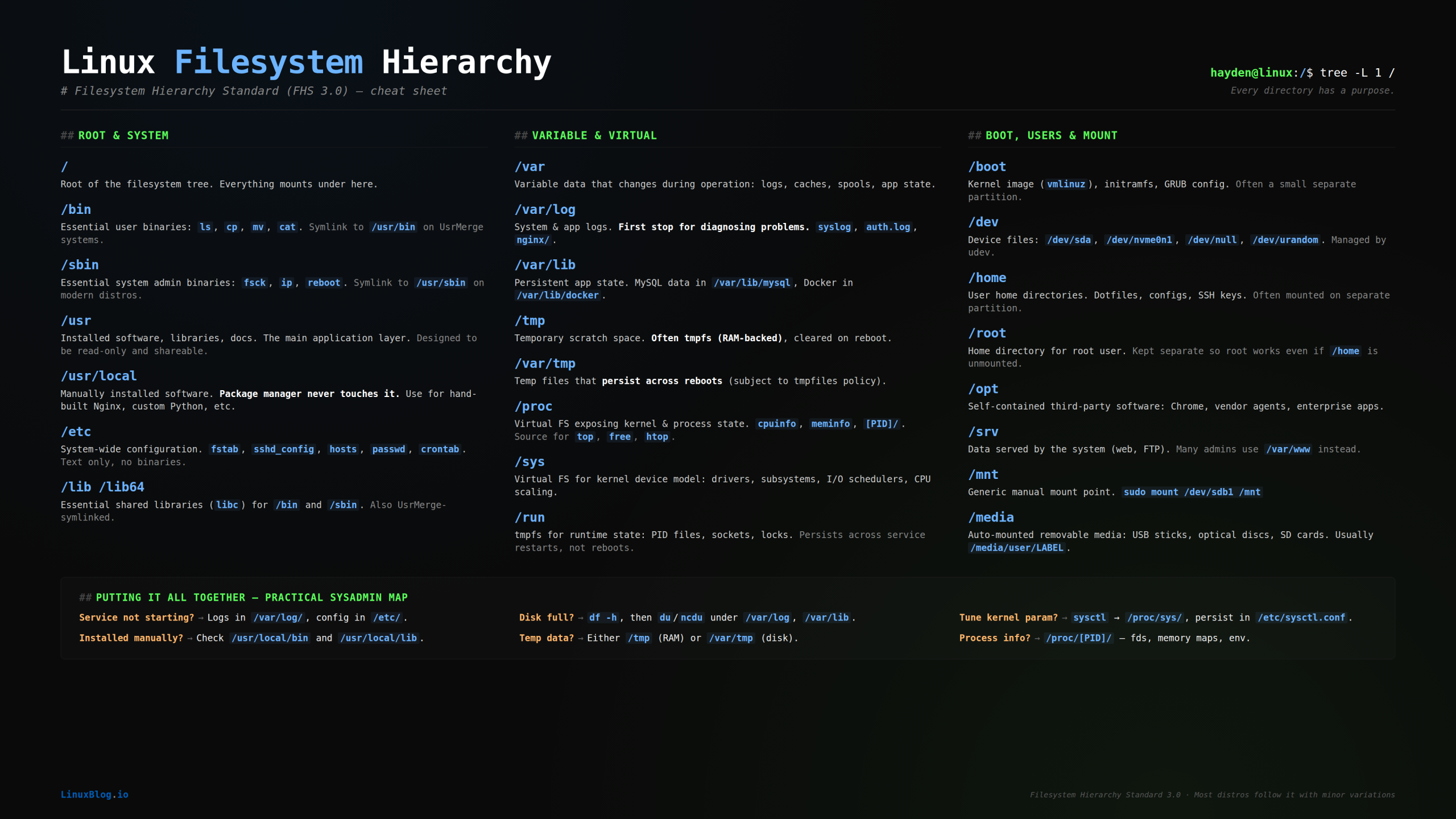
A high-res desktop reference with all 20 dirs and troubleshooting tips. Available in 4K, 1440p, and 1080p.
Summary
The Linux filesystem hierarchy feels obvious in hindsight but confusing until you work through it. Once it clicks, you stop guessing where things are and start knowing. Configuration in /etc. Logs in /var/log. Runtime state in /run. Kernel data in /proc and /sys. Manual installs in /usr/local.
Every directory has a purpose. Knowing those purposes makes you faster at debugging, more confident when installing software, and more deliberate about where you put things on your own systems.