Systemd Timers: Alternative to cron on Linux
Scheduling recurring tasks is one of those things every Linux user eventually needs to do. For decades, cron was the only real option. It is still everywhere, still works, and still makes sense in many situations. But systemd timers have matured to the point where they deserve serious consideration, especially on systems already running systemd.
This guide focuses on systemd timers in practical detail, with an honest comparison to cron so you know when each tool is the right call.
If you need a refresher on cron itself, the complete guide to cron and crontab covers syntax, environment variables, drop-in directories, and debugging in depth. This article assumes you are already comfortable with the basics and focuses on what systemd timers add to the picture.
Introducing systemd Timers
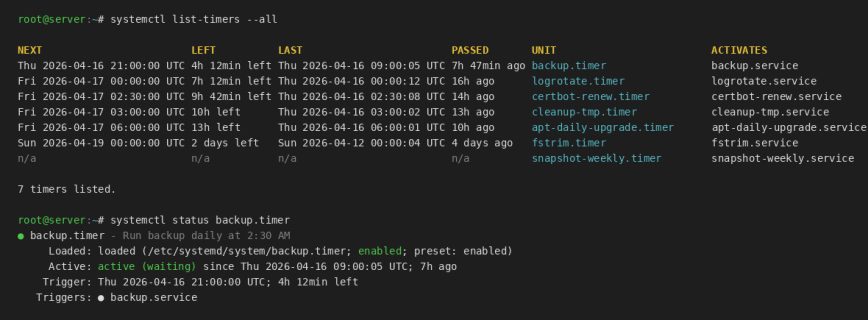
A systemd timer is a unit file with a .timer extension that triggers another unit file, usually a .service file, at a scheduled time or interval. The two files work as a pair.
This is more work upfront than a one-liner in crontab. But you get real logging via journalctl, dependency management, randomized delays to prevent thundering herd problems, and the ability to catch up on missed runs after a system was off. These are not small advantages.
Anatomy of a systemd Timer
You need two files. First, the service file that defines what runs:
# /etc/systemd/system/backup.service
[Unit]
Description=Daily Backup Script

[Service]
Type=oneshot
User=root
ExecStart=/usr/local/bin/backup.sh
Then the timer file that defines when it runs:
# /etc/systemd/system/backup.timer
[Unit]
Description=Run backup daily at 2:30 AM

[Timer]
OnCalendar=*-*-* 02:30:00
Persistent=true

[Install]
WantedBy=timers.target
Enable and start the timer:
systemctl daemon-reload
systemctl enable --now backup.timer
Verify it is active and check when it will next fire:
systemctl list-timers --all
You will see output like this:
NEXT                        LEFT       LAST                        PASSED    UNIT
Thu 2025-01-16 02:30:00 UTC 8h left    Wed 2025-01-15 02:30:05 UTC 15h ago   backup.timer
That is far more informative than anything cron gives you out of the box.
OnCalendar Syntax
The OnCalendar value is flexible. Some examples:
# Every day at 2:30 AM
OnCalendar=*-*-* 02:30:00

# Every 15 minutes
OnCalendar=*:0/15

# Every Monday at midnight
OnCalendar=Mon 00:00:00

# First day of every month at 6 AM
OnCalendar=*-*-1 06:00:00

# Hourly shorthand
OnCalendar=hourly

# Daily shorthand
OnCalendar=daily

# Weekly shorthand
OnCalendar=weekly
Validate your calendar expression before deploying it with systemd-analyze:
systemd-analyze calendar "Mon *-*-* 00:00:00"
Output tells you the next several trigger times, which is a genuinely useful sanity check:
  Original form: Mon *-*-* 00:00:00
Normalized form: Mon *-*-* 00:00:00
    Next elapse: Mon 2025-01-20 00:00:00 UTC
       (in UTC): Mon 2025-01-20 00:00:00 UTC
       From now: 4 days left
Worth doing every time. A wrong day-of-week or off-by-one hour will not throw an error, it just runs at the wrong time.
Monotonic Timers: Running Relative to Boot or Last Run
Not every task needs a wall-clock schedule. Sometimes you just want something to run 10 minutes after boot, or 6 hours after it last ran. Use monotonic timer options for this:
[Timer]
# Run 10 minutes after the timer unit starts (e.g., after boot)
OnBootSec=10min

# Then repeat every 6 hours after that
OnUnitActiveSec=6h
Or to run once, 5 minutes after the system boots:
[Timer]
OnBootSec=5min
This is cleaner than the @reboot + sleep hack you sometimes see in crontabs.
Persistent Timers: Catching Up on Missed Runs
The Persistent=true directive in a timer tells systemd to run the job immediately if the last scheduled run was missed. This is useful on laptops or machines that are not always on.
[Timer]
OnCalendar=daily
Persistent=true
With cron, if your machine was off at the scheduled time, the job simply does not run. With a persistent systemd timer, the job runs as soon as the machine boots after a missed window. For backup jobs or log rotation this is a meaningful difference.
Viewing Timer Logs
This is where systemd timers clearly win. Every run is logged to the journal. Check the output of the associated service:
journalctl -u backup.service
journalctl -u backup.service --since today
journalctl -u backup.service -n 50
No more guessing whether a job ran or hunting through syslog for cron entries. The full stdout and stderr from your script is captured automatically. If you want to go deeper on the journal itself, the journalctl command examples guide covers filtering, time ranges, and export formats.
Adding Dependencies to a Timer
This is one of the most practical advantages systemd timers have over cron. You can make a service wait for the network to be up, or for another service to be running:
[Unit]
Description=Daily Backup Script
After=network-online.target
Wants=network-online.target

[Service]
Type=oneshot
User=root
ExecStart=/usr/local/bin/backup.sh
The job will not run until the network is ready. With cron, you are stuck adding sleep calls or writing retry logic inside the script itself. For rsync backups over SSH or anything that touches a remote endpoint, that ordering matters.
cron vs systemd Timers: Side by Side
Here is an honest comparison based on what actually matters day to day:
- Logging:
cronsends email or requires manual redirection.systemdtimers log everything to the journal automatically. - Debugging:
cronis opaque.systemdgives youjournalctl,systemctl status, andsystemd-analyze calendar. - Missed runs:
cronskips them silently.systemdtimers withPersistent=truecatch up on the next boot. - Dependencies:
cronhas none.systemdtimers can depend on network availability, other services, mounts, etc. - Syntax:
cronis simpler and faster to write for one-liners.systemdrequires two files minimum. - Portability:
cronruns everywhere, including BSD, macOS, and minimal containers.systemdtimers only work onsystemd-based Linux. - Randomized delay:
systemdsupportsRandomizedDelaySecto spread out load when many timers fire at once.cronhas no equivalent. - User timers: both support per-user scheduling without root.
systemduser timers run viasystemctl --user.
When to Use cron
- Simple, self-contained scripts with no dependencies on external services.
- Environments that are not running
systemd: containers, BSD systems, minimal installs. - Quick one-off schedules you want to add in 30 seconds without creating two files.
- Legacy infrastructure where
cronis already the standard and changing it creates risk. - Shared hosting environments where you do not have
systemdaccess.
Full syntax, debugging steps, and a ready-to-adapt crontab are in the cron and crontab task scheduling guide.
When to Use systemd Timers
- Any task that needs to log its output for later review.
- Jobs that depend on a service, mount, or network being ready before running.
- Machines that are not always on, where catching up on missed runs matters.
- Tasks that are complex enough to warrant the visibility
systemdprovides. - When you are already writing a
systemdservice and the timer is a natural extension of it.
Common Mistakes with systemd Timers
A few mistakes come up often enough to be worth flagging. If your timer is not firing when expected, check these first:
- Forgetting
systemctl daemon-reload. After creating or editing a unit file,systemddoes not see your changes until you reload. If you enabled the timer and nothing happens, this is the first thing to check. - Enabling the
.serviceinstead of the.timer. Easy to do with muscle memory. The service will sit there, enabled but never triggered, because nothing is scheduling it. Always enable the.timer. - Missing the
[Install]section. Without[Install]andWantedBy=timers.target,systemctl enablehas nothing to hook into and the timer will not start at boot. The timer may still work for the current session, then silently stop working after reboot. - Wrong
OnCalendarsyntax.systemdis strict about the format. Runsystemd-analyze calendar "your expression"to catch mistakes before they become “why did this not run last night” problems.
Running a Timer as a Non-Root User
You do not need root for either approach. For systemd, place unit files under your home directory and use systemctl --user:
mkdir -p ~/.config/systemd/user/

# Create ~/.config/systemd/user/myscript.service
# Create ~/.config/systemd/user/myscript.timer

systemctl --user daemon-reload
systemctl --user enable --now myscript.timer
systemctl --user list-timers
For user timers to run when you are not logged in, enable lingering for your account:
loginctl enable-linger yourusername
A Complete Real-World Example
Let’s say you want to clear out files older than 30 days from a temp directory, every night at 3 AM, with proper logging and a catch-up if the machine was off.
Service file:
# /etc/systemd/system/cleanup-tmp.service
[Unit]
Description=Clean up old temp files

[Service]
Type=oneshot
User=root
ExecStart=/usr/bin/find /var/myapp/tmp -type f -mtime +30 -delete
Timer file:
# /etc/systemd/system/cleanup-tmp.timer
[Unit]
Description=Nightly temp cleanup at 3 AM

[Timer]
OnCalendar=*-*-* 03:00:00
Persistent=true
RandomizedDelaySec=5min

[Install]
WantedBy=timers.target
Enable it:
systemctl daemon-reload
systemctl enable --now cleanup-tmp.timer
Check the next scheduled run:
systemctl list-timers cleanup-tmp.timer
Check the last run’s output:
journalctl -u cleanup-tmp.service -n 20
The equivalent cron job would be one line:
0 3 * * * root /usr/bin/find /var/myapp/tmp -type f -mtime +30 -delete > /dev/null 2>&1
Both work. The cron version is faster to write. The systemd version gives you logging, catch-up on missed runs, and a randomized delay with no extra effort.
Useful Commands to Keep Handy
# List all active timers and their next/last run times
systemctl list-timers --all

# Check timer status
systemctl status backup.timer

# Manually trigger the associated service (useful for testing)
systemctl start backup.service

# Validate a calendar expression
systemd-analyze calendar "*-*-* 02:30:00"

# Inspect a timer unit
systemctl cat backup.timer

# See logs for the timer itself (when it fired, not what the service did)
journalctl -u backup.timer

# Disable and stop a timer
systemctl disable --now backup.timer
Also see Boost Your Linux Command Line Productivity, Part 1 for more time-saving tips in the terminal.
Conclusion
Both tools are useful and neither is going away. My honest take: if I am setting up a new scheduled task on any modern Linux server, I reach for a systemd timer. The logging alone is worth the two extra files. If I need to add a quick job to an existing system where cron is already established, or I am working in a container or minimal environment, cron is still the right call.
The worst outcome is writing scheduled jobs with no logging and then wondering why they stopped running. Whatever you choose, make sure you can see what it is doing. That visibility matters more than which scheduler you pick.