Linux nameservers and DNS Resolution
DNS resolution on Linux is one of those things that works silently until it doesn’t. Then suddenly you’re staring at “Temporary failure in resolving” errors and wondering why a perfectly healthy server can’t reach the internet. I’ve been there more than once.
This guide covers how DNS resolution actually works on Linux, the tools you use to inspect and troubleshoot it, and how to configure it correctly whether you’re running a desktop, a server with systemd-resolved, or a minimal VPS where /etc/resolv.conf is all you’ve got.
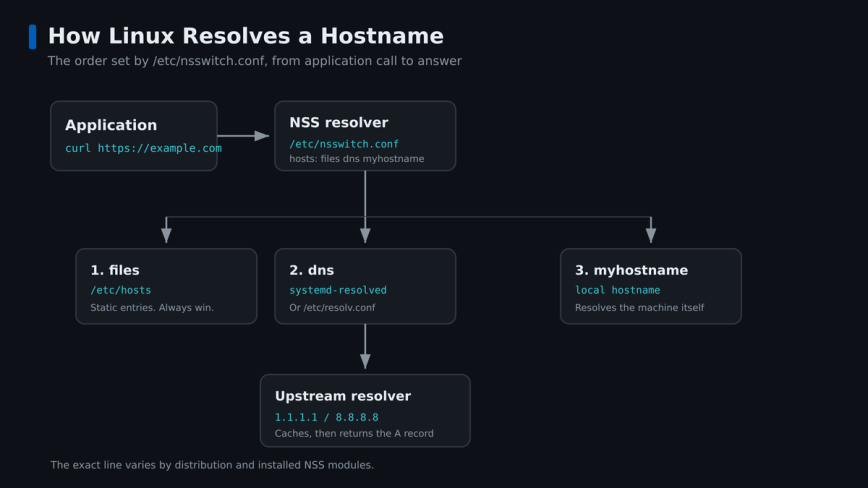
When you run curl https://example.com, the system needs to turn that hostname into an IP address. The order in which it tries different sources is controlled by /etc/nsswitch.conf. Look for the hosts line:
hosts: files dns myhostname
This tells the resolver to check /etc/hosts first, then DNS, then resolve the local hostname through the myhostname module. The exact line varies by distribution and by which NSS modules are installed, so yours may list extra entries like resolve or mymachines. This matters more than most people realize. If you add an entry to /etc/hosts, it will always win over DNS for that name.
The actual DNS servers the system queries are defined in /etc/resolv.conf. On modern systems running systemd-resolved, that file is often a symlink rather than a real file. More on that shortly.
Understanding /etc/resolv.conf
On a minimal or older system, /etc/resolv.conf is a plain text file you edit directly. A typical one looks like this:
nameserver 1.1.1.1
nameserver 8.8.8.8
search example.com
options ndots:5
The key directives:
nameserver: The IP of a DNS resolver to query. You can list up to three. With the traditional glibc resolver they’re tried in the order listed, with retries and failover if a server doesn’t respond. Note that a resolver manager likesystemd-resolvedcan change this behavior.search: A domain suffix appended when you query a short hostname. If youping webserverand your search domain isexample.com, the system will trywebserver.example.comautomatically.domain: Similar tosearchbut only one domain. If both are present,searchwins.options ndots:5: Controls when the search domain gets appended. A name with fewer dots thanndotsis tried with the search suffix first, then as-is; a name with that many dots or more is tried as-is first. The default is 1, sondots:5makes the resolver append the search domain to far more queries than usual, which causes confusion on servers with complex internal domain structures.
Note: On Ubuntu 18.04+, Fedora, and most modern distros, /etc/resolv.conf is managed automatically. Editing it directly will work but your changes may be overwritten on reboot or after a network event.
Check What’s Actually Managing Your DNS
Before you change anything, find out what’s in control:
ls -la /etc/resolv.conf
You’ll see one of these situations:
- A regular file: it’s statically managed. Edit it directly or via your network manager config.
- A symlink to
/run/systemd/resolve/stub-resolv.conf:systemd-resolvedis active with the stub listener. - A symlink to
/run/systemd/resolve/resolv.conf:systemd-resolvedis active but bypassing the stub listener. - A symlink to
/run/NetworkManager/resolv.conf: NetworkManager is managing it.
Also check whether systemd-resolved is running:
systemctl status systemd-resolved
systemd-resolved: What It Does and How to Work With It
systemd-resolved is a local DNS caching resolver that listens on 127.0.0.53:53. It handles DNS for the whole system, caches results, supports DNSSEC, and manages per-interface DNS settings. Most Ubuntu and Fedora installs use it by default.
The main tool for inspecting it is resolvectl (formerly systemd-resolve).
Check the Current DNS Configuration
resolvectl status
This shows the global DNS servers and per-interface settings. Useful output looks like:
Global
       Protocols: -LLMNR -mDNS -DNSOverTLS DNSSEC=no/unsupported
resolveconf: no
      DNS Servers: 192.168.1.1
       DNS Domain: ~.

Link 2 (eth0)
    Current Scopes: DNS
         Protocols: +DefaultRoute +LLMNR -mDNS -DNSOverTLS DNSSEC=no/unsupported
Current DNS Server: 192.168.1.1
       DNS Servers: 192.168.1.1
        DNS Domain: localdomain
Flush the DNS Cache
When a bad DNS record gets cached, this clears it:
sudo resolvectl flush-caches
Or on older systems:
sudo systemd-resolve --flush-caches
Query DNS via systemd-resolved
resolvectl query linuxblog.io
This queries through systemd-resolved specifically, which is useful for confirming what the stub resolver sees versus what a direct DNS query returns.
Configure Global DNS Servers for systemd-resolved
Edit /etc/systemd/resolved.conf:
[Resolve]
DNS=1.1.1.1 1.0.0.1
FallbackDNS=8.8.8.8 8.8.4.4
I’ve left DNSSEC and DNSOverTLS out of that block on purpose. They’re separate decisions. The systemd package ships with DNSSEC=no, and the documentation recommends DNSSEC=allow-downgrade for general use, which validates when the upstream server supports it and quietly stops when it doesn’t. DNSOverTLS also defaults to no; set it to opportunistic if you want encryption where available. Turning either on blindly is a common cause of SERVFAIL against resolvers that don’t support them, so add them deliberately once you know your upstream is compatible. Then restart the service:
sudo systemctl restart systemd-resolved
Note: systemd-resolved can use both per-link and global DNS servers, and routing domains decide which link a given query prefers. FallbackDNS is only used when no other DNS server information is available at all. So if your DHCP server pushes its own nameserver on an interface, that per-link server is normally what handles queries routed to that link, not the global DNS= setting.
The dig Command: Your Primary DNS Debugging Tool
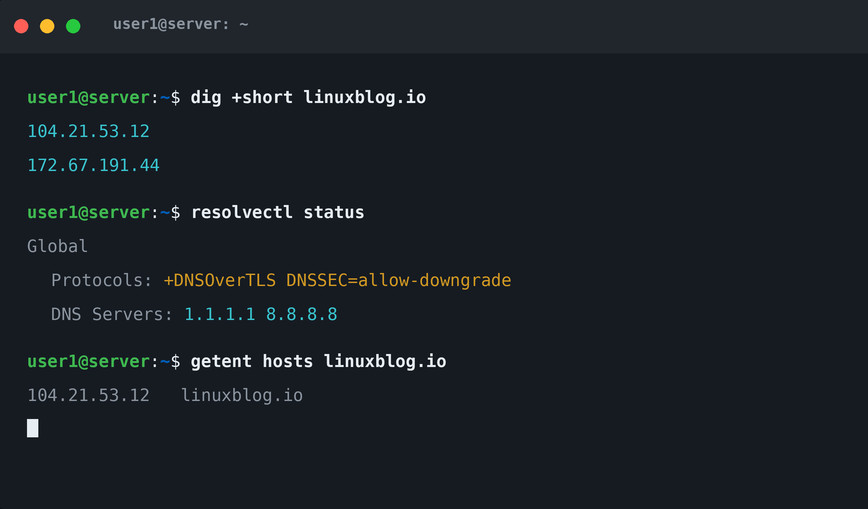
dig is the tool you reach for first when DNS is misbehaving. It gives you precise, unambiguous output. Install it if it’s missing:
# Debian/Ubuntu
sudo apt install dnsutils

# Fedora/RHEL
sudo dnf install bind-utils
Basic Query
dig linuxblog.io
The output shows the question, the answer (A records), the server that responded, and the query time. The ANSWER SECTION is what you care about most.
Query a Specific DNS Server
dig @8.8.8.8 linuxblog.io
This bypasses your local resolver entirely and queries Google’s DNS directly. Great for isolating whether the problem is your local config or upstream.
Query Specific Record Types
# MX records (mail)
dig linuxblog.io MX

# AAAA records (IPv6)
dig linuxblog.io AAAA

# NS records (nameservers)
dig linuxblog.io NS

# TXT records (SPF, DKIM, etc.)
dig linuxblog.io TXT

# Reverse lookup (PTR)
dig -x 104.21.1.1
Short Output
When you just want the answer:
dig +short linuxblog.io
Trace the Full Resolution Path
dig +trace linuxblog.io
This starts from the root nameservers and follows the delegation chain down to the authoritative answer. It runs its own resolution path and ignores your local resolver’s cache, so it’s the right tool for finding where an authoritative delegation is breaking, and for confirming what the live authoritative record actually is versus what your local resolver returns. It’s the wrong tool for hunting a locally cached stale record, precisely because it bypasses that cache.
Check DNSSEC
dig +dnssec linuxblog.io
If the domain is DNSSEC-signed you’ll see RRSIG records in the answer. The ad flag in the header means the response was authenticated.
getent: Test the Full Resolution Path
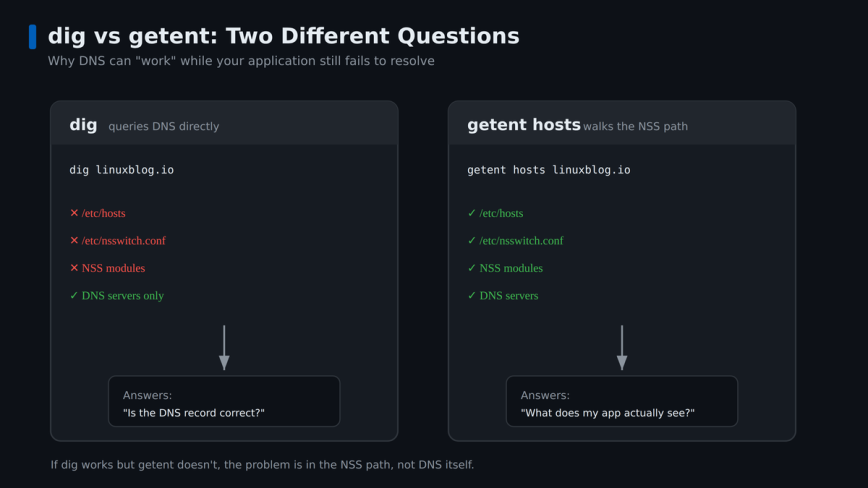
Here’s a distinction that trips up a lot of people. dig queries DNS directly. It does not read /etc/nsswitch.conf, it does not check /etc/hosts, and it doesn’t care what your applications actually do. getent hosts goes through the system’s NSS path, the same one your applications use:
getent hosts linuxblog.io
This is why dig linuxblog.io can return a perfect answer while your application still fails to resolve the same name. If there’s a stale /etc/hosts entry, a broken nsswitch.conf, or an NSS module misbehaving, dig sails right past it and getent catches it. When DNS “works” but a program disagrees, this is the first command to run.
Other Useful DNS Tools
nslookup
nslookup is older and less precise than dig, but it’s available almost everywhere and fine for quick checks:
nslookup linuxblog.io
nslookup linuxblog.io 8.8.8.8
host
Clean, minimal output. Good for scripting:
host linuxblog.io
host -t MX linuxblog.io
systemd-resolved statistics
resolvectl statistics
Shows resolver transaction and cache statistics. The exact fields vary by systemd version, but it’s useful for confirming whether the local resolver is actually being used and whether caching is happening. Consistently poor cache behavior or a climbing failure count is a clue that something’s wrong upstream or with your resolver config.
Common DNS Problems and Fixes
“Temporary failure in name resolution”
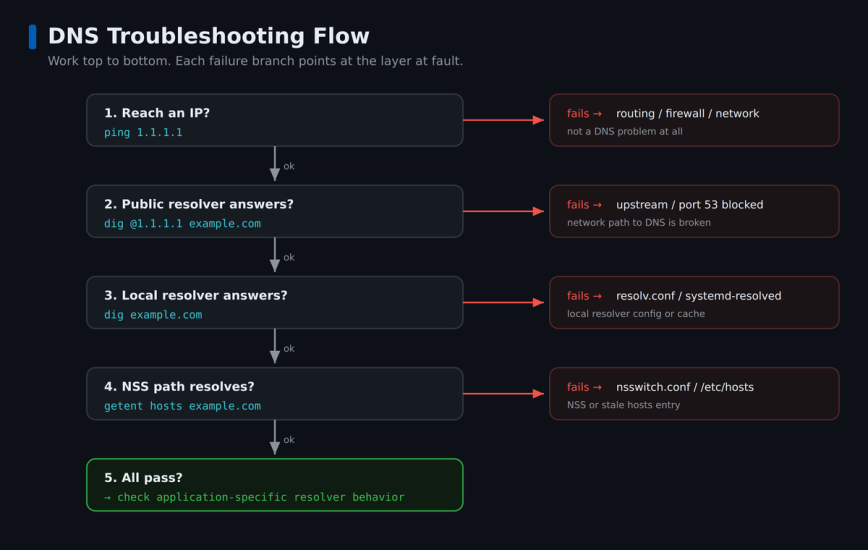
A bad or empty /etc/resolv.conf is the most common cause, but not the only one. It can also come from no network route, a firewall blocking port 53, systemd-resolved being down, VPN DNS routing, an unreachable upstream resolver, or an NSS misconfiguration. Start with resolv.conf anyway, since it’s quick to check:
cat /etc/resolv.conf
ls -la /etc/resolv.conf
Check the symlink before you touch anything. If /etc/resolv.conf is a symlink to a systemd-resolved or NetworkManager stub, overwriting it directly fixes nothing and creates a second problem. On those systems, fix DNS through the manager (covered below), not by editing the file. Only on a system where resolv.conf is a real, unmanaged file should you drop in a temporary nameserver to get back online:
echo "nameserver 1.1.1.1" | sudo tee /etc/resolv.conf
On a server running systemd-resolved, also confirm the service is actually running and that the symlink points where it should.
DNS Works for Some Sites but Not Others
Try querying directly against a public resolver:
dig @1.1.1.1 failing-site.com
If that works but your local resolver doesn’t return an answer, the issue is your local DNS config or a bad cache entry. Flush caches and check your resolv.conf search domains. An overly broad search directive can cause the resolver to mangle hostnames before querying them.
Slow DNS Resolution
Run a few timed queries:
dig linuxblog.io | grep "Query time"
A first, uncached query often lands somewhere around 50-200ms because the nameserver has to do a full lookup, and a second identical query typically comes back in a few milliseconds if caching is working. Those aren’t hard thresholds: a distant resolver or a fully recursive lookup can legitimately take longer. What you’re looking for is the pattern. A cached query should be much faster than an uncached one, and if every query takes hundreds of milliseconds regardless, your nameserver is slow or unreachable and the resolver is timing out before falling back. Try switching to a faster resolver like Cloudflare (1.1.1.1) or Google (8.8.8.8). Also see why your Linux server might look idle but feel slow, because repeated DNS timeouts can make everything feel sluggish even when CPU and memory look fine.
split-DNS and VPN Issues
When you’re connected to a VPN, you often need different DNS servers for internal names versus public ones. systemd-resolved handles this well with per-link DNS configuration. NetworkManager and WireGuard both integrate with it. The key setting is the DNS domain on each link: if a link has ~. as its DNS domain, it becomes the default route for all DNS. If it has ~internal.company.com, only queries for that domain go to that link’s nameserver.
Check what each link is doing:
resolvectl status
If internal names resolve but public ones don’t (or vice versa), the DNS domain assignments on your VPN interface are almost certainly misconfigured.
Setting Static DNS Without Getting Overwritten
The most common frustration: you edit /etc/resolv.conf, it gets overwritten on the next DHCP renewal or reboot. Here’s how to handle it properly on common setups.
NetworkManager
Don’t edit resolv.conf directly. Instead, set DNS in the connection profile:
nmcli con mod "Wired connection 1" ipv4.dns "1.1.1.1 8.8.8.8"
nmcli con mod "Wired connection 1" ipv4.ignore-auto-dns yes
nmcli con up "Wired connection 1"
The ignore-auto-dns yes line stops DHCP from overriding your choice. Verify with:
nmcli con show "Wired connection 1" | grep dns
systemd-resolved (global fallback)
Set DNS= in /etc/systemd/resolved.conf and FallbackDNS= for redundancy. These apply when no interface-specific DNS is set.
Static /etc/resolv.conf on a server
If you’re on a server that genuinely has no NetworkManager or systemd-resolved managing the file, and you intentionally want a static config, you can make the file immutable so nothing overwrites it:
sudo chattr +i /etc/resolv.conf
Remove the immutable flag when you need to update it:
sudo chattr -i /etc/resolv.conf
Treat this as a last resort, not the normal way to manage DNS. It’s reliable on minimal servers where you control exactly what runs, but the immutable flag can also cause confusing failures later: package upgrades that touch resolv.conf (a systemd or network-manager update, for instance) can error out, and anyone troubleshooting will wonder why the file refuses to change. It’s also worth automating a check that resolv.conf contains your intended nameservers as part of your maintenance routines. For ideas on that, see Linux Server Setup – Part 3: Automate Maintenance Tasks.
Choosing DNS Resolvers
The nameserver you point at matters for both performance and privacy. A few solid options:
- Cloudflare (1.1.1.1 / 1.0.0.1): Fast public resolver with a large global network and privacy-focused policies. Supports DNS-over-HTTPS and DNS-over-TLS.
- Google (8.8.8.8 / 8.8.4.4): Reliable and well-known, with a large anycast network. Check its published privacy policy if data handling matters for your use case.
- Quad9 (9.9.9.9): Blocks known malicious domains. Good for servers where you want an extra layer of protection without a full firewall rule.
- Your router or local resolver: Usually fine for home setups. Can be a problem on servers if the router is rebooted or the DHCP lease changes its IP.
For public-facing servers that don’t need internal DNS, I avoid pointing at the router. If the router has a problem, DNS fails, and suddenly nothing on the server can resolve hostnames including package managers, monitoring agents, and backup scripts. Pointing directly at 1.1.1.1 and 8.8.8.8 removes that dependency. In environments with internal DNS zones, split DNS, service discovery, or a hosting provider’s own resolver, that local or provider resolver may be essential, so this isn’t a blanket rule. On the other hand, if you rely on local DNS for internal hostnames, don’t just stack the internal and public resolvers in the same resolv.conf and expect fallback to sort it out. The glibc resolver accepts the first answer it gets, including an NXDOMAIN from a public resolver that has never heard of your internal zone. It only moves to the next nameserver on a timeout, not on a negative answer. For split-DNS, use per-link routing with systemd-resolved (the same routing domains covered earlier) or a local forwarding resolver like dnsmasq that sends internal queries to the internal server and everything else upstream. See Linux Commands frequently used by Linux Sysadmins for the full set of tools that complement this kind of server troubleshooting.
A Quick Troubleshooting Checklist
-
- Check
/etc/resolv.conf: Is there a validnameserverline? - Check
/etc/nsswitch.conf: Isdnspresent in thehostsline? - Run
dig @1.1.1.1 google.com: Does a direct query to a public resolver work? - Run
dig google.com: Does the local resolver work? - Check
systemctl status systemd-resolvedif applicable. - Run
resolvectl statusto see per-interface DNS assignments. - Flush caches with
resolvectl flush-cachesif you suspect a stale record. - Run
getent hosts google.com: Ifdigworks but this doesn’t, the problem is in the NSS path, not DNS itself. - Use
dig +traceto follow the full resolution path for stubborn failures.
- Check
Most DNS problems on Linux fall into one of three categories: wrong or empty resolv.conf, a misconfigured or unreachable nameserver, or a stale cached record. The tools above cover all three. Getting comfortable with dig in particular will save you a lot of time. It gives you exact, repeatable results and it’s the same tool your DNS servers use to talk to each other.
Also see: netstat command in Linux with examples and ping command in Linux with examples for complementary network troubleshooting tools.