Linux Bash Scripting: Writing Your First Script
You’ve been using the command line for a while. You know your grep, your awk, your find. But you’re still copy-pasting the same five commands every time you need to do routine work. That’s the gap Bash scripting fills.
This guide is for Linux users who are comfortable on the command line but haven’t committed to writing proper scripts yet. We’ll go from the basics of script structure through conditionals, loops, functions, and real-world examples you can actually use.
What is a Bash Script?
A Bash script is a plain text file containing a sequence of commands that Bash executes in order. That’s it. Anything you can type into a terminal, you can put in a script and run it automatically, on a schedule, or pass arguments to it.
Bash is installed by default on most mainstream Linux distributions. It’s the default shell on Debian, Ubuntu, Fedora, Arch, and most servers you’ll ever touch.
Script Structure and the Shebang
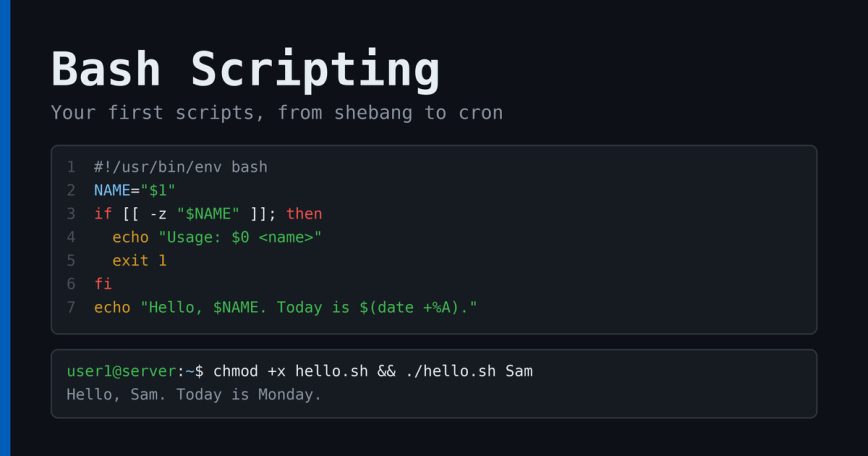
Every Bash script starts with a shebang line. This tells the kernel which interpreter to use when the file is executed directly.
#!/usr/bin/env bash
Using /usr/bin/env bash instead of /bin/bash is a good habit. It tells env to find Bash by searching your PATH, instead of requiring it to live at /bin/bash. That matters on systems like macOS or containers with non-standard paths.
A minimal working script looks like this:
#!/usr/bin/env bash
echo "Hello, world"
Save it as hello.sh, make it executable, and run it:
chmod +x hello.sh
./hello.sh
Output:
Hello, world
That’s your first script. Now let’s make them useful.
Variables
Variables store values you want to reuse. No spaces around the = sign.
#!/usr/bin/env bash

SITE="linuxblog.io"
DATE=$(date +%Y-%m-%d)

echo "Backing up $SITE on $DATE"
$(command) is command substitution. It runs the command and drops the output into the variable. You’ll use this constantly. Older scripts often use backticks for the same thing, as in `date`. They still work, but $(...) is easier to read and nests cleanly.
A few style conventions worth following. None of these are Bash rules, just habits that prevent problems:
- Use uppercase for environment variables and script-wide settings:
LOGFILE,BACKUP_DIR. Avoid names that already exist in the shell, likePATH,HOME,USER, orHOSTNAME. - Use lowercase for local script variables:
count,file - Always quote your variables:
"$VAR"not$VAR, especially when the value might contain spaces
User Input and Arguments
Scripts become far more useful when they accept input. There are two main ways to handle this.
Positional Arguments
Arguments passed when running the script are accessible as $1, $2, $3, and so on. $0 is the script name itself. $# is the count of arguments passed.
#!/usr/bin/env bash

if [ $# -lt 1 ]; then
  echo "Usage: $0 <file>"
  exit 1
fi

FILE="$1"
echo "Processing: $FILE"
Reading Interactive Input
#!/usr/bin/env bash

read -r -p "Enter your username: " USERNAME
echo "Hello, $USERNAME"
The -p flag displays a prompt inline without a separate echo. -r stops backslashes from being treated as escape characters. Use it every time you call read.
Conditionals: if, elif, else
Conditionals let your script make decisions. Bash uses [ ] (POSIX test) or [[ ]] (Bash extended test). Prefer [[ ]] in scripts targeting Bash specifically. It’s more robust with strings and doesn’t require quoting as defensively.
#!/usr/bin/env bash

FILE="/etc/hosts"

if [[ -f "$FILE" ]]; then
  echo "$FILE exists"
elif [[ -d "$FILE" ]]; then
  echo "$FILE is a directory"
else
  echo "$FILE not found"
fi
Common file test operators:
-f: exists and is a regular file-d: exists and is a directory-r: readable-w: writable-x: executable
String test operators:
-z: string is empty-n: string is not empty
Numeric comparisons use different operators than string comparisons:
# Numeric
if [[ $COUNT -gt 10 ]]; then echo "More than 10"; fi

# String
if [[ "$NAME" == "root" ]]; then echo "You are root"; fi
Numeric operators: -eq, -ne, -lt, -le, -gt, -ge
Loops
for Loop
Iterate over a list of items:
#!/usr/bin/env bash

for SERVICE in nginx mysql php-fpm; do
  echo "Checking $SERVICE..."
  if systemctl is-active --quiet "$SERVICE"; then
    echo "$SERVICE is running"
  else
    echo "$SERVICE is DOWN"
  fi
done
Iterate over files:
for FILE in /var/log/*.log; do
  echo "Found log: $FILE"
done
while Loop
Keep running while a condition is true:
#!/usr/bin/env bash

COUNT=0
while [[ $COUNT -lt 5 ]]; do
  echo "Count: $COUNT"
  COUNT=$((COUNT + 1))
done
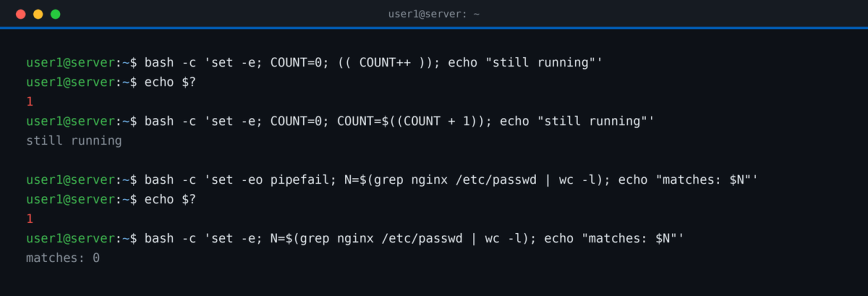
You may see (( COUNT++ )) used for this in other scripts. Be careful combining it with set -e (covered below). Post-increment returns the old value, and when that value is 0, Bash treats the result as a failure and exits the script. COUNT=$((COUNT + 1)) works reliably either way.
A very common real-world pattern: read a file line by line.
while IFS= read -r LINE; do
  echo "Line: $LINE"
done < /etc/hosts
IFS= prevents stripping leading/trailing whitespace. -r prevents backslash interpretation. This is the correct way to read files in Bash.
Functions
Functions let you avoid repeating yourself and make scripts easier to read and maintain.
#!/usr/bin/env bash

log() {
  local MESSAGE="$1"
  echo "[$(date +%H:%M:%S)] $MESSAGE"
}

log "Script started"
log "Doing some work"
log "Script finished"
Use local inside functions to keep variables scoped locally. Without it, they bleed into the global scope and cause hard-to-debug issues.
Functions can also return a status code with return, or echo a value for the caller to capture:
get_disk_usage() {
  local PARTITION="$1"
  df -h "$PARTITION" | awk 'NR==2 {print $5}'
}

USAGE=$(get_disk_usage /)
echo "Root partition is $USAGE full"
Exit Codes and Error Handling
Every command in Linux exits with a status code. Zero means success. Non-zero means failure. You can check with $? immediately after a command.
cp /important/file /backup/
if [[ $? -ne 0 ]]; then
  echo "Backup failed!"
  exit 1
fi
A cleaner pattern is to use || directly:
cp /important/file /backup/ || { echo "Backup failed"; exit 1; }
A common starting point for catching failures is to add this at the top:
set -euo pipefail
-e: exit immediately on error-u: treat unset variables as errors-o pipefail: catch errors in piped commands, not just the last one
This catches a lot of silent failures, where a command fails but the script happily continues. It is not a complete error-handling strategy, though. set -e has exceptions: it is ignored for commands in if tests, in && and || lists, and inside functions called from those contexts.
pipefail has its own traps. grep exits non-zero when it finds no match, so grep pattern file | wc -l kills the script instead of printing 0. Piping into head can do the same, because the upstream command gets killed when head stops reading (exit code 141). That said, use it with intention. Some scripts deliberately check return codes and handle failures manually, in which case set -e will get in the way.
A Real-World Script: Disk Usage Alert
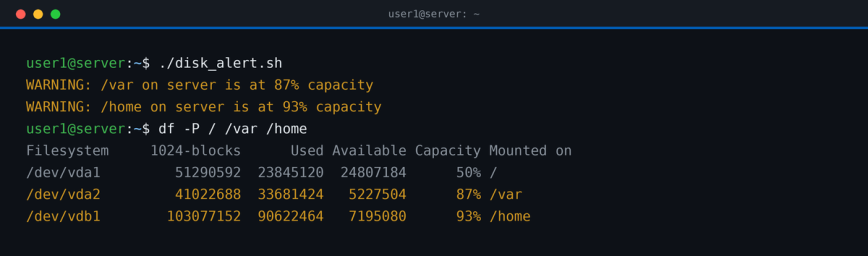
Here’s something useful. This script checks disk usage on all mounted partitions and warns if any exceed a threshold. You could run it from cron.
#!/usr/bin/env bash

THRESHOLD=80
HOST=$(hostname)

while read -r USAGE MOUNT; do
  if [[ $USAGE -ge $THRESHOLD ]]; then
    echo "WARNING: $MOUNT on $HOST is at ${USAGE}% capacity"
  fi
done < <(df -P | awk 'NR>1 {gsub("%","",$5); print $5, $6}')
df -P requests POSIX output, which keeps each filesystem on one line. Plain df -h wraps long device names onto a second line and throws off the column positions. awk then strips the % sign and hands the loop two fields: usage and mount point.
The < <(command) pattern is process substitution. It feeds the output of a command into the loop while keeping the loop itself in the current shell. If you pipe instead, as in df -h | while ..., the loop runs in a subshell and any variables set inside it are lost once the loop exits.
To schedule this to run every hour, add it to cron:
0 * * * * /home/user/scripts/disk_alert.sh >> /var/log/disk_alert.log 2>&1
A Real-World Script: Service Watchdog
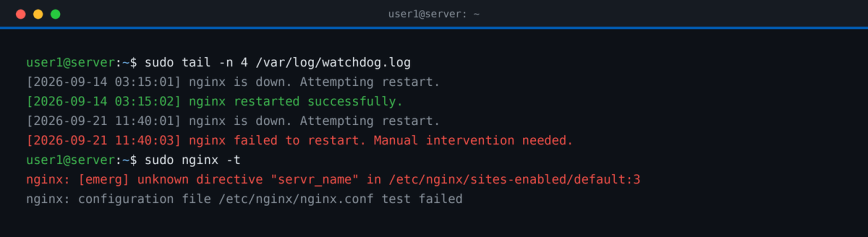
This script checks if a service is running and restarts it if not. Simple, but practical for services that occasionally fall over. I’ve used variations of this on small servers where a full monitoring stack would be overkill.
#!/usr/bin/env bash

SERVICE="nginx"
LOGFILE="/var/log/watchdog.log"

log() {
  echo "[$(date '+%Y-%m-%d %H:%M:%S')] $1" >> "$LOGFILE"
}

if ! systemctl is-active --quiet "$SERVICE"; then
  log "$SERVICE is down. Attempting restart."
  systemctl restart "$SERVICE"

  if systemctl is-active --quiet "$SERVICE"; then
    log "$SERVICE restarted successfully."
  else
    log "$SERVICE failed to restart. Manual intervention needed."
  fi
fi
The script only logs when something happens. Writing a “running normally” line every five minutes adds nearly 300 entries a day and buries the ones you need to see.
Run it every five minutes from cron:
*/5 * * * * /root/scripts/watchdog.sh
Both cron examples in this article write to /var/log, and the watchdog restarts services. Both need root. Add them with sudo crontab -e, or point the logs somewhere your user can write.
For the restart itself, systemd can handle it natively with Restart=on-failure in the unit file, and it rate-limits retries when a service keeps failing. A cron script will keep hammering a broken config every five minutes. Treat this script as an example of checking state and reacting to it, or as a logging layer on top of what systemd already does.
For more on monitoring what’s going on with your server, see Why Your Linux Server Looks Idle but Feels Slow, which covers the kinds of issues a watchdog script might actually be masking.
Debugging Your Scripts
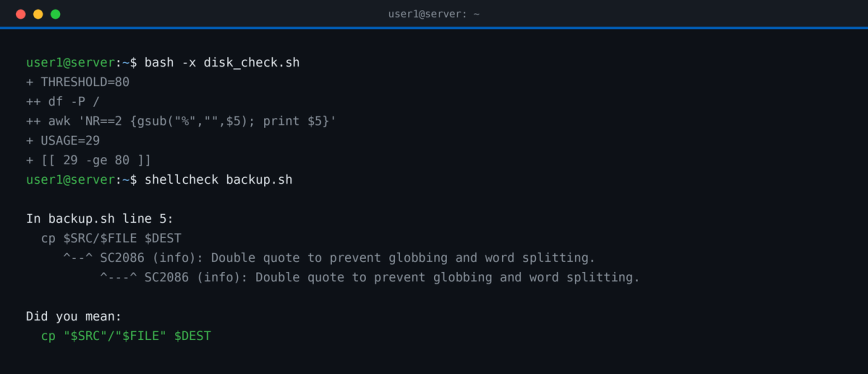
When something goes wrong, Bash gives you good tools to figure out why.
Run with -x (trace mode)
bash -x myscript.sh
This prints every command before executing it, with variable values expanded. It’s invaluable for tracking down logic errors.
Enable trace for a section only
set -x
# commands to trace
set +x
Use -n to check syntax without running
bash -n myscript.sh
This parses the script for syntax errors without executing anything. Always worth running on a new script before letting cron fire it on a production server.
Run ShellCheck before you deploy
shellcheck myscript.sh
ShellCheck is a static analysis tool for shell scripts. It catches unquoted variables, broken conditionals, useless cat pipes, and plenty of other bugs that bash -n can’t see. It’s in the repos for most distributions: apt install shellcheck on Debian and Ubuntu, dnf install ShellCheck on Fedora.
Script Organization Tips
A few habits that make scripts easier to maintain over time:
- Put all configuration variables at the top of the script. Changing a path or threshold should never require reading the whole file.
- Add a brief comment at the top describing what the script does and when it was last modified.
- Use meaningful variable names.
$BACKUP_DIRbeats$devery time you come back to the script six months later. - Always handle the case where required arguments are missing. Print a usage message and exit with a non-zero code.
- Log to a file when running from cron. You won’t have a terminal to see output, and silent failures are the worst kind.
Where to Store Your Scripts
Keep personal scripts in ~/bin/ or ~/.local/bin/. Many distributions add them to your PATH automatically. If yours doesn’t, add the directory to PATH in your ~/.bashrc. For system-wide scripts or anything root-owned, /usr/local/bin/ or /opt/scripts/ are reasonable choices.
Set executable permissions before running:
chmod +x ~/bin/myscript.sh
If you are running scripts that touch system services or sensitive files, review the SSH Security guide and make sure your script files have appropriate ownership and permissions. A world-writable script running as root is a real problem.
Bash vs. Other Scripting Languages
Bash is the right tool for gluing commands together, managing files, automating sysadmin tasks, and writing quick utilities. It is not the right tool for complex data manipulation, substantial floating-point work, or tasks involving structured data like JSON or YAML.
For those jobs, reach for Python. For parsing JSON on the command line, jq is purpose-built and much cleaner than wrestling with Bash string manipulation.
That said, for most day-to-day Linux automation, Bash is exactly enough.
If you want to benchmark what your scripts are actually doing to the system, Linux benchmark scripts and tools is a good next read.
Quick Reference
# Shebang
#!/usr/bin/env bash

# Strict mode
set -euo pipefail

# Variables
NAME="value"
RESULT=$(command)

# Conditionals
if [[ condition ]]; then ... elif [[ condition ]]; then ... else ... fi

# Loops
for ITEM in list; do ... done
while [[ condition ]]; do ... done
while IFS= read -r LINE; do ... done < file

# Functions
myfunc() { local VAR="$1"; echo "$VAR"; }

# Exit codes
command || { echo "failed"; exit 1; }

# Debugging
bash -x script.sh    # trace execution
bash -n script.sh    # syntax check only
shellcheck script.sh # static analysis
Conclusion
Bash scripting is one of those skills that pays off immediately. The first time a five-line script saves you from repeating a tedious manual process, it clicks. After that, you start seeing automation opportunities everywhere.
Start small. Take something you already do manually and script it. Get it working, then add error handling. Add logging. Refactor into functions. That’s how real scripts get written: incrementally, from actual need.
The scripts in this guide are starting points, not templates to copy blindly. Adapt them to your environment, test them carefully before running them in production, and build from there. The cost of a script gone wrong can be real, so know what your script is doing before cron runs it at 3am.


Great article, I’ll have to try creating a script to run rsync for my back ups
Very well written. Thinking about other publications I’ve read regarding Bash Scripting, your article, without becoming a book, is about as complete in terms of including all of the most important commands and examples, so it’s one of our best in the Articles and Guides category yet; VERY well done!
Thanks Brian! I would love to have another guest blog post from you if or when the time and topics arise. I’ve been a bit slow with posts… these last few months have been time challenging.
Guest posts are always welcomed guy, just shoot me a message and please continue to share your own blog posts in the Articles & Guides (and it’s sub categories), the News & Shares and Showcase categories.
This is a great intro for me - will be trying this out on the train tomorrow
Thank you Hayden. Right now it’s the “time” that will be a challenge. This weekend I’ll be out of state for a funeral for one of my sisters.
On the opposite extreme, at the end of November through mid December I’ll be in Massachusetts to assist my daughter with her first son as she gives birth to another son. My son already has TWO daughters; soon my daughter will have two sons.
Right after we return from all of that we’ll be doing some Christmas related local visits with family; there genuinely won’t be a lot of time for anything. Just reading Email to prevent it from getting out of control with too much to either digest, file, or outright remove, even time on this forum may drastically decrease, at least for a while, though I’ll certainly be back once things quiet down again!