How to Set Up Hibernation on Linux (Swap Done Right)
I recently reinstalled my main desktop from scratch: Debian testing via Kali underneath (read first before judging) and XFCE on top. One of the reasons I keep coming back to XFCE is its built-in power management. Hibernation in particular has never once glitched on me, on any hardware I’ve run it on. I don’t shut down my work machine, a tower. I hibernate it, and every session picks up exactly where the last one ended: the same terminal tabs, same GIMP tabs, same music track, same pile of browser tabs I keep telling myself I’ll close and so on.
That habit is what exposed the problem. This box has 16 GB of RAM, and after a few weeks of hibernating instead of rebooting, memory gets tight. Eventually free memory is nearly gone and there’s barely anything left for cache. The honest fix is more RAM. But this is also my gaming rig, it runs two sticks, adding two more would drop the memory frequency, and replacing the pair costs real money. So I make do.
Making do means swap does real work. And my 16 GB swap partition, fresh from the install, was doing two jobs at once: absorbing everyday paging and holding the hibernation image. The fuller it got with paged-out memory, the less room there was for the image. Hibernate would work for a while, then get tight.
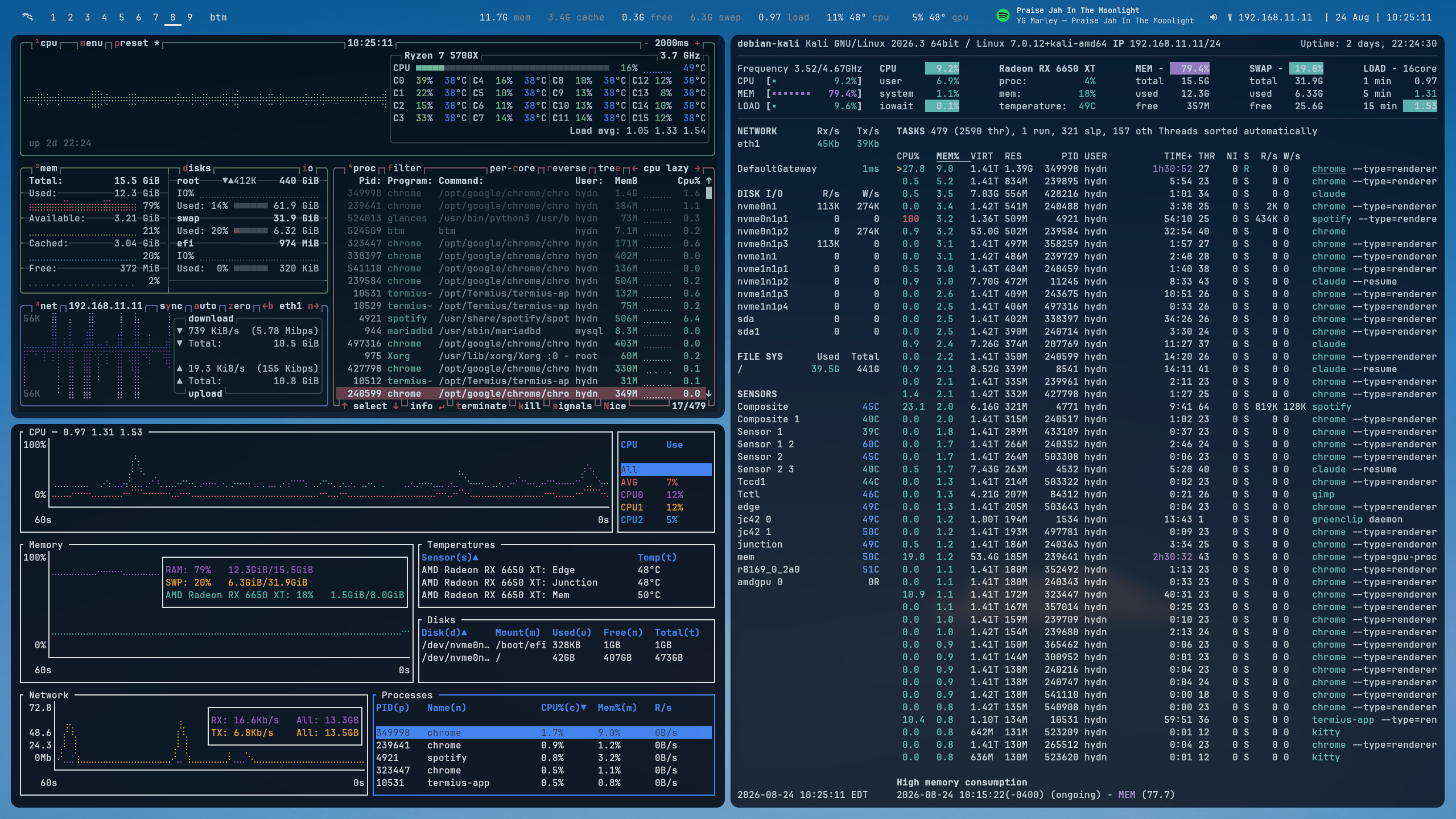
The fix turned out to be simple, and it works on virtually any Linux distribution that supports hibernation: run two swap spaces with different jobs. A swapfile handles everyday paging. The swap partition stays mostly empty, reserved for hibernation. No repartitioning, no live USB, no resume_offset math.
This guide walks through the whole setup step by step.
Why hibernation fails when swap does double duty
When you hibernate, the kernel compresses the contents of RAM into an image and writes it to your resume device, which is almost always your swap partition. The kernel’s swap suspend documentation covers the mechanics, but the practical requirement is this: there must be enough free space in that swap area to hold the image at the moment you hibernate. The image is compressed. By default the kernel aims to keep it under about 2/5 of your RAM (cat /sys/power/image_size shows the cap in bytes), so it’s usually far smaller than installed memory. How much space you need in practice depends on how compressible your RAM contents happen to be at that moment.
Here’s the trap. That same swap partition is also where the kernel pages out cold memory during normal use. If you add swap space sized equal to your RAM (the common advice, and what most installers set up), it looks like plenty. It isn’t. Run for a week without rebooting and several gigabytes of idle application memory drift into swap. Now your 16 GB partition might have 9 GB free, and the hibernation image doesn’t fit. Hibernate fails, usually with a vague error, sometimes with none at all.
Two things make this worse on a desktop or laptop you never shut down:
- Swap usage tends to persist. Pages come back into RAM when something touches them, but the kernel won’t proactively pull cold pages out of swap just because free RAM opens up. Over long uptimes, usage creeps.
- You can’t fix it with zram or zswap alone. A zram device lives in RAM, so it cannot hold a hibernation image. It vanishes the moment power drops.
So the swap partition has two jobs that compete for the same space. Priorities let you separate them.
The fix: two swap spaces, two jobs
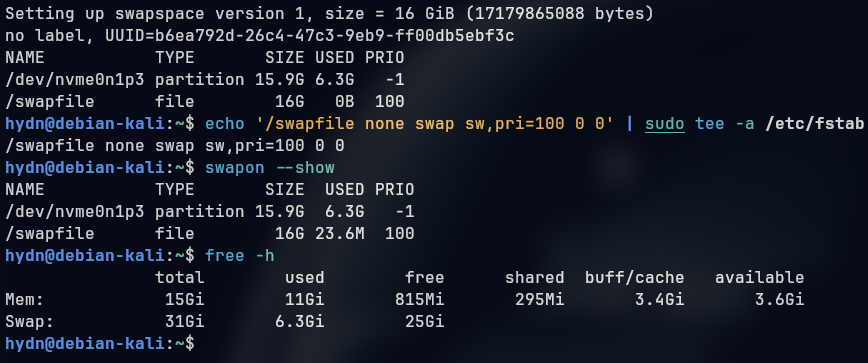
Every swap area in Linux has a priority. The kernel fills higher-priority swap first and only spills into lower-priority areas when the first one is full. That single mechanism is all we need.
Create a swapfile and give it a high priority, say 100. Your existing swap partition keeps its default kernel-assigned priority of -1 (or -2 on some kernels). Everyday paging now lands in the swapfile. The partition sits idle, which is exactly what hibernation needs. One caveat: priorities don’t hard-reserve anything. Fill the swapfile completely and the kernel spills into the partition, so size the swapfile to your real paging habits and that stays rare.
Hibernation itself doesn’t care about priorities at all. The image gets written to whatever resume= points at, not to the highest-priority swap. Paging follows priority. Hibernation follows the resume device. Two different mechanisms, and that’s the whole trick.
On my system it ends up like this:
| Swap area | Size | Priority | Role |
|---|---|---|---|
/swapfile |
16 GB | 100 | Everyday paging |
/dev/nvme0n1p3 |
15.9 GB | -1 | Overflow + hibernation target |
Total swap roughly doubles to ~32 GB, and the resume device stays free for the image. Not bad for five minutes of work.
Step 1: Check your current setup
First, see what swap you have and how it’s prioritized:
swapon --show
NAME           TYPE      SIZE   USED PRIO
/dev/nvme0n1p3 partition 15.9G  6.3G   -1
That USED column is the problem in one line. 6.3 GB already gone to ordinary paging, under 9 GB left for a hibernation image, and the machine had only been up for a few days. If you want to see exactly which processes own that swapped memory, smem breaks it down per process.
Next, confirm your resume device. This is the swap area the kernel writes the hibernation image to:
grep -o 'resume=[^ ]*' /proc/cmdline
resume=UUID=a1b2c3d4-e5f6-7890-abcd-ef1234567890
Make sure that UUID is your swap partition and not something else. lsblk confirms it: lsblk -no UUID /dev/nvme0n1p3 (swap in your device name) should print the same value. Match? Good. We won’t be touching it. If it returns nothing, jump ahead to Step 4 after creating the swapfile, because hibernation was never fully configured on your system in the first place.
Finally, check free disk space on the filesystem where the swapfile will live:
df -h /
Filesystem      Size  Used Avail Use% Mounted on
/dev/nvme0n1p2  916G  474G  396G  55% /
396 GB free. A 16 GB swapfile is a rounding error.
Step 2: Create the swapfile
On ext4 or XFS, this takes four commands:
sudo fallocate -l 16G /swapfile
sudo chmod 600 /swapfile
sudo mkswap /swapfile
sudo swapon -p 100 /swapfile
The -p 100 is the important part. That’s the priority that makes the kernel fill this file before touching the partition.
Size it to your paging habits. I matched my RAM at 16 GB, which is generous. If your current swap usage never crosses a few GB, 8 GB is fine. You can always delete the file and make a bigger one later; that’s the advantage of a file over a partition.
A few filesystem caveats:
- Btrfs: swapfiles need the No_COW attribute and no compression. On btrfs-progs 6.1 or newer, let the tooling handle it:
sudo btrfs filesystem mkswapfile --size 16g /swapfile, thenswaponas above. Hibernating directly to a Btrfs swapfile is its own can of worms. This setup never does that; the partition stays the resume device. - Older kernels, XFS in particular: XFS only supports preallocated swapfiles since kernel 4.18. On anything older (RHEL 7 and friends),
fallocateproduces a file thatswaponrejects with a confusingInvalid argument. Write the file for real with dd instead:sudo dd if=/dev/zero of=/swapfile bs=1M count=16384 status=progress(count is in MiB, so match it to your chosen size). Same fallback anywhereswaponcomplains about holes. - ZFS: don’t put a swapfile on ZFS. Use a zvol or keep swap on a separate filesystem.
Verify both swap areas are live:
swapon --show
NAME           TYPE      SIZE   USED PRIO
/dev/nvme0n1p3 partition 15.9G  6.3G   -1
/swapfile      file        16G     0B  100
One security note before moving on. Everything paged to disk, and the hibernation image itself, is raw memory contents: credentials, session tokens, decrypted files. On a laptop that can be lost or stolen, unencrypted swap is a real exposure, and the kernel’s own hibernation documentation recommends encrypted swap for this reason. If your install uses full-disk encryption, both swap areas are already covered. If not, factor that into whether hibernation is right for the machine.
Step 3: Make it permanent
Add the swapfile to /etc/fstab so it survives reboots, with the priority baked in:
echo '/swapfile none swap sw,pri=100 0 0' | sudo tee -a /etc/fstab
Run that once, not twice. If /swapfile already has a line in /etc/fstab, edit it instead of appending a duplicate. Leave the existing partition line alone. Its default priority is already lower than 100, which is all that matters. You don’t need to set an explicit priority on it.
Step 4: Verify (or set) the resume device
The beauty of this setup is that the resume device doesn’t change. The swapfile never holds a hibernation image, so it needs no resume_offset, no initramfs rebuild, nothing. If Step 1 showed resume= already pointing at your partition’s UUID, you’re done with this step.
If resume= was missing, set it now. Grab the partition’s UUID:
# Change to your device name, not mine!
lsblk -no UUID /dev/nvme0n1p3
Quick aside on why UUID and not the device path: names like /dev/nvme0n1 are assigned by probe order and are not guaranteed stable across boots, especially with multiple NVMe drives. The drive that’s nvme0n1 today can come up as nvme1n1 after a reboot. A UUID identifies the same partition no matter what the kernel names it.
Then add resume=UUID=your-uuid-here to GRUB_CMDLINE_LINUX_DEFAULT in /etc/default/grub. The resume= parameter is documented in the kernel’s boot parameters reference, and the GRUB manual covers the config file itself if you’re new to editing it. Regenerate GRUB’s config and the initramfs. Exact steps depend on your distro’s initramfs tooling; these cover the common setups:
# Debian / Ubuntu / Kali
echo "RESUME=UUID=your-uuid-here" | sudo tee /etc/initramfs-tools/conf.d/resume
sudo update-initramfs -u
sudo update-grub

# Fedora / RHEL
sudo grub2-mkconfig -o /boot/grub2/grub.cfg
sudo dracut -f

# Arch
sudo grub-mkconfig -o /boot/grub/grub.cfg
sudo mkinitcpio -P
On Arch, also make sure the resume hook is present in /etc/mkinitcpio.conf before regenerating.
Step 5: Test it
sudo systemctl hibernate
The machine should write the image, power off completely, and restore your full session on the next boot. If it fails, two common culprits:
- “Sleep verb ‘hibernate’ not supported” has a few possible causes: kernel lockdown (common with Secure Boot on), no usable swap, hibernation compiled out of the kernel, or an
AllowHibernation=nooverride somewhere. Check lockdown first:cat /sys/kernel/security/lockdown. Disabling Secure Boot in firmware is the blunt fix for that one. Signed-kernel setups vary by distro. - Silent failure or instant wake: journalctl from the previous boot (
journalctl -b -1) usually shows why. Behavior around hibernation is also configurable in systemd-sleep.conf if your distro ships overrides. If the journal showsError -12, see the last section of this article.
One last thing: draining the old swap
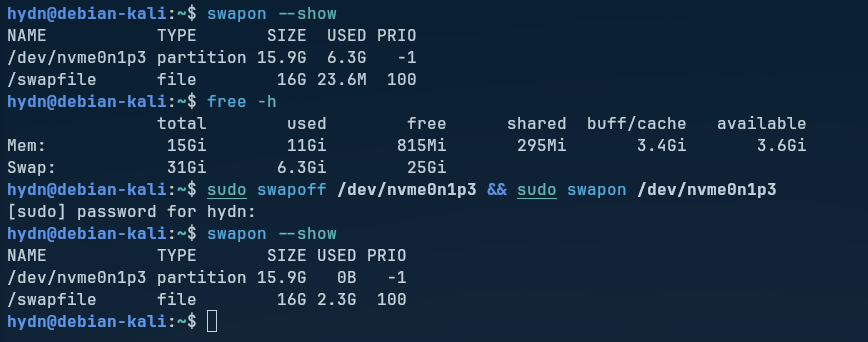
Pages that were already sitting in the partition before you added the swapfile stay there. The kernel won’t migrate them. They’ll drain naturally over days as those pages get touched, or you can force it:
#Your partition's device name goes here, not mine. :)
sudo swapoff /dev/nvme0n1p3 && sudo swapon /dev/nvme0n1p3
Only do this once the swapfile is active and you have enough free RAM to absorb the pages being pulled back in. swapoff on a system with no memory headroom will grind the machine to a crawl. Check that free -h shows comfortable available memory first.
When hibernation fails with Error -12
Full disclosure: while testing this exact setup for this article, hibernation failed on me. Swap was fine. The kernel indicated what was wrong:
journalctl -b -1 | grep -i hibernation
PM: hibernation: Normal pages needed: 2233070 + 1024, available pages: 1941737
PM: hibernation: Error -12 creating image
-12 is ENOMEM. This is because the kernel builds the hibernation image in RAM first, then writes it to swap. It needed about 8.5 GB of free memory to construct the snapshot and I had 7.4. My new 31 GB of swap (16 for hibernate) was never the constraint. The kernel never got as far as writing to it.
The fix is the image_size knob from earlier. Lowering it makes the kernel swap more pages out before taking the snapshot, so the snapshot needs less free RAM. Cap it at 2 GB and test:
echo 2147483648 | sudo tee /sys/power/image_size
sudo systemctl hibernate
That worked immediately on my loaded system. The trade-off is a longer entry into hibernation, since more gets swapped out up front. Setting it to 0 shrinks the image as aggressively as possible if 2 GB still fails under your load.
The value resets every boot, so make it stick with a tmpfiles.d entry. This has to be tmpfiles.d, not sysctl.d, because sysctl only writes under /proc/sys and this lives in /sys:
echo 'w /sys/power/image_size - - - - 2147483648' | sudo tee /etc/tmpfiles.d/hibernate.conf
This matters most for unattended hibernation. Walk away from a loaded machine and the idle timer fires exactly when memory pressure is highest. So there are really two common ways swap-adjacent hibernation fails: not enough free space in the resume area for the image (what this article is mostly about), and not enough free RAM to build the image in the first place. The two-swap setup solves the first. image_size solves the second. Previously betterlockscreen broke it also, but that’s only because I installed Kali-i3 on top of XFCE, so I just had to disable it and replace it with the XFCE default locker.
Conclusion
Hibernation on Linux has a reputation for being flaky. In my experience a lot of that flakiness is really just a full swap partition wearing a trench coat. Separate the two jobs and the problem disappears: the swapfile absorbs daily paging at priority 100, the partition stays out of the paging business so there’s room for the image, and resume= never has to change.
Since making this change, hibernate has worked every single time, including after two-week stretches without a reboot and with GIMP, Termius, and an embarrassing number of browser tabs open. Total swap went from 16 GB to about 32 GB as a side effect. If your machine hibernates for a week and then mysteriously stops, check swapon --show before you check anything else.


I’ve switched to Hybrid Sleep. I guess I’m living under a rock or old school but I’ve never used hybrid sleep before.
Also 1 hour idle delay is too short. But it’s the max via XFCE GUI. So to increase the delay you can edit:
~/.config/xfce4/xfconf/xfce-perchannel-xml/xfce4-power-manager.xml:Pros and cons:
I have not shutdown PC completely in 10 days:

Hybrid Sleep support was added to Xfce4 in 2024: