grep command in Linux w/ examples
This grep command guide is a follow-up of my previous 90 Linux Commands frequently used by Linux Sysadmins article. Every week, or as time allows, I will publish articles on around 90 commands geared toward Linux sysadmins and Linux power users. Let’s continue this series with the grep command.
Grep (global regular expression printer) searches through a file for a specific pattern of characters. When it finds a match in a line, grep copies the line to standard output or whatever output you select using options. grep was initially developed for the Unix operating system but eventually made available for all Unix-like systems, such as Linux.
The general syntax of the grep command is:
grep [option...] [patterns] [file...]
Linux grep command examples
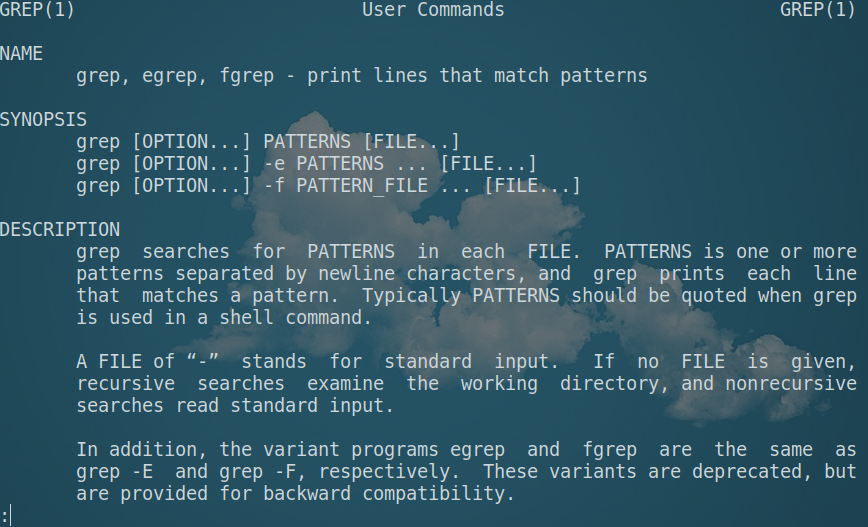
…grep man page.
To search for a pattern within a file, use the following:
grep "pattern" /path/to/file
To search all files in the current directory, use the following:
grep pattern *
To search for an exact pattern, use the following:
grep -F "pattern" /path/to/file
To search directories recursively, use the following:
grep -r 'hello' /path/to/dir
To search for a whole word, not a part of a word, use:
grep -w 'word' /path/to/file
To perform a case insensitive (ignore case) search, use:
grep -i 'pattern' filename
To display the filename which contains the pattern, use the following:
grep -l 'pattern' /var/log/*
To display x lines after matching pattern, use:
grep -A x 'pattern' filename
To display x lines before the matching pattern, use:
grep -B x 'pattern' filename
To display x lines around the matching pattern, use:
grep -C x 'pattern' filename
To display the matching part of the pattern, use the following:
grep -o 'pattern' filename
To display the line number of the matching pattern, use the following:
grep -n 'pattern' filename
To return all lines which don’t match the pattern, use the following:
grep -v 'warning' /var/log/nginx/error.log
To display the lines starting with ‘er’, use:
grep -e '^er' filename
To display lines with 3 w’s in a row (www), use:
grep -E 'w{3}' filename
Related commands:
- find – Find files or directories under the given directory tree recursively.
- pgrep – searches running processes and lists the process IDs which match the selection criteria to stdout.
- ngrep – grep applied to the network layer.
- locate – search files in Linux.
Useful links/reference:
Conclusion
grep helps find patterns within files or the file system hierarchy, so it’s worthwhile to learn its options and syntax.


egrep is one of my most used commands. Super, super useful.
Thanks for the guide, this is super helpful as I try to learn more commands.
Is it possible to use grep to search many directories for text within a file? If I don’t know where the file is or the name of it, but I know some text within it for example.
Thanks for your useful tips.
As several of these commands have options not specified by POSIX you could mention that you are using the GNU grep.
That’s true. You are right. I will make the change. Thanks for joining our tech community.
I think the ‘find’ command may be your friend. I know you can make find run something recursively through your filesystem, and I’m pretty sure the something can be a shell command/script (like grep).