rsync Over SSH: Secure, Fast File Transfers and Backups on Linux
If you move files between Linux servers regularly, you already know rsync. But a lot of people use it locally or over unencrypted connections without realizing how much further it can take you. Combining rsync with SSH gives you encrypted transfers, compression, bandwidth throttling, and proper incremental backups, all in one command.
This guide covers practical rsync over SSH usage: the flags that actually matter, real backup workflows, scheduling with cron, and a few traps worth avoiding. If you need a broader overview of rsync commands and local usage, start there first.
Why rsync Over SSH?
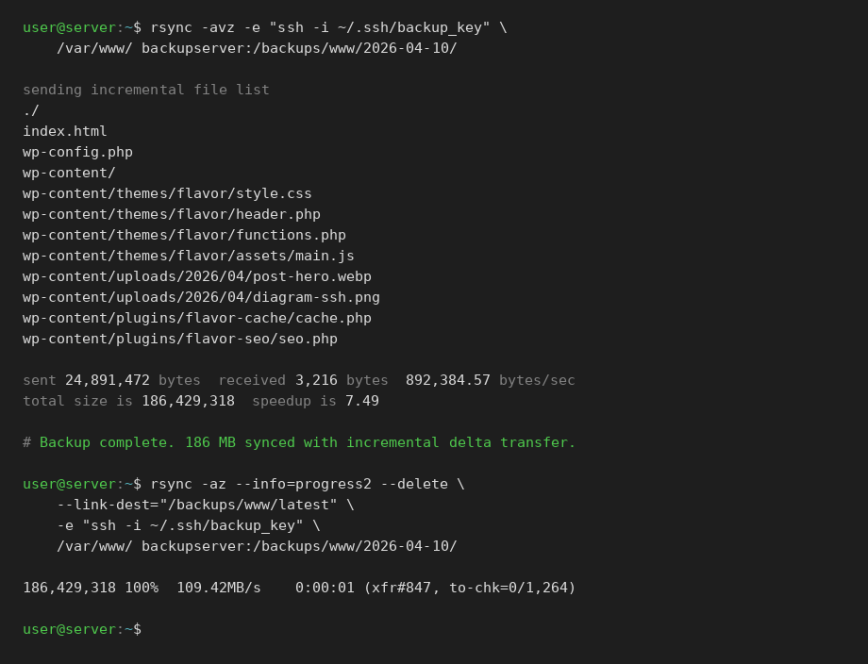
rsync on its own is fast and smart. It only transfers the parts of files that have changed, which makes repeated syncs extremely efficient. Pair that with SSH and you get:
- Encrypted data in transit
- Authentication via SSH keys (no passwords in scripts)
- Compression over the wire with
-z - All the usual SSH options: custom ports, identity files, jump hosts
The alternative, plain rsync daemon mode, is faster on paper but sends data unencrypted. On a trusted LAN that might be acceptable. Over the internet or between VPSs, use SSH.
Basic Syntax
The general form looks like this:
rsync [options] source destination
For a remote destination over SSH:
rsync -avz /local/path/ user@remote:/remote/path/
For pulling from a remote source:
rsync -avz user@remote:/remote/path/ /local/path/
Note: The trailing slash on the source path matters. /local/path/ syncs the contents of that directory. /local/path without the slash syncs the directory itself, creating an extra level of nesting at the destination. This catches people out constantly.
The Flags That Actually Matter
You’ll see -avz everywhere. Here’s what each flag does and when to change it:
-a(archive): Combines-rlptgoD. Recursive, preserves symlinks, permissions, timestamps, owner, group, and device files. Use this almost always for backups. If you’re syncing between systems with different users or permission models, consider dropping ownership preservation with--no-o --no-gto avoid mismatched UIDs filling your logs with errors.-v(verbose): Prints file names as they transfer. Drop it for cron jobs or add--statsfor a summary instead.-z(compress): Compresses data during transfer. Helps on slow or metered connections. On fast local networks or with already-compressed files (JPEGs, videos, archives), skip it, it wastes CPU for no benefit.-P: Combines--progressand--partial. Shows transfer progress and keeps partially transferred files so interrupted transfers can resume. Good for large files over unstable connections.--delete: Removes files from the destination that no longer exist in the source. Essential for true mirrors. Be careful with this one.-nor--dry-run: Simulates the transfer without changing anything. Always run this first when using--deleteon something important.--checksum: Instead of relying on file size and modification time to decide what to transfer, compares checksums. Much slower but more thorough. Useful for verifying backups, not for routine syncs.-e: Specifies the remote shell. Use this to pass SSH options.
Specifying SSH Options
The -e flag lets you pass arguments directly to SSH. This is how you handle non-standard ports, specific identity files, or any other SSH config:
rsync -avz -e "ssh -p 2222" /local/path/ user@remote:/remote/path/
Using a specific key:
rsync -avz -e "ssh -i ~/.ssh/backup_key" /local/path/ user@remote:/remote/path/
Combining both:
rsync -avz -e "ssh -p 2222 -i ~/.ssh/backup_key" /local/path/ user@remote:/remote/path/
If you find yourself typing long SSH options regularly, put them in ~/.ssh/config instead and reference the host alias. Much cleaner, and it avoids long quoted -e strings in scripts that can break in cron environments:
# ~/.ssh/config
Host backupserver
    HostName 203.0.113.10
    User backupuser
    Port 2222
    IdentityFile ~/.ssh/backup_key
Then your rsync command becomes simply:
rsync -avz /local/path/ backupserver:/remote/path/
Setting Up SSH Key Authentication
Running rsync in a cron job with password authentication is not going to work. You need key-based auth, and you should be hardening SSH on your servers anyway. If you haven’t set up key-based auth yet:
ssh-keygen -t ed25519 -C "backup key" -f ~/.ssh/backup_key
Copy the public key to the remote server:
ssh-copy-id -i ~/.ssh/backup_key.pub user@remote
Test it:
ssh -i ~/.ssh/backup_key user@remote
If you want to restrict what this key can do on the remote end (a good idea for a dedicated backup user), you can lock it down in ~/.ssh/authorized_keys on the remote server:
command="rsync --server --daemon .",no-port-forwarding,no-X11-forwarding,no-agent-forwarding,no-pty ssh-ed25519 AAAA... backup key
That key can then only be used to accept rsync connections, nothing else.
A Practical Backup Script
Here’s a simple but solid incremental backup script. It keeps the current backup in one directory and uses --link-dest to create hard-linked snapshots for previous versions. You get multiple restore points without multiple full copies of your data.
#!/bin/bash

SOURCE="/var/www/"
DEST_HOST="backupserver"
DEST_BASE="/backups/www"
DATE=$(date +%Y-%m-%d)
LATEST="$DEST_BASE/latest"
SNAPSHOT="$DEST_BASE/$DATE"

rsync -az \
  --delete \
  --link-dest="$LATEST" \
  -e "ssh -i ~/.ssh/backup_key" \
  "$SOURCE" \
  "${DEST_HOST}:${SNAPSHOT}/"

# Update the 'latest' symlink
ssh -i ~/.ssh/backup_key "$DEST_HOST" \
  "ln -snf $SNAPSHOT $LATEST"
How --link-dest works: instead of copying files that haven’t changed, rsync creates hard links to the previous snapshot. Each dated directory looks like a complete backup, but unchanged files share the same disk blocks. You get easy per-day restores without multiplying your storage use.
Note: Hard links only work within the same filesystem. Keep all your snapshots on the same volume.
Note: If the source directory is empty or the volume isn’t mounted, --delete will propagate that emptiness to your backup. Add a basic sanity check before rsync runs, something like verifying a known file exists or checking that the source contains a minimum number of files.
Excluding Files and Directories
You almost always want to exclude some things. Caches, temporary files, logs, build artifacts:
rsync -avz \
  --exclude='*.log' \
  --exclude='cache/' \
  --exclude='.git/' \
  /local/path/ user@remote:/remote/path/
For longer exclude lists, use a file:
rsync -avz --exclude-from='/etc/rsync-excludes.txt' /local/path/ user@remote:/remote/path/
The exclude file looks like this:
*.log
*.tmp
cache/
tmp/
.git/
node_modules/
One thing to watch: exclude patterns are matched against the path relative to the source root, not the full path. So cache/ matches /source/cache/, not /var/www/cache/ unless /var/www/ is your source. If your exclude isn’t working, add -v and check what paths rsync is seeing.
Bandwidth Throttling
Pushing a large backup over a shared connection during business hours is a bad idea. Use --bwlimit to cap the transfer rate in KB/s:
rsync -avz --bwlimit=10000 /local/path/ user@remote:/remote/path/
That caps it at roughly 10 MB/s. Useful for scheduled overnight syncs where you don’t want to saturate the link but still want it to finish in a reasonable time.
Scheduling with Cron
A backup script that only runs when you remember to run it is not a backup. Add it to cron. If you’re also looking at systemd timers and other server maintenance automation, that’s covered separately.
A daily backup at 2 AM:
0 2 * * * /usr/local/bin/backup-www.sh >> /var/log/backup-www.log 2>&1
A few things to get right for cron-based rsync jobs:
- Use absolute paths everywhere in the script, including to
rsyncitself (/usr/bin/rsync). Cron has a minimal environment. - Redirect both stdout and stderr to a log file so you know when something goes wrong.
- Make sure the SSH key being used does not have a passphrase, or use
ssh-agent.
To find the full path to rsync:
which rsync
Useful One-Liners
Mirror a remote directory locally, deleting anything not in the source:
rsync -avz --delete user@remote:/var/www/ /local/mirror/
Dry run first to see what would be deleted:
rsync -avzn --delete user@remote:/var/www/ /local/mirror/
Sync only files newer than a certain date:
rsync -avz --files-from=<(find /source -newer /tmp/lastrun -type f -printf '%P\n') /source/ user@remote:/dest/
Transfer with progress for large files:
rsync -avP large-file.tar.gz user@remote:/backups/
Check transfer stats without verbose output:
rsync -az --stats /local/path/ user@remote:/remote/path/
Comparing rsync to scp and sftp
Quick comparison for context:
scp: Simple, encrypted, good for single files or quick copies. No delta transfers, no partial resume. Deprecated in OpenSSH 9.0+ in favor of sftp internally, though still works.sftp: Interactive file transfer over SSH. Good for browsing remotes and ad-hoc transfers. Not practical for scripted backups.rsync: Delta transfers, compression, excludes, hard-link snapshots, bandwidth throttling. The right tool for backups and ongoing sync tasks.
For anything more than a one-off file copy, rsync wins. The network troubleshooting article covers scp and other transfer tools in broader context if you want a comparison from a different angle.
Common Issues and Fixes
Permission denied: Check that the SSH key is loaded and that the remote user has write access to the destination path. Also check that ~/.ssh on the remote has permissions 700 and authorized_keys has permissions 600.
rsync: command not found on remote: rsync must be installed on both ends. The remote end needs it even for pulls. Install it with your package manager:
# Debian/Ubuntu
sudo apt install rsync

# RHEL/Fedora
sudo dnf install rsync
Files constantly re-transferring: Usually caused by timestamps being reset on the destination, a common issue with some filesystems or mount options. Try adding --checksum temporarily to verify the files are actually identical, then investigate why timestamps differ. Some NFS mounts and FAT filesystems don’t preserve modification times reliably.
Slow transfers despite good bandwidth: Remove -z if you’re transferring already-compressed data. Compression adds CPU overhead and can actually slow things down for binary formats. Also check if SSH cipher choice is a bottleneck on low-power hardware. Try adding -e "ssh -c aes128-ctr" which is lighter on CPU than the default negotiated cipher.
Disk usage not reducing with –delete: The delete happens at the end of the transfer by default. If the transfer is interrupted, files marked for deletion haven’t been removed yet. Add --delete-during or --delete-before if you need different behavior, but the default is usually the safest.
Permission denied on the remote destination: If the remote user doesn’t have write access to the target directory, you can run rsync with elevated privileges on the remote end using --rsync-path:
rsync -avz --rsync-path="sudo rsync" /local/path/ user@remote:/var/www/
This requires the remote user to have passwordless sudo access for rsync. Configure that in /etc/sudoers on the remote server with a line like backupuser ALL=(ALL) NOPASSWD: /usr/bin/rsync.
Monitoring Backup Jobs
Log files get ignored. A better approach is to have the script send an alert on failure. A simple method using mail:
#!/bin/bash

rsync -az --delete -e "ssh -i ~/.ssh/backup_key" \
  /var/www/ backupserver:/backups/www/

if [ $? -ne 0 ]; then
  echo "rsync backup failed at $(date)" | mail -s "Backup FAILED" admin@example.com
fi
For a more complete picture of what’s happening on your servers, atop is excellent for spotting whether your backup jobs are impacting server load during their run windows. You can also use btop to watch CPU and I/O in real time during a transfer.
If you’re managing multiple servers and want visibility into backup jobs alongside other metrics, it’s worth looking at what’s available in the broader monitoring space.
Summary
rsync over SSH is one of those tools that rewards time spent learning it properly. The basics are easy enough to pick up in an afternoon, but the combination of incremental transfers, hard-link snapshots, SSH key auth, cron scheduling, and per-job excludes is where it becomes genuinely powerful for real backup infrastructure.
Key points to take away:
- Watch the trailing slash on source paths.
- Always dry run with
-nbefore using--deleteon something important. - Use SSH keys, never passwords in scripts.
- Use
--link-destfor efficient incremental snapshots. - Drop
-zwhen transferring already-compressed files. - Log your cron jobs and alert on failures.
For larger or more complex backup setups, tools like BorgBackup or restic build on similar ideas with added encryption and deduplication. But for most server-to-server sync and backup tasks, rsync over SSH is still the right first answer.
