Why Linux Servers Slow Down: R, S, D, Z and T Process States Explained
Monitoring dashboards occasionally indicate low CPU utilization (e.g., 22%) and ample free memory, yet applications may exhibit sluggishness and increased response times. This common discrepancy in Linux environments often stems from process states that are not captured by high-level resource summaries.
Every process on a Linux server is assigned a state. The single-letter identifier in the STAT column of ps aux or top indicates the current activity or wait-condition of a process.
The five core states—R (running), S (sleeping), D (uninterruptible sleep), Z (zombie), and T (stopped)—provide essential diagnostic insight into server health.
Quick definition of process states
The following defines each process state at a fundamental level:
- R (Running): The process is actively utilizing the CPU or is in the run queue ready for execution.
- S (Interruptible Sleep): The process awaits an event (e.g., user input or a timer) and consumes negligible resources.
- D (Uninterruptible Sleep): The process is blocked awaiting I/O operations (disk, network storage, or kernel-level waits).
- Z (Zombie): The process has completed execution but remains in the process table because the parent process has not yet collected the exit status.
- T (Stopped): The process has been suspended, usually via a manual signal or a debugger.
Where to see process states
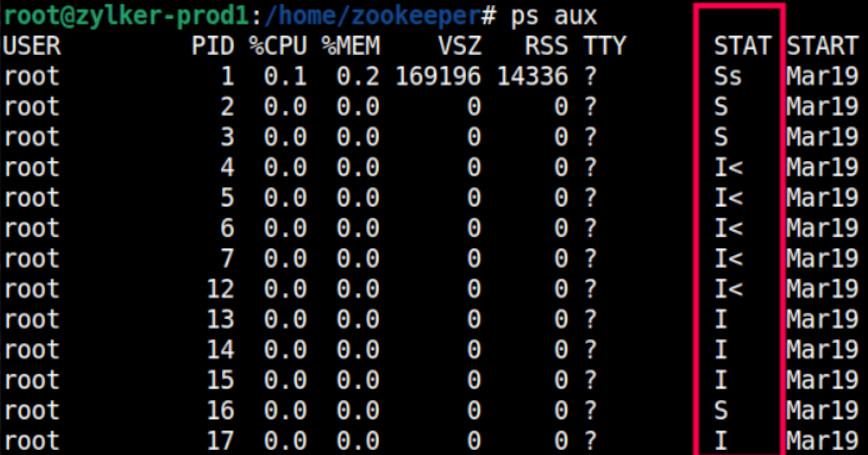
Run the command ps aux and examine the STAT column. A single snapshot of process states often reveals underlying bottlenecks more effectively than aggregate CPU metrics.
Note: Linux also appends modifier characters to the base state in the STAT column (e.g., Ss, D+, Z<). The base letter is the state; the modifier provides additional context such as session leader status or priority.
R: Running state
An R-state process is either utilizing a CPU core or is queued and ready for the next available cycle. This represents the standard state for active workloads. Watch for performance degradation when the run queue consistently exceeds the number of available CPU cores.
Run the command vmstat 1 5 to inspect the run queue. This command samples system performance every second for five intervals.
Compare the r column with your core count (nproc).
When r = 8 and id = 0 on an eight-core system, all cores are saturated. Processes are waiting for CPU time, increasing response latency.
S: Sleeping state
The S state is the most common in healthy environments. A sleeping process awaits external events, such as network packets or database queries, and consumes zero CPU while waiting, aside from minimal scheduling overhead. It resumes immediately when the event arrives.
ps aux | awk ‘$8 == “S”‘ | wc -l
High counts of S-state processes (e.g., Nginx or PHP-FPM (FastCGI Process Manager) workers) are normal.
Only investigate further if processes remain in this state longer than expected; this can point to a downstream application bottleneck, such as a slow database query keeping hundreds of workers waiting.
D: Uninterruptible sleep state (where performance problems hide)
The D state is responsible for most scenarios where systems appear healthy but exhibit degraded performance. A D-state process is blocked while waiting for I/O (disk or network storage) and cannot be interrupted, even SIGKILL (kill -9) is ineffective until the I/O operation completes.The process is frozen at the kernel level.
# Find all D-state processes
ps aux | awk '$8 ~ /D/'
Linux includes D-state processes in the load average calculation.
As a result, slow disk I/O causes the load average to climb while CPU usage remains low. For example, a system may report a load average of 12 on an eight-core machine with only 15% CPU utilization, a clear sign of D-state accumulation.
High D-state counts almost always indicate a storage bottleneck, not a CPU issue.
How to confirm disk saturation
The below command provides extended disk I/O statistics at 1-second intervals.
Note: iostat is part of the sysstat package. If the command is not found, install it first: sudo apt install sysstat (Debian/Ubuntu) or sudo yum install sysstat (RHEL/CentOS).
iostat -xz 1 5
Device r/s w/s rkB/s wkB/s await %util

sda 0.20 218.40 1.60 3374.40 45.23 98.40
- %util near 100% often indicates saturation (especially on HDDs; interpret carefully on SSD/NVMe systems).
- High await values (e.g., significantly above baseline, such as >5–10ms on SSDs) indicate excessive I/O wait times.
How to identify which kernel operation is blocking the process
for pid in $(ps aux | awk '$8 ~ /D/ {print $2}'); do

 echo "PID $pid ($(ps -p $pid -o comm=)): $(cat /proc/$pid/wchan 2>/dev/null)"

done
PID 3341 (kworker): io_schedule

PID 3892 (mysqld): ext4_file_write_iter

PID 4103 (php-fpm): io_schedule
This reveals the kernel function causing the block (e.g., io_schedule, ext4_file_write_iter).
Z: Zombie processes
A Z-state process has finished executing, but its parent hasn’t collected its exit status. The process is dead—no CPU, no memory—but its entry lingers in the process table as <defunct>.
ps aux | grep defunct
Having one or two zombies is harmless. A growing count signals that a parent process is spawning children faster than it reaps them common in containerized apps, PHP-FPM pools under load, and parallel job runners.
At scale, this matters: Each zombie holds a process ID (PID), and Linux has a finite PID limit. If exhausted, the system cannot spawn new processes, even if the CPU load and memory appear healthy.
# Find the parent of zombie processes
ps -eo pid,ppid,stat,comm | awk '$3 ~ /Z/ {print "Zombie PID:",$1,"Parent PID:",$2,"Parent:",$4}'
# Signal the parent to reap its children
kill -SIGCHLD <parent_PID>
If the parent ignores SIGCHLD, restarting the parent process is the only option.
T: Stopped
A T-state process has been deliberately paused by SIGSTOP, Ctrl+Z in a terminal, or a debugger attaching to it.
# Find stopped processes
ps aux | awk '$8 == "T"'
# Resume a stopped process
kill -SIGCONT <PID>
Stopped processes are usually intentional and harmless. However, in automated environments, they can cause hidden issues:
- Holding file locks
- Blocking deployments
- Stalling dependent services
Identify long-running stopped processes
# Find stopped processes with elapsed time
ps -eo pid,stat,etime,comm | awk '$2 == "T"'
The etime column shows elapsed time. A stopped process that has been sitting for hours during a production incident needs immediate attention.
Quick triage sequence
When your server feels slow and obvious metrics don’t explain it, run this sequence. You’ll know whether the bottleneck is CPU saturation, disk I/O, zombie accumulation, or a stalled process in under two minutes:
# Step 1: State distribution snapshot
ps aux | awk '{print $8}' | sort | uniq -c | sort -rn
# Step 2: High D count? Confirm disk saturation
iostat -xz 1 5
# Step 3: Identify blocked processes
for pid in $(ps aux | awk '$8 ~ /D/ {print $2}'); do

 echo "PID $pid: $(cat /proc/$pid/wchan 2>/dev/null)"

done
# Step 4: Check zombie count and their parents
ps -eo pid,ppid,stat,comm | awk '$3 ~ /Z/'
# Step 5: Confirm run queue vs core count
nproc && vmstat 1 3
Key takeaways
- R: running or queued; watch the vmstat run queue against your core count
- S: sleeping, waiting for an event; normal in large numbers
- D: blocked on I/O, cannot be killed; high counts inflate load average and almost always mean disk or storage saturation
- Z: dead but uncollected; harmless in small numbers, dangerous at scale when PID exhaustion becomes a risk
- T: deliberately stopped; watch for strays in automated pipelines
The next time your server metrics look fine but performance doesn’t, run ps aux and check the STAT column first. The answer is usually right there; you just need to know how to read it.
Catch these issues before users notice
Point-in-time CLI commands show you what is happening right now. But catching D-state accumulation, zombie growth, or load spikes before they escalate to a user-facing outage requires continuous, agent-level visibility.
Site24x7’s Linux server monitoring agent tracks disk idle and busy percentage, average disk queue length, and load average trends, automatically alerting your team the moment patterns move outside normal bounds—not after users start filing tickets.
