Linux Desktop: Do we need better Workspace Management?
In my earlier article, “Linux: We Need Tiling Desktop Environments,” I advocated for more desktop environments with built-in tiling features. That article sparked valuable discussion in the comments section, and recently the topic came up again in the forum thread: Fedora-KDE-43 review.
That conversation opened my eyes to a key insight: the real attraction of tiling window managers isn’t tiling itself but instead the keyboard-driven workspace management. As forum member, Bryan (@shybry747) said, “I remember DT on YouTube put it best, many of us use tiling window managers, not for the tiling but for the workspace organization.” This made me reflect on my own workflow and why I’ve also gravitated toward tiling window managers like i3wm over the years, even though I don’t often make use of window tiling.
Tiling vs. Workspace-Centric Workflows
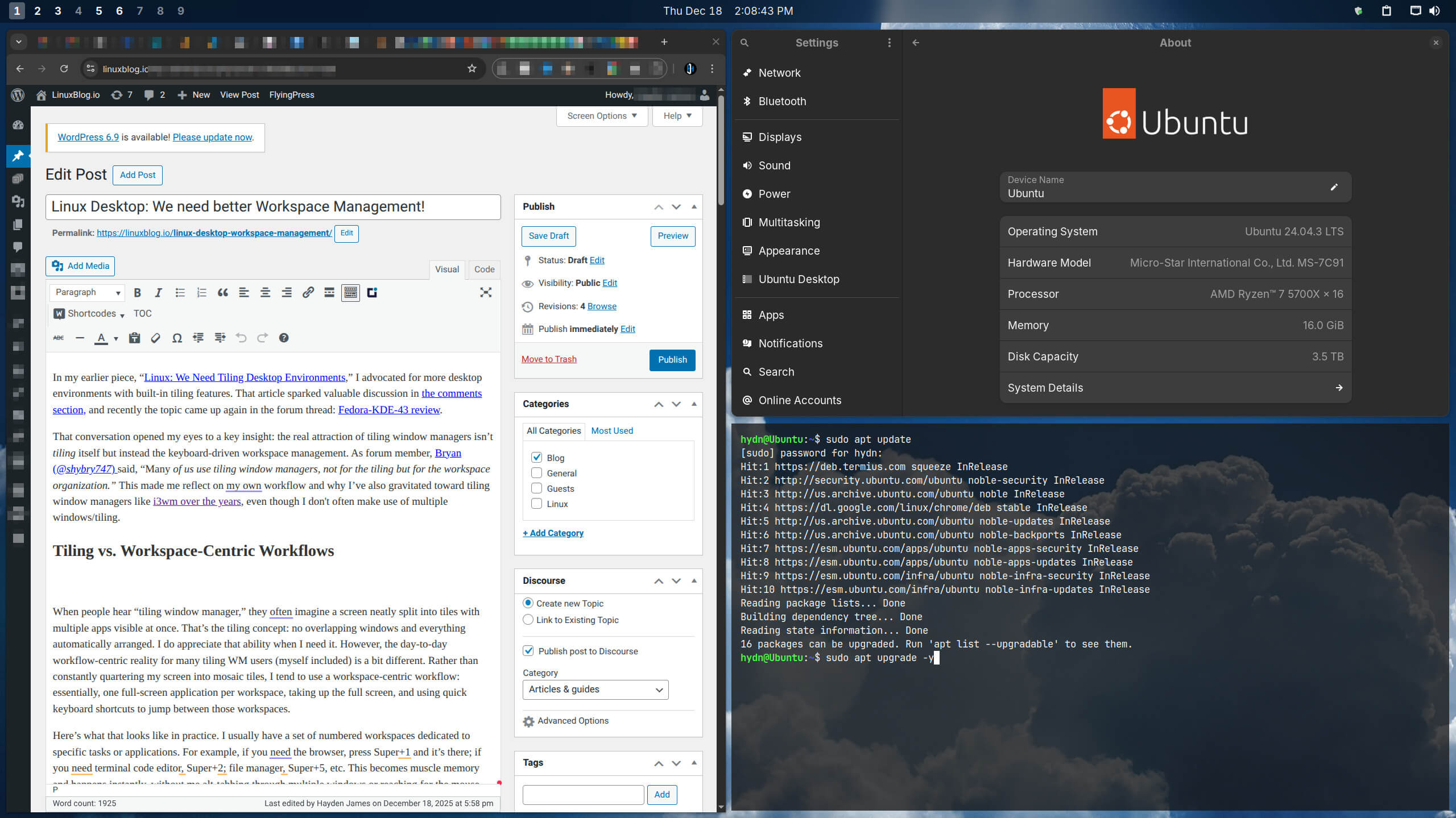
When people hear “tiling window manager,” they often imagine a screen neatly split into tiles with multiple apps visible at once. That’s the tiling concept: no overlapping windows and everything automatically arranged. I do appreciate that ability when I need it. However, the day-to-day workflow-centric reality for many tiling WM users (myself included) is a bit different. Rather than constantly quartering my screen into mosaic tiles, I tend to use a workspace-centric workflow: essentially, one full-screen application per workspace, taking up the full screen, and using quick keyboard shortcuts to jump between those workspaces.
Here’s what that looks like in practice. I usually have a set of numbered workspaces dedicated to specific tasks or applications. For example, if you need the browser, press Super+1 and it’s there; if you need terminal code editor, Super+2; file manager, Super+5, etc. This becomes muscle memory and happens instantly, without me alt-tabbing through multiple windows or reaching for the mouse. As Bryan noted on the forum thread, he even expanded this idea to 22 workspaces so that “specific apps are on a specific workspace” and he can call them up with a keyboard shortcuts.
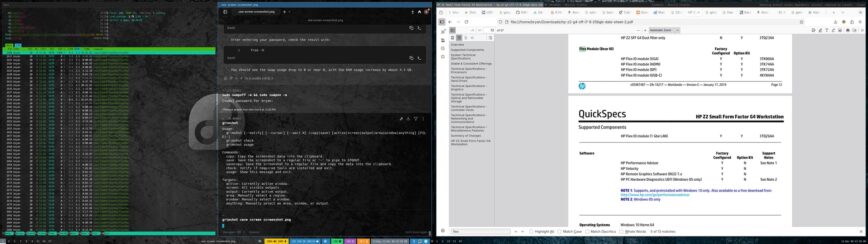
Dual monitor setup: left = vertical window tiling, right = tabbed layout. – via forum post
The tiling aspect still plays a role, but often it’s secondary. Most of the time, each workspace only has one window open (full-screen by default). I only tile multiple windows side-by-side when I specifically need to, such as when following a tutorial in a browser while typing commands in a terminal on the same screen. In those rare cases, I might split the screen between two or more apps. But once I’m done, I usually go back to one-window-per-workspace.
This workflow-centric approach is what gives the huge productivity boost: we can navigate around the system entirely via keyboard, with consistent shortcuts, and without visual clutter. It’s fast, it’s efficient, and it reduces cognitive load.
Tiling window managers excel at enabling this pattern. They let you define static workspaces, assign apps or windows to them easily, and switch focus with lightning speed.
Why Tiling Window Managers Excel at Workspace Efficiency
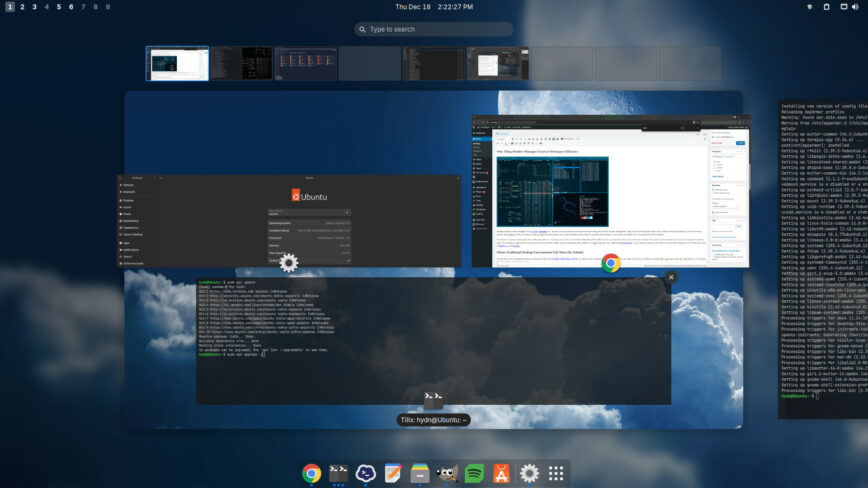
Standalone tiling window managers like i3, Sway, Awesome, etc., are built from the ground up for keyboard-centric usage and flexible window management. They create an environment where your workflow dictates the interface, not the other way around. We are able to mold our desktop around our apps and tasks: jump to any context instantly, group windows logically into workspaces, and operate everything with a consistent set of key bindings.
Once you experience this workflow, it’s hard to go back. As I joked in the forum thread, “I can’t imagine using any OS without a tiling window manager now!” Even in the case of Windows 11 and MacOS.
Where Traditional Desktop Environments Fall Short (By Default)
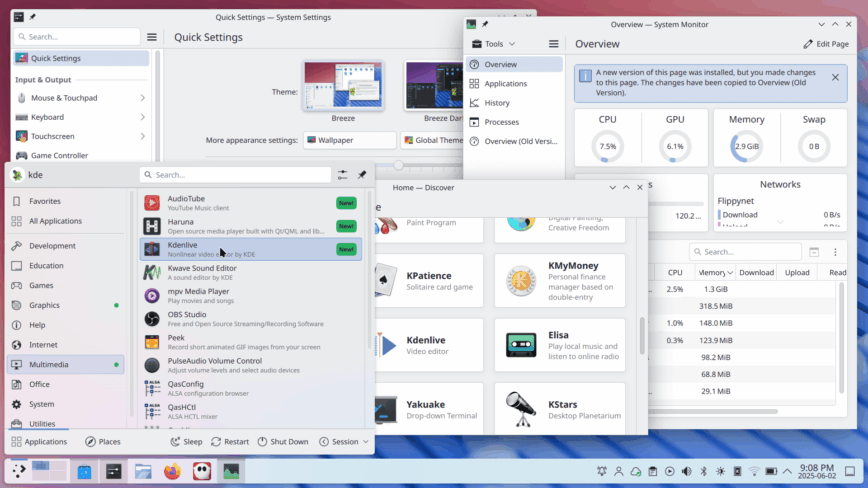
KDE Plasma default desktop
So why not just use a traditional desktop environments (DEs) like GNOME, KDE Plasma, Xfce, etc., and use their workspace features? In theory, you can mimic a lot of this workflow in a regular DE – and many people do – but there are a few hurdles and shortcomings in the default setups:
Lack of Native Tiling and Keyboard Focus
Out-of-the-box, most mainstream DEs are designed for a mouse-driven, floating-window paradigm. KDE, Xfce, and even GNOME (albeit with more of a workspace-focused UI out-of-the-box) expect you to drag windows around or click on workspaces. Yes, they have workspaces and some keyboard shortcuts, but they don’t emphasize them.
GNOME by default uses dynamic workspaces that add/remove as needed, and it doesn’t assign fixed numbers to them in an obvious way. There is a shortcut to move to the next or previous workspace, but not a default one to jump directly from workspace 1, to workspace 3, to workspace 5 and toggle between 1 and 5, for instance. You have to enable the “static” workspaces option and/or use extensions like Forge and Space Bar to get static numbered workspaces.
By contrast, a tiling WM usually comes pre-set with static workspace names/numbers and direct keybindings for each. It’s just a philosophy difference: DEs aim for broad user-friendliness (assuming a lot of mouse-heavy navigation), whereas tiling WMs assume the user wants power-user keyboard control.
Workspace Management Quirks
Even when DEs support workspaces, their implementations can annoy those of us used to tiling WMs and are usually so cumbersome not many users end up adopting them into their workflow. A great example is how GNOME handled empty workspaces (at least until recently): if a workspace has no windows, GNOME will remove it and shuffle the remaining workspaces down. So if you had apps on workspaces 1 through 5 and you close the last app on workspace 3, suddenly what was workspace 4 becomes the new “3”, 5 becomes “4”, etc. Yikes!
As @shybry747 commented, “if your browsers are on workspace 6, you always want them on workspace 6 even if 1–5 are not open” – exactly! Renumbering workspaces on the fly defeats the purpose of muscle memory. KDE’s default isn’t as bad (Plasma can be configured with a fixed number of virtual desktops), but even there the defaults don’t encourage a 1-to-1 key-to-desktop workflow. You often have to dig into settings to set global shortcuts for “Switch to Desktop 1, 2, 3…” etc. (It is possible in KDE; it’s just not in a simple-to-set-up way.)
No Automatic Tiling
Traditional DEs don’t auto-tile new windows; everything spawns floating. If I open two apps, I have to manually arrange them if I want a side-by-side view. Some DEs (like Windows and macOS too) have basic tiling or snapping. For example, drag to the screen edge to half-tile.
KDE Plasma, for instance, has “quick tiling” to half or a quarter of the screen via dragging or keyboard shortcuts. But it’s limited: you can tile two windows side by side, maybe four quadrants, but you don’t get the flexible layouts or automatic time-saving filling of space that a true tiling WM gives. Again, you can approximate some of this with third-party tools or extensions, but by default it’s not the same fluid experience.
Higher Overhead and UI Bloat
Full DEs come with plenty of features and UI elements (panels, icons, launchers, notifications, etc.) which are nice for general use but can feel cumbersome if you’re chasing a minimalist, keyboard-only workflow. I found that when I tried to use stock KDE, Xfce, or Gnome, I’d waste time tweaking things to be more keyboard-friendly.
Simple example: GNOME’s Activities Overview is a flashy way to switch tasks, but it’s slower for me than a direct keystroke. In KDE, there’s the Kickoff menu, desktop icons, etc., which I end up bypassing in favor of something like KRunner or just keybindings. In contrast, a tiling WM starts from almost nothing; you add what you need. There’s less built-in convenience, but also less to strip away when you want a focused environment.
None of this is to bash those desktop environments. I use GNOME daily, and all these mainstream DEs excel at out-of-the-box completeness and polish. Things like proper multi-monitor handling, system tray applets, settings UIs for everything, power management, etc.
It’s just that they don’t allow easy enabling of a keyboard-driven workspace workflow, as an option.
Also see: Turning Gnome 47 into a i3wm Clone.
My Current Workplace-Centric i3-like GNOME Setup
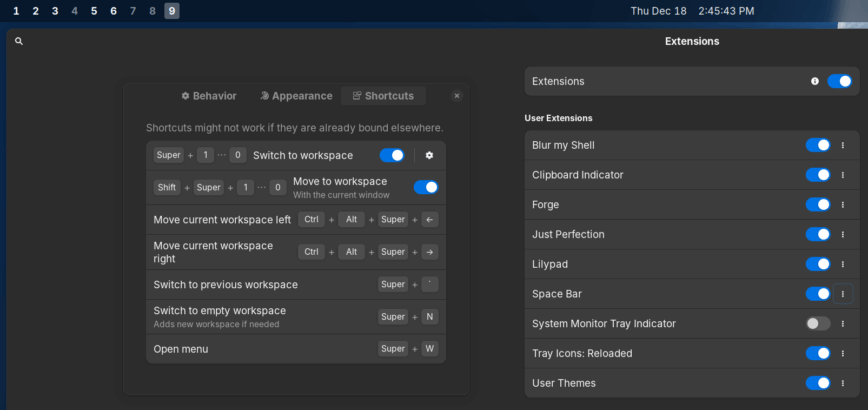
So for the past two years I’ve essentially rebuilt a tiling WM inside GNOME using extensions. It works, but every so often it feels like swimming upstream when a plugin is out of sync. Maybe this is also a reason why I moved to Ubuntu 24.04 LTS, which freezes the major version of the GNOME desktop environment.
After enjoying i3 for several years, replicating this setup in GNOME by enabling static workspaces, and using GNOME’s keyboard shortcuts was not a simple task. I quickly ran into the limitation that GNOME only supported switching to workspaces 1-4 via shortcuts unless you used an extension (see my list of installed extensions above) or manually edited keyboard shortcuts via dconf. Before all of that, I used Pop Shell, which was great but had its quirks, and System76 moved most of their development to the Cosmic desktop.
The bottom line is that by default a traditional DE won’t give you the frictionless workspace mojo that a tiling WM will. However, as mentioned, there are hybrid solutions and tweaks that can get you very close, combining the best of both worlds: a full desktop environment with tiling WM and workspace shortcut navigation.
Conclusion
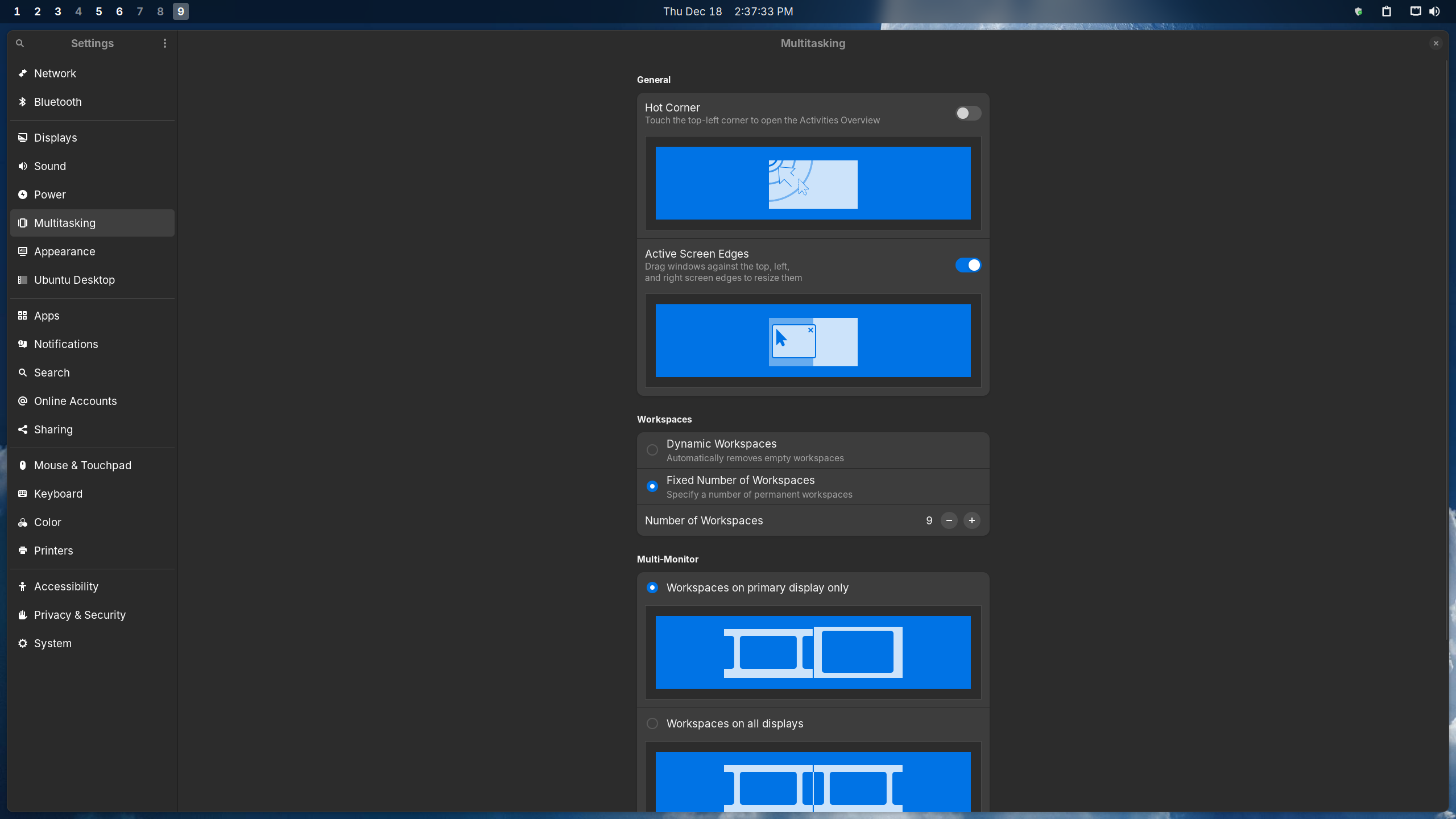
Personally, I think GNOME comes the closest out-of-the-box to a workspace-centric DE.
The conversation that started with “We need tiling desktop environments” has evolved. It turns out we’re not simply chasing the aesthetic of tiled windows; we’re after the workflow improvements . The ability to manage your entire desktop using only the keyboard, to arrange applications across multiple workspaces, and to flip between them in an instant, is the real killer feature!
Tiling window managers brought that concept to the masses of Linux power users, and now desktop environments are catching on. But we shouldn’t have to bolt on extensions, make a mass of settings changes, or hunt for niche distros to get this experience.
We in the LinuxCommunity.io forums would like to issue a friendly challenge to the Linux distro and desktop environment developers to make keyboard-driven workspace management a first-class UX feature. This means designing so that users who want to navigate their OS with Super+Number and other quick keys can easily enable this type of workflow, like Regolith Desktop and Cosmic DE.
It means providing visual cues (like a workspace bar or indicator) and settings for those workflows out-of-the-box. Some progress is already happening. GNOME’s developers have discussed adding more keyboard orientation, KDE Plasma offers Virtual Desktops to help better organize your workflow, and the same with Xfce.
But there’s more to do. Rather than focusing solely on flashy tiling window previews or gimmicky auto-layouts, a desktop should nail the basics: let me assign apps or windows to specific workspaces, let me jump to them with keystroke shortcuts, and don’t reshuffle them behind my back. Do that, and you’ll satisfy a growing niche of Linux fans.
Linux has always been about choice and flexibility. The emergence of hybrid tiling desktops and extensions is a testament to that spirit. Moving forward, I hope to see GNOME, KDE Plasma, Xfce, LXDE, and others adopt the best of these ideas so that power users can enable a workspace (or virtual desktop) centric mode without leaving the comfort of their favorite DE.

If you haven’t already, join /r/linux on Reddit. I visit that sub daily.
There’s a range of perspectives, solutions and setups for Linux desktop workspace management being discussed.
@hydn , You nailed it in this article. The workspace management is key, and once you get accustomed to it, it’s hard to go back. I actually cringed when I saw the KDE screenshot. It was what I used to do, but can’t go back. But as you mentioned, I too use other DEs including Gnome and Windows, but for the main daily driver it has to be a tiling window manager.
The other thing I would add, is that for multi monitor setups, it’s big plus. To be able to switch a workspace to a given monitor instantaneously without moving windows is a dream. This is another aspect of TWMs that I enjoy.
@shybry747 that is true! I think either my main monitor is too large (32" @ 2k resolution), or, my desk is too small (no longer L-shaped), or a combination of both things that makes a 2nd monitor not an option right now. But about 10 years ago this was my setup.
To avoid taking this thread in a different direction, I continued the display and my setup discussion here: Share your OS, Distro, Desktop setup - (screenshots, photos) - #105 by hydn
I really enjoyed reading this article. I’d say it’s been roughly 12 months since I started daily driving linux. I don’t do any work with computers, it’s all been exploration and learning so far. My learning is definitely more structured these days and will eventually evolve into a workflow.
That being said, using a tiling window manager is probably one of the most valuable things I’ve learned to use. I spent a lot of time on ubuntu 24.04 lts and a lot of time on Bazzite fedora atomic. Both had workstation options. It wasn’t until I was on bazzite that I started utilizing the workspaces more. If I pressed the super key I’d get a view of all my floating windows except they would be un-layered, I found that this was a really quick way to see what I had running and to refocus on layered floating windows more easily. Then I learned that when I pressed super and used the scroll wheel, it would cycle through workstations. I loved this! I started having a flow. Navigating my system had an intuitive feel, the “muscle memory” coming into play.
At that point I experienced my first tiling window manager when I installed Omarchy, I think it used wayland. It would have been difficult except that the documentation provided pretty good coverage of the essential hot keys, and even a hot key to open a menu of all the bindings. It was WONDERFUL.
Just as I was really starting to fly that system broke. When doing my research for a more stable distro than arch, a tiling window was a must! I loved the keyboard-centric approach and absolutely did not want to go back to relying on a mouse and GUIs. At first, I just thought tiling window managers looked cool, but once I spent a month with one, I felt that it gave me a next level way to interact with my system.
I’m now using sway fedora atomic. It may have been a bit in depth to find and read the sway config file to find out the basic key bindings, as a new linux user, but it really wasn’t that hard. And once I learned basic movement, I started flying on this new system too. When I open a new window and it auto tiles, if I need it somewhere else I can just press 3 keys to move it to the workspace of my choice. I often move windows around this way, as I need different things side by side as I work through my learning material.
It’s especially helpful with using containers because I can easily keep track of the terminal inside a certain env and the terminals open in my host system.
I know this is kind of a long monologue not saying much, but I just wanted to share and show that for a younger generation of linux users, people who don’t have enough skills yet to actually be employed in the industry, tiling window managers are a huge deal!
I would recommend twm to anyone in my shoes (if it fits their needs) and I must say the developers over at fedora, built sway fedora atomic to be ready to use for those with or without the most technical expertise and as the latter, I can say they hit their mark.
This monologue actually says plenty. It gives others insight into how their work flow can develop. And you have described well what most persons experience when moving from floating window managers to tiling window managers. It is a great contribution to the linux community.
I would admit that I have never heard of Omarchy, so I will give it a look.
…
So I just gave Omarchy a quick look. It’s built on Arch and Hyprland. Hyprland is definitely wayland. I too used a vanilla Arch with the Hyprland TWM for a few days about 2 years ago. I loved the bling, but like you after one or two updates, it easily broke. Sway which was built to run like i3 but in wayland and it is pretty stable, and I too have settled on Fedora Sway for the last six months at least.