WireGuard VPN on Linux: Complete Setup Guide
WireGuard has become the go-to VPN protocol for Linux users who want fast, modern, and simple tunneling without the complexity of OpenVPN or IPSec. It is built into the Linux kernel since 5.6, uses state-of-the-art cryptography, and the entire codebase is a fraction of the size of its predecessors. Less code means less attack surface and faster audits.
I’ve run WireGuard on everything from a Raspberry Pi 4 acting as a travel VPN server to a dedicated VPS used for remote access to my home lab. The performance difference compared to OpenVPN is immediately noticeable. This guide covers a full server and client setup on Linux, including key generation, firewall rules, and common troubleshooting steps.
Why WireGuard?
A few reasons it stands out:
- Kernel-native on Linux 5.6+. No kernel module compilation needed on modern distros.
- Uses ChaCha20 for encryption, Poly1305 for authentication, Curve25519 for key exchange. Strong defaults, no cipher negotiation headaches.
- Stateless by design. The server only responds to valid authenticated packets. Port scanning returns nothing.
- Roaming support. Clients can switch networks and the tunnel reconnects automatically.
- Throughput that regularly saturates gigabit links on modest hardware, where OpenVPN would be bottlenecked by CPU.
The tradeoff is that WireGuard is intentionally minimal. It has no built-in key distribution, no user authentication layer, and no dynamic routing protocol support out of the box. For a simple site-to-peer or road-warrior VPN, that minimalism is a feature. For complex enterprise scenarios, you will need to build around it.
Prerequisites
- A Linux server (VPS or physical) running kernel 5.6 or newer. Ubuntu 22.04 LTS, Debian 12, Fedora 40+, and Arch all work well.
- A client machine also running Linux (or Windows/macOS/Android if needed, but this guide focuses on Linux-to-Linux).
- Root or sudo access on both ends.
- UDP port 51820 open on the server firewall (or any port you choose).
Check your kernel version first:
uname -r
Anything 5.6 or above includes WireGuard natively. On older kernels you would need the wireguard-dkms package, but at this point those kernels are well past EOL on most distros.
Installing WireGuard
On Ubuntu or Debian:
sudo apt update && sudo apt install wireguard
On Fedora:
sudo dnf install wireguard-tools
On Arch Linux:
sudo pacman -S wireguard-tools
The wireguard-tools package gives you the wg and wg-quick utilities. The kernel module itself is already present on supported kernels. If you are setting up a fresh server for this, the Linux server setup guide covers the initial steps.
Key Generation
WireGuard uses public/private keypairs. Each peer generates its own keypair and shares only its public key. Do this on both the server and the client.
On the server:
wg genkey | tee /etc/wireguard/server_private.key | wg pubkey > /etc/wireguard/server_public.key
Lock down the private key immediately:
chmod 600 /etc/wireguard/server_private.key
View the keys:
cat /etc/wireguard/server_private.key
cat /etc/wireguard/server_public.key
Repeat the same key generation steps on the client machine, saving to client_private.key and client_public.key. You will need both public keys when writing the configs.
Note: Keep your private keys private. Never paste them anywhere, never commit them to version control. The public key is what you share with peers.
Server Configuration
Create the server config at /etc/wireguard/wg0.conf:
[Interface]
Address = 10.0.0.1/24
ListenPort = 51820
PrivateKey = <SERVER_PRIVATE_KEY>

# Enable IP forwarding and NAT for client internet traffic
PostUp = iptables -A FORWARD -i wg0 -j ACCEPT; iptables -t nat -A POSTROUTING -o eth0 -j MASQUERADE
PostDown = iptables -D FORWARD -i wg0 -j ACCEPT; iptables -t nat -D POSTROUTING -o eth0 -j MASQUERADE

[Peer]
PublicKey = <CLIENT_PUBLIC_KEY>
AllowedIPs = 10.0.0.2/32
Replace <SERVER_PRIVATE_KEY> with the contents of /etc/wireguard/server_private.key and <CLIENT_PUBLIC_KEY> with the client’s public key.
A few things to note about this config:
Addressis the VPN IP assigned to this interface. The server gets10.0.0.1.ListenPortis the UDP port WireGuard listens on. 51820 is the default but you can use anything.- The
PostUpandPostDownrules handle NAT so that connected clients can route internet traffic through the server. Changeeth0to match your server’s actual public-facing interface. Check withip aif unsure. On nftables-based systems (Debian 12, Ubuntu 22.04+), these iptables commands still work through theiptables-nftcompatibility layer. If your system uses pure nftables without the compatibility layer, use equivalentnftrules instead. AllowedIPsunder the[Peer]block defines which source IPs are accepted from this peer. For a road-warrior client, this is just their assigned VPN IP.
Lock down the config file:
chmod 600 /etc/wireguard/wg0.conf
For more on why file permissions matter and how chmod works, see the Linux file permissions guide.
Enable IP Forwarding on the Server
If clients need to route internet traffic through the server, you must enable IP forwarding. Without this, packets from the VPN tunnel will not be forwarded to the internet.
Edit /etc/sysctl.conf and add or uncomment:
net.ipv4.ip_forward = 1
Apply it immediately without rebooting:
sudo sysctl -p
Confirm it is set:
cat /proc/sys/net/ipv4/ip_forward
Output should be 1. If it is 0, forwarding is disabled.
Client Configuration
Create the client config at /etc/wireguard/wg0.conf on the client machine:
[Interface]
Address = 10.0.0.2/24
PrivateKey = <CLIENT_PRIVATE_KEY>
DNS = 1.1.1.1

[Peer]
PublicKey = <SERVER_PUBLIC_KEY>
Endpoint = <SERVER_PUBLIC_IP>:51820
AllowedIPs = 0.0.0.0/0
PersistentKeepalive = 25
Key points here:
Addressis the client’s VPN IP,10.0.0.2.DNSsets the DNS server used while the tunnel is active. Using1.1.1.1or your own resolver prevents DNS leaks.Endpointis your server’s public IP address and port. This is how the client knows where to connect. If your server is behind NAT (common in home lab setups), forward UDP 51820 from your router to the server’s local IP.AllowedIPs = 0.0.0.0/0routes all traffic through the VPN. If you only want to route traffic destined for the VPN subnet, use10.0.0.0/24instead. This is the split tunnel vs. full tunnel choice.PersistentKeepalive = 25sends a keepalive packet every 25 seconds. This is important when the client is behind NAT, which is almost always. Without it, the NAT mapping can expire and the tunnel goes silent.
Starting WireGuard
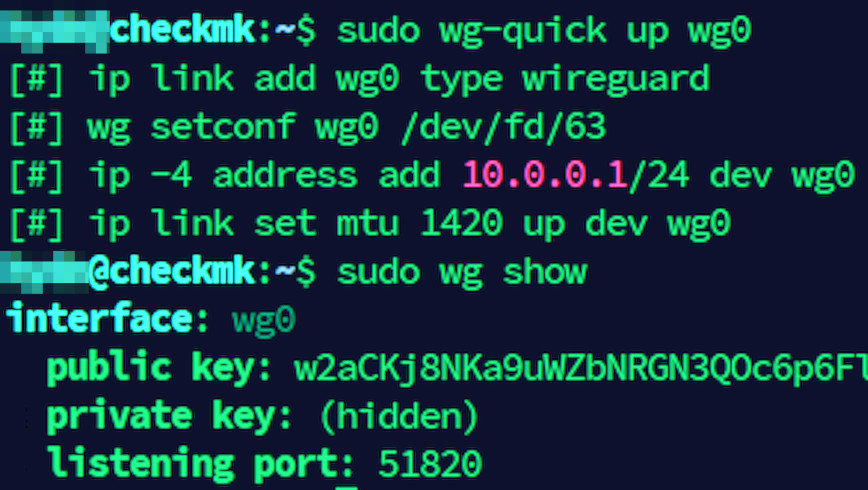
Use wg-quick to bring up the interface on both the server and the client:
sudo wg-quick up wg0
To bring it down:
sudo wg-quick down wg0
To enable WireGuard at boot with systemd:
sudo systemctl enable wg-quick@wg0
sudo systemctl start wg-quick@wg0
Check the status:
sudo systemctl status wg-quick@wg0
Verifying the Connection
On either machine, run:
sudo wg show
You will see output similar to this on the server:
interface: wg0
  public key: <SERVER_PUBLIC_KEY>
  private key: (hidden)
  listening port: 51820

peer: <CLIENT_PUBLIC_KEY>
  endpoint: 203.0.113.45:54321
  allowed ips: 10.0.0.2/32
  latest handshake: 14 seconds ago
  transfer: 1.23 MiB received, 4.56 MiB sent
The latest handshake field is the key thing to check. If it shows a recent timestamp, the tunnel is alive. If there is no handshake, something is blocking the connection.
Test connectivity with a simple ping:
ping 10.0.0.1
Run that from the client. If you get replies, the tunnel is working. If routing all traffic through the VPN, verify your public IP has changed:
curl ifconfig.me
Firewall Rules
If your server is running a firewall, you need to allow the WireGuard UDP port. Using ufw:
sudo ufw allow 51820/udp
sudo ufw reload
Using firewalld on Fedora or RHEL-based systems:
sudo firewall-cmd --permanent --add-port=51820/udp
sudo firewall-cmd --reload
If you use nftables directly, add a rule to accept UDP on port 51820 in your input chain. The nftables setup guide covers the basics if you need a refresher.
Also make sure the forwarding and masquerade rules in the PostUp block of the server config match your actual firewall setup. On servers with ufw enabled, the iptables commands in PostUp still work because ufw uses iptables underneath.
Adding More Clients
WireGuard handles multiple peers cleanly. For each additional client, generate a new keypair on that client, then add a new [Peer] block to the server config:
[Peer]
PublicKey = <CLIENT2_PUBLIC_KEY>
AllowedIPs = 10.0.0.3/32
You can reload the config without dropping existing connections using:
sudo wg addconf wg0 /dev/stdin <<EOF
[Peer]
PublicKey = <CLIENT2_PUBLIC_KEY>
AllowedIPs = 10.0.0.3/32
EOF
This appends new peers to the running interface but does not remove existing ones. For full control over the peer list, edit wg0.conf directly and restart the interface:
sudo wg-quick down wg0 && sudo wg-quick up wg0
Each client gets a unique VPN IP from your 10.0.0.0/24 range and a unique keypair. Never reuse keys between clients.
IPv6 Support
The examples above are IPv4-only, but WireGuard handles dual-stack natively. To add IPv6 to your tunnel, assign a unique local address range alongside the IPv4 addresses.
On the server, update the [Interface] block:
[Interface]
Address = 10.0.0.1/24, fd00::1/64
ListenPort = 51820
PrivateKey = <SERVER_PRIVATE_KEY>
On the client:
[Interface]
Address = 10.0.0.2/24, fd00::2/64
PrivateKey = <CLIENT_PRIVATE_KEY>
DNS = 1.1.1.1
If you are routing all traffic through the VPN, update the client’s AllowedIPs to include both address families:
AllowedIPs = 0.0.0.0/0, ::/0
The server’s PostUp and PostDown rules also need IPv6 equivalents:
PostUp = iptables -A FORWARD -i wg0 -j ACCEPT; iptables -t nat -A POSTROUTING -o eth0 -j MASQUERADE; ip6tables -A FORWARD -i wg0 -j ACCEPT; ip6tables -t nat -A POSTROUTING -o eth0 -j MASQUERADE
PostDown = iptables -D FORWARD -i wg0 -j ACCEPT; iptables -t nat -D POSTROUTING -o eth0 -j MASQUERADE; ip6tables -D FORWARD -i wg0 -j ACCEPT; ip6tables -t nat -D POSTROUTING -o eth0 -j MASQUERADE
You will also need to enable IPv6 forwarding on the server. Add to /etc/sysctl.conf:
net.ipv6.conf.all.forwarding = 1
Then apply with sudo sysctl -p. The fd00::/64 range is a unique local address (ULA) prefix, which is the IPv6 equivalent of RFC 1918 private addressing. It works well for VPN tunnels where you do not need globally routable IPv6 addresses. If you expect clients to route IPv6 internet traffic through the VPN, your server’s upstream connection must also have working IPv6 connectivity.
Troubleshooting
No handshake occurring
This is the most common issue. Work through these checks in order:
- Confirm the server is actually listening:
sudo ss -ulnp | grep 51820 - Confirm the firewall allows UDP 51820 on the server.
- Confirm the client’s
EndpointIP and port are correct. - Confirm the public keys match on both sides. A single wrong character prevents handshake.
- Check that the server’s network interface in the
PostUpNAT rule matches the actual interface name.
Handshake succeeds but no traffic flows
- Check IP forwarding is enabled on the server:
cat /proc/sys/net/ipv4/ip_forward - Check the NAT masquerade rule is in place:
sudo iptables -t nat -L POSTROUTING -n -v - Verify the client’s
AllowedIPscovers the traffic you are trying to route.
DNS leaks when routing all traffic
If you set AllowedIPs = 0.0.0.0/0 but forget to set DNS in the client config, DNS queries may bypass the tunnel. Set the DNS option to your preferred resolver. You can also run your own resolver on the VPN server and point clients at 10.0.0.1.
Tunnel drops after idle period
This is almost always a NAT timeout issue. Add or reduce PersistentKeepalive in the client config. A value of 25 seconds works reliably for most NAT setups.
If you are running into issues beyond these, the network troubleshooting guide covers the diagnostic tools that can help isolate the problem.
Performance Notes
WireGuard is fast enough that on most hardware you will not notice any overhead on a gigabit connection. On a low-power VPS or a Raspberry Pi, you can still expect several hundred Mbps of throughput because the crypto operations are lightweight compared to OpenVPN’s cipher overhead.
A few things that can still limit performance:
- UDP fragmentation. If your MTU is too high, large packets get fragmented. The default MTU for the WireGuard interface is 1420 bytes, which accounts for the WireGuard header overhead over a standard 1500 byte Ethernet MTU. Generally this default is fine. If you are on a PPPoE connection or running WireGuard inside another tunnel, lower the MTU to 1380-1400 by adding
MTU = 1380to the[Interface]block on both sides. - The VPS itself. If you are on a shared VPS with noisy neighbors, the host CPU limits are the bottleneck, not WireGuard. See the notes in the VPS benchmarking guide for context.
- Single-core throughput. WireGuard processes packets per-CPU-core per-interface. On very high throughput scenarios, you can look at using multiple interfaces in a load-balancing setup, but this is rarely necessary in practice.
A Note on Security
WireGuard’s defaults are strong. ChaCha20-Poly1305 is a well-reviewed AEAD cipher, and the cryptographic handshake provides forward secrecy. The WireGuard whitepaper covers the protocol design and cryptographic choices in detail if you want the full picture. A few operational points still matter:
- Protect your private keys. If the server private key is compromised, rotate it and redistribute the new public key to all peers.
- The server config file contains the private key in plaintext. Keep
/etc/wireguard/wg0.confreadable only by root (chmod 600). - WireGuard does not log connections by default. If you need audit trails, add logging at the firewall level or use a monitoring solution to track tunnel activity.
- Consider pairing your WireGuard server with solid SSH hardening on the same machine. The SSH security guide covers the essentials.
- WireGuard supports an optional pre-shared key per peer for an additional layer of symmetric encryption. This is a defense-in-depth measure against future quantum computing threats. Generate one with
wg genpskand addPresharedKey = <PSK>to the[Peer]block on both sides. It does not replace the Curve25519 handshake; it supplements it.
Conclusion
WireGuard is one of the best things to happen to Linux networking in recent years. The setup is simpler than OpenVPN, the performance is better, and the security model is clean. Once you have the keypair concept down, adding and removing peers takes minutes.
This guide walked through server and client configuration, IPv6 dual-stack setup, firewall rules, and the most common failure modes. For a home lab road-warrior setup, a travel VPN, or a secure tunnel between two of your own servers, WireGuard is the right tool. The config above should get you running in under 15 minutes on any modern Linux system.
If you are self-hosting services from your home lab and want ideas for what to put behind that VPN, see the Linux Server DIY Projects article for inspiration.
