Reduce Disk Writes on Debian & Ubuntu (Server & Desktop)
Every write to disk costs something, whether it’s wearing down an SSD, slowing I/O on a busy server, or draining battery on a laptop. One of the biggest offenders is logging. Between systemd-journald, web server access logs, and application-level logging, a default Debian 13 (Trixie) or Ubuntu 24.04 LTS system writes a lot to disk.
This article covers how to reduce disk writes on both server and desktop systems, with specific tips for each. We’ll focus on logging, the low-hanging fruit, then move into filesystem tweaks and other optimizations.
Applies to: Debian 13 “Trixie”, Ubuntu 24.04 LTS (Noble Numbat) and most of their derivatives.
General Tips (Server & Desktop)
These apply regardless of whether you’re running a headless server or a workstation with a desktop environment.
Use the noatime Mount Flag
By default, Linux updates a file’s “last accessed” timestamp every time it’s read. This means even read operations trigger disk writes. Both Debian and Ubuntu default to relatime, which reduces this somewhat, but noatime eliminates it entirely.
Edit /etc/fstab and add noatime to your root partition (and any other partitions):
UUID=your-uuid-here / ext4 noatime,errors=remount-ro 0 1
Then remount without rebooting:
sudo mount -o remount /
The noatime flag also implies nodiratime, so you don’t need to specify both. This is a safe, universal optimization. Very few applications depend on the access timestamp.
Switch journald to Volatile Storage
systemd-journald is the default logging daemon on both Debian and Ubuntu based systems. By default, it writes persistent logs to /var/log/journal/. You can switch it to volatile mode, which stores logs only in RAM under /run/log/journal/. Logs will be lost on reboot, but disk writes drop significantly.
Create a drop-in config file:
sudo mkdir -p /etc/systemd/journald.conf.d
sudo vi /etc/systemd/journald.conf.d/volatile.conf
Add the following:
[Journal]
Storage=volatile
RuntimeMaxUse=64M
Then restart journald:
sudo systemctl restart systemd-journald
The RuntimeMaxUse=64M setting caps how much RAM the journal can consume. Adjust to suit your available memory. On a server with 32GB+ RAM, 100 MB to 1 GB is reasonable.
If you still want to keep some log data on disk but at a reduced volume, you can leave storage as persistent and instead limit the journal size:
[Journal]
SystemMaxUse=100M
MaxLevelStore=warning
The MaxLevelStore=warning setting tells journald to only persist messages at the warning level or above, dropping the high-volume info and debug messages from ever hitting disk.
Mount /tmp as tmpfs
Modern Debian and Ubuntu both mount /tmp as a tmpfs (RAM-backed filesystem) by default. You can verify this with:
findmnt /tmp
If it’s not already a tmpfs, add the following to /etc/fstab:
tmpfs /tmp tmpfs defaults,noatime,mode=1777 0 0
For /var/tmp, the same approach works if you don’t need temporary files to survive reboots:
tmpfs /var/tmp tmpfs defaults,noatime,mode=1777 0 0
Reduce Swap Writes
If your system uses a swap partition on an SSD, reduce the kernel’s tendency to swap by lowering swappiness. Edit /etc/sysctl.conf:
vm.swappiness=10
Apply immediately:
sudo sysctl -p
A value of 10 (down from the default 60) keeps data in RAM longer before swapping to disk. On systems with plenty of RAM, you can go as low as vm.swappiness=1. Or, you can disable swap completely if you have loads of RAM. For more on swap tuning, see Linux Performance: Almost Always Add Swap Space. For modern NVMe SSDs with high write endurance, this matters less but is still a good practice.
Server-Specific Tips
Servers generate the most disk writes from logging, especially web servers handling thousands of requests per hour.
Disable or Reduce Web Server Access Logs
If you’re running Nginx, every request writes a line to the access log by default. On a busy site, this adds up fast. To disable access logging entirely:
access_log off;
Place this in your server block or at the http level in /etc/nginx/nginx.conf. If you still want logging but with less I/O overhead, use Nginx’s buffered logging:
access_log /var/log/nginx/access.log combined buffer=32k flush=5s;
This batches log writes into 32KB chunks instead of writing after every request.
For Apache, you can disable access logging by commenting out the CustomLog directive in your virtual host config:
# CustomLog ${APACHE_LOG_DIR}/access.log combined
Or reduce the log level for error logs:
LogLevel warn
For both web servers, you can also raise the error log level to warn or error to reduce the volume of error log writes. For more Nginx performance tips, see Nginx Tuning Tips: HTTPS/TLS.
Offload Logging to Cloudflare
If your site is behind Cloudflare’s proxy (orange cloud enabled), Cloudflare handles all front-end connections and logs every request at the edge. This means you can disable access logging on your origin server. Cloudflare’s analytics dashboard and (for paid plans) Logpush already capture visitor IPs, status codes, response times, and more.
With Cloudflare proxying your traffic, your origin only sees requests from Cloudflare’s IP ranges. The access logs become less useful anyway since they only show Cloudflare IPs unless you’ve configured mod_remoteip (Apache) or real_ip_header (Nginx). Disabling those logs and relying on Cloudflare’s edge logging reduces disk writes and simplifies your server’s I/O profile.
Even on Cloudflare’s free plan, the analytics dashboard gives you a solid overview of requests, bandwidth, threats blocked, and top visited URLs. If you need detailed per-request logs, the paid plans offer Logpush which can stream logs to external storage like R2, S3, or a log management platform. Either way, you’re moving the logging burden off your origin server’s disk.
Forward Logs to Better Stack
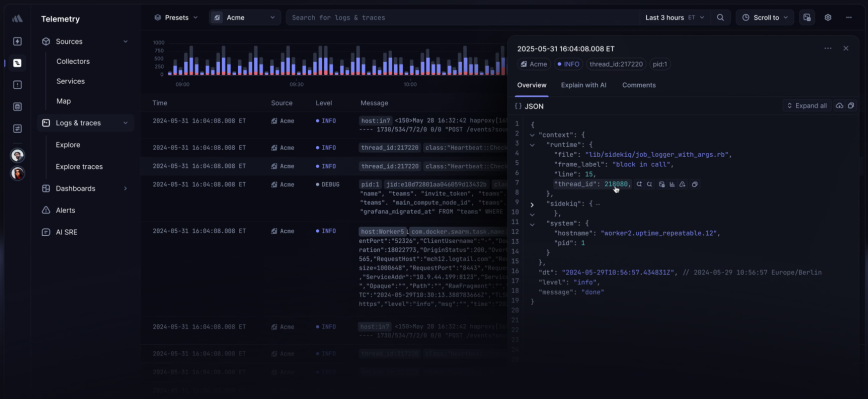
If you don’t want to manage your own centralized log server, Better Stack is an excellent option. It accepts logs directly from rsyslog over TLS, giving you live tailing, SQL-based log queries, dashboards, and alerting without running any additional infrastructure.
First, install rsyslog and the GnuTLS module:
sudo apt install rsyslog rsyslog-gnutls
Then create a new config file at /etc/rsyslog.d/90-betterstack.conf with the following:
global(DefaultNetstreamDriverCAFile="/etc/ssl/certs/ca-certificates.crt")

template(name="BetterStackFormat" type="list") {
    constant(value="<") property(name="pri") constant(value=">")
    constant(value="1")
    constant(value=" ")
    property(name="timestamp" dateFormat="rfc3339")
    constant(value=" ")
    property(name="hostname")
    constant(value=" ")
    property(name="app-name")
    constant(value=" ")
    property(name="procid")
    constant(value=" ")
    property(name="msgid")
    constant(value=" ")
    property(name="structured-data"
        regex.expression="[^-]"
        regex.nomatchmode="BLANK"
        regex.submatch="0")
    constant(value="[logtail@11993 source_token=\"YOUR_SOURCE_TOKEN\"]")
    constant(value=" ")
    property(name="msg" droplastlf="on")
}

action(
    type="omfwd"
    protocol="tcp"
    target="YOUR_INGESTING_HOST"
    port="6514"
    template="BetterStackFormat"
    TCP_Framing="octet-counted"
    StreamDriver="gtls"
    StreamDriverMode="1"
    StreamDriverAuthMode="x509/name"
    StreamDriverPermittedPeers="*.betterstackdata.com"
    queue.spoolDirectory="/var/spool/rsyslog"
    queue.filename="betterstack"
    queue.maxdiskspace="75m"
    queue.type="LinkedList"
    queue.saveonshutdown="on"
)
Replace YOUR_SOURCE_TOKEN and YOUR_INGESTING_HOST with the values from your Better Stack source settings. You can find both under Sources > your source > Configure in the Better Stack dashboard.
Restart rsyslog to apply:
sudo systemctl restart rsyslog
Your logs should now appear in Better Stack’s Live tail within seconds. The queue configuration ensures that if the connection to Better Stack is temporarily interrupted, logs are buffered locally and forwarded once the connection recovers.
Combined with volatile journald storage, this gives you the best of both worlds: zero local disk writes for logging, with full log retention and searchability offloaded to Better Stack. For more details on the rsyslog setup, see Better Stack’s rsyslog integration guide.
Log to tmpfs with Remote Forwarding
For production servers where you want recent logs accessible but don’t need them to survive a reboot, you can mount /var/log as a tmpfs:
tmpfs /var/log tmpfs defaults,noatime,mode=0755,size=128M 0 0
The risk is obvious: reboot and your logs vanish. To solve this, forward logs to a remote log server before they disappear. Set journald to volatile, then use systemd-journal-upload or rsyslog to forward everything off-box.
With rsyslog, add a forwarding rule in /etc/rsyslog.d/90-forward.conf:
*.* action(type="omfwd"
    target="logserver.example.com"
    port="514"
    protocol="tcp"
    queue.type="linkedList"
)
This sends all syslog messages to a remote server over TCP with a queue to handle temporary network issues. Your logs live in RAM locally and get shipped to persistent storage elsewhere. This is a common pattern for production environments where you want to minimize local disk writes while maintaining a centralized log archive.
Recreate Log Directories on Boot
If you’ve mounted /var/log as tmpfs (as described above), it starts empty on every boot. Some services expect specific subdirectories to exist and will fail to start without them. Create a systemd-tmpfiles config to handle this automatically. Add a file at /etc/tmpfiles.d/var-log.conf:
d /var/log/nginx 0755 www-data adm -
d /var/log/apache2 0755 root adm -
These directories will be created automatically on every boot before the web server starts. Run sudo systemd-tmpfiles --create to apply it immediately.
Desktop-Specific Tips
Desktop systems have different write patterns. Browser caches, desktop search indexing, and GUI session logs all contribute to disk I/O.
Use profile-sync-daemon for Browsers
Browsers like Firefox and Chromium constantly write to their profile directories: history, cookies, session data, cache. The profile-sync-daemon (PSD) moves your browser profile to tmpfs and syncs it back to disk periodically. This dramatically reduces write wear on SSDs.
Install on Debian 13 or Ubuntu 24.04:
sudo apt install profile-sync-daemon
Then enable it for your user:
systemctl --user enable --now psd
PSD supports Firefox, Chromium, Google Chrome, and several other browsers out of the box.
Disable File Indexing Services
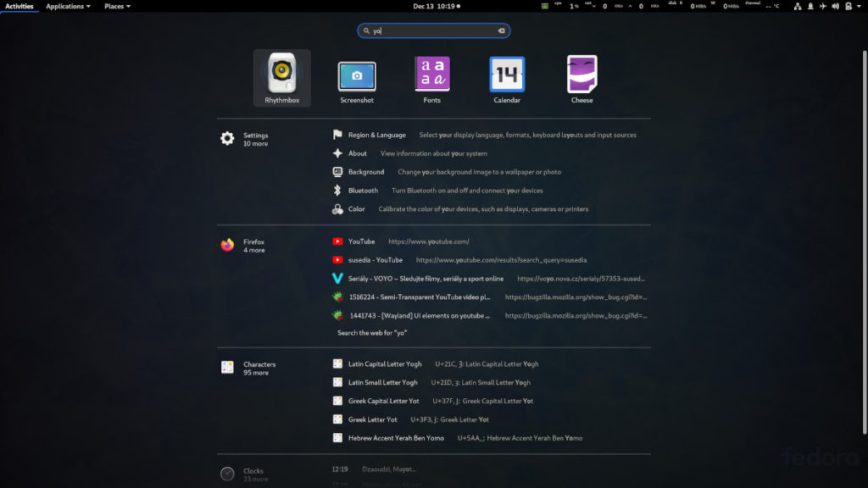
GNOME’s Tracker/LocalSearch and KDE’s Baloo desktop search engines index files in the background, writing index databases to disk. If you don’t use file search regularly, disable them.
For GNOME (Tracker/LocalSearch):
systemctl --user mask tracker-miner-fs-3.service
For KDE (Baloo):
balooctl6 disable
This stops the indexing daemons from writing to their respective databases. You can re-enable them at any time if you decide you need file search.
Move Browser Cache to tmpfs
Even without PSD, you can redirect your browser’s cache directory to a RAM-backed location. For example, to launch Firefox with its cache in /tmp:
firefox -profile ~/.mozilla/firefox/your-profile --disk-cache-dir /tmp/firefox-cache
Chromium supports a similar flag:
chromium --disk-cache-dir=/tmp/chromium-cache
Since /tmp is already tmpfs, this eliminates cache writes to disk entirely. The trade-off is that your browser cache is cleared on every reboot, which means slightly slower initial page loads after a fresh start.
Monitor Your Disk Writes
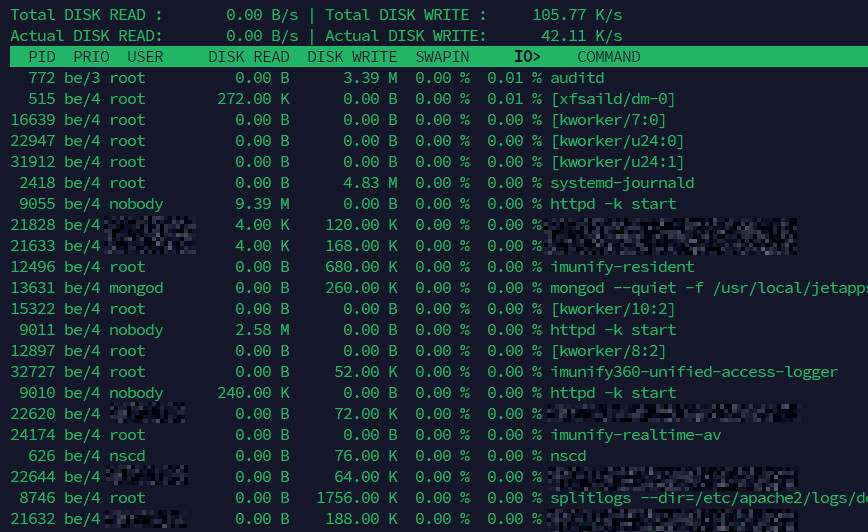
After making these changes, verify the impact. Install iotop to watch disk I/O in real time:
sudo apt install iotop-c
sudo iotop -oPa
Let it run for a few minutes and look for any remaining processes writing heavily to disk. The -o flag shows only processes with active I/O, -P shows processes instead of threads, and -a accumulates I/O over time rather than showing instantaneous rates. This makes it easy to spot the biggest offenders over a longer period.
You can also check total disk writes since boot using:
cat /proc/diskstats
Or for a cleaner view with iostat (from the sysstat package):
sudo apt install sysstat
iostat -d 5
This gives you a per-device breakdown every 5 seconds. After applying the tweaks in this article, you should see a meaningful reduction in write operations, especially on servers where logging was the primary source of disk I/O.
For more on diagnosing disk I/O performance issues, and for additional SSD optimization tips, see Increase the Performance and Lifespan of SSDs & SD Cards.
Summary
The biggest wins come from addressing logging. On a default Debian or Ubuntu system, systemd-journald alone can write hundreds of megabytes per day. Add Apache or Nginx access logs on a moderately busy site and you’re looking at gigabytes per week of pure log data hitting disk.
Switching journald to volatile storage, disabling or buffering web server access logs, and offloading log collection to a remote server or Cloudflare’s edge eliminates the majority of unnecessary writes. Complement that with noatime, reduced swap usage, and tmpfs for temporary directories, and your disk’s workload drops substantially, extending SSD lifespan and freeing up I/O for the tasks that actually matter.

Thanks @hydn for this guide!
The only thing I was doing was clear journald logs once at week. Very useful post.
This is a really great article! I run a lot of “servers” at home, which is mostly just a collection of hand-me-down hardware from previous jobs or friends and it is all “aging”. I just had two SSDs fail on me in the past six months.
While waiting for new SSDs to come in, I went through a similar exercise of finding “how long can I make this failing SSD last” by eliminating as many disk writes/reads as possible. I’m bookmarking this article for future needs of the same nature.
+1 for remounting without a reboot!
+1 browser cache to tmpfs, insanely cool idea
+1 for the journald changes
I’ll be implementing several of these on devices where I don’t need the extra logging but I do enjoy having logs on my servers (I just love logs… I’m weird)
Thanks for writing this up!
@benowe1717 Thanks for the detailed feedback! Except for my work PC, I generally buy dirt-cheap NVMe and SATA SSDs. That, and microSD card failures (Raspberry Pi) have brought me to my knees a few times!