Linux File Permissions Explained: chmod, chown, and umask in Practice
File permissions are one of those Linux fundamentals that every user encounters early and every sysadmin revisits constantly. Yet the topic is rarely covered end-to-end in a practical way. Most guides stop at chmod 755 and call it a day.
This guide goes further. We’ll cover how permissions actually work, the symbolic and octal methods, chown for ownership, umask for defaults, special bits like setuid and sticky, and real-world scenarios where getting permissions wrong causes real problems.
How Linux File Permissions Work
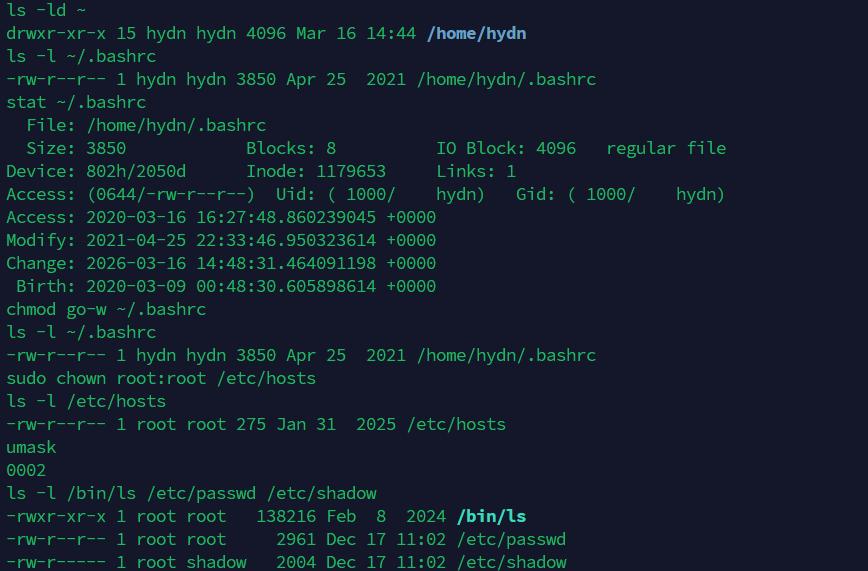
Every file and directory in Linux has three permission sets assigned to three identity categories:
- User (u): the file’s owner
- Group (g): the owning group
- Others (o): everyone else
Each set has three permission bits:
- Read (r): value of 4
- Write (w): value of 2
- Execute (x): value of 1
Run ls -l on any file and you’ll see this in action:
-rwxr-xr-- 1 hayden www-data 4096 Jan 10 09:00 deploy.sh
Breaking that first column down:
-: file type (dash for regular file,dfor directory,lfor symlink)rwx: owner can read, write, executer-x: group can read and execute, not writer--: others can only read
The owner is hayden, the group is www-data. Simple enough. Now let’s look at how to change all of this.
chmod: Changing Permissions
You have two methods: symbolic and octal. Both do the same thing. Use whichever makes sense in context.
Symbolic Method
Symbolic mode lets you add, remove, or set permissions using letters. The syntax is:
chmod [who][operator][permissions] filename
Where who is u, g, o, or a (all). The operator is + (add), - (remove), or = (set exactly).
Some practical examples:
# Add execute for the owner
chmod u+x script.sh

# Remove write from group and others
chmod go-w config.yml

# Give owner full permissions, group read+execute, others nothing
chmod u=rwx,g=rx,o= deploy.sh

# Add execute for everyone
chmod a+x run.sh
Symbolic is handy when you want to make a targeted change without touching the other bits. Great for scripts where you don’t want to accidentally wipe permissions you didn’t intend to.
Octal Method
Octal mode uses numbers. Each permission set is a sum of its bits: read=4, write=2, execute=1.
Common combinations:
7= rwx (4+2+1)6= rw- (4+2)5= r-x (4+1)4= r– (4)0= — (nothing)
You write three digits: owner, group, others.
# rwxr-xr-x (common for executables and directories)
chmod 755 deploy.sh

# rw-r--r-- (common for config files)
chmod 644 nginx.conf

# rw------- (private files, only owner can read/write)
chmod 600 ~/.ssh/id_rsa

# rwx------ (scripts only the owner should run)
chmod 700 backup.sh
Octal is faster to type when you know the exact value you want. Most sysadmins default to octal for one-off commands.
Recursive chmod
The -R flag applies changes recursively to a directory and everything inside it.
chmod -R 755 /var/www/html
Be careful here. Applying 755 recursively to a directory will also give execute permission to all files, which is usually not what you want for regular files. A safer approach for web directories:
# Directories get 755, files get 644
find /var/www/html -type d -exec chmod 755 {} \;
find /var/www/html -type f -exec chmod 644 {} \;
That find approach is a habit worth building. It prevents accidentally making config files or logs executable. For more on using find effectively, see Using the find Command in Linux with Examples.
chown: Changing Ownership
Permissions only mean something in the context of ownership. chown controls who owns a file and which group it belongs to.
# Change owner only
chown hayden file.txt

# Change owner and group
chown hayden:www-data /var/www/html/index.php

# Change group only
chown :www-data /var/www/html/uploads

# Recursive ownership change
chown -R www-data:www-data /var/www/html
The -R flag works the same as with chmod. You need root or sudo to change ownership to another user.
A common real-world scenario: you upload files as your own user via SCP or rsync, then the web server (running as www-data on Debian/Ubuntu or nginx on some distros) can’t read them. The fix:
sudo chown -R www-data:www-data /var/www/mysite
Note: If you’re regularly deploying files this way, consider adding your user to the www-data group instead, and setting group write permissions on the web root. Cleaner long-term.
chgrp: Changing Group Separately
chgrp is just chown for the group alone. Some admins prefer it for clarity:
chgrp developers /opt/project
chgrp -R www-data /var/www/html/uploads
Both chown :group and chgrp group do the same thing. Pick one and be consistent.
umask: Setting Default Permissions
When you create a new file or directory, the permissions aren’t chosen randomly. They start from a base and are filtered by the umask value.
The base is:
666(rw-rw-rw-) for files777(rwxrwxrwx) for directories
The umask subtracts from that base. Check your current umask:
umask
0022
With a umask of 022:
- New files get
666 - 022 = 644(rw-r–r–) - New directories get
777 - 022 = 755(rwxr-xr-x)
Another common value is 027:
- New files:
640(rw-r—–) - New directories:
750(rwxr-x—)
This is a reasonable default for servers where others should have zero access to newly created files.
To set umask for the current session:
umask 027
To make it permanent for a user, add it to ~/.bashrc or ~/.profile. For system-wide defaults, edit /etc/profile or a file in /etc/profile.d/.
Special Permission Bits
Beyond the standard rwx bits, Linux has three special bits that are often misunderstood. They matter a lot in specific contexts.
Setuid (SUID)
When set on an executable, it runs with the permissions of the file owner, not the user who launched it. The classic example is passwd:
ls -l /usr/bin/passwd
-rwsr-xr-x 1 root root 59976 Mar 14 2023 /usr/bin/passwd
That s in the owner execute position is the setuid bit. This allows regular users to change their password, which requires writing to /etc/shadow (a root-owned file). Without setuid, that would be impossible.
# Set SUID
chmod u+s /path/to/binary
# or octal: prepend 4
chmod 4755 /path/to/binary
Note: Be very careful with SUID. Setting it on the wrong binary is a serious security risk. Audit SUID files on your servers periodically with:
find / -perm /4000 -type f 2>/dev/null
Setgid (SGID)
On a file, SGID works like SUID but for the group. On a directory, it means new files created inside inherit the directory’s group rather than the creator’s primary group. This is extremely useful for shared project directories.
mkdir /opt/team-project
chown :developers /opt/team-project
chmod g+s /opt/team-project
Now any file created inside /opt/team-project will automatically belong to the developers group, regardless of which team member created it.
# Set SGID
chmod g+s /opt/team-project
# or octal: prepend 2
chmod 2775 /opt/team-project
Sticky Bit
On a directory, the sticky bit means only the file’s owner (or root) can delete or rename files inside, even if others have write permission. The classic example is /tmp:
ls -ld /tmp
drwxrwxrwt 18 root root 4096 Jan 10 10:23 /tmp
That t at the end is the sticky bit. Everyone can write to /tmp, but you can only delete your own files.
# Set sticky bit
chmod +t /shared/uploads
# or octal: prepend 1
chmod 1777 /shared/uploads
Useful for any shared upload or scratch directory where multiple users write files.
Combining Special Bits with Octal
When using octal with special bits, you add a fourth leading digit:
4= SUID2= SGID1= sticky
# SUID + rwxr-xr-x
chmod 4755 /usr/local/bin/mytool

# SGID + rwxrwxr-x (shared directory)
chmod 2775 /opt/shared

# Sticky + rwxrwxrwx (/tmp style)
chmod 1777 /var/scratch
ACLs: Fine-Grained Access Control
Standard Linux permissions give you three categories: owner, group, and others. That works for most cases, but sometimes you need to grant access to a second group or a specific user without changing the file’s ownership. That is where POSIX Access Control Lists (ACLs) come in.
ACLs extend the permission model by letting you assign read, write, and execute permissions to any number of additional users or groups per file. Most modern Linux filesystems (ext4, XFS, Btrfs) support ACLs out of the box. You may need to install the acl package if getfacl and setfacl are not already available:
sudo apt install acl
Grant a specific user read access to a file they would otherwise have no access to:
setfacl -m u:alice:r /var/log/myapp/app.log
Grant a group read and execute access to a directory, recursively:
setfacl -R -m g:auditors:rx /opt/reports
View the ACL entries on a file:
getfacl /opt/reports
You will see output like this:
# file: opt/reports
# owner: root
# group: root
user::rwx
group::r-x
group:auditors:r-x
mask::r-x
other::---
The mask line is the effective maximum permission for all named users and groups (excluding the owner). If you set a more permissive ACL entry, the mask can limit it. Set the mask explicitly with:
setfacl -m m::rwx /opt/reports
To set a default ACL on a directory so that new files inherit the ACL automatically (similar to how SGID inherits group ownership):
setfacl -d -m g:auditors:rx /opt/reports
Remove a specific ACL entry:
setfacl -x u:alice /var/log/myapp/app.log
Remove all ACL entries and revert to standard permissions:
setfacl -b /opt/reports
When an ACL is present, ls -l shows a + after the permission string:
drwxr-x---+ 2 root root 4096 Jan 10 10:00 /opt/reports
That + is your signal to run getfacl for the full picture.
ACLs are common in environments with multiple teams sharing directories, application log files that need to be readable by a monitoring user, and backup scripts that run as a service account. If the standard owner/group/others model is too coarse for your setup, ACLs are the next step before reaching for something heavier like SELinux or AppArmor.
Real-World Permission Scenarios
Web Server Files
A very common setup for an Nginx or Apache site:
# Directories: 755, files: 644, owner: your deploy user, group: web server user
sudo chown -R deployuser:www-data /var/www/mysite
find /var/www/mysite -type d -exec chmod 755 {} \;
find /var/www/mysite -type f -exec chmod 644 {} \;

# Writable upload directory
chmod 775 /var/www/mysite/public/uploads
chown www-data:www-data /var/www/mysite/public/uploads
SSH Key Files
SSH is strict about key file permissions. Wrong permissions will cause authentication to fail. See the SSH security guide for more on locking down your server.
chmod 700 ~/.ssh
chmod 600 ~/.ssh/id_rsa
chmod 644 ~/.ssh/id_rsa.pub
chmod 600 ~/.ssh/authorized_keys
chmod 644 ~/.ssh/known_hosts
Shared Group Directories
# Create shared directory with SGID so group ownership is inherited
mkdir /opt/devteam
groupadd devteam
chown root:devteam /opt/devteam
chmod 2770 /opt/devteam

# Add users to the group
usermod -aG devteam alice
usermod -aG devteam bob
Now Alice and Bob can both read and write inside /opt/devteam, and all files they create will belong to the devteam group automatically.
Protecting Config Files
# Only root should read this
chmod 600 /etc/secrets.conf
chown root:root /etc/secrets.conf

# Web app config: owner and group can read, others cannot
chmod 640 /etc/myapp/database.conf
chown root:www-data /etc/myapp/database.conf
This pattern (640 with a specific group) is cleaner than 600 when an application needs to read the file but you don’t want to run the app as root. Also relevant when working with SELinux or AppArmor, which add another enforcement layer on top of standard permissions.
Checking and Auditing Permissions
A few commands worth keeping handy:
# Show permissions in long format
ls -la /path/to/dir

# Show numeric permissions
stat -c "%a %n" filename

# Find world-writable files (potential security issue)
find /var/www -perm -o+w -type f

# Find SUID binaries system-wide
find / -perm /4000 -type f 2>/dev/null

# Find files owned by a specific user
find /home -user alice -type f

# Find files with no owner (orphaned files)
find / -nouser -o -nogroup 2>/dev/null
That orphaned file check is useful after removing a user account. Files that belonged to a deleted UID show up as numeric IDs in ls -l output. Clean them up or reassign ownership.
Also see 20 Powerful Linux Administration Commands for more commands that fit into a practical sysadmin workflow.
Quick Reference: Common Permission Values
400: Owner read-only. Useful for private key backups.600: Owner read/write. SSH keys, private config files.640: Owner read/write, group read. App config files.644: Owner read/write, group and others read. Web files, most configs.700: Owner full access only. Private scripts, home directories.750: Owner full, group read/execute. Group-shared scripts.755: Owner full, group and others read/execute. Directories, public scripts.775: Owner and group full, others read/execute. Shared project directories.777: Everyone full access. Almost never appropriate on a server.
Note: 777 shows up in tutorials constantly as a quick fix. It works but it is lazy and often insecure. If you find yourself using it, stop and figure out the proper ownership and group setup instead.
Conclusion
File permissions aren’t complicated once the logic clicks. The read/write/execute bits, the three identity categories, octal notation, and special bits like SGID all follow consistent rules. The skill is in applying them correctly to real situations rather than just running chmod 777 to make something work.
Get in the habit of using the find commands above to audit permissions on new deployments. It takes a few minutes and regularly turns up issues before they become problems. For the next layer of server hardening, see the guide on generating secure passwords and the notes on increasing max open files, since permission-related limits often appear together when locking down a Linux server. If you are new to Linux server management altogether, What’s Next After Installation is a good starting point.
