cron and crontab: The Complete Guide to Task Scheduling on Linux
If you manage Linux servers or just use Linux regularly, there’s a good chance you’ve already encountered cron. It’s one of those foundational tools that runs quietly in the background, keeping things ticking. Scheduled backups, log rotation, database cleanups, monitoring scripts, automated reports. All of it runs through cron.
This guide covers everything you need to know about cron jobs in Linux: how cron works, how to write a proper crontab entry, common pitfalls, and practical real-world examples.
What is cron?
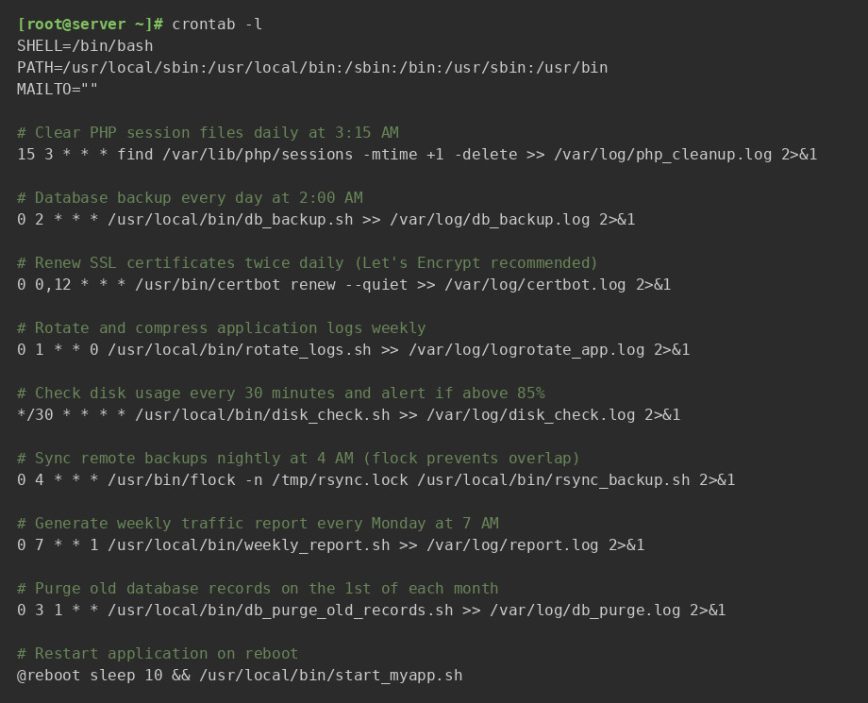
cron is a time-based job scheduler built into Linux and Unix-like systems. The crond daemon runs continuously in the background, checking every minute for scheduled tasks to execute. Those tasks are defined in a crontab file (short for cron table).
Each user on the system can have their own crontab. There’s also a system-wide crontab and drop-in directories for system tasks. More on those shortly.
Note: On systemd-based systems, systemd timers are increasingly used as a cron alternative. The Automate Linux Server Maintenance guide covers systemd timers alongside cron if you want to explore that route. For most sysadmins, cron remains the faster, simpler choice for the majority of scheduled tasks.
The crontab Command
You manage your scheduled jobs using the crontab command. Here are the flags you’ll use most:
crontab -e– edit your crontab (opens your default editor)crontab -l– list your current crontab entriescrontab -r– remove your crontab entirely (be careful with this one)crontab -u username -e– edit another user’s crontab (as root)
Warning: crontab -r deletes your crontab without confirmation. If you’ve made this mistake before, see the recovery guide: Crontab Deleted by Mistake: How to Recover from crontab -r.
To edit root’s crontab directly:
sudo crontab -e
To view another user’s crontab:
sudo crontab -u hayden -l
Understanding the Crontab Syntax
Every line in a crontab follows the same structure:
* * * * * /path/to/command arg1 arg2
Those five asterisks represent five time fields. Left to right:
┌───────────── minute (0 - 59)
│ ┌───────────── hour (0 - 23)
│ │ ┌───────────── day of month (1 - 31)
│ │ │ ┌───────────── month (1 - 12)
│ │ │ │ ┌───────────── day of week (0 - 7, Sunday = 0 or 7)
│ │ │ │ │
* * * * * command to execute
That’s it. Five fields, then the command. Get those five fields right and you’re set.
Special Characters
*– every value (wildcard),– list of values (e.g.1,3,5)-– range of values (e.g.1-5)/– step values (e.g.*/5means every 5 units)
Crontab Shorthand Strings
Most modern cron implementations also accept these convenient shortcuts instead of the five fields:
@reboot– run once at system startup@hourly– run once an hour (equivalent to0 * * * *)@daily– run once a day at midnight (equivalent to0 0 * * *)@weekly– run once a week on Sunday at midnight@monthly– run once a month on the 1st at midnight@yearly– run once a year on January 1st at midnight
Practical Crontab Examples
Enough theory. Let’s look at real examples you can adapt and use.
Run a script every 5 minutes
*/5 * * * * /usr/local/bin/check_service.sh
Run a backup every day at 2:30 AM
30 2 * * * /usr/local/bin/backup.sh
Run a job every weekday at 8 AM
0 8 * * 1-5 /usr/local/bin/report.sh
Run a job at 6 AM on the 1st of every month
0 6 1 * * /usr/local/bin/monthly_cleanup.sh
Run a job at midnight on weekends only
0 0 * * 6,7 /usr/local/bin/weekend_task.sh
Clear a temp directory every hour
0 * * * * rm -rf /tmp/myapp/cache/*
Run a script on reboot
@reboot /usr/local/bin/startup_script.sh
Run a PHP script every 15 minutes
*/15 * * * * /usr/bin/php /var/www/html/cron.php
Note: Always use the full path to the interpreter and the script. Cron runs with a minimal environment and won’t find binaries the way your interactive shell does.
Environment Variables in Crontab
This trips up a lot of people. Cron does not load your shell’s environment. It runs with a very stripped-down environment, so PATH, HOME, and other variables you rely on interactively may not be set.
You can define environment variables directly at the top of your crontab:
SHELL=/bin/bash
PATH=/usr/local/sbin:/usr/local/bin:/sbin:/bin:/usr/sbin:/usr/bin
MAILTO=admin@example.com

30 2 * * * /usr/local/bin/backup.sh
MAILTO controls where cron sends job output by email. Set it to an empty string to silence all email output:
MAILTO=""
If you want email but your server isn’t configured for it, redirect output to a log file instead (covered below).
Logging Cron Job Output
By default, cron emails output to the local user. In practice, most servers either aren’t set up for local mail delivery or you just don’t want email for every scheduled task. Redirect stdout and stderr to a log file instead.
Log all output to a file
30 2 * * * /usr/local/bin/backup.sh >> /var/log/backup.log 2>&1
>> appends to the log file. Use > to overwrite it each run. The 2>&1 redirects stderr to stdout, so errors also end up in the log.
Discard all output
30 2 * * * /usr/local/bin/backup.sh > /dev/null 2>&1
Use this only when you’re confident the job works correctly and you don’t need any output.
Checking cron logs on systemd systems
On distributions using systemd (Ubuntu, Debian, Fedora, etc.), you can check cron job activity with:
grep CRON /var/log/syslog
Or using journalctl:
journalctl -u cron --since "1 hour ago"
On RHEL/CentOS-based systems, check:
grep CRON /var/log/cron
System Crontabs and Drop-in Directories
Beyond user crontabs, Linux has system-level cron configuration that’s worth understanding.
/etc/crontab
The system-wide crontab at /etc/crontab has an extra field for the username to run the command as:
# m  h  dom  mon  dow  user     command
17 *  *  *   *   root  cd / && run-parts --report /etc/cron.hourly
Don’t edit this file directly for your own jobs. Use user crontabs or the drop-in directories instead.
Drop-in directories
Linux distros also provide these directories for scripts that should run on a schedule:
/etc/cron.hourly/– scripts here run every hour/etc/cron.daily/– scripts here run daily/etc/cron.weekly/– scripts here run weekly/etc/cron.monthly/– scripts here run monthly
Drop a script into one of these directories and make it executable. No crontab entry needed.
chmod +x /etc/cron.daily/myscript.sh
These are managed by run-parts and are the cleanest way to add system-level scheduled tasks.
/etc/cron.d/
For more control, drop a crontab-format file into /etc/cron.d/. This is what packages like MySQL, Nginx, and others typically use to install their own scheduled tasks. These files follow the same format as /etc/crontab (with the username field included).
# /etc/cron.d/myapp
MAILTO=""

0 3 * * * www-data /usr/local/bin/myapp_cleanup.sh >> /var/log/myapp_cron.log 2>&1
Restricting Cron Access
You can control which users are allowed to use cron with two files:
/etc/cron.allow– if this file exists, only users listed here can use cron/etc/cron.deny– users listed here are blocked from using cron
If neither file exists, only root can use cron on some systems. On others, all users are allowed. Check your distro’s documentation for the default behavior.
For a server where you want only specific users to schedule tasks, creating /etc/cron.allow with an explicit list is the safer approach. This pairs well with a solid server security posture. See also: SSH Security: Protecting Your Linux Server from Threats.
Common Cron Problems and How to Fix Them
Cron jobs that work perfectly when run manually but silently fail on schedule are a classic frustration. Here are the most common causes.
Problem: Script runs manually but not via cron
Almost always a PATH issue. Cron’s environment is minimal. The fix: use absolute paths everywhere in your script, or explicitly set PATH at the top of your crontab.
# At the top of crontab
PATH=/usr/local/sbin:/usr/local/bin:/sbin:/bin:/usr/sbin:/usr/bin
Or at the top of the script itself:
#!/bin/bash
export PATH=/usr/local/sbin:/usr/local/bin:/sbin:/bin:/usr/sbin:/usr/bin
Problem: Script has no execute permission
chmod +x /usr/local/bin/myscript.sh
Problem: Job runs but produces errors you can’t see
Add logging as shown earlier. Redirect both stdout and stderr to a log file and check it after the next scheduled run.
Problem: Cron isn’t running at all
Check if the cron daemon is active:
systemctl status cron      # Debian/Ubuntu
systemctl status crond     # RHEL/CentOS/Fedora
If it’s not running:
systemctl start cron
systemctl enable cron
Problem: Timing is off
Cron uses the system clock and timezone. Check what timezone your server is set to:
timedatectl
If your jobs need to run in a specific timezone and the server is in UTC, account for the offset in your cron timing. Or set the CRON_TZ variable per job:
CRON_TZ=America/New_York
0 9 * * * /usr/local/bin/send_report.sh
Problem: crontab syntax is wrong
Use an online cron expression validator if you’re unsure. crontab.guru is a tool I started out using a lot. I notice it was recently acquired by Cronitor, but it seems they have left that website in place. Paste your expression there and it tells you exactly when it will run in plain English.
Problem: Long-running jobs overlap
If a cron job takes longer than the interval between runs, you can end up with multiple instances stacking on top of each other. This is especially common with jobs that run every few minutes. Use flock to prevent overlap:
*/5 * * * * /usr/bin/flock -n /tmp/check_service.lock /usr/local/bin/check_service.sh
The -n flag tells flock to exit immediately if the lock is already held, so the second instance simply skips that run instead of queuing up. This is one of the most overlooked cron best practices, and it prevents a whole class of hard-to-debug resource exhaustion issues.
Anacron: Cron for Systems That Aren’t Always On
Standard cron assumes the system is running 24/7. If a job is scheduled for 3 AM and the machine is powered off at that time, the job simply doesn’t run. There’s no catch-up mechanism.
anacron solves this. It tracks when jobs last ran and executes missed jobs after the system comes back up. It’s included by default on most desktop-oriented distributions like Ubuntu and Fedora, and it’s what actually drives the /etc/cron.daily/, /etc/cron.weekly/, and /etc/cron.monthly/ directories on those systems.
Anacron’s configuration lives in /etc/anacrontab:
# period  delay  job-id          command
1         5      cron.daily      run-parts /etc/cron.daily
7         10     cron.weekly     run-parts /etc/cron.weekly
@monthly  15     cron.monthly    run-parts /etc/cron.monthly
The delay column (in minutes) staggers the jobs so they don’t all fire at once after a reboot. If you’re managing laptops, desktops, or any system that doesn’t run around the clock, anacron is worth knowing about. For servers that are always on, standard cron is all you need.
Viewing All Cron Jobs on a System
When you inherit a server or want a full picture of what’s scheduled, use this approach to gather all cron jobs in one sweep:
# Current user
crontab -l

# Root's crontab
sudo crontab -l

# System crontab
cat /etc/crontab

# Drop-in files
ls -la /etc/cron.d/
cat /etc/cron.d/*

# Drop-in directories
ls /etc/cron.hourly/ /etc/cron.daily/ /etc/cron.weekly/ /etc/cron.monthly/

# All user crontabs (as root)
for user in $(cut -f1 -d: /etc/passwd); do echo "=== $user ==="; crontab -u $user -l 2>/dev/null; done
That last loop is particularly useful. It cycles through every user account and prints their crontab, skipping users with none. Good for auditing a server you didn’t set up yourself. Pair this with the Linux troubleshooting methodology when diagnosing unexpected behavior on a system.
Security Considerations
A few things to keep in mind when setting up scheduled tasks:
- Don’t run cron jobs as root unless you have to. Create a dedicated user with only the permissions needed for the task.
- Protect your scripts. Make sure scripts run by cron aren’t world-writable. An attacker who can modify a root-owned cron script owns the server.
- Audit periodically. Use the full sweep above to check what’s scheduled. Attackers and malware sometimes install persistence via crontab entries.
- Log everything. Silent cron jobs with no output are hard to audit. Always redirect to a log file, even if you rotate and prune it.
For a broader look at locking down your Linux environment, see Securing Linux with SELinux (or AppArmor).
A Complete Crontab Example
Here’s what a well-structured, real-world crontab might look like for a web server:
SHELL=/bin/bash
PATH=/usr/local/sbin:/usr/local/bin:/sbin:/bin:/usr/sbin:/usr/bin
MAILTO=""

# Clear PHP session files daily at 3:15 AM
15 3 * * * find /var/lib/php/sessions -type f -mtime +1 -delete >> /var/log/php_session_cleanup.log 2>&1

# Database backup every day at 2:00 AM
0 2 * * * /usr/local/bin/db_backup.sh >> /var/log/db_backup.log 2>&1

# Renew SSL certificates twice daily (Let's Encrypt recommended)
0 0,12 * * * /usr/bin/certbot renew --quiet >> /var/log/certbot.log 2>&1

# Check disk usage every 30 minutes and alert if above 85%
*/30 * * * * /usr/local/bin/disk_check.sh >> /var/log/disk_check.log 2>&1

# Sync web root to backup directory nightly at 4 AM
0 4 * * * /usr/bin/rsync -az --delete /var/www/ /backup/www/ >> /var/log/rsync_backup.log 2>&1

# Restart app on reboot
@reboot sleep 10 && /usr/local/bin/start_myapp.sh
Note the sleep 10 on the @reboot line. This gives the system a few seconds to fully initialize before starting the application, which prevents race conditions with networking or mounts.
If you’re automating backups with rsync, a cron entry like the above example works well. And for keeping your system packages up to date on a schedule, see the Linux Updates: Command Line Guide.
Quick Reference: Crontab Cheat Sheet
* * * * *– every minute0 * * * *– every hour0 0 * * *– every day at midnight0 0 * * 0– every Sunday at midnight0 0 1 * *– first day of every month at midnight*/5 * * * *– every 5 minutes0 9-17 * * 1-5– every hour from 9 AM to 5 PM, weekdays only0 0 1 1 *– once a year on January 1st
Also check out 30 Linux Sysadmin Tools You Didn’t Know You Needed for more utilities that complement your automation workflow.
Conclusion
Cron is one of those tools that rewards the time you put into learning it properly. Get the syntax right, handle your environment variables, redirect your output, and you’ll have a reliable automation backbone that runs without any babysitting.
The most common failure modes aren’t complicated. PATH issues, missing execute permissions, silent output, and overlapping jobs are responsible for the majority of cron headaches. With the debugging steps above, you can track down almost any problem quickly.
If you find yourself needing more complex job scheduling with dependencies, logging, and failure handling built in, take a look at Free Linux Server Monitoring and APM solutions that can also handle scheduled task monitoring and alerting.
