awk Command in Linux: A Practical Guide with Real Examples
awk is one of those tools that sysadmins either love or keep at arm’s length. Once you get past the initial unfamiliarity, it becomes indispensable. I reach for it constantly: log parsing, report generation, filtering columnar data, quick arithmetic on the fly. If you are spending time manually slicing through text output or writing longer scripts to process structured data, awk can replace all of that with a single line.
This guide covers the essential awk syntax and walks through practical, real-world examples you can use right away. No padding, no theory for theory’s sake.
What is the awk Command?
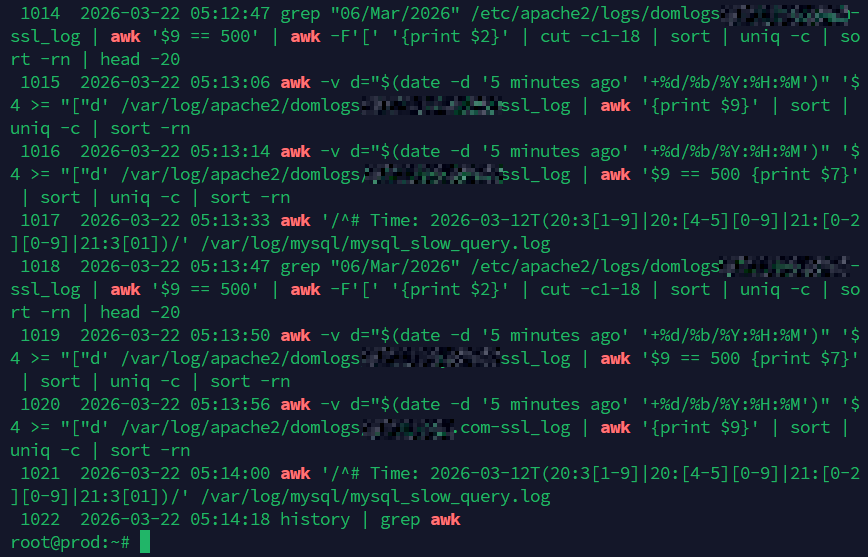
awk is a pattern-scanning and text-processing language built into virtually every Linux and Unix-like system. The name comes from its three creators: Aho, Weinberger, and Kernighan. It reads input line by line, splits each line into fields, and lets you act on specific fields or patterns.
There are a few variants: awk, gawk (GNU awk), mawk, and nawk. On most Linux systems, awk is symlinked to gawk. The examples in this article work with all common variants unless noted.
Check which version you have:
awk --version
Basic Syntax
The general structure of an awk command is:
awk 'pattern { action }' file
Or reading from a pipe:
some_command | awk 'pattern { action }'
A few things to understand upfront:
- Fields:
awksplits each line into fields by whitespace (or a delimiter you define). The first field is$1, second is$2, and so on.$0is the entire line. - Records: Each line is a record.
NRis the current record (line) number.NFis the number of fields in the current record. - Pattern: Optional. If present, the action only runs on matching lines. If omitted, the action runs on every line.
- Action: What to do with the matched line. If omitted, the default action is to print the line.
Printing Specific Columns
This is where most people start. You have a command with multi-column output and you only want one or two columns.
Print the first column from a file:
awk '{ print $1 }' file.txt
Print the first and third columns:
awk '{ print $1, $3 }' file.txt
Print the last field of every line, regardless of how many fields there are:
awk '{ print $NF }' file.txt
Print the second-to-last field:
awk '{ print $(NF-1) }' file.txt
Print the total number of fields on each line:
awk '{ print NF }' file.txt
Using a Custom Field Separator
By default, awk splits on whitespace. You can change this with -F.
Parse /etc/passwd and print usernames (field 1) and their shells (field 7), which are colon-delimited:
awk -F: '{ print $1, $7 }' /etc/passwd
Use a comma as the delimiter (for CSV files):
awk -F',' '{ print $1, $3 }' data.csv
You can also set the output field separator with OFS. This is useful when you want to reformat output:
awk -F: 'BEGIN { OFS="," } { print $1, $3, $7 }' /etc/passwd
Pattern Matching
You can filter lines using patterns, including regex. If you are already comfortable with grep, many of the same regex patterns apply here.
Print lines containing a specific string:
awk '/error/' /var/log/syslog
Print lines where the third field equals a specific value:
awk -F: '$3 == "root"' /etc/passwd
Print lines where the second field is greater than 1000:
awk '$2 > 1000' file.txt
Combine conditions with && (AND) or || (OR):
awk '$3 > 100 && $3 < 500 { print $0 }' file.txt
Negate a pattern with !:
awk '!/error/' /var/log/syslog
BEGIN and END Blocks
BEGIN runs before any input is processed. END runs after all input has been processed. These are useful for printing headers, totals, or summaries.
Add a header and footer to your output:
awk -F: 'BEGIN { print "Username\tShell" } { print $1"\t"$7 } END { print "Done." }' /etc/passwd
Count the number of lines in a file (like a simple wc -l):
awk 'END { print NR }' file.txt
Arithmetic and Summing Columns
This is where awk really shines. Say you have a file with a column of numbers and you want the total.
Sum the values in the second column:
awk '{ sum += $2 } END { print "Total:", sum }' file.txt
Average a column:
awk '{ sum += $2 } END { print "Average:", sum/NR }' file.txt
Find the maximum value in a column:
awk 'BEGIN { max=0 } $1 > max { max=$1 } END { print "Max:", max }' file.txt
Practical Sysadmin Examples
These are the ones I actually use on a regular basis.
Check Disk Usage and Flag High Usage
Parse df -h output and print filesystems using more than 80% capacity. The Use% column is field 5; strip the % sign with sub():
df -h | awk 'NR>1 { sub(/%/,"",$5); if ($5+0 > 80) print $6, $5"%" }'
Note: NR>1 skips the header line. The +0 forces numeric comparison.
Also see the df command guide for more disk usage tips, or use ncdu when you need an interactive view of what is eating your storage.
List the Top Memory-Consuming Processes
Use ps with awk to pull process names and memory usage, then sort:
ps aux | awk 'NR>1 { print $4, $11 }' | sort -rn | head -10
Field 4 from ps aux is %MEM, field 11 is the command. Pair this with htop for an interactive view.
Parse SSH Auth Logs for Failed Login Attempts
Quickly count failed SSH login attempts by IP address:
awk '/Failed password/ { print $(NF-3) }' /var/log/auth.log | sort | uniq -c | sort -rn | head -20
This prints the source IP from each failed attempt line, counts occurrences, and shows the top 20 offenders. On systems running systemd, you can pull the same data from journalctl instead:
journalctl -u sshd --no-pager | awk '/Failed password/ { print $(NF-3) }' | sort | uniq -c | sort -rn | head -20
Monitor Nginx or Apache Access Logs
Count HTTP status codes from an Nginx access log (status is typically field 9):
awk '{ status[$9]++ } END { for (code in status) print code, status[code] }' /var/log/nginx/access.log | sort -k2 -rn
Find the top 10 most-requested URLs:
awk '{ print $7 }' /var/log/nginx/access.log | sort | uniq -c | sort -rn | head -10
Extract Specific Lines by Line Number
Print only line 20:
awk 'NR==20' file.txt
Print lines 10 through 30:
awk 'NR>=10 && NR<=30' file.txt
Print Lines Between Two Patterns
Useful for extracting sections from config files or logs:
awk '/START/,/END/' file.txt
This prints every line from the one matching START up to and including the line matching END.
Remove Duplicate Lines While Preserving Order
Unlike uniq, this works on non-adjacent duplicates too:
awk '!seen[$0]++' file.txt
This is a classic one-liner. The seen array tracks which lines have already appeared. If the line has not been seen before, !seen[$0]++ evaluates to true and the default print action runs.
Reformat /etc/passwd Output
Create a clean, readable report of all users and their home directories:
awk -F: 'BEGIN { printf "%-20s %s\n", "User", "Home" } { printf "%-20s %s\n", $1, $6 }' /etc/passwd
Get Network Interface IP Addresses
Combine with ip to extract just the IPs:
ip addr show | awk '/inet / { print $2, $NF }'
See 60 Linux Networking commands and scripts for more tools to pair with awk.
Variables, Arrays, and Conditionals
You can define your own variables, use arrays, and write conditional logic inside awk programs.
Use a variable passed in from the shell with -v:
awk -v threshold=90 '$5 > threshold { print $0 }' file.txt
Use an associative array to count occurrences:
awk '{ count[$1]++ } END { for (item in count) print item, count[item] }' file.txt
A simple if/else inside an action block:
awk '{ if ($3 > 100) print $1, "HIGH"; else print $1, "OK" }' file.txt
Multi-line awk Programs
For longer scripts, write them to a file and run with -f:
awk -f myscript.awk inputfile.txt
An example myscript.awk:
BEGIN {
    FS = ":"
    print "User Report"
    print "----------"
}
$3 >= 1000 {
    printf "User: %-15s UID: %s\n", $1, $3
}
END {
    print "----------"
    print "Done."
}
This is much easier to maintain than a long one-liner once your logic grows beyond a couple of conditions. For scripts that need to run on a schedule, pair them with cron or systemd timers to automate reporting.
Useful Built-in Functions
awk includes a set of built-in string and math functions worth knowing:
length($0): returns the length of a string or field.sub(regexp, replacement): replaces the first match of a regex in the current field.gsub(regexp, replacement): replaces all matches globally.split(string, array, delimiter): splits a string into an array.substr(string, start, length): returns a substring.tolower(string)/toupper(string): converts case.sprintf(format, ...): formats a string, like C’s sprintf.int(x): truncates to integer.sqrt(x),log(x),exp(x): math functions.
Example: strip whitespace from a field and convert to lowercase:
awk '{ gsub(/ /, "", $2); print tolower($2) }' file.txt
Quick Reference: Common awk One-liners
- Print lines longer than 80 characters:
awk 'length($0) > 80' file.txt - Print every other line:
awk 'NR % 2 == 0' file.txt - Print line count per file:
awk 'END { print FILENAME, NR }' *.log - Double-space a file:
awk '{ print; print "" }' file.txt - Print lines that do NOT match a pattern:
awk '!/debug/' app.log - Sum a column and print with a label:
awk '{ s+=$1 } END { print "Total: " s }' numbers.txt - Print only non-empty lines:
awk 'NF > 0' file.txt
awk vs sed vs grep: When to Use Which
A question that comes up often. Here is the short answer:
- Use
grepwhen you just need to find lines matching a pattern. It is faster and simpler for that task. - Use
sedwhen you need to do stream editing: substitutions, deletions, or insertions on lines of text. - Use
awkwhen you need to work with structured, columnar data: extracting fields, doing arithmetic, generating summaries, or building reports.
They also work extremely well together in pipelines. There is no reason to pick just one. A typical log analysis command might pipe grep output into awk for field extraction and then into sort and uniq for aggregation. That is just normal sysadmin work.
For performance analysis workflows, combining awk with tools like atop output or system metrics lets you build quick, scriptable reports without pulling in heavier dependencies.
Conclusion
awk is not a tool you learn in one sitting and that is fine. Start with the column-printing and pattern-matching examples. Once those feel natural, move on to BEGIN/END blocks and arithmetic. The rest follows.
The key thing is getting it into your muscle memory for log parsing and data wrangling. Once you have a handful of reliable one-liners saved in your notes or a quick reference, the productivity gain is real. I keep a personal awk snippet file that has grown over the years and it saves time every single week.
Also see: Linux Commands frequently used by Linux Sysadmins and 30 Linux Sysadmin Tools You Didn’t Know You Needed for more tools worth adding to your workflow.
