xargs Command in Linux with Examples
If you spend serious time at the Linux command line, you have probably run into situations where a command does not accept piped input the way you expect. That is where the xargs command in Linux comes in. It bridges the gap between commands that output text and commands that need arguments. Once it clicks, you will wonder how you managed without it.
This guide covers xargs from the basics through real-world use cases you will actually reach for. No padding, just practical examples.
What is xargs?
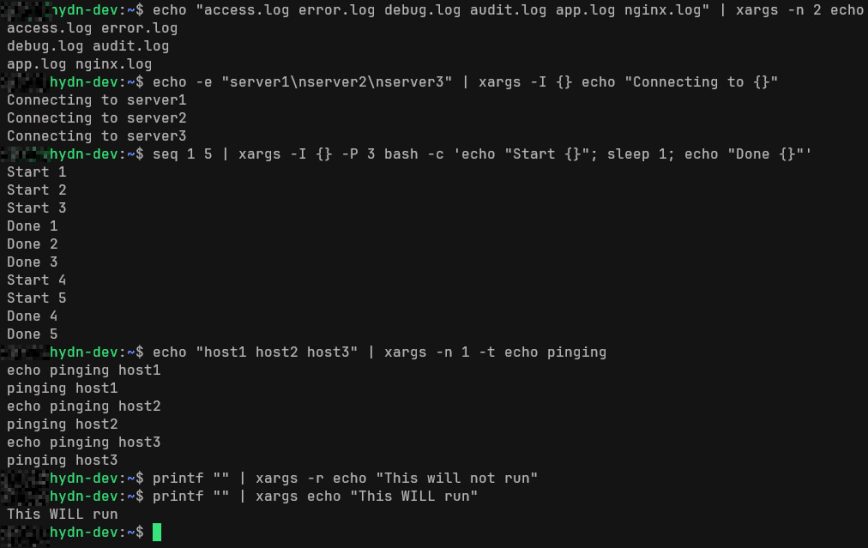
xargs reads items from standard input, separated by whitespace or newlines, and passes them as arguments to a command. That is the whole idea. Simple on the surface, but the implications are significant.
Many standard Linux commands do not read from stdin directly. rm, cp, chmod, ssh, and others expect arguments on the command line. xargs takes whatever is piped into it and turns that into arguments for any command you specify.
Part of the reason xargs exists is the kernel-level ARG_MAX limit, which caps the total size of arguments and environment variables passed to a new process. When you try to pass thousands of filenames to a single command, you hit that ceiling. xargs handles this automatically by splitting input into safe-sized batches and running the command multiple times as needed.
Basic syntax:
xargs [options] [command]
If no command is given, xargs defaults to echo. Not very exciting, but useful for testing what output will be passed along. xargs is part of the GNU Findutils package, which also includes find and locate.
A Simple First Example
Suppose you have a file with a list of filenames, one per line, and you want to delete them all:
cat files_to_delete.txt | xargs rm
Or the same thing without the cat:
xargs rm < files_to_delete.txt
Both work. The second is slightly cleaner. xargs reads the filenames and hands them all to rm as arguments.
Now compare that to trying to pipe directly:
cat files_to_delete.txt | rm
That fails. rm does not read from stdin. xargs solves exactly this problem.
Key Options You Need to Know
-n: Limit Arguments Per Command Run
By default, xargs passes all input as arguments in one shot. The -n flag limits how many arguments are passed per execution of the command.
echo "a b c d e f" | xargs -n 2 echo
Output:
a b
c d
e f
This is useful when a command has argument limits, or when you want to process items in small batches. Note the difference between -n and -L: -n limits by number of arguments, while -L limits by number of input lines. If your input has multiple words per line and you want each line treated as a group, use -L.
-I: Replace String (Placeholder Mode)
The -I flag lets you specify a placeholder that gets replaced by each input item. This gives you precise control over where in the command the argument is placed.
ls *.log | xargs -I {} mv {} /var/archive/{}
Here, {} is the placeholder. Each log file found by ls gets moved individually to the archive directory. The placeholder can be any string you choose, but {} is the convention. Note that piping ls output to xargs is fine for quick interactive use, but it breaks on filenames with spaces or special characters. In scripts, use find with -print0 instead.
One important tradeoff: -I disables batching and runs the command once per input item. That is the right behavior when you need precise argument placement, but it costs performance on large input sets. If you do not need the placeholder, use -n or default batching instead.
Another practical use: running a command against each item with a prefix or suffix:
cat servers.txt | xargs -I {} ssh admin@{} uptime
That runs uptime on every server listed in servers.txt. Useful for quick checks across a fleet.
-P: Run Commands in Parallel
This is where xargs earns its keep. The -P flag sets the maximum number of processes to run simultaneously.
cat urls.txt | xargs -P 4 -I {} curl -O {}
That downloads up to four files at a time instead of one by one. On a task that is I/O or network bound, this can make a dramatic difference.
Use -P 0 to run as many processes as possible simultaneously, though on large input sets that can be aggressive. As a rule of thumb: for I/O-bound or network-bound tasks, you can set -P well above your core count. For CPU-bound tasks, match it to the number of available cores.
-0: Handle Null-Delimited Input (NUL separator)
Filenames with spaces will break standard xargs pipelines. The fix is to use -print0 with find and -0 with xargs. This switches the delimiter from whitespace to the null character, which cannot appear in a filename.
find /var/www -name "*.php" -print0 | xargs -0 grep -l "eval(base64_decode"
That searches all PHP files under /var/www for a common obfuscated malware pattern, and it handles filenames with spaces or unusual characters safely. Always use -print0 | xargs -0 in production scripts.
-d: Custom Delimiter
The -d flag lets you set a specific input delimiter instead of the default whitespace. For example, -d '\n' treats each line as a single argument regardless of spaces within it.
echo -e "my file.txt\nyour file.txt" | xargs -d '\n' ls -lh
This is a GNU extension and not available on all platforms. For portable scripts, -0 with null-delimited input is the safer choice, but -d is convenient for quick one-liners where you control the input format.
-t: Trace (Print Commands Before Running)
The -t flag prints each command before executing it. Good for debugging:
echo "host1 host2 host3" | xargs -n 1 -t ping -c 1
You will see exactly what is being run before it runs. Useful when building a pipeline you are not fully confident in yet.
–no-run-if-empty (-r): Skip When Input is Empty
By default, if xargs receives no input, it still runs the command with no arguments. That can cause unexpected behavior. The -r flag prevents the command from running at all if stdin is empty.
find /tmp -name "*.tmp" -print0 | xargs -0 -r rm -v
If no .tmp files exist, rm is never called. Without -r, you might get an error or unintended behavior depending on the command.
Real-World Examples
Find and Delete Files Older Than 30 Days
Cleaning up old logs or temp files is a classic sysadmin task. Combine find with xargs for safe, efficient deletion:
find /var/log/app -type f -name "*.log" -mtime +30 -print0 | xargs -0 rm -v
The -v flag on rm prints each file as it is deleted. Good for auditing what actually got removed. See the du command guide for checking how much space you reclaim afterward.
Change Permissions on Many Files
find /var/www/html -type f -name "*.php" -print0 | xargs -0 chmod 644
Much faster than running chmod in a loop. xargs batches arguments and minimizes the number of process forks. For a deeper look at how Linux permission modes work, see Linux File Permissions Explained.
Search Multiple Files with grep
find /etc -name "*.conf" -print0 | xargs -0 grep -l "PermitRootLogin"
Lists every config file under /etc that contains PermitRootLogin. The -l flag on grep prints only the filename, not every matching line.
Bulk Rename Files
Rename all .jpeg files to .jpg in the current directory:
ls *.jpeg | xargs -I {} bash -c 'mv "$1" "${1%.jpeg}.jpg"' _ {}
The bash -c trick lets you use shell parameter expansion inside xargs, which would not otherwise be available. The underscore is a placeholder for $0 inside the subshell.
Archive Multiple Directories
cat dirs_to_backup.txt | xargs -I {} tar -czf {}.tar.gz {}
Creates a separate compressed archive for each directory listed in the file. Pair this with a cron job and you have a simple backup routine. See Linux Server Setup Part 2 for other post-install automation ideas.
Run SSH Commands on Multiple Servers
This is one I use regularly. Check disk usage across a set of servers in one shot:
cat servers.txt | xargs -I {} -P 5 ssh admin@{} "df -h /"
Five SSH connections run in parallel. Results come back fast. For a bigger command, wrap it in quotes or use a here-string. Related: the df command guide has more on reading disk usage output.
Kill Processes by Name Pattern
ps aux | grep '[p]ython' | awk '{print $2}' | xargs -r kill
The bracket trick in the grep pattern ([p]ython) excludes the grep process itself from results. The output is just PIDs, which xargs passes to kill. The -r flag ensures kill is not called if no matching processes exist. If a standard SIGTERM is not enough and the processes refuse to exit, escalate to kill -9, but treat that as a last resort rather than the default. If you work with awk regularly, you will recognize how naturally it pairs with xargs in pipelines like this.
xargs vs. find -exec
You may have seen the find -exec pattern used for similar tasks:
find /var/log -name "*.log" -exec rm {} \;
This works, but it spawns a new process for every single file found. With thousands of files, that overhead adds up.
The xargs version is generally faster because it batches arguments:
find /var/log -name "*.log" -print0 | xargs -0 rm
The exception is when you need the full path substituted in a complex way that -exec handles more cleanly. For straightforward bulk operations, xargs is typically faster than -exec {} \; because of the batching.
There is also find -exec {} + which batches like xargs does:
find /var/log -name "*.log" -exec rm {} +
Roughly equivalent to the xargs version in terms of process forking. In most cases, -exec {} + and xargs perform similarly. I default to xargs because it is more composable in longer pipelines, but either is a solid choice.
Handling Spaces and Special Characters
This trips people up. A filename like my report 2025.pdf will be seen as three separate arguments by default xargs. The null-delimiter approach is the fix:
find . -name "*.pdf" -print0 | xargs -0 ls -lh
Make this a habit in scripts. Always use -print0 | xargs -0 when dealing with arbitrary filenames. Assuming clean filenames in production is how things break at 2am.
Building a Confirmation Prompt
The -p flag prompts for confirmation before running each command. Useful when you are doing something destructive and want a safety check:
ls *.bak | xargs -p rm
For each file, xargs will print the command and ask y/n. Not practical for thousands of files, but valuable for small batches where you want to double-check.
Quick Reference
-n N: Pass at most N arguments per command run-I {}: Use a placeholder for each input item-P N: Run up to N commands in parallel-0: Use null character as delimiter (pair withfind -print0)-d delim: Use a custom character as the input delimiter-L N: Use at most N input lines per command execution-t: Print each command before executing-r: Do not run command if input is empty-p: Prompt before each command execution-a file: Read input from a file instead of stdin (e.g.,xargs -a filelist.txt rm)--show-limits: Display the system argument length limits and buffer size
Check the man page for the full option list:
man xargs
For detailed documentation on every flag, see the GNU Findutils xargs reference. The xargs(1) man page is also available online.
Putting It Together: A Real Pipeline
Here is a practical example that combines several concepts. Find all PHP files modified in the last 24 hours, check each for a suspicious function call, and log the results:
find /var/www -name "*.php" -mtime -1 -print0 | \
  xargs -0 -P 4 grep -l "system(" > /tmp/suspicious_files.txt
Four parallel grep processes, null-safe file handling, results written to a file for review. That is a practical security check you could drop into a cron job. Pair it with regular system updates and you have covered two common attack vectors.
Conclusion
The xargs command is one of those tools that feels limited at first glance, then quietly replaces half the loops you used to write. The core idea is simple: convert stdin into arguments. But combined with find, grep, ssh, and parallel execution, it handles real workloads that would otherwise need a full shell script.
The -print0 | xargs -0 combination for safe filename handling, -P for parallelism, and -I for argument placement are the three options that will cover the majority of what you need. Get those into muscle memory and you will be reaching for xargs daily.
Also see: Linux Commands Frequently Used by Linux Sysadmins for more command-line tools worth knowing.
