tmux: The Complete Guide to Terminal Multiplexing on Linux
If you spend serious time in the Linux terminal, tmux will change how you work. It lets you split a single terminal window into multiple panes, run sessions that persist after disconnecting from SSH, and switch between projects instantly. Once it clicks, you won’t go back.
I resisted tmux for longer than I should have. I used screen for years, then figured out that tmux does everything screen does and more, with a far more composable config. This guide covers practical day-to-day usage, not just a dump of every keybinding.
What is tmux?
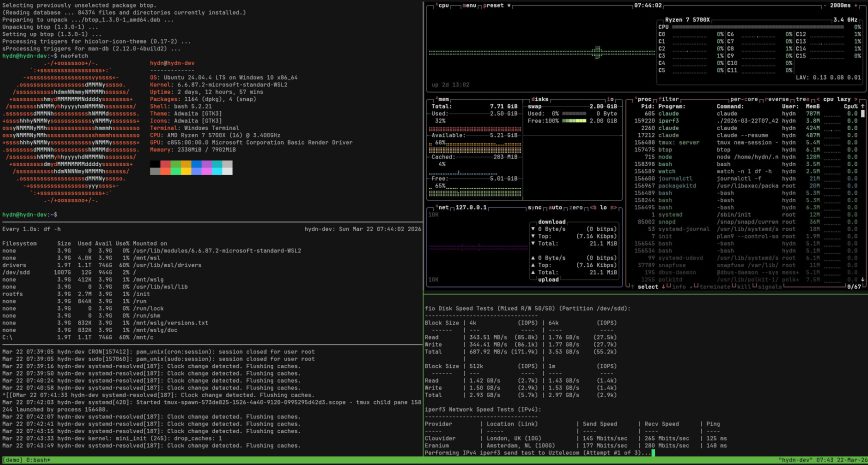
tmux is a terminal multiplexer. That sounds abstract, but the practical meaning is simple: one terminal window, many things happening inside it. You get persistent sessions, split panes, and named windows, all keyboard-driven.
The three core concepts to understand upfront:
- Session: the outermost container. Detach from it and it keeps running on the server.
- Window: like a tab in a browser. One session can have many windows.
- Pane: a split within a window. You can split horizontally and vertically as many times as you like.
Installing tmux
It’s in every major distro’s default repositories.
Debian / Ubuntu:
sudo apt install tmux
Fedora / RHEL / CentOS:
sudo dnf install tmux
Arch / Manjaro:
sudo pacman -S tmux
Check the version after installing:
tmux -V
Aim for 3.0 or newer. Some of the config options and features below require it. Most current distros ship 3.2+.
Starting Your First Session
Just type tmux to launch a new session. You’ll see a green status bar appear at the bottom. That bar is your first signal that you’re inside tmux.
For named sessions, which you should use from the start:
tmux new -s mysession
Naming sessions matters once you have more than one running. Trust me on this.
The Prefix Key
Everything in tmux starts with the prefix key. The default is Ctrl+b. You press it, release it, then press the command key. So “prefix + c” means: press Ctrl+b, let go, then press c.
Many people remap the prefix to Ctrl+a (same as screen). You’ll see that in the config section below.
Essential Keybindings
Sessions
prefix + d: detach from the current session (session keeps running)prefix + $: rename the current sessionprefix + s: list and switch between sessions interactivelyprefix + L: switch to the last (previously used) session
From outside tmux, reattach to a named session with:
tmux attach -t mysession
List all running sessions:
tmux ls
Windows
prefix + c: create a new windowprefix + ,: rename the current windowprefix + n: next windowprefix + p: previous windowprefix + 0-9: jump to window by numberprefix + w: list all windows and switch interactivelyprefix + &: kill the current window (prompts for confirmation)
Panes
prefix + %: split pane vertically (left/right)prefix + ": split pane horizontally (top/bottom)prefix + arrow key: move between panesprefix + z: zoom in/out on the current pane (temporarily fullscreen it)prefix + x: close the current paneprefix + {or}: swap pane positionprefix + space: cycle through preset pane layouts
The zoom shortcut (prefix + z) is underrated. When a pane is too small to read output clearly, zoom it, check what you need, zoom back out. No layout changes required.
Copy Mode: Scrolling and Selecting Text
By default, your mouse scroll won’t work in tmux. You need copy mode to scroll back through terminal output.
Enter copy mode:
prefix + [
Now you can scroll with the arrow keys or Page Up/Down. To search backward:
/search-term
Exit copy mode:
q
To actually copy text in copy mode, move to the start of the text and press Space to begin selection, navigate to the end, then press Enter to copy. Paste it with prefix + ].
With the vi-mode config tweak shown below, this becomes much more natural for anyone used to Vim.
Configuring tmux: The ~/.tmux.conf File
The default tmux config is functional but not ergonomic. A good ~/.tmux.conf makes a real difference. Here’s a solid starting configuration with comments explaining each line:
# Change prefix from Ctrl+b to Ctrl+a
unbind C-b
set -g prefix C-a
bind C-a send-prefix

# Reload config without restarting tmux
bind r source-file ~/.tmux.conf \; display "Config reloaded!"

# Split panes using | and - (more intuitive than % and ")
bind | split-window -h
bind - split-window -v
unbind '"'
unbind %

# Switch panes with Alt+arrow (no prefix needed)
bind -n M-Left select-pane -L
bind -n M-Right select-pane -R
bind -n M-Up select-pane -U
bind -n M-Down select-pane -D

# Enable mouse support
set -g mouse on

# Use vi keys in copy mode
setw -g mode-keys vi

# Start windows and panes at 1, not 0
set -g base-index 1
setw -g pane-base-index 1

# Renumber windows when one is closed
set -g renumber-windows on

# Increase scrollback buffer
set -g history-limit 10000

# Faster key repetition
set -s escape-time 0

# Status bar tweaks
set -g status-interval 5
set -g status-left "[#S] "
set -g status-right " %H:%M %d-%b "
set -g status-right-length 50
After saving this file, reload without restarting:
prefix + r
Or from the command line:
tmux source-file ~/.tmux.conf
Note: the set -s escape-time 0 line is particularly useful if you use Vim inside tmux. Without it, there’s a noticeable delay when pressing Escape in Vim’s insert mode.
Enabling Mouse Support
With set -g mouse on in your config, you can click to switch panes, drag pane borders to resize them, and scroll with the mouse wheel. This is off by default. Most people turn it on immediately.
Practical Workflows
Remote Server Sessions That Survive Disconnects
This is the single most valuable thing tmux does for sysadmins. SSH into a server, start a tmux session, run a long process (database migration, large file transfer, system update), then detach. Your connection drops, or you close your laptop: the process keeps running.
The workflow:
# On the server, create a named session
tmux new -s deploy

# Run your long-running task
rsync -avz /data/ backup@192.168.1.50:/backup/

# Detach any time
Ctrl+b d

# Later, reattach
tmux attach -t deploy
I’ve used this pattern for everything from overnight rsync jobs to kernel compiles. It’s far more reliable than nohup or screen for interactive sessions.
A Dev/Monitoring Layout
Here’s a layout I use regularly on servers: one wide pane on top for the main task, two smaller panes on the bottom for logs and system monitoring.
# Start session
tmux new -s work

# Split horizontally (top/bottom)
prefix + -

# Focus the bottom pane and split it vertically
prefix + |

# Now move to bottom-left and run tail
prefix + arrow
tail -f /var/log/syslog

# Move to bottom-right and run htop
prefix + arrow
htop
Use prefix + space to cycle through automatic layouts if you want tmux to arrange things for you. The “tiled” and “even-horizontal” presets are useful starting points.
Scripting Session Layouts
You can script entire session layouts so your workspace is ready with one command. Save this as ~/start-work.sh:
#!/bin/bash
tmux new-session -d -s work -x 220 -y 50

tmux rename-window -t work:1 'main'
tmux send-keys -t work:1 'ssh myserver' C-m

tmux new-window -t work:2 -n 'logs'
tmux send-keys -t work:2 'ssh myserver tail -f /var/log/nginx/error.log' C-m

tmux new-window -t work:3 -n 'monitor'
tmux send-keys -t work:3 'ssh myserver htop' C-m

tmux select-window -t work:1
tmux attach-session -t work
Make it executable:
chmod +x ~/start-work.sh
Run it, and your three-window workspace appears instantly. This is the kind of thing that makes the initial tmux learning curve worth it. See other command-line productivity tools for similar workflow improvements.
Useful tmux Commands from Outside a Session
You can send commands to running sessions without attaching to them. This is handy for automation and scripts.
# List all sessions
tmux ls

# Kill a specific session
tmux kill-session -t mysession

# Kill all sessions
tmux kill-server

# Send a command to a running session
tmux send-keys -t mysession 'uptime' Enter

# Run a command in a new detached session
tmux new -d -s background -n task 'bash /opt/scripts/backup.sh'
Troubleshooting Common Issues
Colors Look Wrong Inside tmux
Many users see washed-out colors in Vim or other tools inside tmux. The fix is to set the correct terminal in your config:
set -g default-terminal "tmux-256color"
set -ga terminal-overrides ",xterm-256color:Tc"
Also make sure your shell sets the TERM variable correctly before launching tmux.
Prefix Key Not Responding
If Ctrl+a isn’t working after remapping, make sure you added bind C-a send-prefix as well. Without it, you can’t send a literal Ctrl+a to applications inside tmux (like moving to the beginning of a line in bash).
Mouse Scrolling Stopped Working
If you enabled mouse support but scrolling does nothing, check your tmux version with tmux -V. The syntax for mouse support changed between versions. For tmux 2.1+, set -g mouse on covers everything. Older versions needed separate options for mouse-resize-pane, mouse-select-pane, etc.
Nested tmux Sessions
If you SSH from a tmux session into another server that also runs tmux, your prefix key goes to the outer session. Press the prefix twice to send it to the inner session. Or, temporarily disable the outer prefix with prefix + F12 if you have that configured. It’s a known pain point with no perfect solution, but double-prefix works well enough in practice.
tmux vs. screen
screen is still on many servers and still works fine for basic session persistence. But tmux wins on almost every practical metric: better config file, cleaner pane splitting, scriptable layouts, better copy mode, and active development. If you’re starting fresh, use tmux. If you’re maintaining old scripts that use screen, they’ll keep working, but there’s no reason to write new ones targeting screen.
Also see the 50 Essential Linux Commands guide for other tools worth adding to your daily workflow.
Plugin Management with TPM
Once you’re comfortable with core tmux, the tmux Plugin Manager (TPM) opens up a useful ecosystem. A few plugins worth knowing:
- tmux-resurrect: saves and restores your entire tmux environment across reboots. Sessions, windows, panes, and the commands running in them.
- tmux-continuum: automatic periodic saving of tmux state, works alongside tmux-resurrect.
- tmux-yank: better clipboard integration, especially useful on macOS or when using a clipboard manager.
- tmux-cpu: adds CPU and memory stats to your status bar.
Install TPM:
git clone https://github.com/tmux-plugins/tpm ~/.tmux/plugins/tpm
Add to the bottom of ~/.tmux.conf:
# List of plugins
set -g @plugin 'tmux-plugins/tpm'
set -g @plugin 'tmux-plugins/tmux-sensible'
set -g @plugin 'tmux-plugins/tmux-resurrect'

# Initialize TPM (keep this line at the very bottom)
run '~/.tmux/plugins/tpm/tpm'
Then press prefix + I (capital I) inside a session to install the plugins.
Note: plugins are optional. You get substantial value from tmux with nothing but a clean ~/.tmux.conf. Don’t install plugins until you’ve used plain tmux long enough to know what you actually need.
Quick Reference Cheat Sheet
## Sessions
tmux new -s name          Start named session
tmux attach -t name       Attach to session
tmux ls                   List sessions
tmux kill-session -t name Kill session
prefix + d                Detach
prefix + s                Switch sessions

## Windows
prefix + c                New window
prefix + ,                Rename window
prefix + n / p            Next / previous window
prefix + 0-9              Jump to window number
prefix + &                Kill window

## Panes
prefix + %                Split vertical
prefix + "                Split horizontal
prefix + arrow            Move between panes
prefix + z                Zoom pane toggle
prefix + x                Kill pane
prefix + space            Cycle layouts

## Copy Mode
prefix + [                Enter copy mode
q                         Exit copy mode
Space                     Begin selection (vi mode)
Enter                     Copy selection
prefix + ]                Paste
Conclusion
tmux has a short learning curve but a long payoff. The first week, you’ll mostly be looking up keybindings. After that, it becomes muscle memory. After a month, working without it on a server will feel wrong.
Start with just session management and basic splits. Get comfortable with those before touching the config. Then spend twenty minutes on a good ~/.tmux.conf and you’ll have a setup that serves you for years. The session scripting is worth learning once you’ve identified your own patterns.
If you’re managing multiple Linux servers, combine tmux with atop for server performance analysis and you’ve got a lightweight but powerful monitoring and management setup that runs anywhere SSH does.
Also see: SSH Security: Protecting Your Linux Server from Threats for hardening the connection you’ll be using tmux over.
