journalctl: The Complete Guide to Reading Linux System Logs
Every Linux admin eventually ends up staring at logs. Something crashed, a user cannot connect, a service is misbehaving, and the answer is buried somewhere in the system journal. If you are still grepping through flat files in /var/log/, journalctl will change how you work. It is faster, more structured, and once you learn its filtering options, you will wonder how you managed without it.
This guide covers everything from basic log reading to the compound queries you will actually reach for during an incident. If your system runs systemd, you already have everything you need.
What Is journalctl?
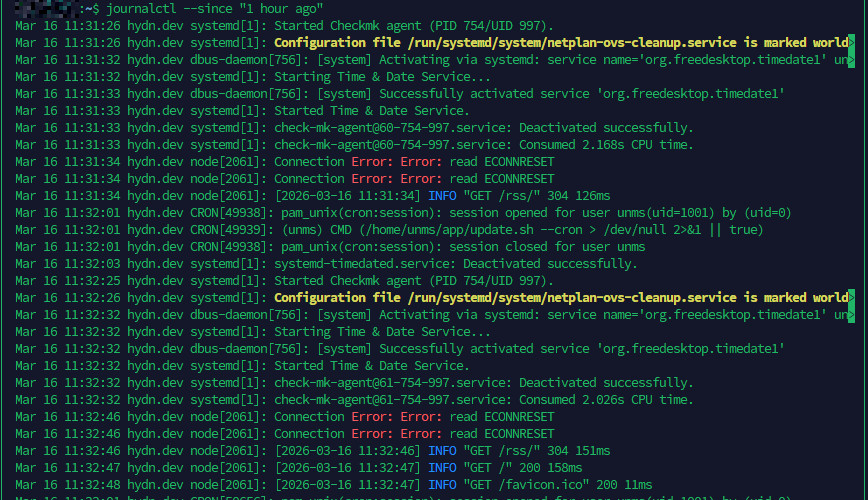
journalctl is the command-line tool for querying and reading logs managed by systemd-journald, the logging daemon that ships with systemd. On any modern Linux system running systemd, it is your primary interface for inspecting what happened on the machine: boot messages, kernel output, service logs, authentication events, and application errors all land in the journal.
If you have spent time grepping through files in /var/log/, you will find journalctl faster and more structured once you learn its filtering options. This guide covers everything from basic log reading to targeted queries you will actually use day to day.
How the Journal Works
The journal stores log data in a binary format under /var/log/journal/ (persistent) or /run/log/journal/ (volatile, cleared on reboot). Whether logs persist across reboots depends on your configuration in /etc/systemd/journald.conf.
To check whether your journal is persisting logs between reboots, look at the Storage setting:
grep Storage /etc/systemd/journald.conf
The default is often auto, which writes to /var/log/journal/ if that directory exists. If it does not exist, logs are stored in /run/log/journal/ and lost at reboot. To force persistent logging:
mkdir -p /var/log/journal
systemd-tmpfiles --create --prefix /var/log/journal
systemctl restart systemd-journald
Basic Usage
Running journalctl with no arguments dumps the entire journal from oldest to newest, piped through a pager like less. On a busy server this can be thousands of lines, so you rarely want this without filters.
Follow the Journal in Real Time
This is the equivalent of tail -f /var/log/syslog:
journalctl -f
New log entries appear as they arrive. Press Ctrl+C to stop.
Show Only Recent Entries
Show the last 50 lines:
journalctl -n 50
Combine with -f to follow and show recent context:
journalctl -n 100 -f
Reverse Output (Newest First)
journalctl -r
This is useful when you want the most recent events without scrolling to the bottom of a long output.
Filtering by Time
Time filtering is one of the most useful features in journalctl. You can use human-readable timestamps or relative values.
Since and Until
journalctl --since "2024-12-01 00:00:00" --until "2024-12-01 23:59:59"
Short relative formats also work:
journalctl --since "1 hour ago"
journalctl --since today
journalctl --since yesterday --until today
These are readable and practical for incident investigation. If something broke this morning, --since today gets you right to it.
Filtering by Boot

Each boot session gets a unique identifier in the journal. This lets you isolate logs from a specific boot, which is invaluable when debugging crash or startup problems.
List All Recorded Boots
journalctl --list-boots
Output looks like this:
-3 abc123def456... Mon 2024-11-25 08:12:01 UTC - Mon 2024-11-25 19:45:30 UTC
-2 789xyz012...    Tue 2024-11-26 09:00:12 UTC - Tue 2024-11-26 22:10:05 UTC
-1 456mno789...    Wed 2024-11-27 07:55:44 UTC - Wed 2024-11-27 20:30:11 UTC
 0 111pqr222...    Thu 2024-11-28 08:01:33 UTC - present
Index 0 is the current boot. -1 is the previous boot, and so on.
View Logs from a Specific Boot
journalctl -b        # current boot
journalctl -b -1     # previous boot
journalctl -b -2     # two boots ago
To see only the previous boot’s logs when investigating why a server rebooted unexpectedly, journalctl -b -1 is your first move.
Filtering by Service (Unit)
This is the filter you will use most often as a sysadmin. The -u flag targets a specific systemd unit.
journalctl -u nginx
journalctl -u sshd
journalctl -u mysql
Combine with time filters:
journalctl -u nginx --since "30 minutes ago"
Follow a service log in real time:
journalctl -u nginx -f
You can specify multiple units at once:
journalctl -u nginx -u php-fpm --since today
For more on managing and monitoring services, the Mastering Linux Administration: 20 Powerful Commands to Know article covers related systemctl usage.
Filtering by Priority (Log Level)
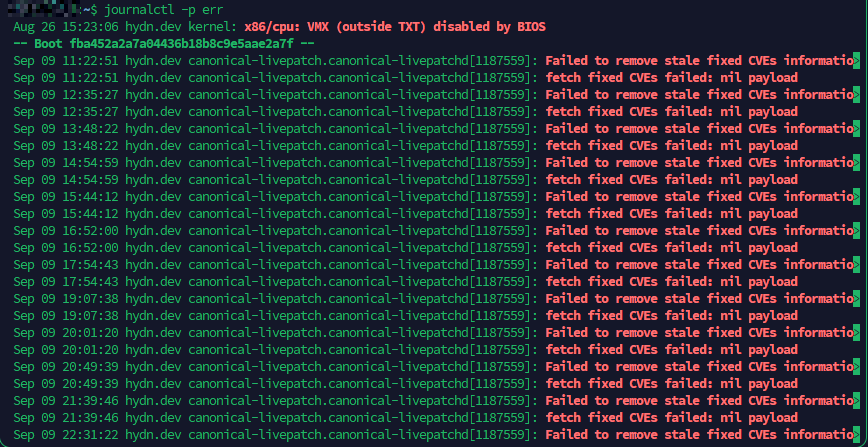
Log levels in the journal follow the standard syslog severity scale:
0= emerg1= alert2= crit3= err4= warning5= notice6= info7= debug
Use -p to filter by priority. This shows only errors and above:
journalctl -p err
Show warnings and above:
journalctl -p warning
Show only critical messages from the current boot:
journalctl -b -p crit
You can also specify a range using two levels separated by ..:
journalctl -p warning..err
Filtering by priority cuts through the noise quickly. On a production server, starting with -p err for the current boot gives you a concise picture of what is failing.
Filtering by Process, PID, or User
By Executable Path
journalctl /usr/sbin/sshd
journalctl /usr/bin/python3
By PID
journalctl _PID=1234
By User ID (UID)
journalctl _UID=1000
To find the UID of a user:
id username
Kernel Messages Only
journalctl -k
This shows only kernel ring buffer messages, equivalent to dmesg but through the journal interface with all its filtering capabilities.
Output Formats
journalctl supports several output formats via the -o flag. The default is short, which is human-readable. Here are the ones worth knowing:
short-precise
journalctl -o short-precise
Adds microsecond precision to timestamps. Useful when sequencing events that happened in rapid succession.
json
journalctl -o json
Outputs each log entry as a single JSON object per line. Useful for piping into tools like jq for scripted log analysis.
json-pretty
journalctl -o json-pretty
Same as JSON but formatted for human reading. You will see all metadata fields including hostname, unit, PID, UID, and more.
verbose
journalctl -o verbose
Shows every field attached to each log entry. Good for understanding what metadata is available when building custom queries.
cat
journalctl -o cat
Outputs only the message text with no timestamps or metadata. Useful when piping to grep or other text tools.
Searching Log Content with grep
The journal does not have a built-in substring search flag, but you can pipe to grep:
journalctl -u nginx | grep "connection refused"
For case-insensitive search:
journalctl -u sshd | grep -i "failed"
Using -o cat removes formatting noise when grepping:
journalctl -o cat -u mysql | grep "error"
Combining Multiple Filters
The real power of journalctl shows up when you stack filters together. Every flag narrows the result set further, so you can go from millions of log lines to exactly what you need in one command.
Show only errors from nginx since this morning:
journalctl -u nginx -p err --since today
Show kernel messages from the previous boot with warning priority or higher:
journalctl -b -1 -k -p warning
Show logs from a specific user running a specific service during a specific time window:
journalctl _UID=1000 -u php-fpm --since "2024-12-01 14:00" --until "2024-12-01 15:00"
Show errors in reverse order (newest first) with precise timestamps, output without a pager for scripting:
journalctl -p err -r -o short-precise --no-pager
Follow multiple services at once, filtered to warnings and above:
journalctl -u nginx -u php-fpm -u mysql -p warning -f
During an incident, building up these compound queries is how you go from “something is broken” to “here is the exact error, the exact time, and the exact service” in under a minute. Start broad, then add flags to narrow it down.
Checking Journal Disk Usage
The journal can grow large on busy systems. Check how much space it is using:
journalctl --disk-usage
Sample output:
Archived and active journals take up 1.2G in the file system.
For more disk analysis tools, ncdu and mc to manage large directories is a good companion read.
Rotating and Vacuuming the Journal
To free up space, you can vacuum the journal by size, time, or number of files.
Vacuum by Size
journalctl --vacuum-size=500M
This removes old archived journal files until the total size is under 500 MB.
Vacuum by Time
journalctl --vacuum-time=2weeks
Removes journal entries older than two weeks.
Vacuum by Number of Files
journalctl --vacuum-files=5
Keeps only the five most recent journal files.
To set permanent limits, edit /etc/systemd/journald.conf and set values like:
SystemMaxUse=500M
MaxRetentionSec=2weeks
Then restart the journal daemon:
systemctl restart systemd-journald
Practical Troubleshooting Examples
Here are real-world command combinations you will reach for during incident response.
Why Did the Server Reboot?
journalctl -b -1 -p err
Look at errors from the previous boot session. Also check kernel messages:
journalctl -b -1 -k
Is SSH Failing for a User?
journalctl -u sshd --since "1 hour ago" | grep -i failed
What Happened During a Service Crash?
journalctl -u mysql -b --since "2 hours ago" -p warning
Audit Login Activity
journalctl _SYSTEMD_UNIT=sshd.service --since today -o short-precise
Watch All Errors Across the System in Real Time
journalctl -f -p err
This is useful to keep open in a terminal during a deployment or configuration change.
Export Logs to a File for Sharing
journalctl -u nginx --since "2024-12-01" --until "2024-12-02" -o short-precise > nginx-dec1.log
Forwarding Logs to a Remote Server
On a single server, the local journal is enough. Once you are managing more than a handful of machines, you need logs in one place. Centralized logging means you can search across your entire fleet, keep logs safe if a server dies, and set up alerting without SSH-ing into each box.
systemd provides systemd-journal-upload for sending logs and systemd-journal-remote for receiving them. On the receiving server, install the remote package:
sudo apt install systemd-journal-remote
sudo systemctl enable --now systemd-journal-remote.socket
On each sending server, install the upload package and configure the target:
sudo apt install systemd-journal-remote
Edit /etc/systemd/journal-upload.conf:
[Upload]
URL=http://your-log-server:19532
Then enable the upload service:
sudo systemctl enable --now systemd-journal-upload
Logs from each sending server will appear on the receiving server under /var/log/journal/remote/. You can query them with journalctl just like local logs by pointing at the directory:
journalctl --directory=/var/log/journal/remote/
For production setups, use HTTPS with certificates to encrypt log traffic in transit. The systemd-journal-remote documentation covers the TLS configuration.
For a more full-featured centralized logging stack with dashboards, alerting, and long-term retention, tools like Better Stack can ingest journal data via rsyslog or a log forwarder, giving you a searchable web interface across all your servers. For more on setting up rsyslog forwarding, see Rsyslog Log Forwarding.
Configuring journald Retention
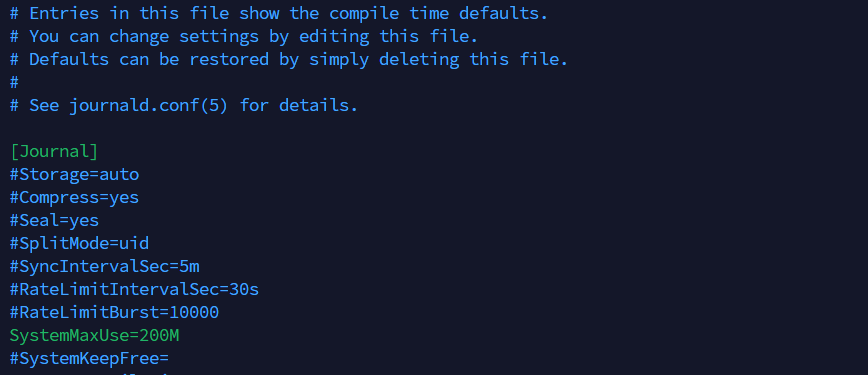
The main configuration file is /etc/systemd/journald.conf. Key settings to know:
Storage=:auto,persistent,volatile, ornoneCompress=yes: Compresses journal data to save space (default is yes)SystemMaxUse=: Max disk space the journal can useSystemKeepFree=: Minimum free disk space to maintainMaxRetentionSec=: Maximum age of journal entriesMaxFileSec=: How long before journal files are rotatedRateLimitIntervalSec=andRateLimitBurst=: Controls log rate limiting per service
After any change to journald.conf, reload with:
systemctl restart systemd-journald
Official documentation for all configuration options is available at the systemd journald.conf man page.
Quick Reference: Most Useful Flags
-f: Follow journal in real time-n N: Show last N lines-r: Reverse order (newest first)-b: Current boot;-b -1for previous boot-u unit: Filter by systemd unit-p level: Filter by log priority-k: Kernel messages only--since/--until: Time range filtering-o format: Output format (short, json, cat, verbose)--no-pager: Print output directly without a pager (useful in scripts)--disk-usage: Show journal disk usage--vacuum-size=: Remove old logs to meet size limit--vacuum-time=: Remove logs older than specified time--list-boots: List all recorded boot sessions
The full man page is always available locally:
man journalctl
Or online at the journalctl man page on man7.org.
Conclusion
journalctl replaces the habit of grepping through scattered files in /var/log/ with a consistent, filterable, structured interface. The time investment in learning its flags pays off fast, especially during incident response when you need to find exactly what went wrong and when.
Start with -u, -b, and -p err in daily use. Once those are habits, the time-based filters and output formats will slot in naturally. If you are also tracking down boot performance issues, systemd-analyze: Debug and Optimize Linux Boot Performance is the natural next step. For a broader set of diagnostic tools, see Linux Commands Frequently Used by Linux Sysadmins Part 5.
