Bash Aliases: Speed Up Your Linux Workflow (Custom Shortcuts)
Every sysadmin has a set of commands they type dozens of times per day. Long ssh strings, grep pipelines, systemctl restarts, directory jumps. You type them, you forget a flag, you retype them. Occasionally you do something destructive because you were going too fast. It gets old fast, and it costs you more than just keystrokes.
Bash aliases fix this. A bash alias is a short custom command that expands into a longer one. One word instead of 40 characters, with the exact flags you always use. Once you build up a solid ~/.bash_aliases file, your terminal feels like a noticeably different tool: faster, less error-prone, and tuned to how you actually work.
This guide covers everything: how bash aliases work, where to store them, practical Linux alias command examples for real sysadmin work, and a few things to watch out for.
How Bash Aliases Work
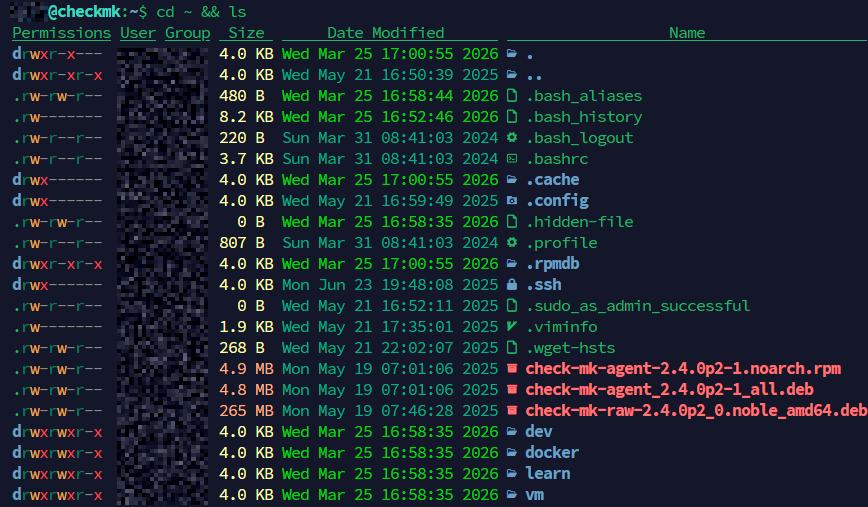
An alias is just a shortcut. You define it like this:
alias shortcut='the full command you want to run'
When you type shortcut, Bash expands it to the full command before executing. That’s it. No compilation, no scripts, no PATH changes needed.
You can define an alias directly in your terminal session:
alias ll='ls -lah'
Type ll and it runs ls -lah. The problem is that this alias disappears the moment you close the terminal. To make it permanent, you need to store it in a config file that Bash loads on startup.
Where to Put Your Aliases
You have a few options for storing bash aliases. The most common approach:
~/.bashrc– loaded for every interactive non-login shell. Good for desktop users and most server SSH sessions.~/.bash_profileor~/.profile– loaded for login shells. On some setups, this is what SSH loads.~/.bash_aliases– a dedicated file for aliases. Keeps things tidy. Many distros source this automatically from~/.bashrc.
I prefer the dedicated ~/.bash_aliases file approach. It keeps aliases separate from environment variables, functions, and other ~/.bashrc content. Check if your ~/.bashrc already includes this block:
if [ -f ~/.bash_aliases ]; then
    . ~/.bash_aliases
fi
Ubuntu and Debian include this by default. If you’re on another distro and it’s missing, add it to your ~/.bashrc manually. Then create ~/.bash_aliases and put all your aliases there.
After editing either file, reload it without logging out:
source ~/.bashrc
Or the shorter version:
. ~/.bashrc
Basic Bash Alias Examples Every Linux User Should Have
Start here. These are small quality-of-life improvements that pay off immediately.
Navigation and file listing
alias ll='ls -lah'
alias la='ls -A'
alias l='ls -CF'
alias ..='cd ..'
alias ...='cd ../..'
alias ....='cd ../../..'
alias ~='cd ~'
ll is probably the most universally used bash alias in Linux. Long format, human-readable sizes, hidden files included. If you’re not using it already, start now.
Safety nets
alias cp='cp -i'
alias mv='mv -i'
alias rm='rm -i'
The -i flag prompts before overwriting or deleting. This has saved me more than once. Note: Some distros already set these in the default ~/.bashrc. Check before adding duplicates.
Quick directory creation and navigation
alias mkdir='mkdir -pv'
Creates parent directories as needed and shows what was created. Much better than the plain mkdir behavior. Note: overriding common commands like mkdir can trip you up when following documentation verbatim or working on shared systems where the alias isn’t present. If something behaves unexpectedly, your alias may be why.
Sysadmin Linux Alias Commands That Actually Save Time
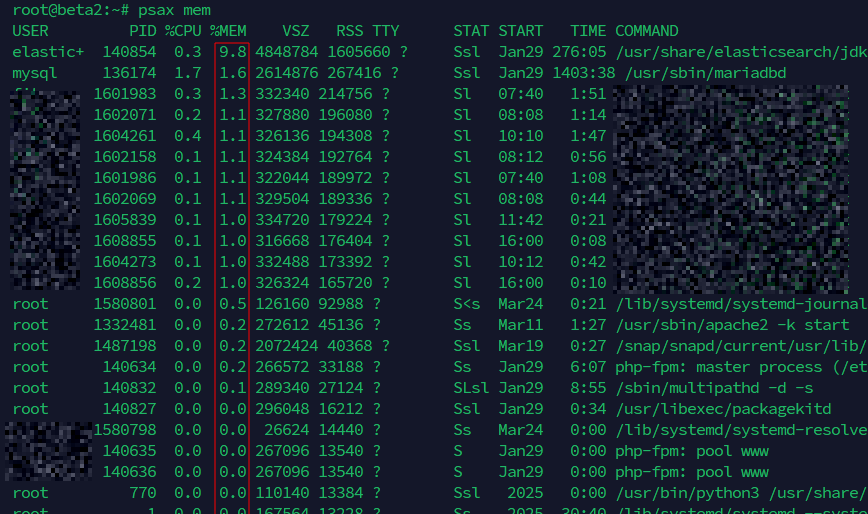
The screenshot above shows psax mem in action on a live server, with elasticsearch and mysql surfacing at the top by memory consumption. This is the kind of output you want when a server starts swapping and you need to find the culprit fast. Here’s the function that makes it work:
psax() {
    case "$1" in
        mem)  ps aux --sort=-%mem ;;
        cpu)  ps aux --sort=-%cpu ;;
        *)    ps aux ;;
    esac
}
Usage:
psax        # plain ps aux
psax mem    # sorted by memory
psax cpu    # sorted by cpu
Add it to your ~/.bash_aliases with:
cat >> ~/.bash_aliases << 'EOF'

psax() {
    case "$1" in
        mem)  ps aux --sort=-%mem ;;
        cpu)  ps aux --sort=-%cpu ;;
        *)    ps aux ;;
    esac
}
EOF
source ~/.bash_aliases
This is where aliases earn their keep. These are the ones I reach for every day on servers.
System updates
Pick the block that matches your distro and add only that one. If you paste all three, the last definition wins and the others do nothing.
Debian / Ubuntu:
alias update='sudo apt update && sudo apt upgrade -y'
alias fullupgrade='sudo apt update && sudo apt full-upgrade -y && sudo apt autoremove -y'
Fedora / RHEL:
alias update='sudo dnf upgrade -y'
Arch:
alias update='sudo pacman -Syu'
See the Linux Updates: Command Line Guide for more on keeping systems current.
Service management
alias sstart='sudo systemctl start'
alias sstop='sudo systemctl stop'
alias srestart='sudo systemctl restart'
alias sstatus='sudo systemctl status'
alias senable='sudo systemctl enable'
alias sdisable='sudo systemctl disable'
Instead of typing sudo systemctl restart nginx, you type srestart nginx. Tiny win, but multiply it by fifty times a day and it adds up.
Disk and memory checks
alias df='df -hT'
alias du='du -h --max-depth=1'
alias free='free -h'
alias topdisk='du -h --max-depth=1 | sort -rh | head -20'
topdisk is one I use often when a disk fills up and I need to find what’s eating space fast. ncdu is better for deep dives, but for a quick one-liner from any directory, topdisk does the job. Note that overriding df, du, and free with extra flags is generally safe, but scripts and documentation often show the plain versions. If output looks different from what you expect, your alias may be the reason.
Network shortcuts
alias myip='curl -s ifconfig.me'
alias localip="ip addr show | grep 'inet ' | grep -v '127.0.0.1'"
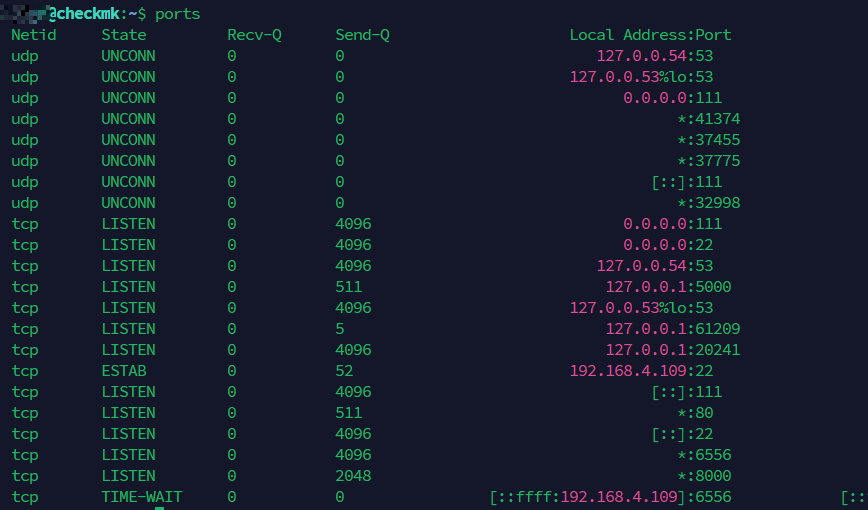
alias ports='ss -tulanp'
alias listening='ss -tlnp'
ports gives you everything: TCP, UDP, listening, established. listening narrows it to just what’s actively accepting connections. Both are faster to type than the full ss command with all its flags. The myip alias depends on the external service ifconfig.me. It works reliably, but you’re making an outbound request every time you use it. If you’d rather not depend on a third party, curl -s https://api.ipify.org is a straightforward alternative.
Process and performance
alias psg='ps aux | grep -v grep | grep -i'
alias memhogs='ps aux --sort=-%mem | head -15'
alias cpuhogs='ps aux --sort=-%cpu | head -15'
alias topmem='top -b -o +%MEM | head -25'
Usage example:
psg nginx
That expands to ps aux | grep -v grep | grep -i nginx, showing all nginx processes without the grep process itself polluting the results. Much cleaner than typing it out every time.
Log watching
alias tailf='tail -f'
alias syslog='sudo tail -f /var/log/syslog'
alias authlog='sudo tail -f /var/log/auth.log'
alias nginxlog='sudo tail -f /var/log/nginx/error.log'
alias apachelog='sudo tail -f /var/log/apache2/error.log'
Important: log paths vary across distros and setups. On systemd-based systems, /var/log/syslog may not exist at all; use journalctl -f instead. Verify your paths before saving these, or the aliases will silently fail when you need them most. The pattern is what matters: short names for your most-watched log files, whatever those paths turn out to be.
SSH shortcuts
alias myserver='ssh user@192.168.1.100'
alias webserver='ssh -p 2222 user@203.0.113.50'
alias jumphost='ssh -J user@bastion.example.com user@internal-server'
This is where aliases really shine for server work. You can name your servers anything you want. Keep in mind that ~/.ssh/config is often a better long-term solution for SSH host management, but aliases work fine for a handful of frequently used hosts.
More Useful Tricks
Alias with arguments: use functions instead
Aliases don’t take arguments in the middle of a command. If you need that, write a short Bash function instead and put it in the same file.
For example, you can’t do:
# This won't work the way you think
alias mkcd='mkdir -p $1 && cd $1'
Do this instead:
mkcd() {
    mkdir -p "$1" && cd "$1"
}
Functions go in ~/.bashrc or ~/.bash_aliases alongside your aliases. They load and behave the same way.
Another practical function: extract any archive without remembering the right flags.
extract() {
    if [ -f "$1" ]; then
        case "$1" in
            *.tar.bz2)  tar xjf "$1"  ;;
            *.tar.gz)   tar xzf "$1"  ;;
            *.tar.xz)   tar xJf "$1"  ;;
            *.bz2)      bunzip2 "$1"  ;;
            *.gz)       gunzip "$1"   ;;
            *.tar)      tar xf "$1"   ;;
            *.zip)      unzip "$1"    ;;
            *.7z)       7z x "$1"     ;;
            *)          echo "Unknown archive format: $1" ;;
        esac
    else
        echo "'$1' is not a file"
    fi
}
Type extract archive.tar.gz and it figures out the right command. No more looking up tar flags.
Listing and removing aliases
To see all currently active aliases:
alias
To see what a specific alias expands to:
alias ll
Output:
alias ll='ls -lah'
To remove an alias for the current session:
unalias ll
To remove all aliases temporarily:
unalias -a
Neither of these touches your config file, so they come back after the next shell reload.
Override an alias temporarily
Sometimes you want to run the real command, not your aliased version. Prefix it with a backslash:
\rm -rf /path/to/thing
That bypasses the rm -i alias and runs the real rm. Use with care, obviously.
Checking if a command is an alias, function, or binary
type ll
type grep
type extract
The type command tells you exactly what Bash will do when you run something. Useful when you’re debugging why a command isn’t behaving as expected.
System-Wide Aliases
Everything above applies to a single user. If you want aliases available to all users on a system, you have two options.
The first is editing a global shell config file directly: /etc/bash.bashrc on Debian/Ubuntu, or /etc/bashrc on Fedora/RHEL. This requires root and affects every user on the box.
sudo nano /etc/bash.bashrc
The cleaner approach for most sysadmins is dropping a file into /etc/profile.d/. Anything in that directory with a .sh extension gets sourced automatically for login shells. It keeps your changes isolated, versioned separately, and easy to remove later without touching global config files.
sudo nano /etc/profile.d/shared-aliases.sh
Add your shared aliases there, save, and they’ll be active for any new login session. Either way, keep system-wide aliases conservative. Stick to safe, non-destructive shortcuts that won’t surprise other users or break scripts.
A Clean Starting Template
Here’s a solid base you can drop straight into ~/.bash_aliases and customize from there:
## Navigation
alias ll='ls -lah'
alias la='ls -A'
alias ..='cd ..'
alias ...='cd ../..'
alias ~='cd ~'

## Safety
alias cp='cp -i'
alias mv='mv -i'
alias rm='rm -i'
alias mkdir='mkdir -pv'

## Disk & Memory
alias df='df -hT'
alias free='free -h'
alias topdisk='du -h --max-depth=1 | sort -rh | head -20'

## Network
alias myip='curl -s ifconfig.me'
alias ports='ss -tulanp'
alias listening='ss -tlnp'

## Processes
alias psg='ps aux | grep -v grep | grep -i'
alias memhogs='ps aux --sort=-%mem | head -15'
alias cpuhogs='ps aux --sort=-%cpu | head -15'

## Systemd
alias sstart='sudo systemctl start'
alias sstop='sudo systemctl stop'
alias srestart='sudo systemctl restart'
alias sstatus='sudo systemctl status'

## Logs
alias syslog='sudo tail -f /var/log/syslog'
alias authlog='sudo tail -f /var/log/auth.log'

## Reload aliases
alias reload='source ~/.bashrc && echo "Reloaded"'
That last one is worth noting. The reload alias reloads your shell config and confirms it worked. Saves you typing source ~/.bashrc every time you edit the file.
Things to Watch Out For
- Aliasing over system commands: You can alias
greptogrep --color=auto, which is useful. But aliasing something likelsto a completely different command will cause confusion when you’re on someone else’s machine and it doesn’t behave as expected. Keep overrides sensible. - Scripts won’t use your aliases: Aliases are a shell feature. They are not inherited by scripts or subshells by default. If you need the same behavior in a script, write the full command or use functions with
export -f. - Order matters: If you define an alias twice, the last definition wins. This is especially relevant if you paste a multi-distro block without trimming it first. Check for duplicates with
alias | grep shortcut. - Quotes inside aliases: Use single quotes for most aliases to prevent early expansion. Use double quotes if you specifically want a variable to be evaluated at definition time rather than at runtime.
From the Community

The LinuxCommunity.io forum thread on favorite aliases and functions collected some solid contributions worth adding to your own setup. Here are the highlights.
toadie swaps ls for lsd, a modern ls replacement with icons and color output:
alias ls="lsd -lah --header"
toadie also uses short named aliases for frequently visited directories, one per project or location:
alias vm='cd ~/vm'
alias dock='cd ~/docker'
alias dev='cd ~/dev'
alias learn='cd ~/learn'
Once you have more than a handful of project directories, this pattern beats cd-ing through long paths every time.
Hayden uses a version of ll that sorts directories to the top:
alias ll="ls -lAhF --group-directories-first"
Small change from the standard ll, but having directories sorted above files makes scanning large directories noticeably faster.
Gopinath Pigili adds a few location shortcuts and a per-user top view:
alias home='cd ~'
alias root='cd /'
alias logs='cd /var/log'
alias topu='top -u $USER'
alias psa='ps aux'
topu is a neat one. It filters top to show only your own processes, useful on shared systems where other users’ processes clutter the output.
Brian Masinick keeps a simple c alias that clears the screen and prints the current directory in one shot:
alias c='clear;pwd'
He also uses a short u alias mapped to the update command for whichever distro he’s on at the time, swapping it out per machine. Same principle as the distro-specific update aliases covered above, just taken further.
J J Sloan has a hello alias that makes for a satisfying login sequence:
alias cls=clear
alias ltr='ls -latr'
alias hello='cd; clear; fastfetch'
hello drops you to home, clears the screen, and fires fastfetch for a system info summary. Good for a fresh terminal orientation. ltr sorts files by modification time with the most recently changed at the bottom, useful when you want to see what changed and when.
Conclusion
Aliases are one of the fastest ways to reduce daily terminal friction. Less typing, fewer mistakes, and a setup that works the way your brain does instead of the way the defaults assume.
Start small. Add ll, a few navigation shortcuts, and your most-typed systemctl commands. Once those feel natural, keep building the file. Over time you’ll end up with a ~/.bash_aliases that’s tuned specifically to how you work.
If you work across multiple machines, keep your ~/.bash_aliases in a Git repo and symlink it on each system. One update, everywhere. Worth doing once the file gets serious.
Also see: Linux Commands Frequently Used by Sysadmins – Part 3 and 50 Essential Linux Commands for more command-line tools worth adding to your workflow.
