strace: Trace System Calls and Debug Processes on Linux
The strace command in Linux separates the sysadmins who guess from the ones who actually know what’s happening. When a process misbehaves, hangs, eats CPU, or refuses to start, strace shows you exactly what that process is doing at the system call level. No guessing. No grepping logs hoping for a clue.
I’ve used strace to solve problems that would have taken hours to track down otherwise. A PHP-FPM worker hanging silently. A daemon that wouldn’t start but gave no error message. A script that was reading the wrong config file for years. Strace finds all of them in minutes.
This guide covers practical, real-world strace usage with examples you can apply immediately. You don’t need to be a kernel developer to get value out of it.
What the strace Command Actually Does
Every program running on Linux interacts with the kernel through system calls. Reading a file, writing to a socket, forking a child process, allocating memory: all of it goes through the kernel. strace intercepts those calls and prints them to your terminal in real time.
The output looks like function calls with arguments and return values. Once you know the basics, it becomes surprisingly readable.
Note: strace uses the ptrace kernel interface, the same one debuggers like gdb use. This means it adds overhead to the traced process. Don’t leave it running on a production process indefinitely, but short bursts to diagnose a problem are fine.
Installing strace
It’s available in every major distro’s default repositories.
Debian and Ubuntu:
sudo apt install strace
Fedora and RHEL/CentOS:
sudo dnf install strace
Arch Linux:
sudo pacman -S strace
Verify it’s installed:
strace --version
You can also find the source and release notes on the strace GitHub repository.
Running Your First strace Command
The simplest form is to run a command directly under strace:
strace ls /tmp
This dumps every system call made by ls to your terminal. The output is verbose. On a simple command like ls, you’ll see dozens of calls just for startup: loading shared libraries, reading locale settings, and so on.
Here’s a snippet of what the output looks like:
execve("/usr/bin/ls", ["ls", "/tmp"], 0x... /* 23 vars */) = 0
brk(NULL)                               = 0x55a3d2e45000
mmap(NULL, 8192, PROT_READ|PROT_WRITE, ...) = 0x7f3c1a2b0000
openat(AT_FDCWD, "/etc/ld.so.cache", O_RDONLY|O_CLOEXEC) = 3
read(3, "\177ELF..."                   = 832
close(3)                                = 0
...
Each line is: syscall_name(arguments) = return_value. Negative return values usually mean an error. -1 with an ENOENT or EACCES appended is often exactly what you’re looking for.
Attaching to a Running Process
Most of the time you’ll attach to a process that’s already running. Use -p followed by the PID:
sudo strace -p 1234
Find the PID first with pgrep or pidof:
pgrep nginx
pidof php-fpm
Detach cleanly with Ctrl+C. The process continues running normally after you detach.
Note: You typically need sudo to attach to processes you don’t own.
The Most Useful strace Flags
Raw strace output is overwhelming. These flags make it practical.
-e: Filter by System Call
This is the one you’ll use most. Instead of seeing every single syscall, filter to just what matters:
strace -e openat ls /tmp
That shows only file open calls. Great for finding which files a process is reading.
Filter multiple calls at once:
strace -e openat,read,write ls /tmp
Useful categories:
-e trace=file: all filesystem-related calls
-e trace=network: all network-related calls
-e trace=process: fork, exec, exit, and related calls
-e trace=signal: signal handling
-e trace=ipc: inter-process communication
-e trace=desc: file descriptor-related calls (read, write, close, select, poll)
-o: Write Output to a File
Redirect output to a file instead of your terminal. Essential for long traces:
strace -o /tmp/trace.log -p 1234
Then grep through it:
grep ENOENT /tmp/trace.log
-t and -tt: Timestamps
Add timestamps to each line:
strace -t -p 1234
Use -tt for microsecond precision:
strace -tt -p 1234
This is useful when correlating strace output with log timestamps or when you’re looking for a specific moment something went wrong.
-T: Show Time Spent in Each Call
This one is great for performance diagnosis. It prints the time spent in each system call at the end of each line:
strace -T -e read -p 1234
You’ll see something like:
read(5, "HTTP/1.1 200 OK\r\n"..., 4096) = 512 <0.002341>
That <0.002341> is seconds. If you see reads taking 0.5 seconds or more, that’s a problem worth investigating.
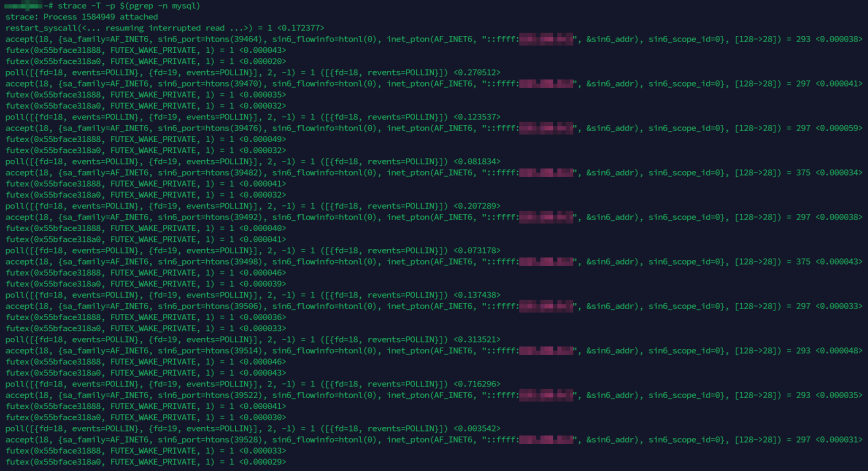
To trace a running MySQL server and see timing on every call, for example:
strace -T -p $(pgrep -n mysql)
You’ll immediately see how long each poll and accept takes. Calls that consistently show high wait times point to slow clients or connection backlogs.
-c: Summary Statistics
Instead of a full trace, get a summary of how many times each syscall was made and how long it took in total:
strace -c ls /tmp
Output looks like:
% time     seconds  usecs/call     calls    errors syscall
------ ----------- ----------- --------- --------- ----------------
 38.12    0.000412          41        10           mmap
 21.44    0.000232          29         8           openat
 14.08    0.000152          19         8           read
  9.76    0.000106          13         8           close
 ...
Use -c to quickly spot which syscall category is consuming the most time, then follow up with -e to filter on that specific call.
-f: Follow Forks
Many server processes fork child workers. Without -f, you only trace the parent. Add it to follow children too:
sudo strace -f -p 1234
Each line will be prefixed with the PID of the process that made the call. Useful for multi-process daemons like Apache or PHP-FPM.
-s: Increase String Length
By default, strace truncates strings to 32 characters. Increase this to see full paths, full HTTP requests, full error messages:
strace -s 256 -e openat ls /tmp
For debugging config file loading or network requests, I usually set this to at least 256.
-y: Show File Descriptor Paths
By default, strace shows raw file descriptor numbers like read(3, ...). The -y flag resolves those numbers to their actual paths:
strace -y -e read cat /etc/passwd
Instead of read(3, ...), you’ll see read(3</etc/passwd>, ...). This saves you from having to cross-reference file descriptors with openat calls manually. For socket debugging, use -yy to also show protocol details and IP addresses on network file descriptors.
Real-World Debugging Scenarios
Finding Which Config File a Program Is Reading
This is one of the most common uses. You’ve updated a config file and changes aren’t taking effect. Maybe the program is reading a different file than you think.
strace -e openat -s 256 nginx -t 2>&1 | grep -i conf
Or attach to the running process:
sudo strace -e openat -s 256 -p $(pgrep -f nginx) 2>&1 | grep conf
You’ll see exactly which files are opened. No more wondering if there’s a /etc/nginx/nginx.conf vs. /usr/local/nginx/nginx.conf ambiguity.
Diagnosing a Process That Hangs
Attach to the hanging process and watch what it’s doing:
sudo strace -p $(pgrep myapp)
If the output is stuck on a single line that isn’t returning, that tells you a lot. Common culprits:
read(5, ...) blocked: waiting for data on a socket or pipe that never arrives
futex(..., FUTEX_WAIT, ...): waiting on a lock, possibly a deadlock
select(...) or epoll_wait(...): waiting for I/O events
Each of these points you in a different direction for the fix. A blocked read on a socket usually means a connection to a backend (database, cache, upstream API) has stalled. Pair this with netstat or ss to see the connection state. If the problem looks like general resource contention rather than a single stalled call, tools like vmstat, pidstat, and dstat can help isolate the bottleneck.
Debugging a “Permission Denied” Error with No Useful Message
Some programs swallow errors and give you nothing useful. strace doesn’t care about that.
strace -e openat,access -s 256 ./myapp 2>&1 | grep -E "EACCES|EPERM|ENOENT"
You’ll see exactly which file triggered the permission error and what path the program was using. This has saved me more than once when a service account was missing read access to a key file.
For a different angle on tracking down file access issues, lsof is another tool worth having in your workflow. It shows which files a process currently has open, which complements what strace tells you about the calls being made.
Checking What a Script Is Actually Executing
strace -e execve -f bash myscript.sh 2>&1
Every execve call is a program being launched. You’ll see the exact binary path and arguments passed to each command in the script. Useful for catching typos in paths or unexpected command versions being called.
Network Connection Troubleshooting
sudo strace -e connect,sendto,recvfrom -s 512 -p 1234
Watch the connect calls to see which IPs and ports the process is trying to reach. A failed connection returns -1 ECONNREFUSED or -1 ETIMEDOUT right in the output.
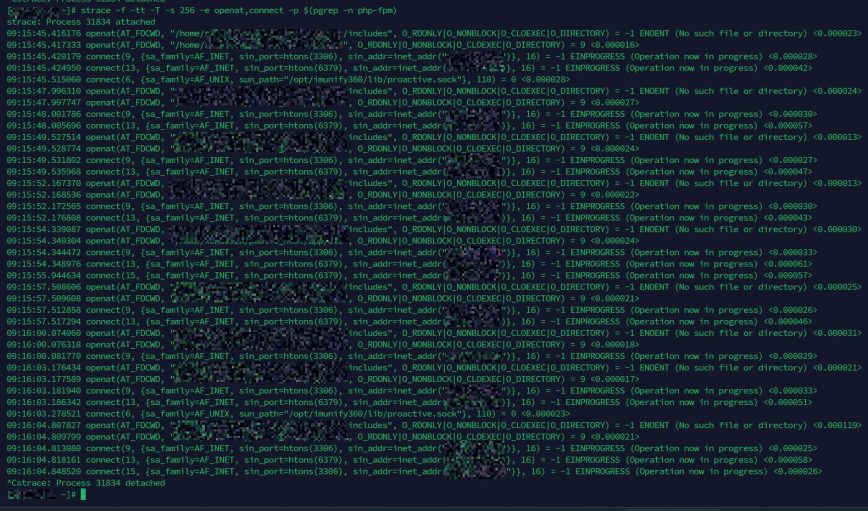
You can also combine file and network filters in a single trace. This is useful when you need to see both config/include file lookups and backend connections at the same time:
strace -f -tt -T -s 256 -e openat,connect -p $(pgrep -n php-fpm)
That command traces a PHP-FPM worker and shows every file it opens alongside every connection it makes to MySQL (port 3306), Redis (port 6379), or anything else. The timestamps and per-call timing let you spot exactly where a request spends its time.
For deeper network path analysis, Linux network troubleshooting tools like traceroute and mtr round out your diagnostic toolkit.
Combining strace with Other Tools
Tracing system calls is most powerful when you pair it with other diagnostics. If you notice heavy disk I/O in htop but aren’t sure which files are being hammered, combine strace with iotop to correlate PID and file access patterns. If a process is using unexpected memory, trace mmap and brk calls alongside free output for context. When iowait is high and you need to pinpoint what a specific process is doing to disk, strace on the suspect PID with -e trace=file gives you the answer faster than anything else.
For general Linux troubleshooting, strace fits naturally into the broader workflow described in Linux Troubleshooting: These 4 Steps Will Fix 99% of Errors.
Practical strace One-Liners to Save
Here are some ready-to-use commands worth bookmarking:
Trace all file opens by a running process, showing full paths:
sudo strace -f -e openat -s 256 -p $(pgrep myapp) 2>&1 | grep -v "^Process"
Get a system call summary for a command:
strace -c command_here
Find slow system calls (anything over 10ms):
strace -T -p 1234 2>&1 | awk -F'[<>]' '$2 > 0.01'
Trace network calls and log to file:
sudo strace -f -e trace=network -s 512 -o /tmp/net_trace.log -p 1234
Watch what a command does before it crashes:
strace -o /tmp/crash_trace.log ./flaky_command && echo "OK" || echo "FAILED"
Limitations to Know
A few things to keep in mind:
Performance overhead: strace slows down the traced process noticeably. Anywhere from 2x to 100x slower depending on call volume. Fine for diagnosis, not for long-running production traces.
Doesn’t show library calls: strace only shows kernel-level system calls. If a bug is inside a shared library function that doesn’t call the kernel, you won’t see it. For that, use ltrace instead, which traces library calls.
Multithreaded processes: use -f to trace all threads, but the output gets busy fast. Pipe to a file and grep afterwards.
Container environments: strace requires the SYS_PTRACE capability, which most container runtimes strip by default. If strace fails inside a container, add the capability at runtime. In Docker, that’s docker run --cap-add=SYS_PTRACE. In Kubernetes, add SYS_PTRACE to your pod’s securityContext.capabilities. You may also need to adjust the container’s seccomp profile if ptrace is blocked at that level.
ltrace: The Library Call Companion
Worth a quick mention: ltrace is the sibling tool that traces calls to shared libraries rather than the kernel. If your bug is happening inside libc, libssl, or any other shared library, ltrace will show it where strace won’t.
ltrace ./myapp
The flags are similar to strace. The two tools complement each other well.
Summary
The strace command in Linux is not just for kernel developers. It’s a practical debugging tool for anyone running services on Linux. Once you’re comfortable with the basics, reaching for strace becomes second nature when a process acts up.
The key flags to remember:
-p PID: attach to a running process
-e syscall: filter to specific calls
-o file: save output to a file
-c: summary stats
-T: time spent per call
-f: follow forks and threads
-s N: increase string length
-y: show file descriptor paths
Start with -c to get an overview, then narrow down with -e to filter the relevant calls, and use -T when you’re chasing a performance issue. That workflow alone will handle the majority of cases you’ll encounter.
For more tools to round out your diagnostic workflow, see 90+ Linux Commands Frequently Used by Linux Sysadmins and Mastering Linux Administration: 20 Powerful Commands to Know.
